Read before this
No earlier guide is required. You can start with this article.
When to use hosted videos
Use hosted videos when a video has to live at a link you control after it leaves ngram. For example, a support lead embeds a product walkthrough in a help article, a trainer adds an onboarding lesson to a learning portal, or a salesperson sends a recorded demo to a prospect. Publish the video once, paste its link or embed code, and replace the video later without sending anything new.
If you only need a public watch link for a video made in ngram, follow Share, embed, publish, and update a video. If another system needs the file itself, use Download and export instead.
Before you start
- Open Projects and choose the Hosted videos tab. It carries a Beta badge.
- Uploading your own videos and publishing them to a link start on Basic. On Free, Upload explains the plan options instead of opening a file picker.
- Upload only videos you have the rights to share. MP4, MOV, WebM and other common video formats up to 4 GB are accepted.
- Some player, access and analytics settings depend on your plan. See Plan availability at the end of this guide.
Find your way around
Hosted videos has four tabs: Videos, Analytics, Contacts and Alerts. Videos shows your videos as cards; use the view toggle to switch to a list. Filter by source with All, Uploaded or Made with ngram, search by title, sort by Newest, Most played or Title, and filter by status. Upload and Player defaults are in the toolbar. Select a video to open its video page.
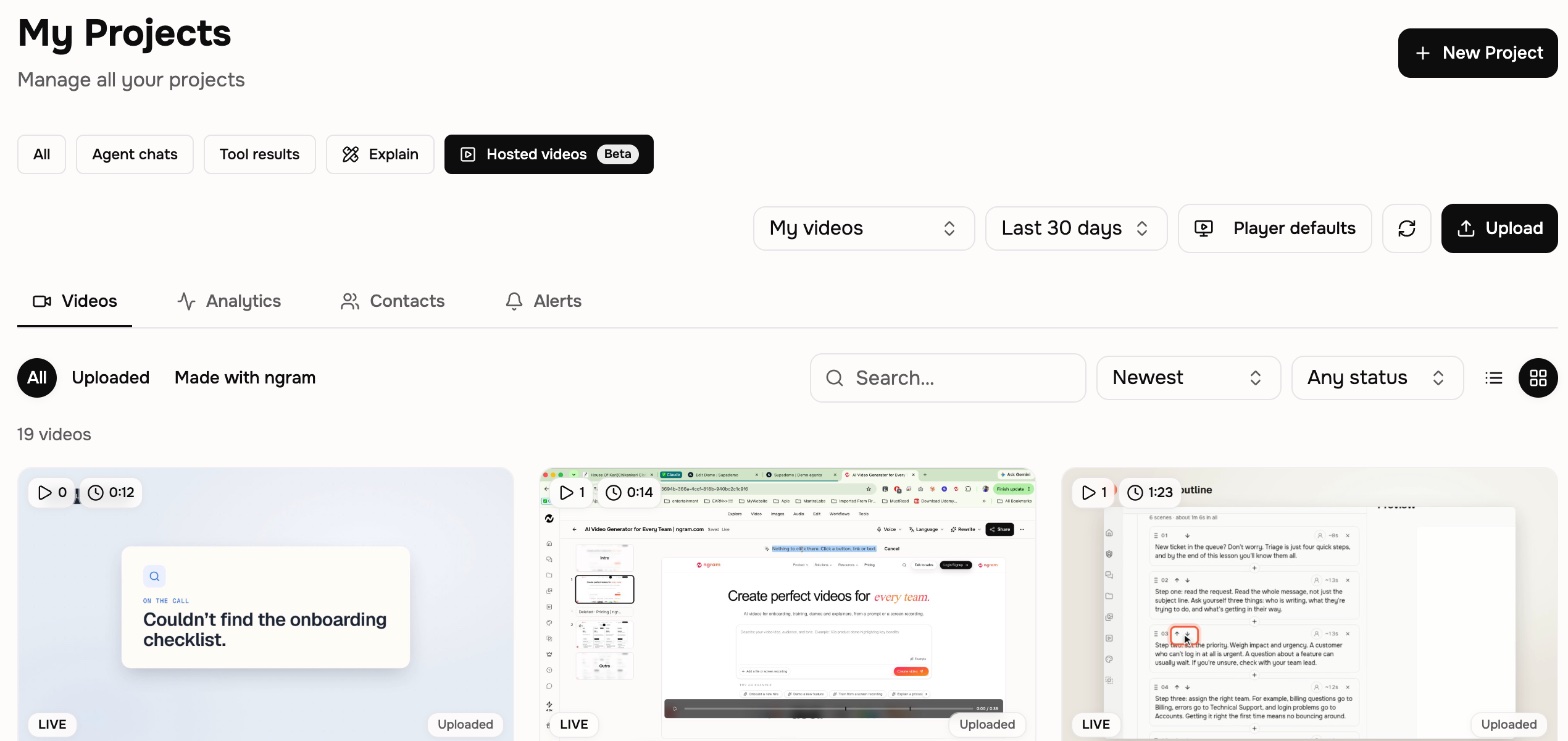
Once a video has a link, its video page has five tabs: Overview for its player and stats, Settings for access, details, thumbnail and calls to action, Player for the player and chapters, Recipients for per-person links, and Versions for its history. To go back, choose Hosted videos in the breadcrumb at the top of the page.
Upload a video and publish its link
- Open Projects and choose the Hosted videos tab. Choose Upload and pick one or more files. You can also drop files onto the page.
- Keep working while the files upload. The upload panel in the bottom-left corner shows progress on every ngram page.
- Wait for the video to change from Processing to Ready to publish. This usually takes a few minutes.
- Choose Copy link on the video. Because the video has no link yet, this opens Publish video. Check the Title: viewers see it, and it appears in the link.
- Choose Publish and copy link. The link is copied and the video shows Anyone with the link.
Anyone with the link can watch. The page is kept out of search engines and off your public video gallery.
Add a video you made in ngram
A video made in ngram joins Hosted videos when you share it with an unlisted link. Unlisted links start on Basic.
- Open the finished video in ngram and choose Download and export.
- Set Visibility to Unlisted.
- Turn on the switch at the top of the menu. The status changes to Published and Anyone with the link can watch.
- Choose Public link to copy the link, or Embed for website code.
- Choose Open video page to manage it in Hosted videos. To find it there later, choose the Made with ngram source filter.
Choose Public instead when you want the video on your public profile and eligible for search engines. A public video uses its own watch page, which you manage from the same menu.
Embed the video on a website
- Choose Embed on the video in Hosted videos or on its video page.
- Under Size, choose Responsive to fill the width of the page, or Fixed for a set size.
- Choose whether to show the ngram logo, the video title and the share button.
- Copy the code from Script, or from iframe if your site builder removes scripts, with Copy code. Paste it into your page.
For tools that embed from a link, such as Notion, copy the Embed link instead. The embedded video stays unlisted.
Add captions, details, chapters and a thumbnail
- Captions: when someone speaks in an uploaded video, ngram transcribes it and adds captions that viewers can turn on. A video made in ngram keeps its captions as a track viewers can turn off. To show captions from the start, choose a language in Captions on by default on the Player tab.
- Title and description: after an upload processes, ngram writes a title, description and chapters from what is said in it. Rename the video by selecting the pencil beside its title. Edit Description under Details, which moves to the Settings tab once the video has a link, then choose Save description.
- Chapters: on the Player tab, write one chapter per line in Your chapters (a time, then a title, starting at 0:00) and choose Save chapters. Choose Use automatic chapters to go back.
- Thumbnail: on the Settings tab, choose Upload thumbnail and pick a PNG, JPEG or WebP image up to 5 MB. Every version shows it. Choose Use the video's own to go back.
Replace a video without changing its link
When an uploaded video needs an update, add a new file to the same hosted video. The link, embeds and stats stay.
- Open the video page and go to Versions.
- Choose Upload new version and pick the new file.
- When the new version finishes processing, choose Make live, then confirm Make live.
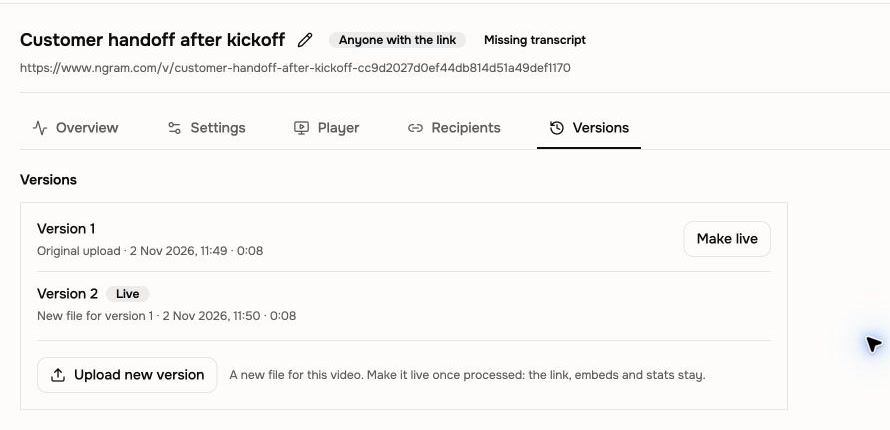
Every existing link and embed now plays that version. To go back, choose Make live on the earlier version.
For a video made in ngram, revise it in ngram and open Download and export. When it says Live link is showing the older cut, choose Update. The same link and embeds then play the new cut. On Premium and Ultimate, the video's Versions tab lists each published version, and Restore switches the link back to an earlier one.
Customize the player
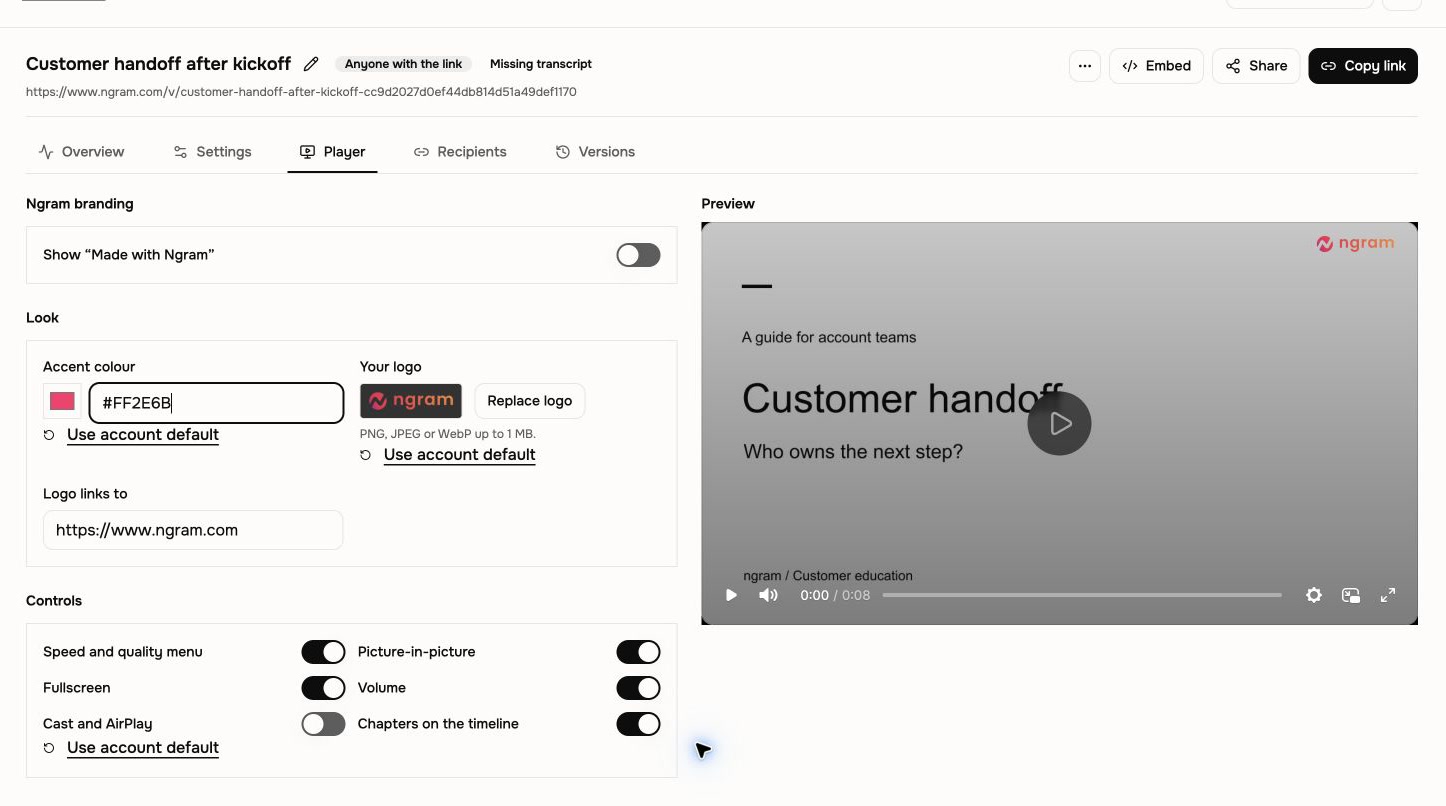
Open a video's Player tab to change the player for that video. To set defaults for every video, choose Player defaults in the Hosted videos toolbar. Each video uses those defaults unless you change them on its own Player tab. Hiding the ngram badge starts on Basic, and look and controls start on Premium. For an overview of the player, see Custom video player.
- ngram branding: turn off Show “Made with ngram” on any paid plan. On Free, the badge always shows.
- Look (Premium and Ultimate): choose an Accent colour, upload Your logo (PNG, JPEG or WebP up to 1 MB) and set where the logo links.
- Controls (Premium and Ultimate): show or hide the speed and quality menu, picture-in-picture, fullscreen, volume, Cast and AirPlay, and chapters on the timeline.
- Playback: set Autoplay (it starts muted), Loop, Start at (seconds), Captions on by default and Player language.
Choose Save player. Viewers see the change within about a minute. Use account default returns a setting to your defaults.
Turn off, publish again, or delete
- Turn off link: choose ⋯ on the video, then Turn off link. The link and every embed stop working within 5 minutes, and stats are kept. Choose Publish again to bring the same link back. Turning off Unlisted link on the video's Settings tab does the same thing.
- Delete: for an uploaded video, choose ⋯, then Delete. It leaves Hosted videos, and its link and embeds stop working. This can't be undone.
- Embed code you pasted on another site stays there until you remove it, but it no longer plays.
To add a password, an expiry date or a link for each recipient, follow Protect hosted video links and read viewer analytics.
What you should see
A published video shows Anyone with the link in Hosted videos. Its video page shows the link under the title, with Embed, Share and Copy link buttons. After you make a new version live or update a video made in ngram, open its link in a private browser window and confirm the version you expect plays.
If something does not work
- Processing failed: the video shows the reason. Choose Remove, check that the file is a video under 4 GB, and upload it again.
- Upload or Copy link explains plan options: uploading and publishing start on Basic. Videos you already published keep playing.
- The link plays an older version: open Versions and check which version is Live, then choose Make live on the one you want. For a video made in ngram, choose Update in Download and export.
- This video was taken down: its link and embeds no longer play. Contact Support if you think this is a mistake.
Plan availability
| Capability | Free | Basic | Premium | Ultimate |
|---|---|---|---|---|
| Public watch link and embed for a video made in ngram | Included | Included | Included | Included |
| Upload videos and publish unlisted links | Not included | Included | Included | Included |
| Upload a new version and make it live | Not included | Included | Included | Included |
| Hide the “Made with ngram” badge | Not included | Included | Included | Included |
| Accent colour, logo and player controls | Not included | Not included | Included | Included |
| Branded watch page | Not included | Not included | Included | Included |
| Restore an earlier version of a video made in ngram | Not included | Not included | Included | Included |
| Password, expiry and recipient links | Not included | Not included | Included | Included |
| Email gates and forms, full audience analytics | Not included | Not included | Not included | Included |
Plays and viewer counts are available for every hosted video. Protect hosted video links and read viewer analytics lists which analytics each plan includes.
Hosted videos FAQ
Keep going
Add a password or expiry date, send recipient links, and see who watched.
Send each person their own link, see who opened it, and follow up.
Choose public or unlisted sharing for a video made in ngram.
Download an MP4 when another system needs the file itself.