Design the opening once. Use it again.
Create an intro or outro slide in Brand Kit, refine it with AI or direct edits, and save the design. Choose it for each video that needs the same opening, series identity or closing call to action.
- Create a slide from written direction or a template
- Edit text, images, shapes, layers and timing
- Save designs in Brand Kit and select them per video
Trusted by teams at


The next video needs a new message, not a rebuilt opening
A release series, course, or client campaign can share a visual identity while each video keeps its own title and next step.
A recurring series repeats the same setup
Rebuilding the logo, title and closing CTA wastes the design decisions already made.
A saved export is hard to adapt
Changing a title, image or layout works better when the slide design remains editable.
Not every video needs bookends
A short social cut may need to start immediately, while a training module benefits from a recurring opening.
Reuse the slide when it fits the video and leave it off when it does not.
Keep an editable design in the kit
Build an editable opening or closing slide in Brand Kit. Use written direction and reference images, refine the text, layers, and timing, then save the design. Select it when creating a video that needs that opening or CTA.
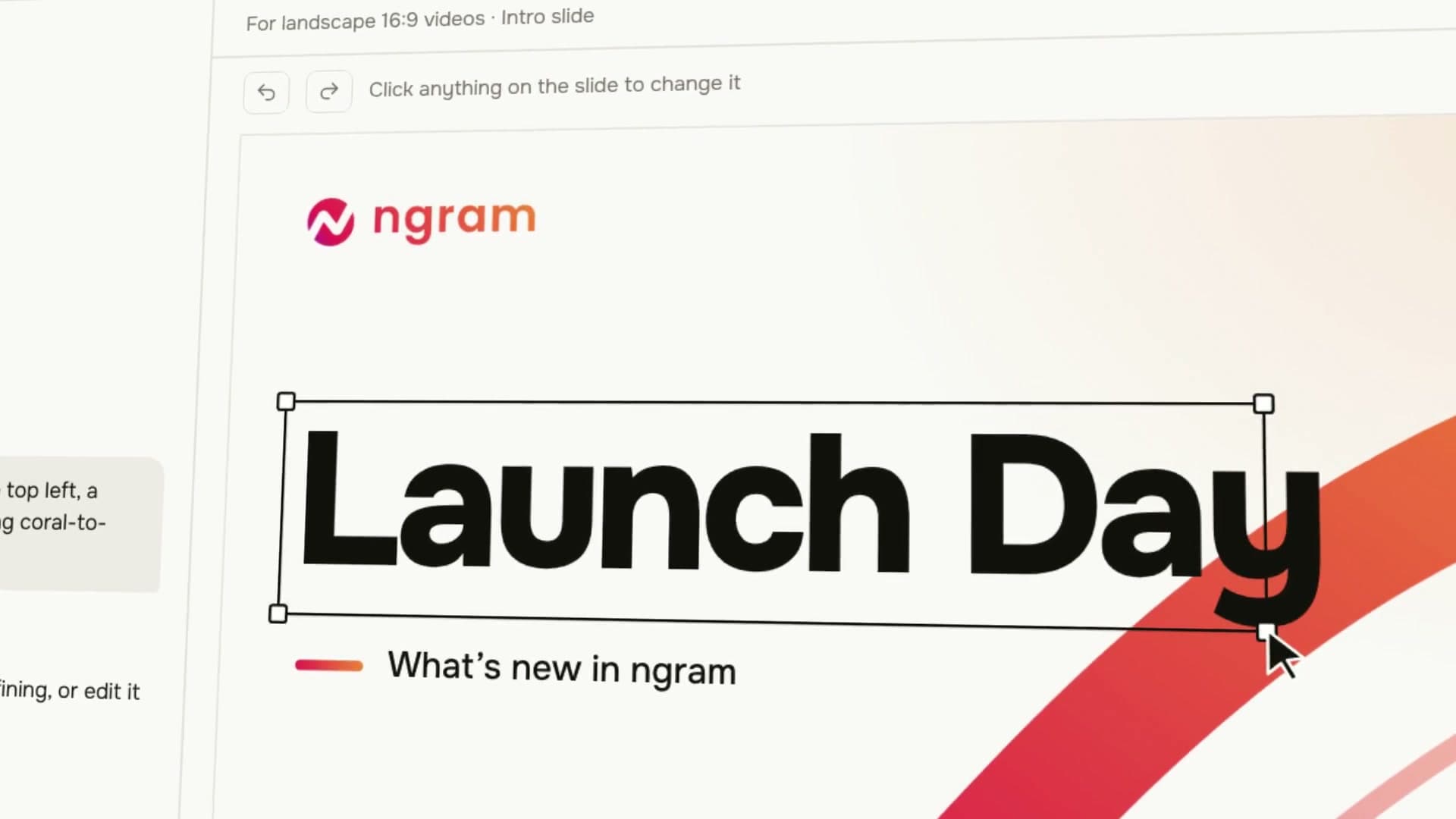
Reuse the slide when it fits the video and leave it off when it does not.
Start with a design
Choose Create template or Add from templates in Brand Kit. Use AI direction and reference images to shape the slide.
Refine the details
Edit text, images, shapes, layers and timing directly, or ask AI for a change. Save the design back to the kit.
Choose it for the video
Select the Brand Kit in the composer, then choose the saved intro and outro. Both start Off so the choice stays specific to this video.
Give the next video a familiar beginning or ending
Keep reusable designs for release updates, course modules, and client campaigns, then choose the slides that fit each new video.
A familiar opening for a new update
Reuse the design while changing the release title and the message in the video.
A consistent start to each lesson
Give lessons a shared visual identity and an ending that points to the next step.
The right closing for each campaign
Keep reusable slide designs with the client’s kit and select the closing that fits the current deliverable.
Start with Intro and Outro Templates
Create and save the design in Brand Kit, then select the kit and the slides when starting a new video. Intro and outro both start Off.
Open the slide library
Open Brand Kit and choose Create template or Add from templates. Slide authoring is available on Premium and Ultimate.
Edit and save the slide
Use written direction, reference images or direct editing to refine the design. Save the intro or outro in the kit.
Select the saved design
For a new video, select the kit and choose the intro or outro you want. Leave either Off when the video should start or finish without it.
Use Intro and Outro Templates for a real task
Feature announcements
Reuse the design while changing the release title and the message in the video.
Educator course content
Give lessons a shared visual identity and an ending that points to the next step.
Agency client deliverable
Keep reusable slide designs with the client’s kit and select the closing that fits the current deliverable.
Find the job your video needs to do
Reuse a series identity across launches or lessons, and keep a choice of closing slides for different campaigns and next steps.
PMM Feature Announcement
Drop a screen recording, paste the release notes, or point at the PR — ngram gives you back a feature announcement video with smart zooms on every new interaction, captions, and your brand kit, built for B2B PMMs whose marketing velocity keeps falling behind engineering's.
Educator Course Content Video
Drop in a rough lecture take or paste your module outline. A course video maker built for educators hands you back focused 6-minute lessons with smart zooms on every diagram, captions, and consistent module branding.
Agency Client Deliverable Video
A client deliverable video pipeline built for agencies running multiple retainers. Turn raw recordings, briefs, or client URLs into polished explainers, social cuts, and demo walkthroughs before the next status call — no editor backlog, no freelancer coordination.
PM Internal Update
Record a quick walkthrough of your sprint board. Get back a polished async video update the Berlin team, your VP, and the new hire all watch on their own clock. An internal update video that respects every time zone.
Marketing Brand Video
A brand video maker for marketing teams whose quarterly video budget covers three agency projects and nothing else. Drop in product footage, a positioning doc, or a brand-style URL. Get back a polished marketing brand video locked to your brand kit in under an hour.
Creator Brand Content Video
Turn raw creator footage into polished branded video your sponsors repost on their own channels. Match the brand kit on first delivery, ship same-day revisions, and turn one-shoot deals into multi-asset partnerships that justify premium rates.
Save an editable slide or reuse an exported clip
A saved slide keeps the design available for changes in Brand Kit. A finished video clip is another reusable asset, but changing it requires its own edit.
| Capability | Intro and Outro Templates | Exported opening or closing |
|---|---|---|
| Reusable material | ● Editable design saved in Brand Kit | A finished opening or closing video file |
| Changing a title | ● Edit the slide and save the design | Edit the original project and export again |
| Adding it to a video | ● Select the kit and chosen slide | Insert the exported clip |
Carry the same identity through the whole video
The saved slides handle the opening and close. Use brand direction, scene editing, and motion graphics to shape what happens between them.
Keep slides with the right brand
Store the opening and closing designs alongside the kit’s logo, colors, and fonts. Select the kit for the video, then choose the saved intro and outro separately.
Refine the video between the slides
Adjust the message, narration, or scene after generating the video. Check that the opening still introduces the story and the closing CTA fits the final explanation.
Use matching labels inside the story
Add callouts and explanatory graphics over generated or uploaded footage. Keep those details consistent with the video’s selected brand direction and saved opening or closing.
Reuse the slides with each new source
A fresh release note, lesson, image collection, or script can become the next video in a recurring series.
Release notes to Video
Turn the latest shipped changes into a new release video. Select the series intro and the closing action that fit this update while keeping the feature story current.
Training material to Video
Create the next lesson from its approved procedure or learning objective. Choose a saved course opening and an optional exercise or next-module closing slide.
Gallery to Video
Build a video from the chosen product or campaign images. Add the saved opening and closing that belong to that collection, leaving either off when the images should lead.
Script to Video
Use the approved script for the new message, then select the relevant saved slides. Check that the intro title and closing CTA still match the words in this version.
Work on the opening, closing, or complete brand story
Use these workflows for a focused creative brief. Reusable slide designs are created and saved in Brand Kit.
Plan the first impression
Define the logo, title, and visual direction for the opening. Use Brand Kit’s slide library when you want to save an editable design for future videos.
Give the viewer a next step
Choose the closing message and CTA for the campaign. Save a reusable outro slide in Brand Kit when the same ending belongs in later product or training videos.
Create a separate logo reveal
Build an animated logo asset when the opening needs a motion treatment. Keep the finished asset with the brand materials; it is separate from an editable saved slide design.
Carry the identity beyond the bookends
Bring the campaign message, visual references, and product context into a complete brand video. Choose the saved opening and closing that fit this particular story.
Start recurring videos with the right Brand Kit
A configured integration can create a video using an existing Brand Kit. Create, edit, and select saved intro and outro slides in Studio.
Choose the intro and outro for the individual video rather than assuming they follow the kit automatically.
Browse integrationsQuestions about Intro and Outro Templates
Where do I create a reusable intro or outro?
Can AI help design the slide?
What can I edit directly?
Does selecting a Brand Kit automatically add its slides?
Can I use only an outro?
Which plans include slide authoring?
Design the opening once. Use it again.
Create the opening or CTA your next series will reuse, then choose it for each video that needs it.
Create a slide from written direction or a template