Read before this
Read these direct prerequisites in order. Each guide lists any earlier context it assumes.
API keys are self-service
Every signed-in user can open Settings → API Keys and create a credential. No separate developer-access request, allowlist, or sales step is required.
Open your profile menu
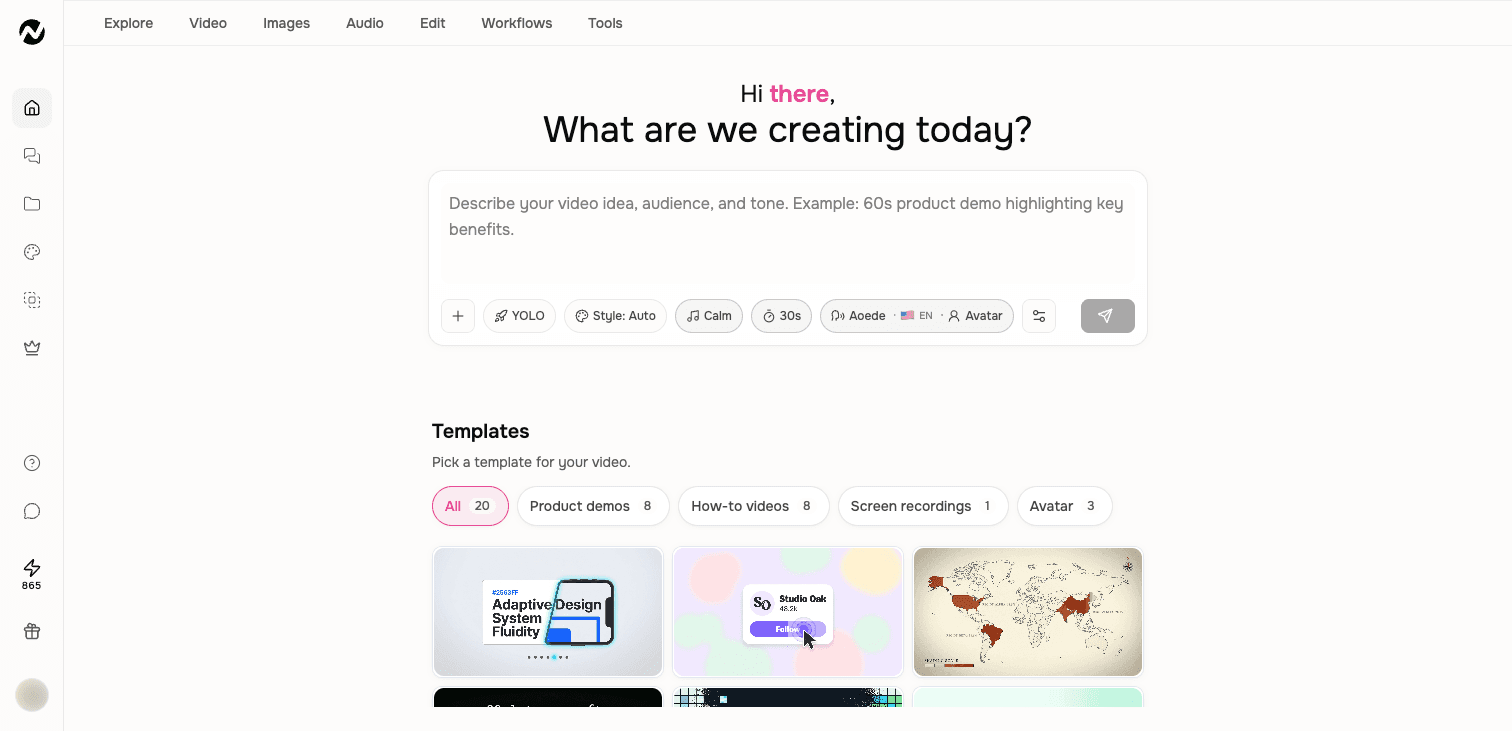
Look at the bottom-left corner of the sidebar. You will see your profile avatar. Click it to open the account menu.
Open Account & Settings
A small menu appears with your account details, team controls, and account actions. Click "Account & Settings".
Click API Keys
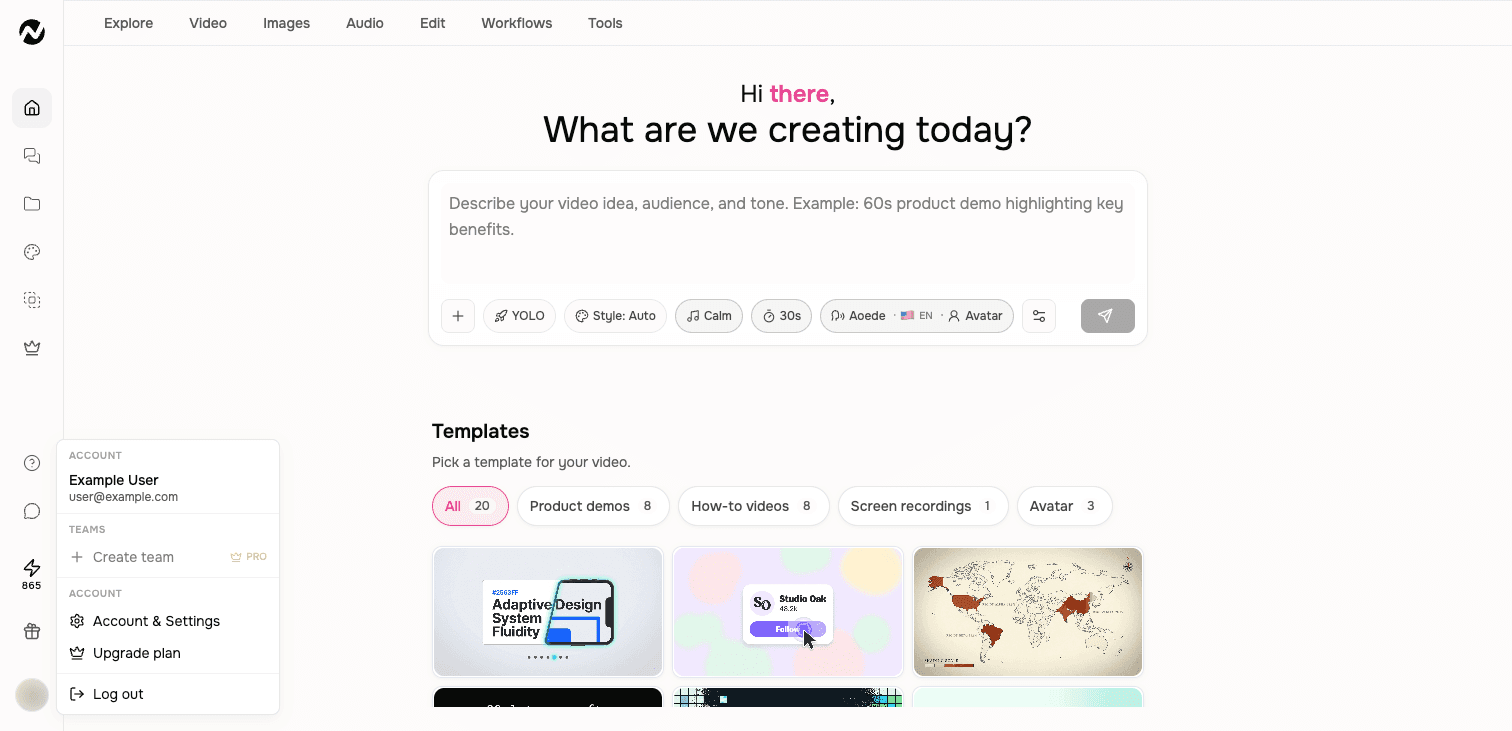
Inside Account & Settings, find and click API Keys in the left navigation. You will see the API Keys management page with a Create API Key button.
Name and create your key
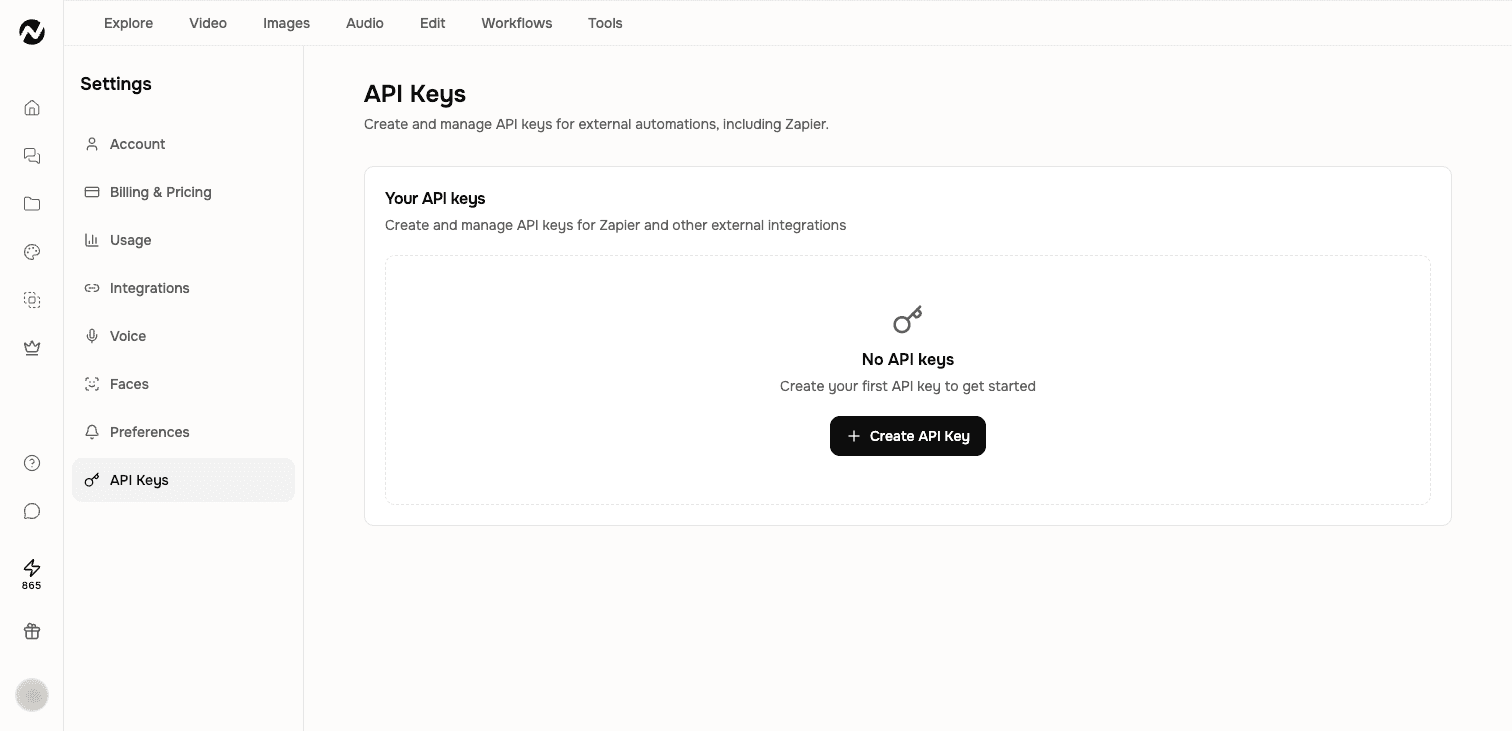
Click "+ Create API Key". A dialog asks for a name and an optional description. Use a name that reminds you where you will use this key, for example "Zapier", "MCP", or "My app". Click Create API Key to confirm.
Copy your key immediately
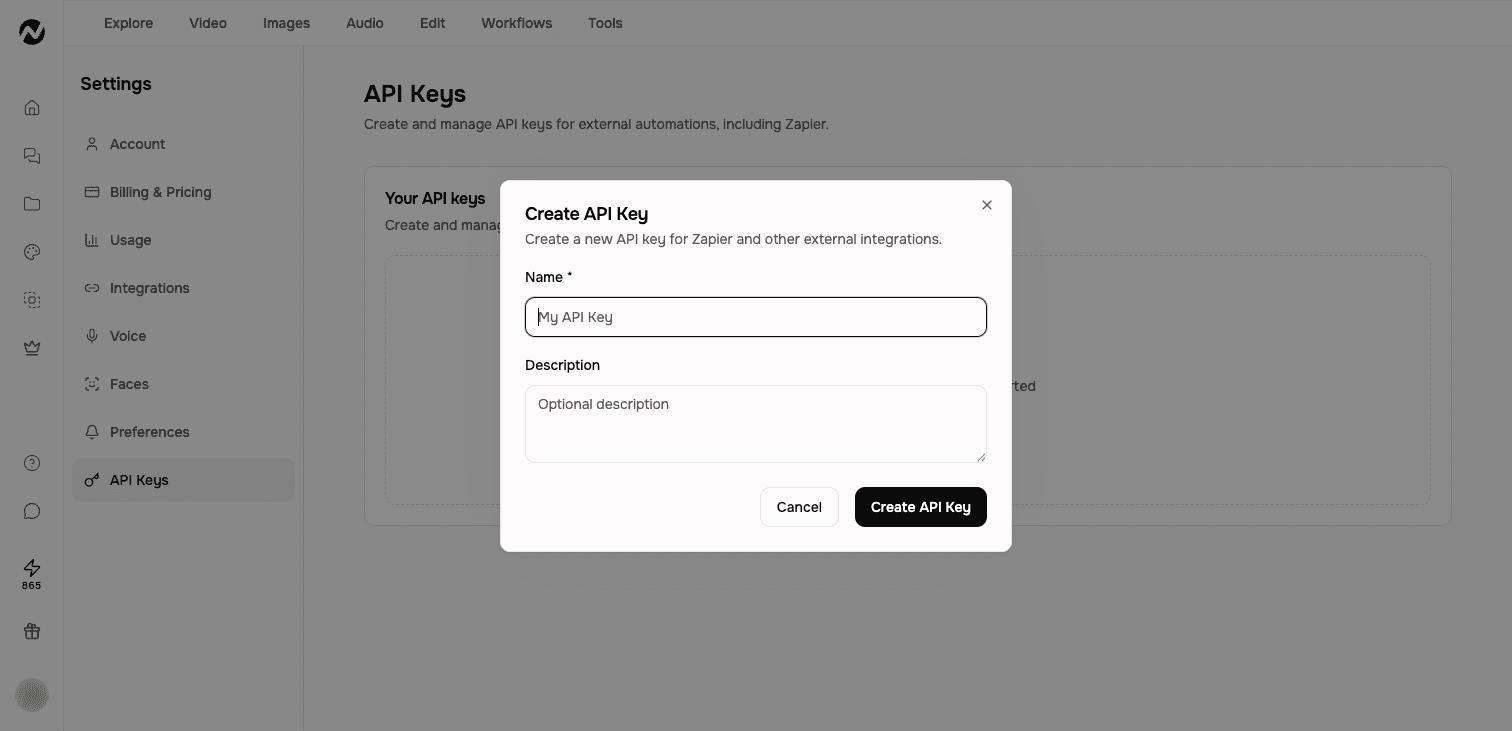
After creation, ngram displays the full key once. Copy it now. After you dismiss the screen, the key is masked and cannot be retrieved. Delete it and create a new one if you lose it.
Use your key with a supported surface
Your key starts with ngs_ and works as a Bearer token. Use it with the REST API or a supported credential-based setup for MCP, Zapier, or n8n. A connector that authenticates inside its own interface may not ask you to paste a key.