Remove Background Noise from Video by ngram
Remove Background Noise from Video before you polish the full story

Drop a video or click to upload
MP4, MOV, WebM, MKV - phone takes, webcam recordings, webinars, demos, talking heads
What it does
Clean the audio in a screen recording, customer interview, or product demo, then continue into the work that makes it useful: captions, trims, callouts, brand, and campaign-ready cuts.
Trusted by teams at












How it works
Clean the audio inside the clip, then finish the video.
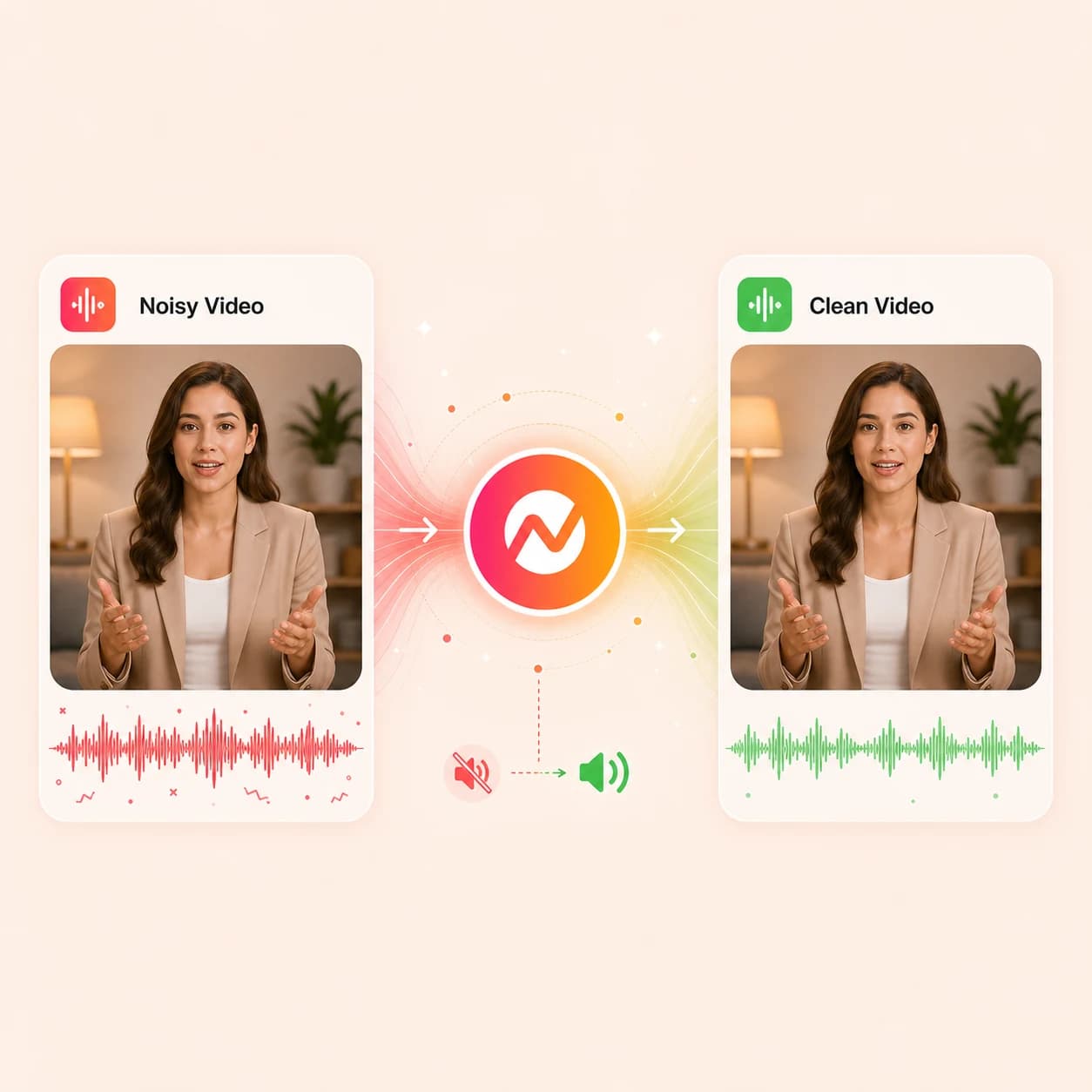
ngram pulls the audio out of the video, reduces background noise around speech, and stitches the clean track back onto the picture so the clip stays editable.
Upload the noisy video
Bring in a webcam take, phone recording, webinar segment, sales demo, screen capture, or talking-head clip with speech buried under room tone.
Source ready
Clean the audio track on the clip
ngram extracts the audio, reduces room tone, hum, wind, keyboard taps, fans, and traffic around the speaker, then re-attaches the cleaned track to the original video.
Noise reduced
Review the cleaned video
Play the clip back, listen through names, product terms, and quieter lines, and compare the cleaned track against the original take before moving on.
Voice checked
Keep editing the same project
Add captions to the cleaned audio, layer text and callouts, apply the brand kit, translate, and download the MP4. Prepare and review any vertical or square framing separately in the editor.
Ready to publish
What it can do
What video noise cleanup unlocks in ngram.
The cleaned clip stays in the same project, so every follow-up edit reuses the new audio without exporting and re-importing.
Process the audio inside the video
ngram extracts the audio track from the uploaded clip, cleans it, and writes it back to the video. The picture, timing, and cuts stay untouched.
Target distracting recording noise
Reduce room tone, AC hum, wind, keyboard taps, fan noise, and street traffic around the speaker without flattening the voice.
A/B the take before export
Listen to the cleaned video next to the original, then keep the version that still sounds like the speaker at full export quality.
Caption the clean track
Burn captions to the cleaned audio so transcripts, subtitles, and translated lines match what the viewer actually hears.
Layer text on the same project
Add titles, lower thirds, step labels, and product callouts on the cleaned clip without rebuilding the timeline.
Resize, brand, and export
Continue into brand styling and translated voiceover, then download the MP4. Prepare and review any vertical or square framing separately in the editor.
Built for video files where the audio matters
When it matters
Videos where the audio is the message.
These workflows usually arrive as rough video recordings. Cleaning the audio inside the clip is the first edit that makes the rest of the project usable.
Customer Testimonial Video
Customer call recordings often pick up room tone and background chatter. Clean the audio inside the clip before turning it into a captioned testimonial with brand framing.
Open AI video use caseSales Demo Video
Live demo recordings carry keyboard taps, fan hum, and meeting-room echo. Clean the noise off the demo clip and keep the screen recording, captions, and callouts editable.
Open AI video use caseWebinar Clips
Webinar exports come with audience noise, mic bleed, and venue tone. Clean the original recording so the short clips you cut for LinkedIn and Shorts sound like the speaker, not the room.
Open AI video use caseProduct Demo Video
Turn product recordings and source notes into a clear demo video with captions, brand, and export settings kept together.
Open AI video use caseTraining Video
SME recordings are usually captured on a webcam mic with the office in the background. Clean the noise off the lesson clip so trainees can follow every step.
Open AI video use caseMeeting Recap Video
Meeting platform exports pick up shared mics, side conversation, and notification chimes. Clean the recap recording so the decisions and action items read clearly on the timeline.
Open AI video use caseCustomer Onboarding Video
Loom-style walkthroughs catch household sound and tab notifications. Clean the audio inside the onboarding clip so new users get a quiet, step-by-step explanation.
Open AI video use caseInternal Communication Video
Leadership updates and async messages are often filmed at desks with open offices around them. Clean the recording so the announcement does not lose people to background hum.
Open AI video use caseDevRel Conference Talk Video
Stage recordings come with crowd reactions, projector fans, and HVAC noise. Clean the talk track on the video so the same clip works as a tutorial, social cut, and evergreen developer asset.
Open AI video use caseProduct stack
What comes next after the video is cleaner.
A cleaner spoken track changes what the rest of the editor can do. These features pick up where the cleanup step ends.
Video Editing
Trim, rearrange, and adjust the cleaned clip on the timeline, or describe a change to the agent without leaving the project.
Learn more about video editingCaptions and Subtitles
Generate captions burned to the cleaned audio so every line on screen matches what the viewer hears in the video.
Learn more about captionsScreen Recording Polish
Most noisy uploads are screen captures. Pair the cleaned audio with cursor smoothing, click emphasis, smart zooms, and step labels on the same clip.
Learn more about screen recording polishAI Voiceover
If the original take is unsalvageable in spots, replace those moments with AI voiceover synced to the cleaned video and the existing scene timing.
Learn more about AI voiceoverTranslation and Localization
Send the cleaned spoken track into transcript translation, captions in other languages, and multilingual voiceover for localized versions of the same clip.
Learn more about translationMotion Graphics
Add lower thirds, callouts, and branded overlays on top of the cleaned clip so the visual layer carries the same intent as the spoken track.
Learn more about motion graphicsMore tools
Adjacent tools for noisy video work.
Cleanup is one step. These tools handle the source, the cut, and the publishable version of the same clip.
Sister cleanup workflows
Same idea, different starting material
Remove Background Noise from Audio
Same cleanup but for standalone audio files like podcast cuts, voice memos, or interview MP3s, before they need a video at all.
Open toolVideo to Audio
Pull just the audio out of the video if the voice track will be reused, transcribed, or rebuilt elsewhere.
Open toolAudio to Text
Run the cleaned voice track through transcription to get a clean transcript for the script editor or captions.
Open toolFinish the cleaned video
Build the rest of the clip around the new audio
Add Subtitles to Video
Generate styled subtitles using the cleaned audio as the source so the captions track the speaker without dropouts.
Open toolAdd Text to Video
Layer titles, lower thirds, and section labels on top of the cleaned clip without breaking the existing timeline.
Open toolAdd Music to Video
Drop background music under the cleaned speech and keep the mix balanced so the voice still sits forward.
Open toolVideo Editor
Trim, cut, caption, brand, and export the cleaned video on the same timeline the cleanup step writes to.
Open toolWhen cleanup is not enough
Replace the noisy take instead of polishing it
Text to Speech Video
Type a clean version of the line and let ngram speak it. Useful when the original audio is too damaged to save.
Open toolAI Voice Generator
Generate a clean narration track from a script and drop it over the salvaged picture from the noisy clip.
Open toolVoice Dubber
Replace the original spoken track with a dubbed version while keeping the speaker on screen.
Open toolScreen Recorder
Re-record the walkthrough in-browser with a quieter setup if the original take is past the point of cleanup.
Open toolConvert
Source-to-video flows that often arrive noisy.
Most cleanup jobs start with a video that came out of one of these source workflows. Use the converter when the source format matters as much as the noise.
Screen Recording to Video
Raw screen captures usually carry the most background noise. Turn the recording into a polished walkthrough where the audio cleanup is built into the pipeline.
Open converterWebinar to Clips
Webinar masters are long and noisy. Cut them into focused clips while the speaker track stays cleaner than the original venue audio.
Open converterVideo to Audio
Pull the audio out of the noisy video first if the cleaned voice track needs to live as a separate file for a podcast or transcript.
Open converterWho it is for
Teams that ship videos with audio they did not record in a booth.
Real recordings come in noisy. These teams need the speech track to survive the edit so the rest of their video workflow is worth running.
Product Marketing
Launch films and feature demos that started life as a Loom from a PM. Clean the audio so the launch reel does not sound like a hallway recording.
See product marketing workflowsSales Enablement
Prospecting videos and demo follow-ups recorded between calls. Clean the noise so the buyer hears the pitch, not the open office.
See sales workflowsCustomer Success
Onboarding walkthroughs and QBR clips filmed at a desk. Clean the audio so the customer-facing video sounds intentional, not improvised.
See CS workflowsSupport Teams
Help center clips and ticket-response Looms come straight from a support rep's mic. Clean the recording before the answer goes out to the customer.
See support workflowsDeveloper Relations
Conference talks and API walkthroughs filmed in venues or home offices. Clean the talk track so the same recording works as tutorial, clip, and blog companion.
See DevRel workflowsGrowth Marketing Teams
Repurpose webinars, launch assets, and campaign source material into channel-ready business video.
See growth marketing workflowsEducators and Trainers
Lessons recorded in classrooms, labs, or living rooms carry the room with them. Clean the lesson track so learners follow the explanation, not the background.
See educator workflowsHR and Internal Comms
Leadership updates filmed on a laptop carry desk noise and the office around it. Clean the recording before it lands in the all-hands inbox.
See HR workflowsIntegrations
Wire video cleanup into the place the recording lives.
Each integration below maps to a live ngram integration page and a local app route. Use them when a noisy video shows up somewhere other than the editor.
Chrome Extension
CaptureWhenYou spot a noisy product video, demo replay, or webinar segment in the browser
ThenSend the clip to ngram with the source URL so cleanup starts inside the project
Zapier
No-codeWhenA new video upload lands in Drive, Dropbox, or your support ticketing tool
ThenUse the documented video-generation action with supported text or URL context, then open ngram to clean the clip and notify the owner
n8n
WorkflowWhenA demo recording or training video changes state in your asset pipeline
ThenUse n8n's documented video-generation action with supported text or URL context, then open ngram for cleanup before captions and brand are applied
MCP Server
AgenticWhenAn AI agent receives a video file with audio that needs cleanup before publishing
ThenUse MCP for supported video or image calls, then open ngram to clean the clip and return the reviewed project link
WhenThe noise-cleaned video is approved and ready for LinkedIn.
ThenCompose the LinkedIn post and publish the noise-cleaned video now.
YouTube
BetaWhenThe noise-cleaned video is approved and ready for YouTube.
ThenDraft the YouTube post and schedule one release for the noise-cleaned video.
Why ngram
How ngram compares for video noise cleanup.
Most noise removers either output an audio file or end at a cleaned download. ngram keeps the cleaned video inside a project that can still be captioned, branded, resized, and translated.
| Compare | ngram | VEED | Descript | Kapwing |
|---|---|---|---|---|
| Workflow fit | Cleans the audio inside the uploaded video and writes the cleaned track back to the same clip. | VEED's Clean Audio runs Dolby-powered noise removal directly on the uploaded video timeline. | Descript Studio Sound enhances voice and removes background noise on uploaded media inside a transcript-first editor. | Kapwing's Clean Audio removes background noise inside its browser-based video editor. |
| How ngram fits | Keeps the project editable for captions, on-screen text, brand kit, reframing, translation, and export. | Good fit when the job is a one-off browser edit on a single clip. | Strong fit when the workflow is podcast-style audio cleanup or transcript-driven cuts. | Good fit for quick collaborative edits around a single asset. |
| Best use | Best when the noisy clip needs to become a finished demo, testimonial, training video, or launch reel. | Compare with ngram when the cleaned video has to become a structured project across channels. | Compare with ngram when the cleaned recording is a video that still needs storyboard, brand styling, and an MP4 download. | Compare with ngram when the cleaned clip is one input into a bigger source-to-video workflow. |
FAQ
Common questions about removing background noise from video
Still curious?
Quiet the room. Keep the take.
Drop the noisy video in, let ngram clean the audio inside the clip, and keep the project ready for captions, brand, resizing, translation, and export.
One upload becomes a video you can finish, not a download you have to re-edit somewhere else.
Cleanup, captions, brand, export