Cliniko online booking, in conversation
Two fictional AI presenters explain the public booking workflow using real product screens.
Turn a product question, interview or lesson into a scripted exchange. Give each speaker a role, provide the facts, and let ngram pair distinct voices and presenters with the explanation.
Trusted by teams at


A questioner and an expert can give an explanation a natural order: the point of confusion, the answer, and the example that makes it clear.
A long monologue can reach the answer before it has made the question clear.
An interview needs clear turns and voices so viewers know who is asking and who is answering.
A useful product or training exchange needs the approved facts and relevant source visuals.
Plan the exchange around what the viewer needs to understand.
Set the speaking roles and the facts each answer should use. Choose the lead voice or presenter, describe the remaining speakers, and show the source screens or diagrams while they discuss the topic.
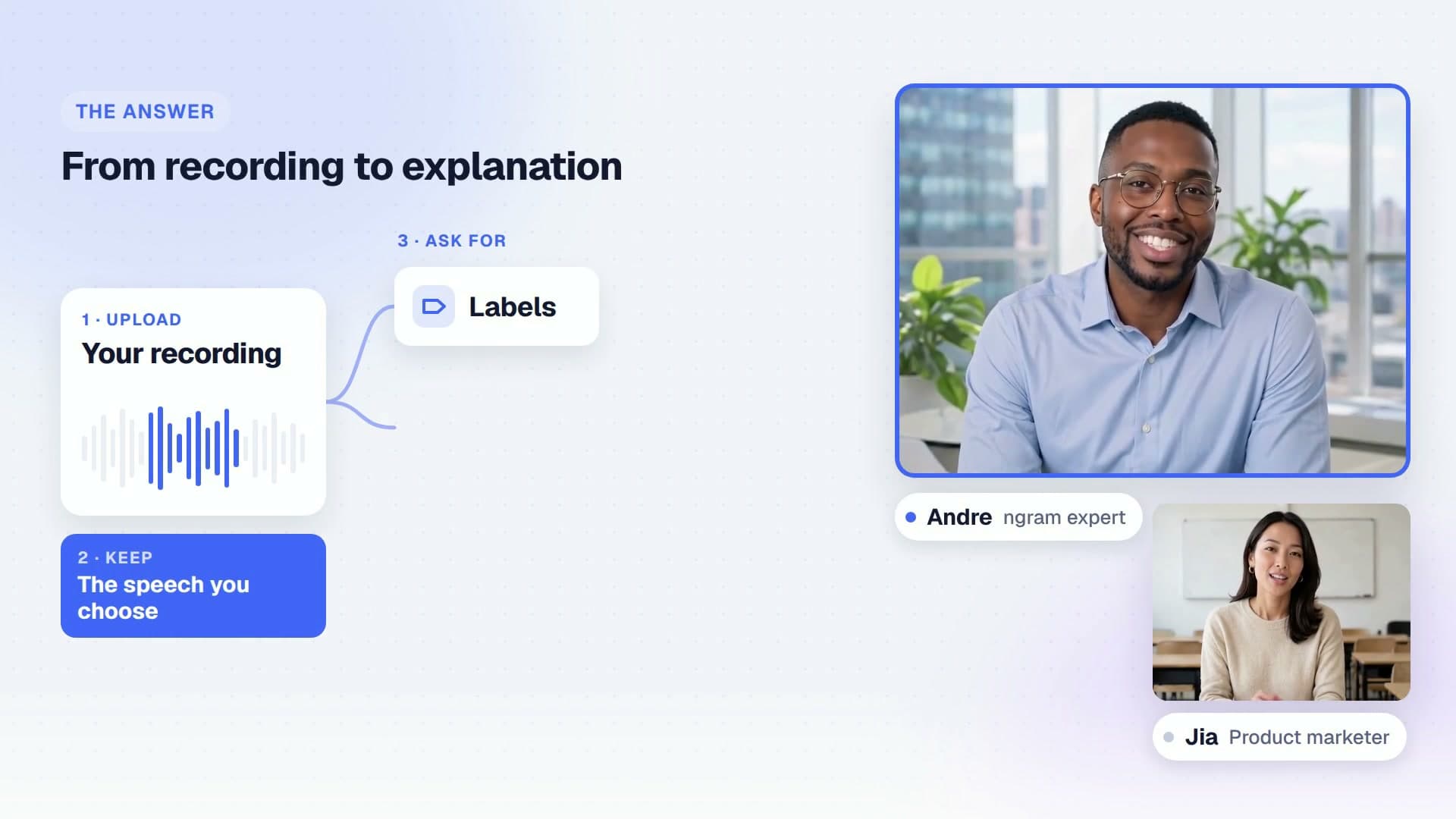
Plan the exchange around what the viewer needs to understand.
Choose a questioner, expert or other speakers. Specify what each should contribute and the questions the video must answer.
Attach the source and approved claims. ngram can show the product screens, diagrams or footage the speakers are discussing.
Choose the lead voice or presenter, describe the others, and request shorter answers or a different tone by speaker name or role.
Use the exchange to clarify a product decision, teach a procedure, or rehearse a response your team needs to give.
Pair practical questions with a product explanation and the screens that support it.
Use a learner and instructor to work through a procedure, with clear turns and approved answers.
Turn a recurring objection into a scripted exchange that reps can review before a call.
Two fictional AI presenters explain the public booking workflow using real product screens.
Choose Conversation style, describe the roles, and supply the questions and approved facts before reviewing the dialogue.
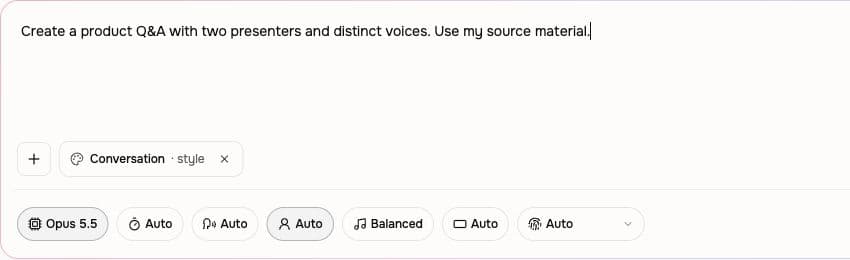
Select Conversation style in Studio with a presenter-compatible director. Describe the audience, topic and speaking roles.
Choose the lead voice or presenter and describe additional speakers in the brief. Include the questions and approved source facts.
Check the dialogue in the plan, generate the video and request changes to the named speaker or their explanation.
Let a questioner raise the support issue while an expert explains the approved answer and the relevant product steps.
Use a learner and instructor to work through a procedure, with clear turns and approved answers.
Pair a customer’s workflow question with an expert’s explanation of when to use the feature and what to do next.
Adapt the questioner and expert to the job: a customer learning a feature, an employee asking about a policy, or a learner working through a concept.
An FAQ video maker built for support teams turns each top question into a 60-second visual answer — smart zooms on every click, captions for muted browsing, embedded where customers actually look. Fewer "I read the FAQ but…" tickets. More self-service that works.
Record a procedure, paste a policy doc, or upload your SOP. A training video maker built for HR hands you back short, captioned, brand-matched modules that employees finish — not click-through to escape.
Drop in a quick walkthrough of the new feature. A feature education video maker built for CS teams hands you back a polished lesson with smart zooms, captions, and brand polish — the same week engineering shipped the build.
Record your product once. Spin up a personalized sales product demo for every prospect without waiting on Solutions Engineering — their workflow, their use case, their data on screen. Close faster with relevance.
Drop in a rough screen recording or paste your product URL. A product demo video maker built for SaaS hands you back a clean walkthrough with smart zooms, captions, and brand polish — no timeline editor in sight.
Drop in a rough lecture take or paste your module outline. A course video maker built for educators hands you back focused 6-minute lessons with smart zooms on every diagram, captions, and consistent module branding.
Use speaker turns when the question helps explain the answer. A continuous narration suits material that needs a more direct delivery.
| Capability | Conversation Mode | Single narration |
|---|---|---|
| The structure | ● Questions and answers with assigned roles | One continuous narration |
| Speaker identity | ● Distinct voices and optional presenters | One narrator or presenter |
| Revisions | ● Address a speaker and their answer | Revise the narration passage |
Coordinate the dialogue, delivery, and on-screen presenters so each role contributes something the viewer needs.
Choose a presenter for the lead role and describe the other speakers. Use side-by-side, full-frame, or picture-in-picture treatment where the conversation needs faces as well as voices.
Select the lead voice and describe the tone of each additional speaker. Listen for terminology and pacing, then request a change by speaker name or role.
Supply the source facts and decide what the questioner needs to learn. Shape each response around that question, with a supporting example before the conversation moves on.
A help article, approved script, or lesson plan gives the speakers a factual basis for their exchange.
Use recurring customer questions and approved answers as the dialogue outline. Give the questioner the point of confusion and the expert the relevant product steps.
Turn one procedure or lesson objective into a learner-and-instructor exchange. Include the approved scenario and the decision the learner should understand by the end.
Bring a dialogue you have already written and identify who says each line. Keep the wording as the basis for speaker delivery, supporting scenes, and later revisions.
Use current product documentation to ground an expert’s answers. Add the screenshots or diagrams needed to show the workflow while the speakers discuss it.
Start with the training scenario or product question, then work on the dialogue and voices.
Build a lesson around one workplace scenario and its approved response. Describe the learner and expert before using Conversation style in Studio.
Choose the narration voice that suits the lead speaker’s role. Describe the other speakers separately so a question and its answer remain easy to follow.
Define the product task the speakers are discussing and supply actual screens or a recording. Use the exchange to explain what the viewer sees in the demo.
Draft the questions, answers, and closing takeaway from the source material. Give each speaker a purpose before choosing presenters or generating the video.
Use a configured Zap to start a video job when an approved FAQ or lesson source is ready. Set and review the conversation’s roles in Studio.
Keep the approved answer with the job so later dialogue revisions use the same source.
Browse integrationsBring the question, the approved answer, and the roles that will make the exchange clear.
Give two or more speakers distinct roles and voices