Video Editor by ngram
Video Editor for the full business video workflow
Drop a video or click to upload
MP4, MOV, WebM, MKV - footage, demos, webinars, and recordings all open in the editor
What it does
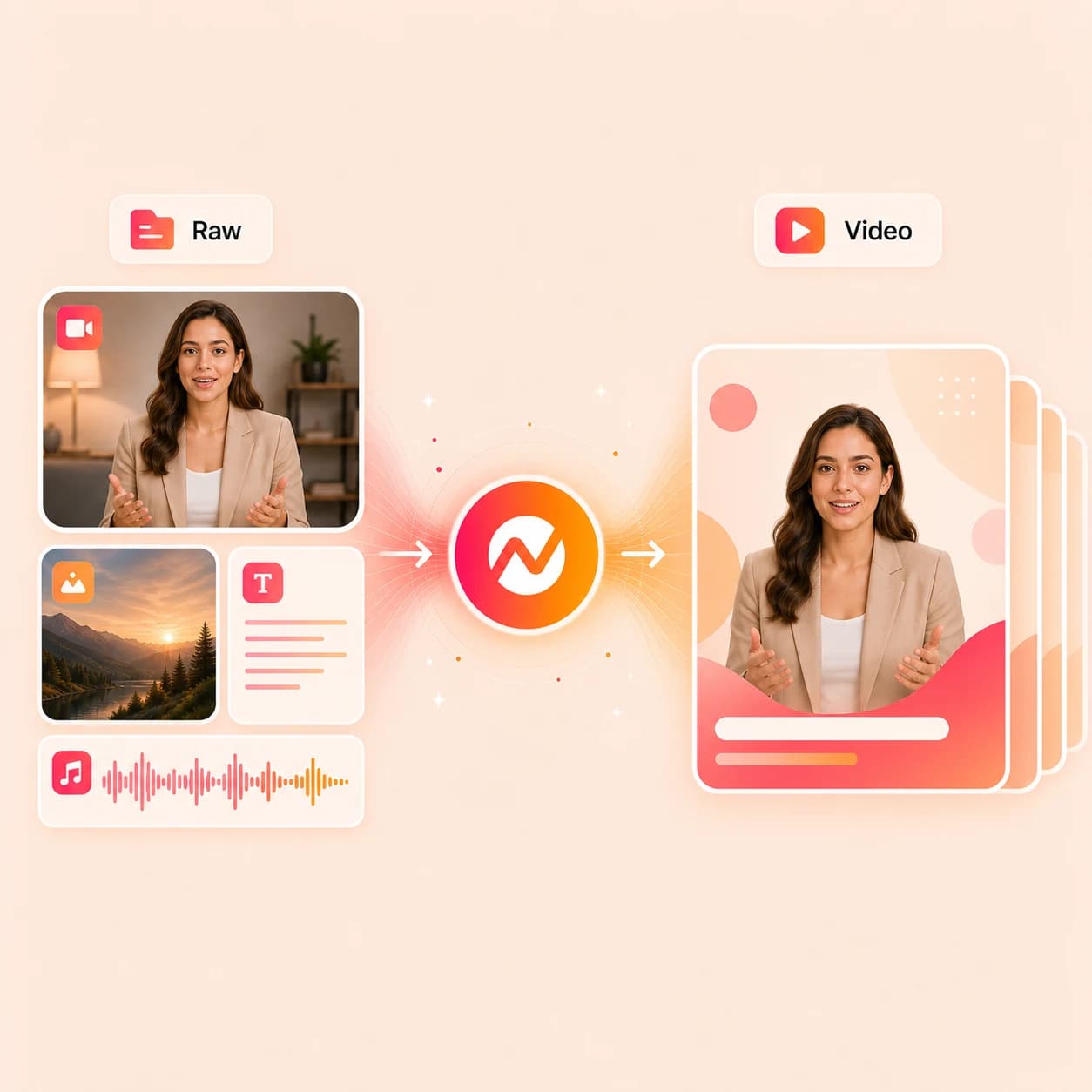
Create and revise the whole video in one workspace, from source material and script to timeline, captions, voice, brand, and export. Ask the agent for changes or work directly in the edit.
Trusted by teams at


How it works
Edit on the timeline, in the script, and through chat.
Start with source material, review the script and storyboard, then make the precise change in whichever surface fits the edit.
Bring in the source
Upload footage, a screen recording, a deck, a PDF, a URL, or a prompt so the editor has the message and material it needs.
Source loaded
Review the script and storyboard
Read the generated script, scene plan, captions, and voiceover direction before any clips render or finish.
Plan visible
Edit where the change belongs
Use the timeline for clips, audio, and captions, the script editor for wording, visual chat for a single scene or element, and agentic chat for broad changes.
Edits applied
Export or create variants
Render the finished MP4, translate it, or prepare a separate audience or channel edit. Review each framing on its own before download.
Ready to publish
What it can do
What the ngram video editor changes.
Move between AI-assisted edits and direct timeline work without splitting the same video across separate apps.
Cut and arrange on the timeline
Trim, split, ripple, and reorder clips with frame-level control after the first draft is built.
Learn more about video editingRewrite from the script editor
Change wording, tone, CTA, or structure in the script and have the affected scenes and timing update with it.
Learn more about script generationEdit a single scene through visual chat
Click a scene, callout, text layer, avatar, or canvas element and describe the change you want for that element only.
Edit broadly through agentic chat
Ask for shorter pacing, a new audience angle, a different scene direction, or a translated version without leaving the project.
Keep captions and audio inside the edit
Generate, restyle, and translate captions, swap voiceover, and balance background music as part of the same project.
Learn more about captionsBuilt for business video editing
When it matters
Where the full editor changes the outcome.
These workflows usually need cuts, captions, scripts, brand, and exports to stay in one project rather than across separate files.
Product Demo Video
Turn rough product recordings into demos with captions, callouts, smart zooms, and a tightened narrative before the demo reaches buyers.
Open AI video use caseProduct Walkthrough Video Creator
Build step-by-step product walkthroughs with cursor smoothing, click emphasis, and scene labels added on the same timeline.
Open AI video use caseTutorial Video
Edit tutorial recordings with step markers, captions, callouts, and brand treatment without exporting and rebuilding the lesson.
Open AI video use caseHelp Center Video
Cut support recordings into help videos, then keep editing the captions, callouts, and CTA without changing tools.
Open AI video use caseCustomer Onboarding Video
Edit docs, URLs, and screen recordings into onboarding videos that move new users toward first value in fewer scenes.
Open AI video use caseTraining Video
Edit SOPs, lessons, and recordings into training videos with chapter cuts, captions, and repeatable brand treatment in one project.
Open AI video use caseFeature Announcement Video
Edit release notes and product context into announcement videos with motion graphics, captions, and brand-governed CTAs.
Open AI video use caseSales Product Demo
Re-cut a base demo per buyer persona, swap callouts, and re-record voiceover lines without rebuilding the entire timeline.
Open AI video use caseInternal Communication Video
Edit team updates with cuts, captions, brand treatment, and clear next steps so the message reads cleanly across the company.
Open AI video use caseProduct stack
What the editor is built from.
These feature pages cover the editing surfaces, audio, brand controls, and export pipeline behind the same project.
Video Editing
Read about timeline-v2, visual chat, scene regeneration, canvas controls, and the script editor that all act on the same project.
Learn more about video editingScript Generation
See how the editor turns prompts, PDFs, URLs, recordings, decks, and notes into a script, storyboard, and scene plan you can keep editing.
Learn more about script generationCaptions & Subtitles
Caption an edited timeline, restyle the burn-in to match the brand kit, and translate the same captions for localized versions.
Learn more about captionsMotion Graphics
Add lower thirds, callouts, product labels, and smart zooms over the cut without leaving the editor for another tool.
Learn more about motion graphicsAI Voiceover
Generate new narration from script edits and keep voiceover tied to the scene it belongs to as the timeline changes.
Learn more about AI voiceoverBrand Kit
Apply logos, colors, fonts, motion style, voice, tone, approved phrases, and blocked phrases to every edit in the project.
Learn more about brand kitMore tools
Tools that sit next to the editor.
Use these when an edit starts from a focused task and then continues inside the full ngram editor.
Tighten the cut and polish
Trim, caption, and dress the timeline before export.
Video Cutter
Trim, split, and remove dead time from a clip, then keep editing the cut inside the same project.
Open toolAdd Subtitles to Video
Generate timed subtitles for the edited timeline, then restyle them with the brand kit.
Open toolAdd Text to Video
Drop titles, lower thirds, and callouts onto specific scenes after the rough cut is locked.
Open toolAdd Music to Video
Place a background track under the edited dialog and keep the mix tied to the timeline.
Open toolStart a fresh draft
Open a new editable project from text, prompts, URLs, or a recording.
AI Video Generator
Generate a branded first draft from a prompt, script, URL, doc, image, or recording, then keep editing in the same project.
Open toolVideo Script Generator
Draft the hook, body, and CTA in the script editor before the draft becomes scenes on the timeline.
Open toolScreen Recorder
Record a walkthrough in-browser, then open the capture in the editor for cuts, captions, and zooms.
Open toolRepurpose the edit
Turn the same edit into another format, transcript, or localized version.
Video to Text
Transcribe the edited video for summaries, captions, documentation, or follow-up copy.
Open toolVideo Translator
Translate the script, captions, on-screen text, and voiceover for localized versions of the same edit.
Open toolVideo to GIF
Pick the right moment from the edit and turn it into a looping GIF for docs, Slack, or social posts.
Open toolConvert
Bring source material into the editor.
These converters feed the editor with the kinds of source material business teams already have lying around.
Screen Recording to Video
Turn a raw capture into an editable project with captions, smart zooms, and brand treatment ready for the timeline.
Open converterText to Video
Start from a script, outline, or notes and open the result directly inside the editor for further changes.
Open converterURL to Video
Use a product page, article, docs page, or launch page as source context for the first draft on the timeline.
Open converterWho it is for
Teams that need more than a trim.
These teams use the editor to turn rough source material into business video that does not look or read like a template.
Product Marketing Managers
Edit launch videos, demos, explainers, and sales enablement assets out of the same source material without rebuilding each cut.
See product marketing workflowsCustomer Success
Edit onboarding, training, and QBR recordings into customer-ready videos with captions, brand, and a clearer narrative.
See CS workflowsSupport Teams
Edit help recordings and screen captures into focused troubleshooting videos that answer the issue in the fewest scenes.
See support workflowsSales Enablement
Edit a base demo into audience-specific edits, swap callouts and CTAs, and keep the brand consistent across every buyer cut.
See sales workflowsGrowth & Marketing
Edit campaign videos, ads, landing page videos, and social clips out of the same project instead of rebuilding each variant.
See growth workflowsProduct Managers
Edit internal updates, bug reports, feature demos, and roadmap videos without sending the project to a separate production team.
See PM workflowsHR & Internal Comms
Edit training, onboarding, policy, and company announcement videos with captions, brand treatment, and reusable structure.
See internal comms workflowsIntegrations
Connect the editor to the rest of the workflow.
Use live integrations to capture editable source material, trigger new projects, and route finished cuts to the right channel.
Chrome Extension
CaptureWhenA teammate captures a product flow, bug repro, or browser walkthrough that needs to become a finished video.
ThenSend the recording into the editor as an editable project with the script, captions, and timeline already in place.
Zapier
AutomationWhenA form submission, CRM event, or content request creates a new editing task for the team.
ThenOpen a ngram project so the team can cut, caption, and brand the video without re-keying the brief.
n8n
AutomationWhenA self-hosted workflow collects raw footage, screen captures, or webinar recordings on a schedule.
ThenTrigger the editor to open those files as editable projects with captions and brand already applied.
MCP Server
AgentsWhenAn AI agent in another environment needs to read or change a video project for a teammate.
ThenUse MCP for supported video or image calls, then open ngram to edit the project, timeline, and script before review.
WhenThe team approved the edited business video; it is ready for LinkedIn.
ThenCompose the LinkedIn post for the edited business video, then publish it now.
For custom production pipelines, connect ngram to automation, agents, and publishing systems.
Why ngram
How online video editors differ.
Most editors can cut clips and layer media. The bigger question is whether the same project still understands the script, brand, and channel after the edit.
| Compare | ngram | Descript | Kapwing | CapCut |
|---|---|---|---|---|
| Workflow fit | One project holds the script editor, timeline, visual chat, agentic chat, and canvas controls, so an edit in any surface updates the others. | Public docs describe editing video by changing the transcript, with the timeline updating from text edits. | Public pages describe browser-based upload, recording, timeline edits, subtitles, audio cleanup, and team collaboration. | Public pages describe browser and app editing with trim, split, transitions, AI captions, templates, and social export. |
| How ngram fits | Fits work that starts from business source material like URLs, PDFs, decks, screen recordings, product docs, and release notes. | Strong fit for podcast, talking-head, and interview workflows that are mostly spoken word. | Good fit for general online editing and social-first content production. | Good fit for creator-style short-form clips and mobile-first editing. |
| Best use | Brand kit, captions, voiceover, translation, and MP4 export all act on the edited timeline without leaving the project. | Compare workflow fit when the project starts from mixed business sources and needs source-aware scenes, brand rules, and variants. | Compare workflow fit when storyboarding, brand governance, and business variants need to stay part of the same edit. | Compare workflow fit when brand kits, source-aware scripts, and team production workflows matter to the finished video. |
FAQ
Common questions about the video editor
Still curious?
Edit the video, not the export chain
Cut on the timeline, rewrite in the script, and fix scenes through visual chat. Prepare and review each channel edit separately before downloading its MP4.
Open the editor and finish the full video in one project.
Timeline, script, chat, export