AI video generation platform for business messages
Use ngram's AI video generation platform to turn a prompt, document, URL, screenshot, deck, screen recording, or raw video into a script, storyboard, rendered draft, and editable project.

- Start with a prompt or the source material your team already has
- Review the script and storyboard before the video renders
- Edit the finished draft in chat, the script editor, canvas, or timeline
Trusted by teams at












A prompt alone is rarely enough to make a useful business video
A video request often starts with a real brief, release note, product page, recording, or deck. Moving that material between writing, design, voice, and editing tools makes the first draft slow and the message hard to review.
The source gets separated from the story
A useful document or recording turns into a pile of copied prompts, leaving the team to rebuild the message in every tool.
The first draft arrives too late for a real review
When script, visual direction, and timing are decided during production, feedback lands after work has already been rendered.
One weak scene can hold up the whole video
A missing visual, awkward line, or stale product shot should be a local revision, not a reason to restart the project.
ngram keeps the source, plan, draft, and edit in one video project so the team can steer the work before and after render.
Bring the source. Review the plan. Render the story.
ngram turns a prompt or source material into a planned business video, then keeps the script, scenes, visuals, audio, and edits connected in the same project.
A reviewable path from material you have to a video you can still change.
Start with real context
Add a prompt, PDF, Markdown file, public URL, screenshot, deck, screen recording, or raw video. ngram uses that material to shape the video request.
Approve the story before render
Review the script, storyboard, scene plan, visual direction, timing, and CTA before the project becomes a finished draft.
Refine without leaving the project
Use agentic chat, the script editor, visual chat, canvas controls, or the timeline to revise a scene, narration, caption, visual, or audio track.
A video generator that plans before it renders
ngram is built for work that starts with business context and still needs judgment before it becomes a video. The plan is part of the product, not a hidden generation step.
Uses the material behind the message
The project can begin with written context, a public page, screenshots, a deck, a recording, or raw video instead of a blank visual prompt.
Makes the script and storyboard reviewable
The team can check what each scene says, shows, and asks the viewer to do before committing to the rendered draft.
Keeps generation connected to edits
Scripts, scene visuals, voiceover, captions, motion, music, and brand direction remain available when a draft needs another pass.
Fits the message to its intended audience
Tell ngram who the video is for and where it will be used. The agent can adapt the script's tone, length, and CTA to that context.
How AI Video Generation works
The workflow moves from a prompt or source file to a reviewable plan, then to a rendered video that remains editable in ngram.
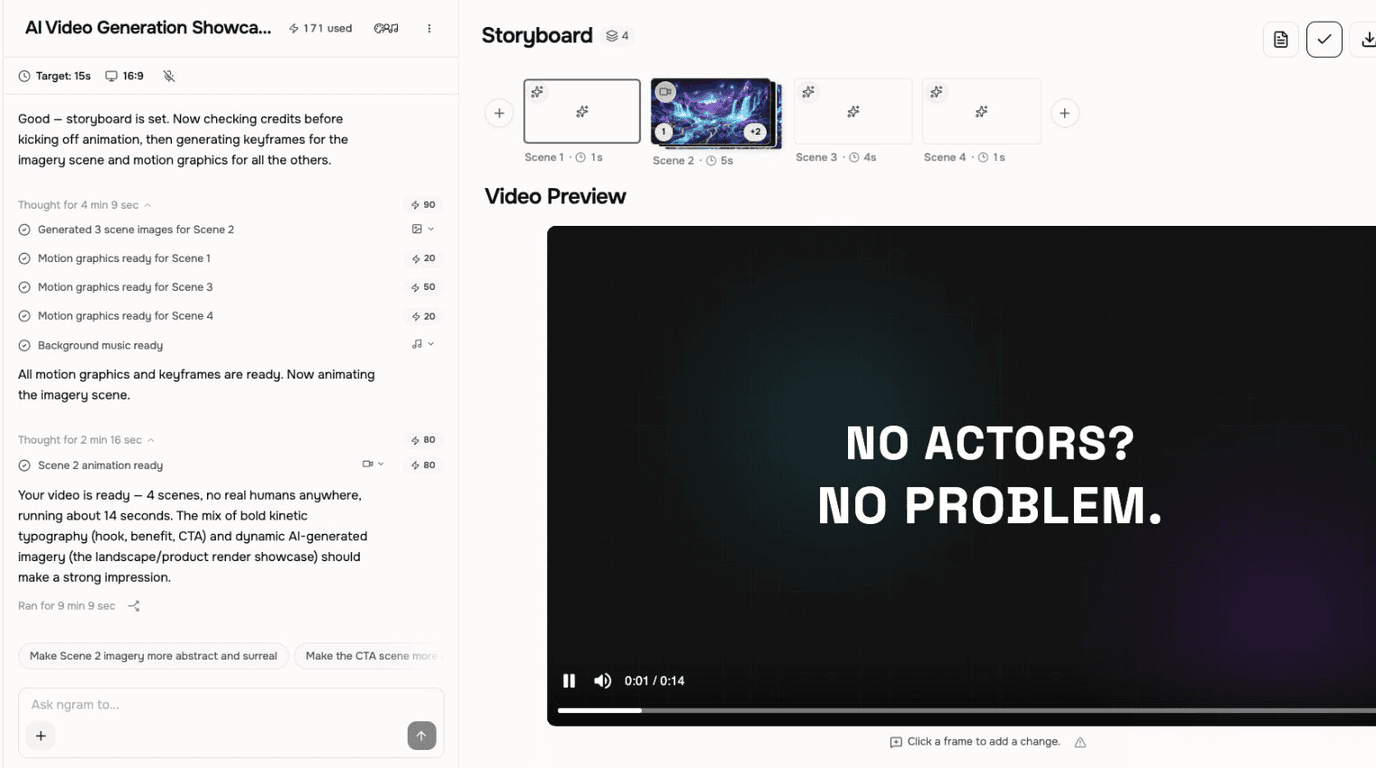
Add the message and source material
Describe the business message and add the prompt, document, URL, screenshot, deck, screen recording, or raw video that should inform it.
Review the script and storyboard
Check the hook, scenes, visual direction, pacing, and CTA. Edit the plan before asking ngram to render the first draft.
Render the first draft
ngram creates the video draft with the scene treatment the project calls for, including captions, voiceover, motion graphics, and brand direction when used.
Edit the part that needs work
Ask for a scene change in chat, edit narration in the script editor, adjust the canvas, or use the timeline for direct clip and audio control.
Who uses AI Video Generation
ngram is for teams that already have the message and need a video draft they can review, change, and reuse without passing the work through a separate production chain.
Product marketing
Use release notes, product pages, screenshots, and demo recordings to build a video around the message the launch needs to carry.
Product managers
Start with a brief, product recording, or screenshots and review the story before it turns into a customer or internal update.
Customer success
Turn help content and screen recordings into a planned onboarding or feature-education video that the team can keep current.
Founders
Bring the pitch, product context, or screen recording into one project, then review the script and scenes before sharing the finished video.
Where can you use AI Video Generation?
Use the same planning and generation workflow when a launch, demo, training project, onboarding message, or help article needs a clear video version.
AI Video Creator for Business
Marketing wants the launch video. Sales wants the personalized demo. HR needs the onboarding walkthrough by Friday. An AI video creator for business teams that turns a doc, URL, or rough recording into a polished, branded cut — without a six-figure agency invoice or a freelancer who ghosts on day three.
AI Video Generator for Marketing
Drop a campaign brief, blog post, or product URL into an AI video generator for marketing teams. Get back an on-brand video planned for the audience and channel you choose, ready to review and edit before MP4 export.
Product Launch Video Maker
Turn the feature PRD, the screenshots, or a rough screen recording into a launch-ready video. A product launch video maker built for SaaS hands you back motion graphics, captions, brand polish, and a reviewed edit for each channel you need, without an agency invoice or a missed release window.
Feature Announcement Video
Paste your release notes, the PRD, or the product URL. Get back a polished feature announcement video with motion graphics, captions, and your brand kit — ready to ship the same sprint the feature does.
Product Demo Video
Drop in a rough screen recording or paste your product URL. A product demo video maker built for SaaS hands you back a clean walkthrough with smart zooms, captions, and brand polish — no timeline editor in sight.
Training Video
Turn your SOPs, screen recordings, and process docs into a corporate training video in under thirty minutes. Smart zooms on every click, step labels on every menu, captions burned in, branded intro applied — ramp new hires faster without booking a video team.
Customer Onboarding Video
Turn help docs or a screen recording of the setup flow into a polished customer onboarding video new accounts actually finish. Reach first-value the same day, not the following week, without booking another live kickoff call.
Help Center Video
A knowledge base video maker for support teams turns an article or screen recording into a polished tutorial with captions, clear visual guidance, and a hosted or exportable version for your help center.
AI Video Generation compared with common starting points
The comparison stays at the workflow level. Different tools suit different jobs; ngram is designed for a planned business video that starts with real context and stays editable after render.
| Capability | ngram | Manual workflow | Template editor | Clip generator |
|---|---|---|---|---|
| Starting context | ● Prompt plus files, URLs, screenshots, decks, or recordings | Team gathers and interprets source material | ~ Often begins with a layout or template | ~ Usually begins with a short visual prompt |
| Story review before render | ● Script, storyboard, scene plan, and CTA are reviewable | ● A team can review a manually prepared plan | ~ Review focuses on the assembled layout | ~ Review focuses on the generated clip |
| Draft production | ● Creates a multi-scene video project from the approved plan | × Requires separate writing, design, recording, and editing work | ~ Requires the user to build and time scenes | ~ Creates a short clip rather than a full project |
| Revision path | ● Chat, script, visual, canvas, and timeline editing stay connected | × Changes move through the production handoff again | ~ Manual scene and layout edits remain central | ~ Generate another clip, then fit it into the edit |
Generation is the first draft, not the last step
Pair AI Video Generation with the capabilities that shape the script, scenes, narration, visual treatment, and final edit inside the same video project.
Script Generation
Use Script Generation when the AI video generation project needs a clearer hook, scene structure, or CTA before the first draft renders.
AI Visuals
Add generated scene imagery, animated stills, or reference-led motion when a planned video needs visuals that match its script and brand context.
AI Voiceover
Generate narration from the approved script, set pronunciation or language, and re-voice only the scene that changes in the AI video project.
Motion Graphics
Use branded overlays, lower-thirds, callout boxes, smart zooms, and transitions to make the generated story easier for a viewer to follow.
Video Editing
Move from the AI-generated draft into chat, script, canvas, timeline, music, and audio controls when the final MP4 needs hands-on changes.
Choose the source that should start the video
Use a conversion page when the source itself is the searcher's job. AI Video Generation takes over when that source needs a reviewable, editable video project.
Text to Video
Turn an approved brief, script, or product message into a video project, then use AI Video Generation to review the story before render.
PDF to Video
Bring a PDF into the planning workflow when a report, guide, or product document should become a narrated business video.
Public URL to Video
Start from a product page, article, help page, or release note URL, then review the new video's script and storyboard in ngram.
Screen recording to Video
Use a recorded walkthrough as the source for a planned video draft, with a path to screen-recording polish and editing after render.
PPT or PDF deck to Video
Use a slide deck as a scene blueprint for a narrated video, then keep the project editable after the first rendered draft.
One-shot utilities for the work around the project
AI Video Generation is for an integrated, multi-scene business video. Use a focused tool when you only need a short clip, a quick edit, captions, or a GIF from an existing file.
AI Video Generator
Generate a short AI clip in the separate tool when a scene needs a focused visual asset rather than a complete planned video project.
Video Editor
Open direct clip, caption, and audio controls when the rendered AI video draft needs timeline work before the final MP4.
Add Subtitles to Video
Run the subtitle tool on an existing clip when the job is captioning and styling that file rather than generating the larger video project.
Video to GIF
Turn one useful moment from a finished video into a compact GIF for a release note, help page, or documentation update.
Bring video generation into the workflow that has the source
Use the live integrations when an automation or browser workflow should hand real source context into a new ngram video project.

Zapier
Start an ngram video or image generation workflow from a Zap after a trigger supplies the prompt or source material.

n8n
Use the n8n node to start a video workflow from source data in an n8n automation, then receive the completed result in that flow.

Chrome Extension
Open a public webpage, review the generated brief in the extension, then send its context to ngram for a new video project.
Explore the integrations library when a source system, browser workflow, or publishing destination should connect to ngram.
Explore integrationsQuestions about AI Video Generation
What is an AI video generation platform?
What can I use as source material for an AI-generated video?
Can I review the script before ngram renders the video?
Can I edit an AI-generated video after it renders?
Does AI Video Generation create captions and voiceover?
Can I create an AI video from a URL?
Is AI Video Generation the same as the AI Video Generator tool?
What format does ngram export from the normal video workflow?
Turn the message you have into a video you can steer
AI Video Generation keeps the script, scenes, visual direction, voiceover, captions, brand, and editing path connected from the first draft to the final MP4.
Start with a prompt or source material, review the plan, then edit the rendered draft in the same ngram project.
Source-led planning, editable drafts, MP4 export