Add Subtitles to Video by ngram
Add Subtitles to Video for product demos

Drop a video or click to upload
MP4, MOV, WebM - clear speech burns into cleaner subtitle lines
What it does
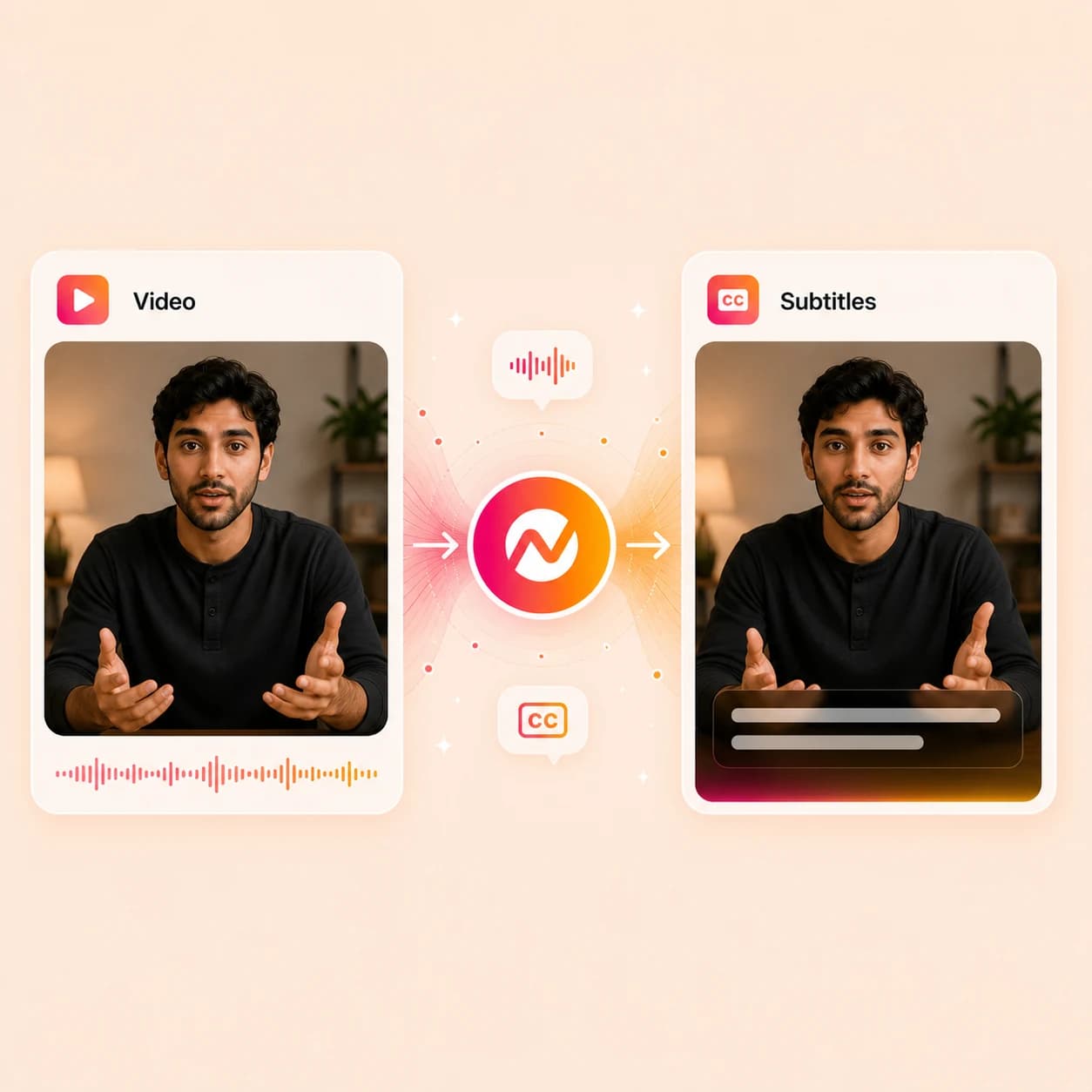
Turn a product demo or customer tutorial into a captioned video people can follow without sound. Fix the wording, apply your brand style, and keep the project ready for the next cut.
Trusted by teams at


How it works
From silent clip to burned-in subtitles.
Transcribe the speech, fix the lines, style the captions, and render the subtitles into the picture.
Upload the clip
Drop the video that needs subtitles - a demo, webinar cut, presenter take, support recording, or social edit.
Clip ready for captions
Generate timed subtitle lines
ngram transcribes the audio and lays subtitle lines onto the timeline so the words sync to the speech without manual nudging.
Lines on the timeline
Edit text and style
Fix product names and line breaks, then apply font, color, position, outline, and motion so the subtitles match the rest of the video.
Caption style locked
Burn in and export
Render the MP4 with subtitles baked into the picture so the captions display the same way on every platform and player.
Subtitles burned in
What it can do
What the subtitle pass does inside ngram.
Add the subtitle layer, keep it editable, then burn it into the picture without rebuilding the project.
Generate timed subtitle lines
Turn the spoken audio into subtitle lines with line breaks that respect reading speed and screen real estate.
Edit every line before burn-in
Correct names, product terms, jargon, and timing on the timeline so the wrong subtitle never gets baked into the picture.
Style subtitles with your brand
Choose font, color, weight, outline, drop shadow, position, and motion so the captions match the rest of the video.
Learn more about brand kitBurn subtitles into the MP4
Render a single hardcoded file so the subtitles display the same on LinkedIn, YouTube, Reels, embeds, and offline players.
Reuse the same lines in another language
Translate the subtitle pass and burn the localized version without redoing transcription or styling work.
Learn more about translationBuilt for burned-in subtitles on business video
When it matters
Where adding subtitles to the clip matters most.
Nine ngram use-case pages where burned-in captions decide whether the viewer keeps watching.
Marketing Social Clips
Drop captions onto short social cuts so the LinkedIn, Reels, and Shorts version plays correctly with sound off.
Open AI video use caseLinkedIn Video
Burn subtitles onto LinkedIn posts where most of the feed scrolls silently before tapping for audio.
Open AI video use caseWebinar Clips
Cut webinar recordings into short clips and burn subtitles in so each highlight reads without needing to listen.
Open AI video use caseMarketing Webinar Clips
Add subtitles to long-form webinar pulls so demand-gen teams can post supported clips on every channel.
Open AI video use caseHelp Center Video
Burn captions onto support videos so help-article readers can follow steps without unmuting at their desk.
Open AI video use caseTraining Video
Bake subtitles into training cuts so SOPs and onboarding clips stay clear in shared rooms or noisy floors.
Open AI video use caseProduct Demo Video
Add subtitles to demo recordings so prospects can scrub the deal-room link without leaving the meeting they are in.
Open AI video use caseSales Demo Followup
Drop subtitles onto demo recaps so the prospect, their boss, and procurement can all read along on the share link.
Open AI video use caseInternal Communication Video
Burn subtitles into team updates so a Slack post plays correctly for anyone in headphones, transit, or a meeting.
Open AI video use caseProduct stack
The product stack around burned-in subtitles.
Adding subtitles is one layer in the project; these features handle the rest before and after the burn-in.
Captions & Subtitles
Generate timed subtitle lines, style them with the brand kit, and burn them into the final video render.
Learn more about captionsTranslation & Localization
Translate the subtitle layer after the original pass so a Spanish or French burn-in reuses the same edited timing.
Learn more about translationBrand Kit
Lock subtitle font, color, outline, position, and motion to the brand so every captioned video looks consistent.
Learn more about brand kitVideo Editing
Trim, reorder, and clean clips before the subtitle pass so burned-in captions never sit over a section you cut.
Learn more about video editingScreencast Understanding
Combine subtitles with smart zooms and step labels for screen recordings where on-screen text and captions stack together.
Learn more about screen recording polishMotion Graphics
Layer titles, lower-thirds, and callout boxes alongside the subtitle track without the two fighting for the same space.
Learn more about motion graphicsMore tools
Other tools to pair with the subtitle pass.
Use these when subtitles are part of a larger workflow - cleanup before, polish after, or a different caption job.
Caption-adjacent tools
Other ways to turn speech into text or social captions.
Auto Subtitle Generator
Generate timed subtitles when the only job is the caption file, not a finished burn-in render.
Open toolVideo Caption Generator
Build animated, social-style captions when the clip needs word-by-word emphasis instead of clean subtitle lines.
Open toolVideo to Text
Pull a clean transcript from the same source clip before or after the subtitles are burned in.
Open toolAudio to Text
Transcribe a separate audio source when the on-clip audio is messy and subtitles need a clean reference.
Open toolClean the clip before subtitles
Fix the source so the burned-in caption pass starts from a usable take.
Remove Background Noise from Video
Strip room noise and chatter so the transcription behind the subtitle pass is accurate.
Open toolRemove Background Noise from Audio
Clean a separate audio track before reattaching it to the clip for the subtitle pass.
Open toolVideo Cutter
Trim the clip down to the keepable section before subtitles are generated and burned in.
Open toolEye Contact AI
Correct off-camera gaze in talking-head footage before the subtitle pass adds the caption layer.
Open toolPolish after the subtitles are in
Finish the captioned video before it ships to the channel.
Add Text to Video
Stack lower-thirds, titles, and callouts on top of the subtitle layer without overlap.
Open toolAdd Music to Video
Lay a music bed under speech once the subtitle pass is locked so the mix does not throw off readability.
Open toolVideo Editor
Open the full editor to fine-tune the subtitle track alongside clips, music, callouts, and brand pieces.
Open toolVideo Compressor
Shrink the burned-in MP4 for email, deal rooms, and platforms with strict upload limits.
Open toolTranslate or repurpose the captioned video
Carry the subtitle work into another language or output.
Video Translator
Translate the burned-in subtitle pass into another language without retiming every line by hand.
Open toolVoice Dubber
Dub the captioned video when localized audio should accompany the subtitle layer in the target language.
Open toolVideo to GIF
Loop a short captioned moment into a GIF for docs, email, or chat when a clip would be too heavy.
Open toolVideo Converter
Convert the burned-in MP4 into the codec or container the destination platform expects.
Open toolConvert
Where the clip that needs subtitles usually comes from.
Three source-to-video converters that produce the kinds of clips most likely to need a burned-in subtitle pass next.
Screen Recording to Video
Turn a raw screen capture into a clean walkthrough that benefits from subtitles over every narrated step.
Open converterWebinar to Clips
Cut a webinar into shorter highlight clips that need subtitles so each pull works on social with sound off.
Open converterText to Video
Draft a narrated video from a script first, then burn subtitles on the rendered output.
Open converterWho it is for
Teams that ship every video with the subtitles already in.
Burned-in subtitles are the default for teams whose videos play across feeds, support pages, and shared inboxes.
Growth & Marketing
Social posts and ad cuts where most viewers scroll silently and decide in three seconds.
See growth workflowsProduct Marketing Managers
Launch clips, demo cuts, and explainer videos shared across email, sales decks, and feeds.
See product marketing workflowsSales Enablement
Demo recaps and prospecting videos opened on muted laptops in calendar gaps.
See sales workflowsCustomer Success
Onboarding and QBR videos that need to read clearly even when the customer skips the audio.
See CS workflowsSupport Teams
Help-article videos and ticket replies viewers usually watch at a busy desk.
See support workflowsEducators & Trainers
Lesson and training videos where captions also serve accessibility and study workflows.
See educator workflowsHR & Internal Comms
Company updates and policy explainers that play in shared rooms and open offices.
See internal comms workflowsAgencies & Consultants
Client deliverables where every cut ships with the brand-styled subtitle pass baked in.
See agency workflowsDeveloper Relations
Turn docs, tutorials, API updates, and conference recordings into developer-facing video assets.
See DevRel workflowsIntegrations
Triggers that move the captioned clip out of the editor.
Live ngram integrations that fit a workflow where the next step after adding subtitles is publishing or routing for review.
Zapier
No-codeWhenA new clip lands in Drive, Dropbox, or a form intake ready for a subtitle pass
ThenKick off the ngram subtitle workflow and send the captioned MP4 back to the requester
MCP Server
AgenticWhenClaude or ChatGPT is asked to add subtitles to a clip linked in the conversation
ThenCall ngram, run the subtitle pass, and return the burned-in MP4 inside the agent thread
n8n
WorkflowWhenA CMS record or content task marks a clip as ready for captions
ThenSend the clip into ngram for the subtitle pass and post the rendered file back to the record
Chrome Extension
CaptureWhenYou spot a recording on the web that needs captions before sharing
ThenHand the source straight to ngram and start the subtitle pass without re-downloading
WhenThe subtitle-finished product demo has cleared review for LinkedIn.
ThenCompose the LinkedIn post, then publish the subtitle-finished product demo after its final review.
X (Twitter)
BetaWhenThe subtitle-finished product update is ready to share on X.
ThenWrite the X post for the subtitle-finished product update; publish it when ready.
YouTube
BetaWhenThe team approved the subtitle-finished tutorial video; it is ready for YouTube.
ThenWrite the YouTube post and schedule this subtitle-finished tutorial video once.
Why ngram
How ngram compares for adding subtitles to a video.
Most caption tools stop at the subtitle file. ngram keeps the burn-in inside the broader video project the team is already running.
| Compare | ngram | VEED | Kapwing | Descript |
|---|---|---|---|---|
| Workflow fit | Adds subtitles inside the same project used for editing, brand kit, translation, and MP4 export. | VEED adds subtitles online, lets users style them, and exports hardcoded captions or SRT, VTT, and TXT files. | Kapwing supports auto and manual subtitles with style controls and burns captions directly into the MP4. | Descript generates subtitles from its transcript and exports burned-in captions or SRT and VTT files. |
| How ngram fits | Keeps the burned-in version tied to script, scenes, music, and separately prepared channel edits for the next pass. | Karaoke and animated subtitle presets fit short-form creator clips well. | It fits fast browser-based caption edits for creator and social workflows. | It suits podcast, recording, and text-based editing workflows. |
| Best use | Best for teams who want the captioned clip to roll straight into the next demo, social cut, or launch asset. | ngram is stronger when the subtitle pass should stay connected to source material, brand kit, and downstream variants. | ngram is built for repeatable business video where the same project drives demo, training, launch, and localized cuts. | ngram fits teams that want the burned-in subtitle pass alongside storyboard, voiceover, brand kit, and MP4 export. |
FAQ
Common questions about adding subtitles to video
Still curious?
Add the subtitles, burn them in clean
Drop in the clip, generate the subtitle pass, edit and style the lines, and ship the burned-in MP4 from the same ngram project that owns the rest of the video.
Run the subtitle tool now, then finish the full video in ngram.
Subtitles, brand styling, burn-in, export