Eye Contact AI by ngram
Make presenter videos feel direct with Eye Contact AI
Drop a talking-head clip
MP4, MOV, or WebM. A single, visible, mostly front-facing face works best.
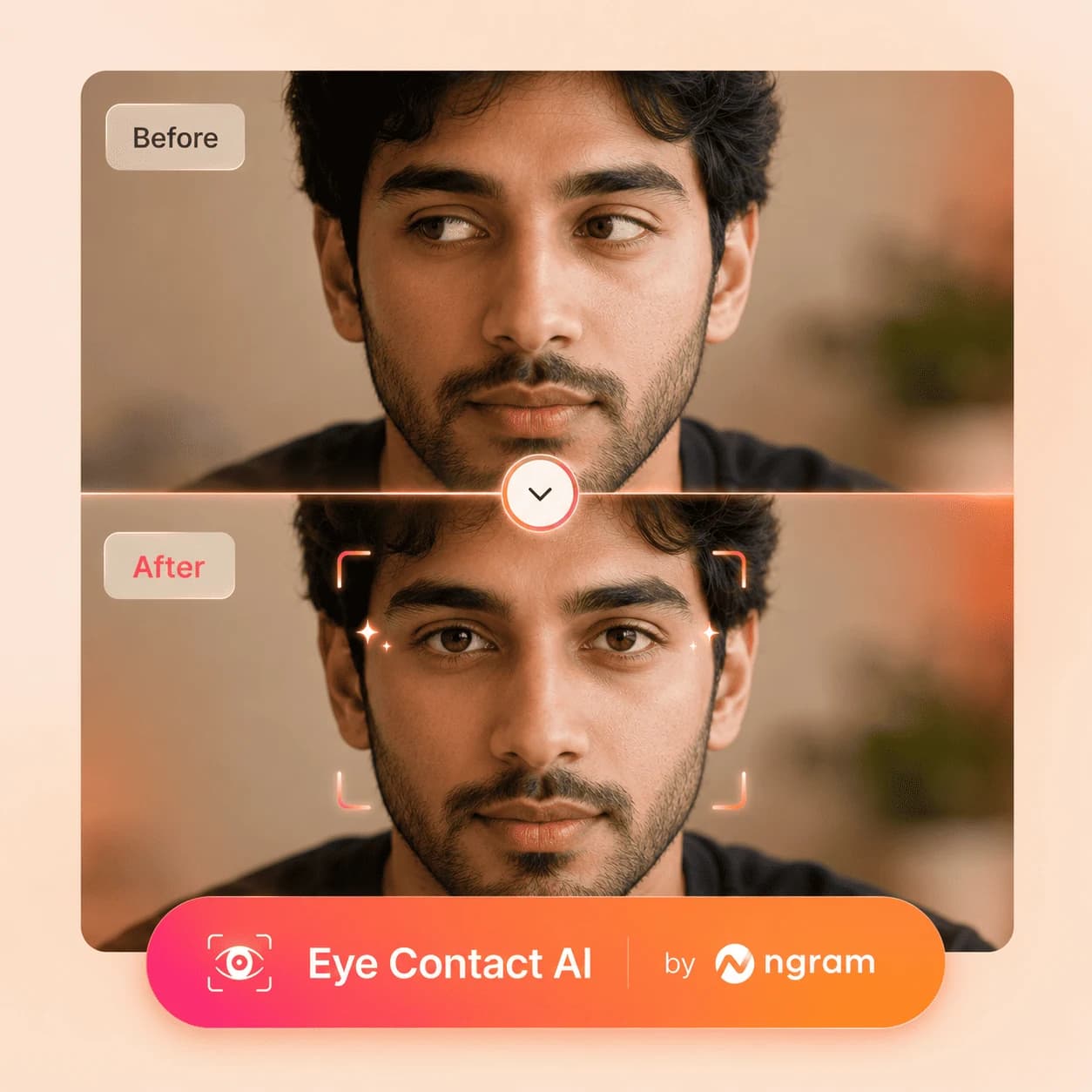
What it does
Correct off-camera gaze when a founder, presenter, or trainer reads from notes. Keep the original take and turn it into a stronger product demo, company update, or training video.
Trusted by teams at











How it works
Correct eye contact in four steps.
Upload a talking-head clip, analyze the gaze, preview the correction, and keep only the result that still looks natural.
Upload the presenter clip
Use MP4, MOV, or WebM footage with one visible, mostly front-facing face.
Speaker clip uploaded
Apply gaze correction
Eye Contact AI redirects off-camera glances toward the lens frame by frame while leaving the spoken performance intact.
Gaze redirected to camera
Preview the original and corrected take
Watch the full clip and pay attention to blinks, glasses, head turns, side profiles, and moments when the eyes are partly hidden.
Preview locked
Continue only with the natural result
Keep the corrected take when it looks believable. Use the original or a new recording when the face angle or motion makes the correction distracting.
Ready to publish
What it can do
What Eye Contact AI does and where it stops.
The tool is built for talking-head gaze correction. The strongest results come from a clear, mostly front-facing presenter rather than extreme head movement.
Redirect off-camera gaze
Correct glances toward notes, a teleprompter, or a second screen in a talking-head clip.
Work frame by frame
The correction follows the visible eye region across the uploaded video rather than replacing the speaker's audio or delivery.
Handle common presenter videos
Founder updates, sales clips, demos, training intros, webinar recaps, and other talking-head footage fit when the face remains clear.
Learn more about avatarsExpose difficult cases
Strong side profiles, rapid head turns, hair or hands over the eyes, dark glasses, a very small face, and multiple faces can reduce natural-looking results.
Learn more about captionsPreview before using the result
Compare the corrected clip with the original and watch the whole take, not only a still frame near the beginning.
Learn more about brand kitKeep production work separate
After gaze correction, use the relevant editing, caption, brand, translation, or export workflow only if the video needs it.
Learn more about translationAccepted files and boundaries verified on August 5, 2026
When it matters
Where eye contact correction earns its place.
Nine ngram use-case pages where presenter footage needs to feel direct, prepared, and ready for the channel.
Sales Prospecting Video
Outreach clips fired off between meetings rarely allow a clean second take. Correct the gaze on the first read so the prospect sees a focused face, not a teleprompter glance.
Open AI video use caseSales Demo Video
Reps build demos where the camera intro is recorded from notes. Eye Contact AI keeps the opener pointed at the buyer while the rest of the screen-plus-speaker layout stays intact.
Open AI video use caseCustomer Onboarding Video
First-week explainers are read carefully because the steps matter. Run the correction so new customers feel addressed instead of watching a script glance.
Open AI video use caseTraining Video
Instructors often read steps from a runbook just out of frame. The gaze correction keeps the lesson feeling delivered to the trainee, not to the cheat sheet.
Open AI video use caseInvestor Pitch Video
Founder pitch clips are usually recorded once before a deadline. Correct the gaze so the investor sees the founder, not the notes beside the camera.
Open AI video use caseFounder Investor Update
Monthly investor updates get recorded between board prep and product reviews. Run the correction so the LP video reads as composed even when the script was read live.
Open AI video use casePMM Product Launch
Launch hero clips often pair a presenter with screen captures. The corrected gaze keeps the spokesperson section pointed at the viewer for every cut of the launch campaign.
Open AI video use caseInternal Communication Video
All-hands recaps and exec updates are read because the wording matters. The correction makes the message feel addressed to the team instead of read from a card.
Open AI video use caseCS QBR Video
QBR recaps replace the live meeting for the second half of the room. Correct the CSM intro so the customer sees a focused account owner, not a glance at the numbers.
Open AI video use caseProduct stack
Related workflows around a corrected presenter take.
Eye Contact AI handles gaze. The surrounding editing, captions, brand, audio, translation, and exports are separate production steps.
Video Editing
After the eye region is corrected, trim filler, reorder takes, layer B-roll, and tighten the cut without leaving the project.
Learn more about video editingCaptions & Subtitles
Burn timed subtitles onto the corrected take so the same presenter clip plays cleanly with sound off on LinkedIn, Reels, and email.
Learn more about captionsBrand Kit
Wrap the corrected presenter clip in the team's logo, colors, intro card, lower-thirds, and outro CTA so every speaker variant feels on-brand.
Learn more about brand kitAI Voiceover
Replace a rough live take with cloned or stock TTS voiceover when the audio needs a cleaner pass and the corrected face stays on screen.
Learn more about AI voiceoverDynamic AI Avatar Talking Head
Use a generated avatar, an approved team face, or the live corrected clip for the presenter role - sometimes the right scene is half live, half generated.
Learn more about avatarsScreencast Understanding
Stack the corrected presenter inset over screen-recorded demos with smart zooms, click emphasis, and product callouts on the underlying capture.
Learn more about screen recording polishTranslation & Localization
Carry the corrected presenter take into translated voiceover, captions, and on-screen text so the same speaker reaches every market.
Learn more about translationMore tools
Tools that pair with the gaze correction.
Use these alongside Eye Contact AI when the presenter take is part of a bigger sales, training, launch, or education video.
Record and clean the presenter take
Prepare the source clip before the eye correction runs.
Screen Recorder
Capture a webcam-plus-screen take in-browser when the demo and the speaker are recorded together.
Open toolRemove Background Noise from Video
Strip room hum, AC noise, or hallway chatter from the take before the corrected clip ships.
Open toolRemove Background Noise from Audio
Clean a separate mic recording before reattaching it to the corrected video.
Open toolVideo Cutter
Trim the take down to the usable section before the gaze correction is applied.
Open toolCaption and polish the corrected clip
Finish the video around the corrected presenter take.
Add Subtitles to Video
Burn brand-styled subtitles onto the corrected presenter clip so it plays silently across the feed.
Open toolAuto Subtitle Generator
Generate timed subtitle lines for the corrected take when only the caption file is needed.
Open toolVideo Caption Generator
Add animated, word-by-word captions for short social cuts of the corrected presenter take.
Open toolAdd Music to Video
Sit a background music bed under the corrected take once the voice and captions are locked.
Open toolVideo Editor
Open the full editor to layer the corrected clip with B-roll, callouts, music, and brand pieces.
Open toolGenerate the presenter when no take exists
Skip the live recording when the source has to be created from scratch.
AI Avatar Video Generator
Build a presenter-led scene from a script when no live take exists and live correction does not apply.
Open toolText to Speech Video
Turn a written script into a narrated video; pair it with a corrected live face for the talking-head intro.
Open toolVideo Script Generator
Draft the speaker script first so the live take stays short and the correction has less room to drift.
Open toolText to Video
Generate a draft video from written source material when the corrected presenter take is one scene of many.
Open toolLocalize and distribute
Carry the corrected presenter clip into other languages and channels.
Video Translator
Translate the corrected take with localized voiceover, captions, and on-screen text from one source clip.
Open toolVoice Dubber
Dub the corrected presenter clip into another language while the eye-line stays pointed at the lens.
Open toolVideo Converter
Convert the finished corrected video into the codec or container the destination platform expects.
Open toolVideo to GIF
Loop a short corrected moment into a GIF for email, docs, or chat without needing a full clip to play.
Open toolConvert
Where presenter footage that needs gaze correction usually starts.
Three source-to-video converters that produce the kinds of clips most likely to pair with Eye Contact AI as the next step.
Screen Recording to Video
Turn a raw screen recording with a webcam inset into a polished walkthrough where the corrected presenter window stays on camera.
Open converterWebinar to Clips
Cut a webinar into shorter presenter-led clips, then correct the gaze on the host takes where the moderator was reading from notes.
Open converterText to Video
Draft a scripted video first so the live presenter clip is short, on-topic, and easier to keep on the lens during correction.
Open converterWho it is for
Teams that show up on camera for a living.
Eye contact correction matters most for roles where the speaker reads from a script, a screen, or notes - and still needs the viewer to feel addressed.
Sales Enablement
Prospecting, demo intro, and follow-up clips where reps read from talk tracks but need the prospect to feel addressed directly.
See sales workflowsFounders
Investor updates, product explainers, and company-wide messages recorded between meetings, usually from notes.
See founder workflowsProduct Marketing Managers
Launch, demo, and explainer videos where the spokesperson intro carries the campaign and the script is read live.
See product marketing workflowsCustomer Success
Onboarding clips, QBR recaps, and education videos that need the CSM to feel present without a live call.
See CS workflowsEducators & Trainers
Course modules and recap videos where instructors read step lists and definitions just out of frame.
See educator workflowsDeveloper Relations
API walkthroughs and conference recaps that pair a presenter intro with a screen demo on the second monitor.
See DevRel workflowsHR & Internal Comms
Company announcements and policy updates that leaders record once, then share to the whole org.
See internal comms workflowsProduct Managers
Roadmap, changelog, and stakeholder updates recorded fast so a meeting becomes a watchable clip.
See product workflowsGrowth Marketing Teams
Repurpose webinars, launch assets, and campaign source material into channel-ready business video.
See growth marketing workflowsIntegrations
Publish a reviewed corrected take.
Eye Contact AI starts from a local MP4, MOV, or WebM upload. These live publishing pages apply after you have previewed and accepted the corrected clip.
WhenThe eye-contact-corrected presenter video is ready to share on LinkedIn.
ThenCompose the LinkedIn post, then put the eye-contact-corrected presenter video on a one-off schedule.
YouTube
BetaWhenThe team approved the eye-contact-corrected demo; it is ready for YouTube.
ThenDraft the YouTube post and schedule one release for the eye-contact-corrected demo.
Why ngram
How ngram compares for eye contact AI.
Compare gaze-correction tools by accepted input, preview control, difficult-footage guidance, and the surrounding workflow. ngram's dedicated route starts from an uploaded video file.
| Compare | ngram | Descript | VEED | Captions |
|---|---|---|---|---|
| Workflow fit | Accepts MP4, MOV, and WebM files through the dedicated eye-contact start route. | Descript ships an AI Eye Contact effect at the clip layer inside its scene and timeline editor, with a non-destructive toggle. | VEED offers an Eye Contact AI tool inside its browser editor that subtly redirects the speaker's gaze toward the camera. | Captions bundles an AI eye contact effect with caption generation in a creator-first mobile and web flow. |
| How ngram fits | Redirects visible off-camera gaze toward the lens frame by frame. | Strongest fit for podcasters and transcript-led editors who already edit by clicking words on the script. | Works well for one-off creator edits where the goal is to polish a single uploaded talking-head clip. | Best for social-first creators who record short selfie-style clips and want a single app for caption and eye polish. |
| Best use | Requires a full preview because side profiles, obstructions, small faces, and rapid movement can reduce natural-looking results. | Compare it with ngram by input support, preview control, transcript workflow, and how the corrected clip moves into the rest of your edit. | Compare it with ngram by input support, preview control, browser-editing workflow, and difficult-footage guidance. | Compare it with ngram by input support, preview control, creator workflow, and difficult-footage guidance. |
FAQ
Common questions about Eye Contact AI
Still curious?
Keep the performance, correct the gaze
Upload an MP4, MOV, or WebM talking-head clip, redirect off-camera gaze toward the lens, and review the complete corrected take.
A single, visible, mostly front-facing face gives the correction the best chance to look natural.
Upload, correct, preview, review