Put the key words behind the presenter
Give a talking-head video a few moments of emphasis. ngram places selected words behind the presenter’s head and shoulders while ordinary subtitles stay a separate, readable layer in front.
- Emphasize selected words behind a large presenter
- Use a generated presenter or your own talking-head footage
- Keep ordinary subtitles separate from emphasis text
Trusted by teams at


A caption can transcribe a line without showing which idea matters
A short hook or takeaway can benefit from a few large words, while the rest of the spoken message stays in ordinary captions.
Every word competes for attention
An explanation has a few important words. Giving all subtitles the same dramatic treatment can bury them.
Text covers the person speaking
Large emphasis needs deliberate placement around the presenter rather than a block across the face.
One treatment does not fit every shot
A large talking head gives depth words room; a small picture-in-picture presenter usually does not.
Use depth for selected words and subtitles for the spoken line.
Emphasize the idea at the right moment
Keep a large presenter in the frame and name the words that deserve emphasis. ngram places those words behind the subject’s silhouette. Enable ordinary captions separately when the full spoken line should remain readable.
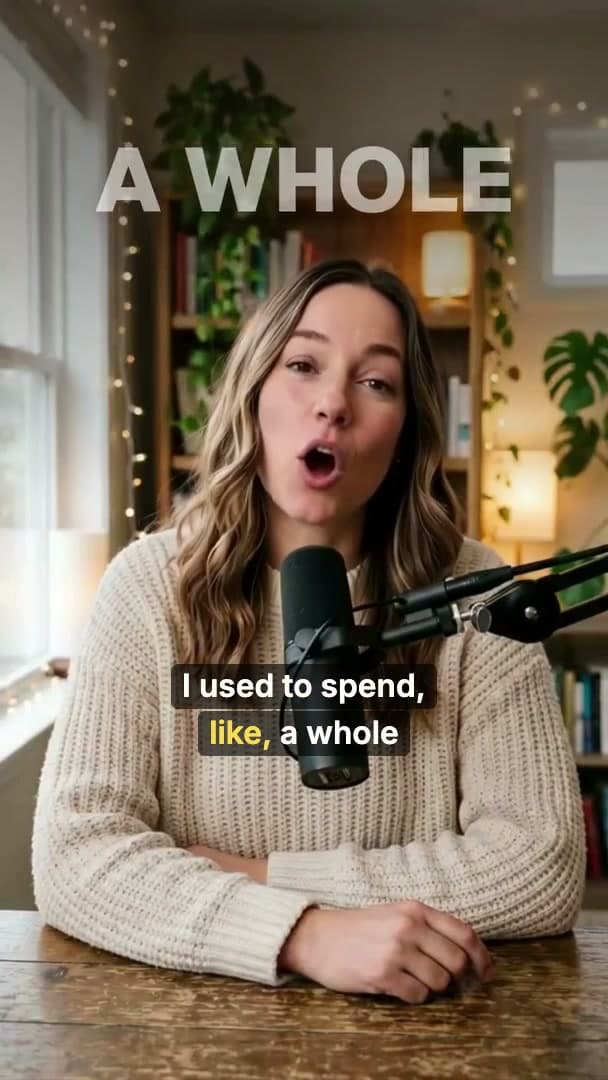
Use depth for selected words and subtitles for the spoken line.
Keep the presenter prominent
Start with a large generated presenter or uploaded talking-head recording so the depth treatment has a clear subject.
Pick the emphasis
Name the key words or moments in the brief. ngram places the selected text behind the presenter’s silhouette.
Control the subtitle layer
Turn ordinary captions on separately when wanted. Ask for plain subtitles when the clip needs a simpler treatment.
Give one phrase a stronger place in the frame
Use a deliberate emphasis moment in a social hook, founder update, or presenter-led introduction.
Give the hook a visible keyword
Use one clear emphasis moment to introduce the point of a short talking-head video.
Put the takeaway beside the speaker
Keep the person on screen while a few large words reinforce the update.
Highlight the benefit being explained
Pair a presenter’s explanation with selected emphasis and real supporting product visuals.
Start with Depth Captions
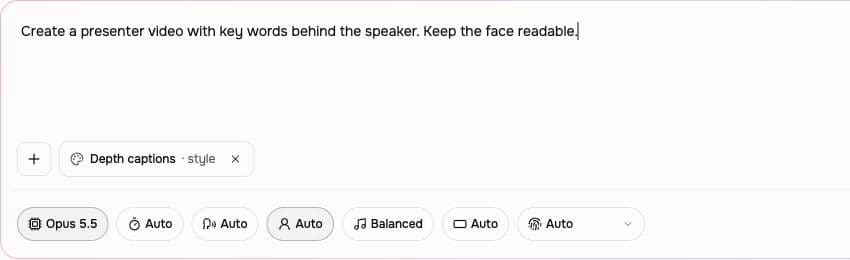
Start with a generated presenter or your own recording, choose the emphasis moments, and check how they sit around the subject.
Choose a source
Select Depth Captions style with a compatible director, or upload a talking-head recording and request the effect.
Name the key words
Describe the audience, main idea and emphasis words. Keep the presenter large in the shots where they should appear.
Review text and subtitles
Check the depth moments in the result. Enable ordinary subtitles separately and request simpler text where needed.
Use Depth Captions for a real task
Creator social clips
Use one clear emphasis moment to introduce the point of a short talking-head video.
Founder social content
Keep the person on screen while a few large words reinforce the update.
LinkedIn video
Pair a presenter’s explanation with selected emphasis and real supporting product visuals.
Find the job your video needs to do
Use behind-presenter words where a prominent talking head carries the message, then adapt the framing and pacing for the destination.
Creator Social Clips Video
Drop in a podcast episode, a YouTube video, or a webinar recording. A social media video maker that knows the platforms hands you back TikTok, Reels, Shorts, and LinkedIn cuts with vertical framing, captions, and platform-native hooks — no scrubbing required.
Founder Social Content
Record a quick thought on your phone. A founder social content video maker hands you back polished, captioned, brand-styled clips formatted for LinkedIn, X, TikTok, and Shorts — without ever opening CapCut or hiring a content team.
LinkedIn Video
A LinkedIn video maker built for founders, marketers, and operators who keep meaning to post. Drop in a rough selfie clip or a blog post you already published. Get back a captioned, branded LinkedIn video sized 4:5 for the feed in about fifteen minutes.
Marketing Ad Creative
A marketing ad creative pipeline built for brand and demand-gen teams who need every campaign launched with a full library of variants, not a single hero cut. Drop in a product clip or a campaign brief. Get back twenty captioned, on-brand video ads ready for every paid placement.
PMM Social Content
Stop posting screenshots while competitors post 30-second product clips. A social media video maker built for PMMs spins a webinar recording, a product walkthrough, or a blog URL into platform-ready cuts for LinkedIn, Reels, Shorts, and TikTok in under twenty minutes.
Marketing Social Clips
This social media video maker turns a recording or blog post into an on-brand clip for the channel you choose. Build each additional channel version as a separate edit with its own framing and captions.
Give emphasis text and subtitles different jobs
Use depth words for selected moments of emphasis and regular captions for the spoken wording. They can appear in the same video.
| Capability | Depth Captions | Regular captions |
|---|---|---|
| Purpose of text | ● Highlight selected key words | Transcribe the spoken line |
| Text placement | ● Behind a large presenter | In a readable foreground area |
| When to use it | ● Chosen emphasis moments | Throughout the speech when enabled |
Keep emphasis, speech, and presenter in balance
Depth words highlight the idea. Use the surrounding controls to keep the complete message readable and the presenter clearly visible.
Keep the full spoken line readable
Turn on ordinary captions for the narration viewers need to read. Keep them separate from the selected depth words and check their contrast and placement on the actual shot.
Choose a prominent presenter
Use a large head-and-shoulders presenter shot when generating the video. The visible silhouette gives the emphasis text a clear foreground subject to sit behind.
Adjust an emphasis moment
Ask to change a word, reduce a depth moment, or use a simpler treatment in a particular shot. Watch the revised passage with the rest of the clip before sharing.
Bring the words and the presenter shot
Start from a script, transcript, prompt, or recording. Request depth emphasis where the presenter is large enough for the words to read clearly.
Script to Video
Mark the few words in the script that carry the hook or takeaway. Request a prominent presenter for those moments and regular captions separately for the full narration.
Screen recording to Video
Upload the source recording and identify any large talking-head sections for depth emphasis. Keep ordinary captions or callouts over screen-led passages and small webcam tiles.
Transcript to Video
Choose a short passage from the transcript and preserve its meaning in the new video. Name the emphasis words and the presenter treatment rather than applying depth styling to every line.
Prompt to Video
Describe the presenter, main idea, and selected words to place behind the subject. Include the intended framing so the effect supports the shot instead of crowding it.
Prepare a presenter clip that is easy to read
Choose the presenter shot, add the full caption track when needed, and keep other text clear of the speaker.
Build the talking-head passage
Create the presenter-led explanation and keep the subject prominent. Request depth words for the moments where the hook or takeaway deserves extra emphasis.
Add the separate caption track
Make the full narration readable with regular captions. Check product names and line breaks while depth emphasis remains limited to a few selected words.
Add a label outside the depth moment
Use an ordinary title or callout when the shot needs context rather than behind-presenter emphasis. Keep important text readable around the speaker and other visuals.
Fit the treatment to one destination
Choose the social channel’s framing and opening hook for this edit. Review the depth words at the intended viewing size before preparing another channel version.
Bring the next social brief into a video project
An integration can start creation from an accessible source. Choose and inspect the presenter’s depth treatment in Studio before the clip is shared.
Inspect the rendered text placement before sending the clip to a publishing step.
Browse integrationsQuestions about Depth Captions
What are depth captions?
Do they replace subtitles?
Can I use my own presenter recording?
Does every subtitle move behind the presenter?
Can I use it with a small presenter in the corner?
How do I get a quieter treatment?
Put the key words behind the presenter
Start with the presenter clip and the few words your audience should remember.
Emphasize selected words behind a large presenter