Read before this
Read these direct prerequisites in order. Each guide lists any earlier context it assumes.
Use a saved slide for a recurring series title, branded opening or closing call to action. The design stays in Brand Kit for later videos. Saving a design does not insert it automatically.
Before you start
Slide authoring requires Premium or Ultimate and a Brand Kit you can edit. Prepare the title, logo or other images and closing action. Use the active team context that owns the kit.
Create and save the design
- Open Brand Kit from the main navigation and select the intended kit.
- Find Intro slides or Outro slides. Choose Create template for a new design, or Add from templates to start from a library design.
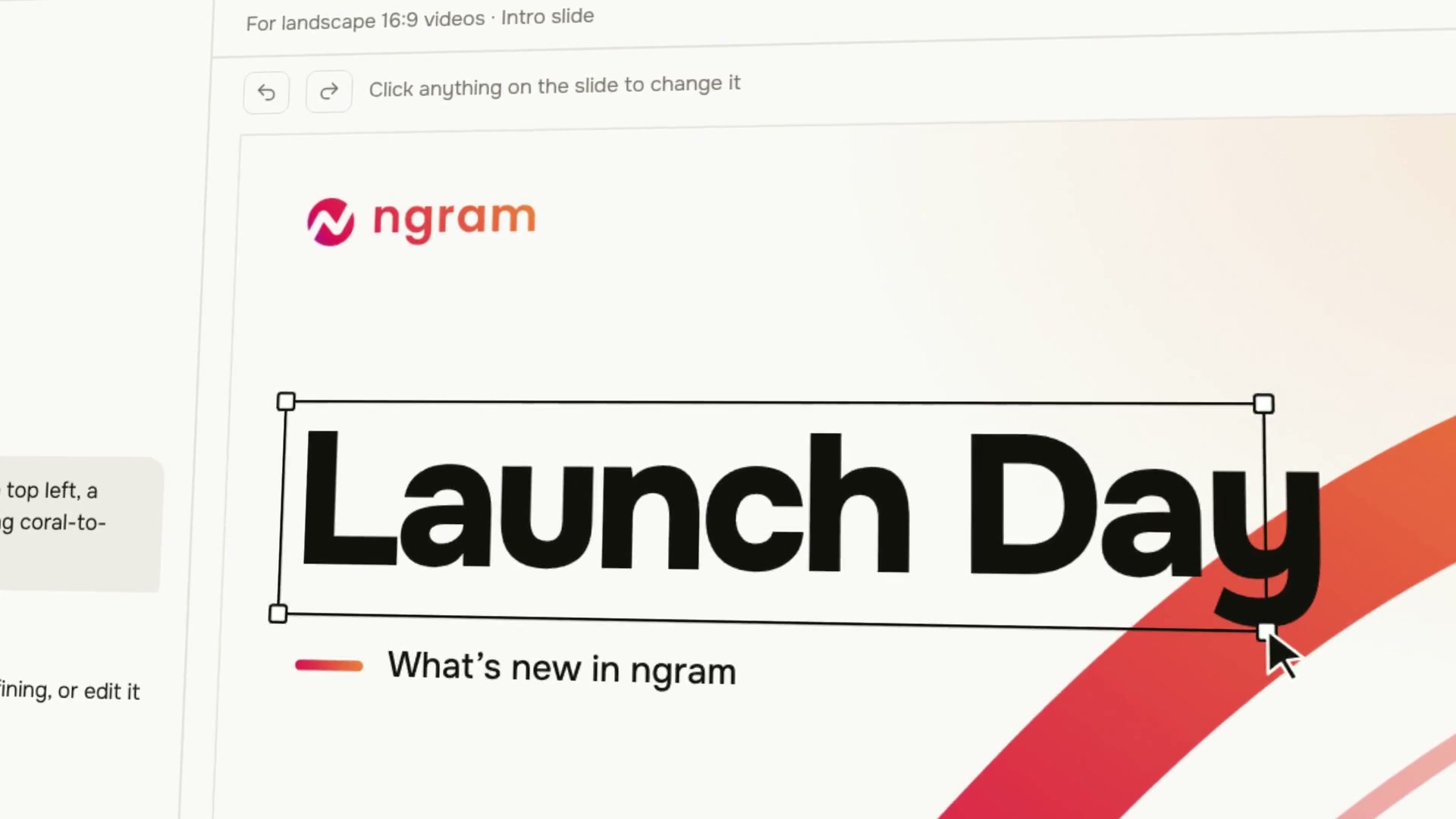
- In the slide editor, choose the intended format under Made for. Describe the slide and optionally Attach images, then choose Make slide.
- Review the slide. Ask for a change in the template chat or edit the text, image, shape, layers or timing directly.
- Choose Save template when the design is ready. Return to Brand Kit and confirm that it appears in the intended slide library.
Use it in a video
- Open Home and prepare the new video brief.
- Choose the saved Brand Kit in Brand. Open Advanced Settings and choose the saved intro and outro you want. Each starts Off.
- Review the choices, choose Create video and approve the plan when it matches the intended opening and close.
- Play the finished video and check the selected slides, title and call to action.
Check the result
The saved template remains in Brand Kit for reuse. The new video includes only the intro and outro you selected. A short clip can use only a closing slide or leave both Off.
If a slide is missing or does not appear
Confirm the active team, selected kit and slide format, and check that Save template completed. If the library contains the slide but the video does not, check the per-video selection; choosing the kit alone does not turn slides on. Keep the project and request a targeted revision if the wrong wording appears.
If authoring is unavailable, check the plan message. Contact Support if an eligible saved design is still missing, including the kit name, project URL and visible state without sending confidential brand files.