AI video editor for draft-to-final control
Edit a generated draft, uploaded footage, or a screen recording in ngram. Revise the agentic video in chat, edit narration scene by scene, or open an independent full-editor copy for timeline, canvas, audio, and MP4 export work.
- Start from an AI draft, upload raw footage or a screen recording, or open a blank editor canvas
- Edit narration scene by scene, then apply the change to revoice the affected scene
- Open a separate full-editor copy for timeline, canvas, Elements, Record, effects, and MP4 export
- Let ngram choose music for tone and pacing, then browse, swap, save its volume, or mute audio layers separately
- Review and download earlier agentic renders from version history without overwriting the current version
Trusted by teams at












The first draft is only useful if you can finish it
AI can get a video onto the screen quickly. The harder work starts when a sentence runs long, one scene is wrong, the music fights the narration, or uploaded footage needs a cleaner structure.
A text change can become an audio job
Changing narration often means finding the right scene, recording it again, and checking that the visuals still fit the new timing.
Broad feedback is hard to translate into cuts
Notes such as "get to the point sooner" can turn into separate script, scene, caption, and audio edits.
Raw recordings need more than a trim
Screen captures and uploaded video may need transcription, dead-air removal, callouts, captions, cleaner audio, and a clearer sequence.
Music can undermine an otherwise good edit
The track, volume, voiceover, and sound effects need separate controls so a mood change does not bury the message.
ngram gives you an agentic editing path and an independent full-editor path, with clear boundaries between the two.
Shape the draft, then finish the cut
Use chat and direct script controls in the agentic video, or open a separate editor copy when the job needs a timeline, canvas, recording, elements, and detailed audio control.
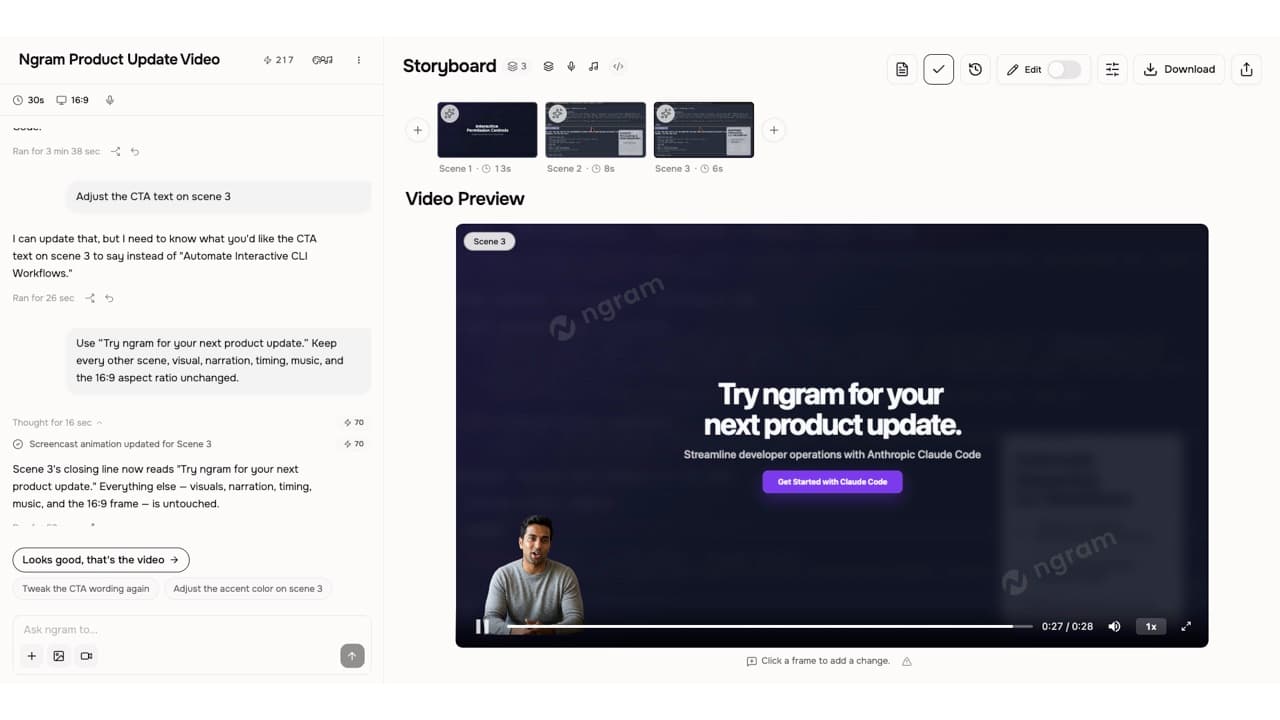
You always know whether you are changing the agentic video or its separate editor copy.
Revise the agentic draft
Ask for a tighter structure, target a scene or visual element, or open Edit > Script to change narration scene by scene.
Open an independent editor copy
Open in editor creates a separate project copy. Later chat edits and editor changes do not update each other.
Control the cut and its sound
Use the timeline and canvas to move, duplicate, or animate items. Add Elements or a screen capture to the active scene, then browse or swap music and mute audio layers separately.
Start where the material is, then use the right controls
You can begin with an agentic draft, existing footage or a screen recording, or a blank editor project.
Change the message before touching the timeline
Use chat for broad revisions, visual chat for a selected scene element, or the script editor for a specific line of narration.
Build from a clean canvas or existing footage
Subscribers can start a blank desktop editor, add text, images, video, elements, or a recording, and keep the project for later edits.
Treat the editor copy as its own project
The full editor opens in a separate project copy with timeline and canvas controls. It is not a continuously connected view of the agentic video.
Tune the soundtrack and keep earlier renders
Browse or swap the selected music, save its volume, mute music, voiceover, and effects separately, and preview or download prior agentic renders.
How video editing works in ngram
Move through the script, scene, music, and export controls in order, while keeping the independent editor-copy boundary clear.
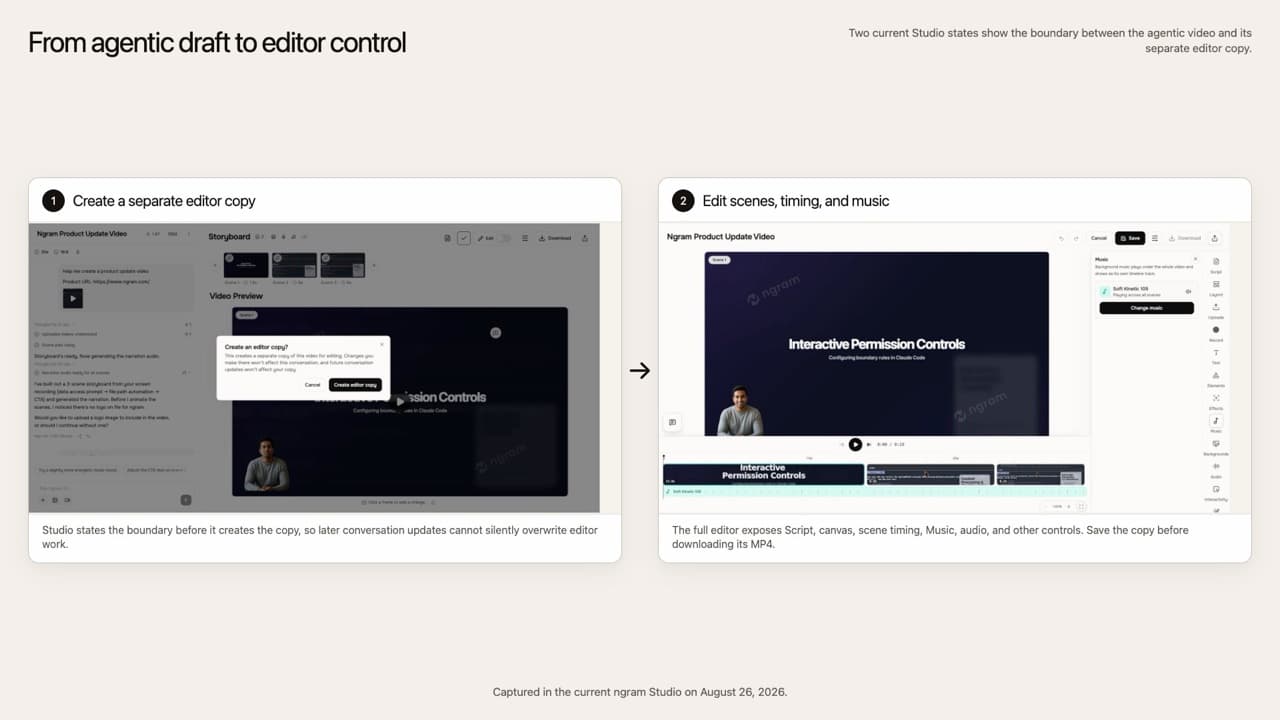
Choose the starting point
Generate an agentic draft, upload raw video or a screen recording, or start a blank desktop editor project.
Edit the script and scene
Change narration scene by scene, apply the line to revoice that scene, and use chat or visual controls for scene-level changes.
Continue in an independent editor copy
Open the full editor when you need the timeline, canvas, Elements, Record, effects, or clip-level controls. The copy does not sync with later agentic edits.
Set the music and export
Keep the automatically selected track or browse and swap it, save the volume, mute audio layers independently, and export the editor project as MP4.
Who uses Video Editing
Teams use these controls when generated or recorded material is close, but the message, scene, pacing, or sound still needs work.
Product marketing
Tighten the opening, correct a product scene, adjust captions, and balance narration against music before the campaign goes live.
Sales enablement
Remove a slow section, update the proof points, add a callout, and export a focused follow-up without rebuilding the recording.
Customer success
Update the relevant narration and scene, clean up a new screen capture, and keep instructions readable with captions and callouts.
Product managers
Combine a script, screen recording, labels, and direct cuts into a concise walkthrough for stakeholders.
Put the editor to work on common video jobs
These published use-case pages show where script, scene, recording, caption, audio, and timeline edits fit into the job.
Product Demo Video
Drop in a rough screen recording or paste your product URL. A product demo video maker built for SaaS hands you back a clean walkthrough with smart zooms, captions, and brand polish — no timeline editor in sight.
Product Explainer Video
Drop in a feature doc, a landing-page URL, or a rough product walkthrough. An explainer video maker built for product teams turns either source into a structured explainer with motion graphics, voiceover, and branded styling — no animation skills, no agency timeline.
Customer Onboarding Video
Turn help docs or a screen recording of the setup flow into a polished customer onboarding video new accounts actually finish. Reach first-value the same day, not the following week, without booking another live kickoff call.
Support Help Video
A customer support help video maker built for the broader knowledge base — troubleshooting flows, multi-step fixes, error-state recoveries. Smart zooms on every click, captions for muted browsing, embedded across the help center, chatbot, and in-app drawer. Fewer tickets. Faster resolutions.
Training Video
Turn your SOPs, screen recordings, and process docs into a corporate training video in under thirty minutes. Smart zooms on every click, step labels on every menu, captions burned in, branded intro applied — ramp new hires faster without booking a video team.
Webinar Clips
Upload your Zoom or Teams recording. A webinar clips workflow built for content teams returns ten polished, captioned cutdowns of every key moment, sized for LinkedIn, Shorts, and Reels — no scrubbing, no Premiere, no letting the recording rot in a shared drive.
Video Editing compared with common editing approaches
This is a category-level comparison. Individual products vary, but the usual approaches differ in where the work happens and how much control you get.
| Capability | ngram | Timeline editor | Chat generator | Single-purpose tool |
|---|---|---|---|---|
| Ways to start a project | ● Generated draft, uploaded footage, screen recording, or blank editor | Usually blank project or imported media | Usually a prompt or supplied source | Usually one uploaded file |
| Outcome-level editing | ● Agentic chat can revise script, scenes, visuals, and audio | Handled through direct editing controls | ~ Chat depth depends on the generator | ~ Limited to the tool's assigned task |
| Direct timeline and canvas control | ● Available in an independent full-editor copy | ● Core editing workspace | ~ Varies by generator | × Not the purpose of a focused tool |
| Scene-by-scene script editing | ● Edit narration and apply it to the affected scene | ~ Transcript workflows vary | ~ May redraft text without direct scene control | ~ Only when the focused task is text or captions |
| Music and audio-layer control | ● Tone-based selection, track swap, saved volume, and separate mutes | ~ Capabilities depend on the editor | ~ Often automatic with fewer direct controls | ~ One audio operation at a time |
| Version review and final file | ● Preview or download agentic renders; export editor copy as MP4 | ~ History and export options vary | ~ Version access depends on the generator | Returns the file produced by that task |
Pair Video Editing with the parts you need
Use these existing feature pages for the script, screencast, caption, and voice workflows that feed an edit.
Script Generation
Draft the narration and scene structure, then revise specific lines in the video script editor.
Screencast Editing
Turn an uploaded or browser-recorded screencast into editable scenes with layouts, callouts, and cleanup.
Captions
Add and refine captions for edited product demos, tutorials, recordings, and social clips.
AI Voiceover
Generate narration for the draft and revoice an affected scene after a direct script change.
Turn existing material into an editable video
Use a focused converter when the job begins with a recording, document, text draft, or long webinar.
Screen recording to Edited walkthrough
Turn a rough screen capture into scenes you can clean up, label, caption, and arrange.
Zoom recording to Edited video
Bring in an exported Zoom recording, transcribe it, remove weak sections, and prepare a tighter cut.
Document to Video draft
Use a document as source material, then refine the generated script, scenes, narration, and captions.
Text to Video draft
Start from written copy, generate the first video, and continue with chat, script, or scene edits.
Webinar to Edited clips
Find useful moments in a longer recording and turn them into shorter clips for further editing.
Use a direct tool when the job is narrow
These published tool pages handle a specific task. Use the full editor when that task is one part of a broader cut.
Video Editor
Open the browser editor when you need timeline, canvas, audio, effects, and export controls together.
Video Cutter
Use a focused cutting flow when removing unwanted footage is the main task.
Add Subtitles to Video
Use the subtitle flow when a finished video mainly needs readable captions.
Add Music to Video
Use the task-first upload flow when adding or changing music is the whole job, not one step in a larger edit.
Remove Background Noise
Clean speech in raw footage or a screen recording before it becomes part of the final cut.
Video Compressor
Reduce the size of an exported video for upload, email, or embedded playback.
Bring in source material and publish the finished edit
These existing integration pages cover two jobs around editing: starting from outside ngram and sending an approved video to a channel.

Chrome Extension
Start from the webpage open in Chrome, review the generated brief, and send it to ngram for editing.

Zapier
Trigger a video job from a Zap, then review and edit the rendered result in ngram.

Social Publishing is in Beta. Connect LinkedIn with OAuth and publish a finished edited product demo now or on a one-off schedule.

YouTube
Social Publishing is in Beta. Connect YouTube with OAuth and publish a finished edited walkthrough now or on a one-off schedule.
Each card points to an existing local integration page for setup and workflow details.
See all integrationsAI Video Editing questions
Is ngram an AI video editor?
Does the full editor stay connected to the agentic video?
Can I edit the narration directly?
Can I start with a blank editor?
Can I edit uploaded video and screen recordings?
How does music work in the editor?
Can I mute music without muting narration?
Can I restore an older version?
Which format does the full editor export?
When should I use Add Music to Video instead?
Edit the draft all the way to a finished MP4
Use the script and agentic controls for the draft, or move into an independent editor copy for canvas, timeline, music, and MP4 export work.
Generate a draft, upload footage, record a screencast, or open a blank editor.
Script, scene, timeline, music, audio, MP4