Audio to Video by ngram
Audio to Video for campaign-ready visual stories
Use an approved article, show-notes page, or transcript page, not a streaming or download link
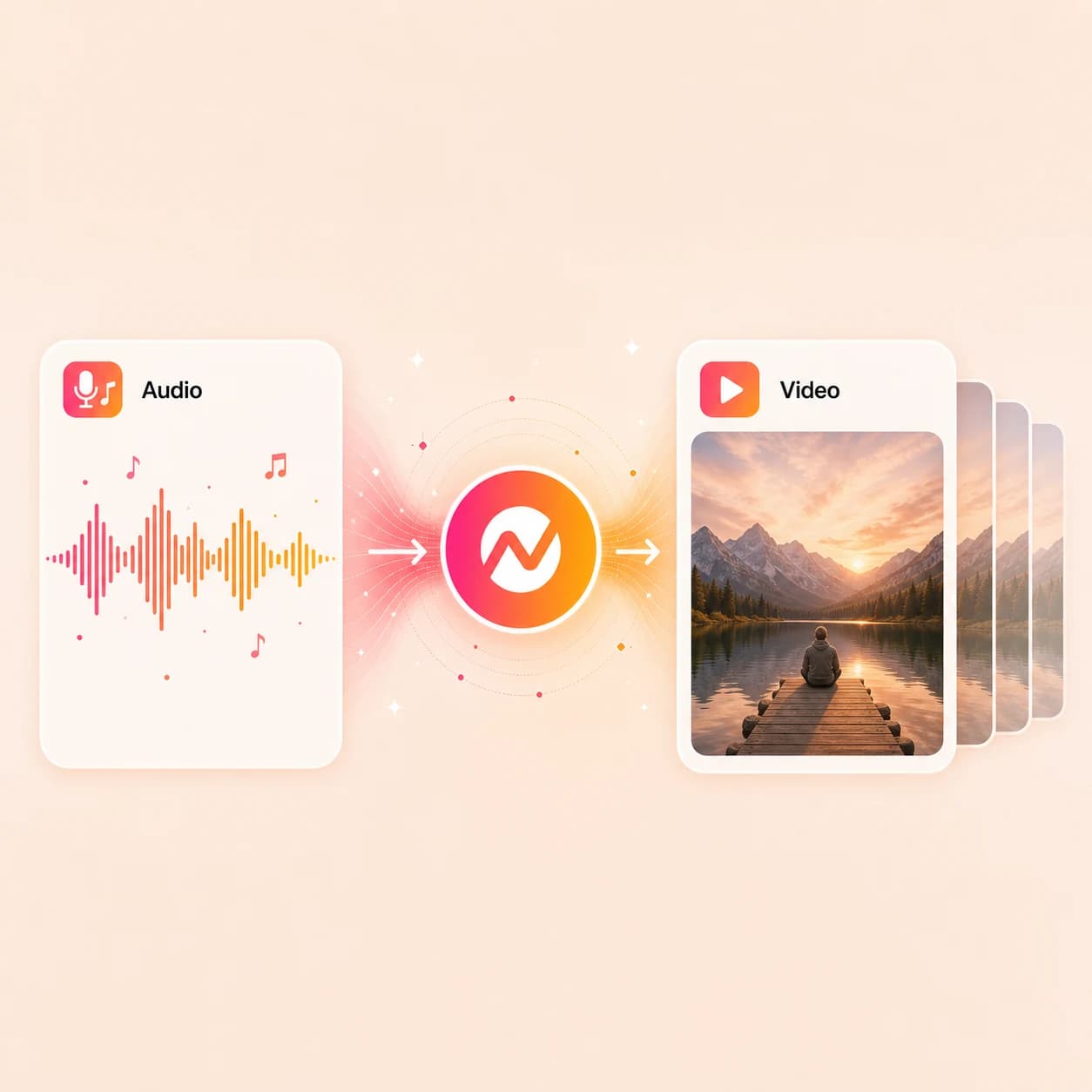
What it does
Turn an approved transcript or show-notes page into a visual video plan with branded scenes and captions. Direct audio upload from this page is still being wired.
Trusted by teams at












How it works
Build an audio-led video from the source material you have.
Bring an approved source-page URL and cover art, review the script and scenes, then export the finished video or keep editing it in ngram. Standalone transcript text belongs in Text to Video.
Bring the source material
Start with an approved show-notes or transcript page URL and optional cover art. Use Text to Video when your source is standalone transcript text. Direct audio upload is not available from this page yet.
Source ready
Review the script and scenes
ngram turns the source into a script and storyboard. You can direct each section toward cover art, text-led motion, generated visuals, or product footage.
Visuals selected
Style the captions
Captions follow the approved script. Review the wording and line breaks, then apply the brand kit's font, colors, and placement before export.
Captions placed
Export the clip
Choose one 9:16, 1:1, or 16:9 framing, review it in the editor, and download the finished video as MP4. Prepare any other layout separately.
Ready for channels
What it can do
What the audio story becomes in ngram.
Use the transcript and supporting material to build a short captioned clip or a longer scene-based video, then keep the project editable.
Start with cover art and context
Use approved cover art, show notes, and a transcript to establish the speaker, topic, and visual direction before ngram builds the storyboard.
Burn in captions from the script
ngram places captions from the approved script and applies the brand kit's font, color, and position before rendering the video.
Learn more about captionsMatch scenes to the message
Map each section of the transcript to a scene with generated visuals, uploaded assets, motion graphics, or product callouts.
Learn more about AI visualsApply brand styling end to end
Brand kit fonts, colors, logos, intros, outros, and motion style carry through the captioned video without manual restyling.
Learn more about brand kitTranslate the finished video
Translate captions and on-screen text or regenerate the voiceover in another language, then export the localized version alongside the original.
Learn more about translationBuilt for captioned podcast and webinar stories
When it matters
Where audio needs a watchable video version.
Nine ngram use cases where podcast transcripts, interview quotes, voice-memo scripts, and webinar notes need a captioned video version.
Product Demo Video
Pair an approved demo script with product footage, captions, and branded scenes when the narration already exists as text.
Open AI video use caseWebinar Clips
Use the webinar transcript and approved source material to build short captioned clips around each key moment.
Open AI video use caseMarketing Social Clips
Turn campaign interview transcripts, founder pull-quotes, and panel notes into branded social videos with captions and planned scenes.
Open AI video use caseTraining Video
Turn a recorded lesson's transcript into a structured training video with captions, examples, and brand styling.
Open AI video use caseLinkedIn Video
Turn a single interview quote into a 1:1 LinkedIn video with readable captions and brand styling tuned for the feed.
Open AI video use caseMeeting Recap Video
Take meeting notes or a transcript, pull the decisions and quotes that matter, and ship a captioned recap for absent teammates.
Open AI video use caseInternal Communication Video
Turn a leadership voice-note transcript or async update into a captioned video with brand-styled framing.
Open AI video use caseDevRel Conference Talk Video
Turn a conference-talk transcript and approved event assets into captioned clips that travel further than the original recording.
Open AI video use caseCustomer Testimonial Video
Use an approved customer interview transcript to build short testimonial clips with captioned quotes, brand framing, and supporting visuals.
Open AI video use caseProduct stack
Features that put an audio story on screen.
These ngram features turn the source transcript and supporting material into a captioned, branded video.
Captions & Subtitles
Place captions from the approved script and style each line with the brand kit before burning them into the video.
Learn more about captionsAI Visuals
Generate imagery for each section of the transcript so a longer story can move through distinct visual scenes.
Learn more about AI visualsMotion Graphics
Add lower thirds, pull-quote cards, and text overlays that support the speaker's message without manual keyframing.
Learn more about motion graphicsBrand Kit
Use logo, fonts, colors, intros, and motion style to keep episode videos consistent across accounts and team handoffs.
Learn more about brand kitVideo Editing
Add or change a background track after the video draft is ready, keeping the music below the narration.
Explore Video EditingTranslation & Localization
Translate captions and on-screen text, then regenerate the voiceover for each localized version.
Learn more about translationMore tools
More tools for preparing and finishing audio-led video.
Use these when the recording needs a transcript or cleanup first, or when the finished video needs captions, music, translation, or a tighter cut.
Read the speech first
Get a working transcript before the audiogram
Audio to Text
Transcribe the podcast clip or voice memo with timestamps, then use the approved transcript as source material for the video.
Open toolAuto Subtitle Generator
Turn the transcript into timed subtitles, then review wording and line breaks before they are burned into the finished video.
Open toolVideo Caption Generator
Build readable social captions for the finished video so the clip works on a muted feed.
Open toolPolish the audio first
Clean the speech track before it carries a video
Remove Background Noise from Audio
Strip room tone and hiss from the podcast clip or voice memo before using the recording elsewhere in the workflow.
Open toolVideo to Audio
Pull a clean audio track from an existing video when the recording needs transcription, cleanup, or reuse.
Open toolAI Voice Generator
Generate narration from an approved script when the original recording is unusable or the message needs a different voice.
Open toolFinish the video
Layer text, music, and captions on the finished cut
Add Subtitles to Video
Generate burned-in subtitles for the finished video and edit timing line by line so captions follow the spoken delivery.
Open toolAdd Text to Video
Add a title card, speaker name, lower third, or pull-quote text when the audio-led video needs a clearer hook.
Open toolAdd Music to Video
Add a background score under the speech track without burying the narration.
Open toolAI Podcast Video Maker
Shape approved podcast transcripts, artwork, and show notes into editable captioned video clips.
Open toolReuse the video later
Recut the finished audiogram for other channels
Video Cutter
Trim the rendered video down to a tighter quote-only cut for a different social slot without recreating the project.
Open toolVideo Translator
Translate the video's captions and voiceover when the same approved quote ships to multiple regions.
Open toolVideo to GIF
Turn a short moment from the finished video into a looping GIF for newsletters, embeds, or support replies.
Open toolConvert
Related source-to-video workflows.
Use these converter pages when the usable source is a webinar recording, a written transcript, or a screen recording rather than a direct audio upload.
Webinar to Clips
Upload a webinar recording and turn the strongest moments into captioned clips using the source video and transcript together.
Open converterText to Video
Paste a transcript or narration script and turn it into an editable video with scenes, captions, and brand styling.
Open converterScreen Recording to Video
Use a screen recording when the narration needs product footage, cursor polish, callouts, and captions in the same workflow.
Open converterWho it is for
Teams that need audio to travel as video.
These solution pages fit teams that work with podcast transcripts, voice-note scripts, interview quotes, and narration drafts that need a video version.
Sales Enablement Teams
Turn approved demo narration and follow-up notes into captioned assets sales teams can reuse with prospects.
See sales enablement workflowsGrowth & Marketing
Repurpose campaign interview transcripts, panel quotes, and founder notes into branded social clips with captions and planned visuals.
See growth workflowsProduct Marketing
Turn customer interview quotes and webinar transcripts into captioned videos that ship alongside launches and enablement assets.
See product marketing workflowsDeveloper Relations
Turn conference-talk transcripts and podcast guest notes into captioned developer clips with visuals for each technical beat.
See DevRel workflowsCustomer Success
Convert approved QBR notes and customer-call quotes into shareable video summaries for absent stakeholders.
See CS workflowsHR & Internal Comms
Make leadership voice-note transcripts, policy clarifications, and async updates easier to watch with captions and brand styling.
See HR workflowsFounders
Turn investor-update notes and founder Q&A transcripts into 1:1 captioned videos that read cleanly on LinkedIn.
See founder workflowsAgencies & Consultants
Package approved client podcast transcripts and interview quotes as branded videos with consistent captions and scene treatment.
See agency workflowsIntegrations
Move an audio-led video through the rest of the workflow.
These live ngram integrations can start a video from approved text or source pages and publish the finished result. Direct audio-file automation is not available yet.
Zapier
No-codeWhenAn approved episode transcript or show-notes document is ready
ThenStart a video project from the approved text and apply the show's brand kit
n8n
WorkflowWhenA producer adds an approved podcast transcript to the team's video queue
ThenRoute the transcript into ngram for a script, storyboard, captions, and visual scenes
MCP Server
AgenticWhenClaude or ChatGPT has an approved transcript and needs a captioned video
ThenStart the ngram video workflow from the transcript and return the rendered result
WhenThe transcript-led audio video has cleared review for LinkedIn.
ThenWrite the LinkedIn post and choose a one-off time for the transcript-led audio video.
X (Twitter)
BetaWhenThe audio-led quote video is ready for its X post.
ThenCompose the X post, then publish the audio-led quote video after its final review.
YouTube
BetaWhenAudio-led video is ready to go on YouTube.
ThenCompose the YouTube post, then publish the audio-led video now.
Every signed-in user can manage API credentials in Settings. Check the automation guide for current operations and webhook events, and the MCP guide for supported agent clients.
Why ngram
Choose the workflow that matches your audio-to-video job.
The best route depends on whether you need direct file conversion, a templated audiogram, transcript editing, or a storyboarded business video.
| Compare | ngram | File converter | Audiogram tool | Transcript editor |
|---|---|---|---|---|
| Workflow fit | Builds a script and storyboard from a transcript, cover art, or approved source page while direct audio upload is being wired. | Takes an audio file and a still image, then produces a basic video container. | Pairs uploaded audio with a waveform, cover art, and caption template. | Edits recorded audio and video by changing the transcript. |
| How ngram fits | Keeps captions, visual scenes, brand styling, translation, and MP4 export in one editable project. | Best when the job is format conversion and the visual treatment can remain simple. | Best for repeatable podcast quote clips with a consistent visual frame. | Best when the original recording must remain the primary media source. |
| Best use | Use Audio to Text first when the recording still needs transcription. | Choose this category when direct audio-file input matters more than scripting or scene planning. | Choose this category when waveform synchronization is the main deliverable. | Choose this category when cleanup and spoken-word editing matter more than generating new scenes. |
FAQ
Common questions about audio to video
Still curious?
Make the audio watchable
Bring an approved show-notes or transcript page URL and cover art into ngram, then review the script, captions, visual scenes, and brand styling before export.
Direct audio-file upload from this page is coming soon. For standalone transcript text, use Text to Video.
Transcript, captions, visuals, export