Video Converter by ngram
Video Converter for the format you need
Drop a video or click to upload
Accepted source files: MP4, MOV, WebM, MKV, and AVI
What it does
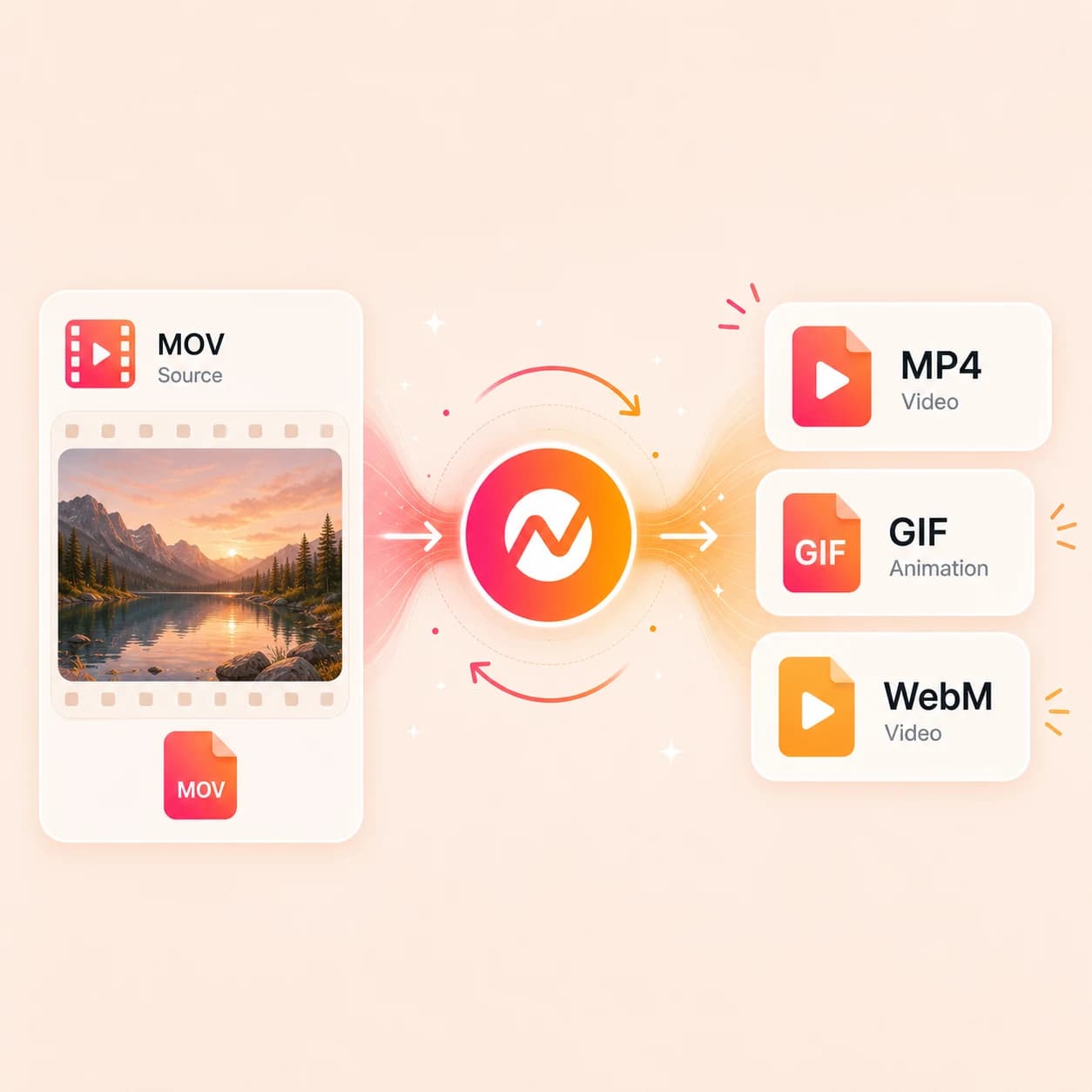
Upload an MP4, MOV, WebM, MKV, or AVI, then choose MP4, MOV, WebM, or MKV as the output. Studio normally downloads a finished video as MP4; use this converter afterward when another supported container is required.
Trusted by teams at











How it works
Convert one uploaded video in four steps.
Bring the source file, choose one available output container, run the conversion, and check the downloaded result.
Upload the source video
Start with an MP4, MOV, WebM, MKV, or AVI file.
Streams detected
Choose the output format
Pick MP4, MOV, WebM, or MKV from the options shown by the converter.
Format selected
Run the conversion
ngram processes the uploaded file. Processing time varies with file length, size, and the selected output.
Conversion running
Download the converted file
Review and download the result. If the video needs edits, captions, or brand work, make those changes in a separate workflow before the final conversion.
Ready for handoff
What it can do
What this video converter does, and what it does not.
This is a focused upload-process-download utility for one container conversion. It is separate from the ordinary Studio export flow.
Five accepted source formats
Upload MP4, MOV, WebM, MKV, or AVI video files.
Four supported outputs
Choose one output for the current job: MP4, MOV, WebM, or MKV. AVI is accepted as a source but is not an output choice.
Post-download Studio conversion
Studio's normal export is MP4. Download that finished file first, then convert it here if an editor or delivery system asks for MOV, WebM, or MKV.
One conversion at a time
Each run starts with one uploaded file and one selected output. The tool does not create a bundle of channel variants from a Studio project.
No automatic reframing
Changing the container does not crop or reframe a video. Prepare the framing for 16:9, 9:16, or 1:1 in a separate edit before export.
No codec or quality guarantee
A container choice does not promise a particular codec, bitrate, resolution, lossless path, or processing time. Review the result in its destination.
Verified against current product state on August 26, 2026
When it matters
Where a separate format conversion helps.
Finish the content and framing first. Then convert the downloaded file when the next editor, browser, CMS, or review system requires another supported container.
Product Demo Video
Finish the demo edit, then turn a MOV recording into MP4 when the buyer's browser or review system needs the more common container.
Open AI video use caseProduct Launch Video Maker
Keep the approved Studio download as MP4. Run a separate conversion only when the launch site or production handoff calls for WebM, MOV, or MKV.
Open AI video use caseLinkedIn Video
Studio's ordinary MP4 download already suits many publishing jobs. Use this converter when the supplied campaign file arrives as MOV, WebM, MKV, or AVI.
Open AI video use caseWebinar Clips
Turn an MKV, MOV, or AVI webinar recording into MP4 before selecting clips, or convert a finished clip after editing when its destination requires WebM.
Open AI video use caseHelp Center Video
Convert an approved screen capture to MP4 or WebM when the help center's player or CMS documents that container as supported.
Open AI video use caseLanding Page Video
Create a WebM copy from the approved download when the site build requests it. If you also need MP4, keep the Studio download or run another conversion.
Open AI video use caseSales Demo Followup
Convert a MOV, WebM, MKV, or AVI demo recap to MP4 when the prospect's review link or inbox workflow needs broad playback support.
Open AI video use caseMarketing Social Clips
Check the publishing destination's file requirements, then convert the finished campaign clip into one supported container at a time.
Open AI video use caseInternal Communication Video
Turn a legacy AVI or MKV team recording into MP4 when colleagues need a file that opens in common browsers and review tools.
Open AI video use caseProduct stack
Prepare the video before its final conversion.
These live product workflows change the content itself. Complete them first, download the normal Studio MP4, and convert that file separately only when another container is required.
Keep the project in the shared workspace
Keep the current project and its assets available to workspace members. Download the finished MP4, then convert that file without creating competing project versions in different containers.
Learn more about collaborationBurn captions into the finished video
Generate and review captions inside the video project so they are present in the normal MP4 download and remain visible after a container conversion.
Learn more about captionsPolish a screen recording first
Remove dead air, smooth cursor movement, and add step labels before export. Convert the completed MP4 afterward if the delivery system needs another container.
Learn more about screencast editingApply the brand before download
Use the workspace brand kit while creating the video. The converter changes the file container; it does not add logos, colors, fonts, or messaging rules.
Learn more about Brand KitAdd motion before conversion
Create overlays, lower-thirds, callouts, and transitions in the project before the Studio MP4 is rendered and handed to this converter.
Learn more about motion graphicsLocalize the content, then convert
Translate the script, captions, on-screen text, and voiceover in the video project. Download that localized MP4, then convert its container separately if needed.
Learn more about translationMore tools
Tools for the jobs around a container change.
Use one focused tool for each task. Finish edits before conversion, or take the converted download into a separate compression, GIF, or audio workflow.
After the container change
Handle a different output job with a separate utility
Video to GIF
Turn a short moment from the converted MP4 or MOV into a GIF in its own workflow; GIF is not an output in the video converter selector.
Open toolVideo to Audio
Extract MP3 or WAV from the converted video when the next job needs only the spoken or music track.
Open toolVideo Compressor
Reduce the downloaded video's file size after you have confirmed that its container is accepted by the destination.
Open toolEdit before converting
Finish the content before creating the delivery file
Video Editor
Edit clips, captions, audio, and pacing before downloading the final MP4 and changing its container.
Open toolVideo Cutter
Cut a long MOV, MKV, or AVI before the last container conversion so the downloaded result already has the right duration.
Open toolAdd Subtitles to Video
Generate, correct, and burn in subtitles before converting the finished video so the text stays with the picture.
Open toolCreate the source first
Build or record the video before the post-download conversion
Text to Video
Turn a script or outline into an editable Studio project, download the finished MP4, then convert that file only if the destination requires it.
Open toolScreen Recorder
Capture a product walkthrough in the browser, polish it as a video project, and convert the final download after the edit is approved.
Open toolAI Video Generator
Create an editable Studio video from a prompt or source material, download the finished MP4, then convert that file only when another container is required.
Open toolConvert
Create or polish the source before converting it.
These source-to-video workflows produce editable Studio projects. Finish the video, download the normal MP4, and use the video converter afterward for a supported container change.
Screen recording to finished demo
Polish a raw screen capture with trims, captions, and step labels. Download the finished MP4 before making any separate MOV, WebM, or MKV copy.
Open converterWebinar recording to selected clips
Choose and edit the useful moments from a webinar first. Convert each approved downloaded clip only when its destination asks for another container.
Open converterPowerPoint to narrated video
Use a PPTX or PDF deck as source material for a video. The finished Studio download is MP4; this video converter does not export a deck file.
Open converterWho it is for
Teams that receive a file in the wrong container.
These teams use conversion as a final compatibility step after the message, edit, captions, and framing are already approved.
Product Marketing Managers
Keep the approved Studio launch video as MP4, then create a separate MOV, WebM, or MKV copy only for a documented agency or web handoff.
See product marketing workflowsGrowth & Marketing
Check each campaign destination's file specification and convert the approved download into one supported container at a time.
See growth workflowsSupport Teams
Turn a reviewed MOV screen capture into MP4 or WebM when the help center, knowledge base, or ticketing system requires that container.
See support workflowsCustomer Success
Convert a finished onboarding or QBR video when the customer portal or review system cannot accept its current container.
See customer success workflowsSales Enablement
Turn a MOV, WebM, MKV, or AVI demo recap into MP4 when the sales follow-up workflow needs a broadly playable file.
See sales workflowsRemote Teams
Convert an older AVI or MKV update into MP4 when distributed reviewers need to open it in a common browser or review tool.
See remote team workflowsAgencies & Consultants
Supply the one container a client requests for the current handoff, while keeping the approved source file unchanged for later work.
See agency workflowsSaaS Companies
Convert approved demo or tutorial files for a specific web, sales, or help-center surface after checking its supported container list.
See SaaS workflowsIntegrations
Publish from Studio, convert downloads separately.
ngram's live integrations handle creation or publishing around a Studio project. They do not turn this standalone converter into an automatic multi-output export pipeline.
WhenThe team approved the converted delivery video; it is ready for LinkedIn.
ThenDraft the LinkedIn post and schedule one release for the converted delivery video.
YouTube
BetaWhenReview is complete on the converted upload video; YouTube is next.
ThenCompose the YouTube post and publish the converted upload video now.
MCP Server
AgentWhenAn external AI agent needs to start or monitor an ngram video render
ThenUse MCP for the Studio job, download the finished MP4, and convert that file separately if another container is required
Why ngram
Choose the workflow that matches the actual job.
The standalone converter changes one uploaded file's container. Studio export, agentic media transforms, and desktop conversion solve related but different jobs.
| Compare | ngram | Studio export | Agentic media transform | Desktop converter |
|---|---|---|---|---|
| Workflow fit | Accepts MP4, MOV, WebM, MKV, and AVI as source files. | Downloads an ordinary finished Studio video as MP4. | Works from supplied media through a natural-language chat request. | May expose detailed codec, bitrate, resolution, or batch controls, depending on the software. |
| How ngram fits | Creates one selected MP4, MOV, WebM, or MKV output per run. | Keeps script, scenes, captions, audio, and brand work in the project before download. | Can trim, merge, convert, extract audio, or derive a GIF or still image. | Runs outside the ngram project and its editing workflow. |
| Best use | Best for a post-download container change, not project editing or automatic reframing. | Use the standalone converter afterward if a supported alternate container is required. | Does not make ordinary Studio export a one-project multi-format delivery workflow. | Useful when the required format or control is not listed by this converter. |
FAQ
Common questions about the video converter
Still curious?
Downloaded the MP4? Convert the container
Upload one MP4, MOV, WebM, MKV, or AVI, choose one MP4, MOV, WebM, or MKV output, and download the converted result.
Studio's normal export is MP4. Use this converter separately when the next system requires another supported container.
Convert only the file the next system needs