Choose a style and customize the brief
A 20-second walkthrough using real page captures from the attended browser session.
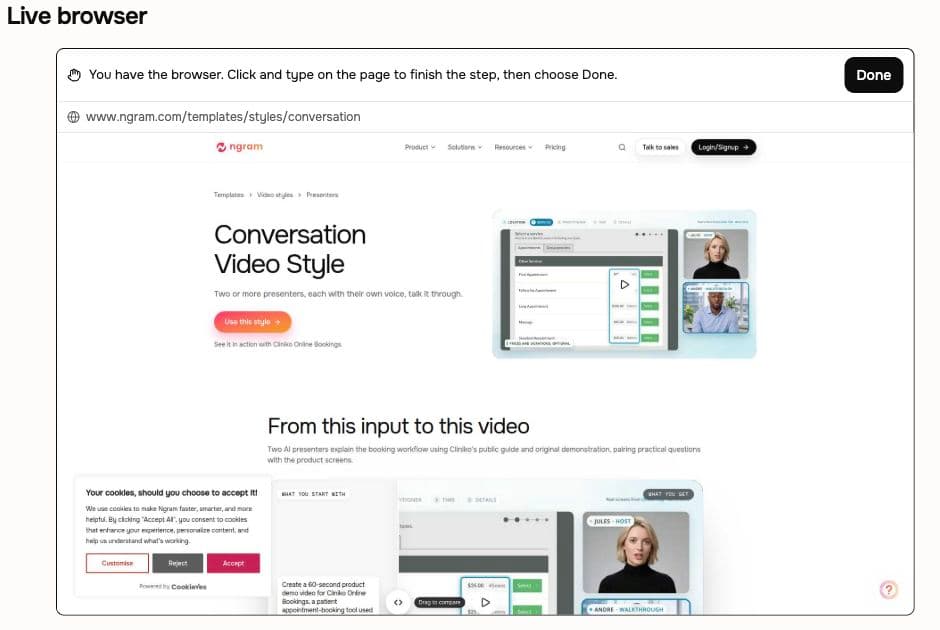
Give ngram the product URL and the workflow to explain. Watch its live browser, take over when a step needs you, then choose Done so ngram can continue with the real screens.
Trusted by teams at


Your best product example may require an account, a setup step, or a specific path through the app.
The workflow may sit inside your product, beyond the marketing page and its screenshots.
You need a way to complete the step yourself and let the walkthrough continue.
Choosing the audience and exact task first gives the tour a reason to show each screen.
Your interaction becomes the next step in the walkthrough.
Tell ngram which task to explore and follow it in Live Preview. When a page needs your input, take control directly in the browser, complete the step, and choose Done. The project can then continue from the screens available in that session.
Your interaction becomes the next step in the walkthrough.
Describe the URL, audience and workflow. Ask for the actual interface so the video explains the product your viewer will use.
When ngram hands over control, interact with the live page. Choose Done when finished, or I can’t do this if the step is blocked.
Check the proposed plan and script, then review the generated walkthrough and ask for changes to the screens or explanation.
Focus the tour on the action your viewer needs: evaluating a feature, completing setup, or resolving a support question.
Show the action a prospect cares about, with narration over real product screens.
Explain one authorized workflow and the result the user should see at the end.
Capture the relevant controls and explain the steps needed to resolve a question.
A 20-second walkthrough using real page captures from the attended browser session.
Start an attended Studio project with a compatible director, name the app and task, and stay available for any step that needs you.
Open Studio with a compatible director such as Opus 5.5. Supply the URL, exact task and intended audience.
Watch exploration. If control is handed to you, complete the requested step directly on the page and choose Done.
Review the plan containing the script, generate the video and check the actual screens before sharing.
Show the action a prospect cares about, with narration over real product screens.
Explain one authorized workflow and the result the user should see at the end.
Capture the relevant controls and explain the steps needed to resolve a question.
Use an actual product flow for the moments when a prospect or customer needs to see where to click and what happens next.
Drop in a rough screen recording or paste your product URL. A product demo video maker built for SaaS hands you back a clean walkthrough with smart zooms, captions, and brand polish — no timeline editor in sight.
Use a SaaS demo video maker to turn your current workflow recording into a walkthrough for one buyer task. Review the plan, request revisions, and check the result when the next release changes a screen.
A knowledge base video maker for support teams turns an article or screen recording into a polished tutorial with captions, clear visual guidance, and a hosted or exportable version for your help center.
Give new accounts a clear setup walkthrough before the first customer-success conversation. Start with the real workflow, review the plan containing the script, and make the kickoff about the next milestone instead of basic setup.
Record your product once. Spin up a personalized sales product demo for every prospect without waiting on Solutions Engineering — their workflow, their use case, their data on screen. Close faster with relevance.
Drop a screen recording, paste the release notes, or point at the PR — ngram gives you back a feature announcement video with smart zooms on every new interaction, captions, and your brand kit, built for B2B PMMs whose marketing velocity keeps falling behind engineering's.
Both approaches can use real product screens. Choose based on whether the task still needs to be explored or is already recorded.
| Capability | Browser Handoff | Upload a recording |
|---|---|---|
| Getting the source | ● Explore a named workflow with ngram | Prepare and upload a recording |
| A sign-in step | ● Complete it in the handed-over browser | Complete it before recording |
| Changing the explanation | ● Ask for a revision in the project | Revise the brief and recording as needed |
The browser provides the source screens. Shape the explanation around them, or start from a recording you already have.
Upload an existing walkthrough when you have already captured the task. Request clearer pacing, labels, and click emphasis, then check the result against the original actions.
Explain who the viewer is and the task they need to complete. Use the source screens and product facts to draft narration that follows the workflow in a useful order.
Ask for a specific change to the walkthrough’s narration or scene. Check that the revised words and displayed controls still describe the same product action.
A public page can establish the message. Screenshots, a recording, or an attended browser session provide the product view the explanation needs.
Use a public page to establish the product facts and audience. When the demonstration needs a signed-in workflow, continue through attended browser handoff in Studio.
Start with the website’s positioning, feature copy, and approved claims. Pair that message with real app screens when the video moves from explaining the offer to showing the task.
Supply current screenshots when a live capture is impractical. Put them in workflow order and identify the controls the narration should explain.
Upload the actual walkthrough when you have already recorded it. Name the actions to keep and how the original speech should be handled before adding narration or callouts.
Capture a missing step, add an instruction, or revise the finished demo with a focused tool.
Define the audience, product workflow, and closing action before collecting screens. Use the actual interface and approved product message as the basis of the demo.
Capture the workflow directly when you want to provide the source recording. Bring the file into the video project with the steps and explanation already in view.
Add a short instruction or callout at the relevant product screen. Keep the wording consistent with the interface and leave the target control visible.
Revise the narration, scene order, or visual explanation after the first cut. Review the complete workflow before sharing the demo with prospects or customers.
Interactive capture happens with you present in Studio. A separate Zap can start a video from a public release page or approved product brief.
Use browser handoff for the signed-in capture and accessible sources for unattended video jobs.
Browse integrationsBring the app URL and the task your viewer needs to understand.
Watch the product exploration in Live Preview