A branded customer handoff
Watch a short kickoff lesson with the creator’s logo linked to its website.
Put your logo on the player, link it to your site and choose which controls viewers see. Set a default for your tutorial series, then change individual videos where the audience needs something different.
Trusted by teams at


A customer opens a tutorial to finish a task. The player surrounding the recording affects what they recognize, which controls they can find and where they go afterward.
A logo on a title slide is part of the picture. A linked player logo can take someone back to your help center after the lesson.
A support series is easier to maintain when its team sets one default and makes exceptions for particular videos.
An employee returning to a procedure may know the step by name but have forgotten where it starts in the recording.
The Video library gives the player its own settings, separate from the footage you upload or create.
In the Video library, Player defaults applies across your hosted videos. Open a published video’s Player tab to override an individual setting.
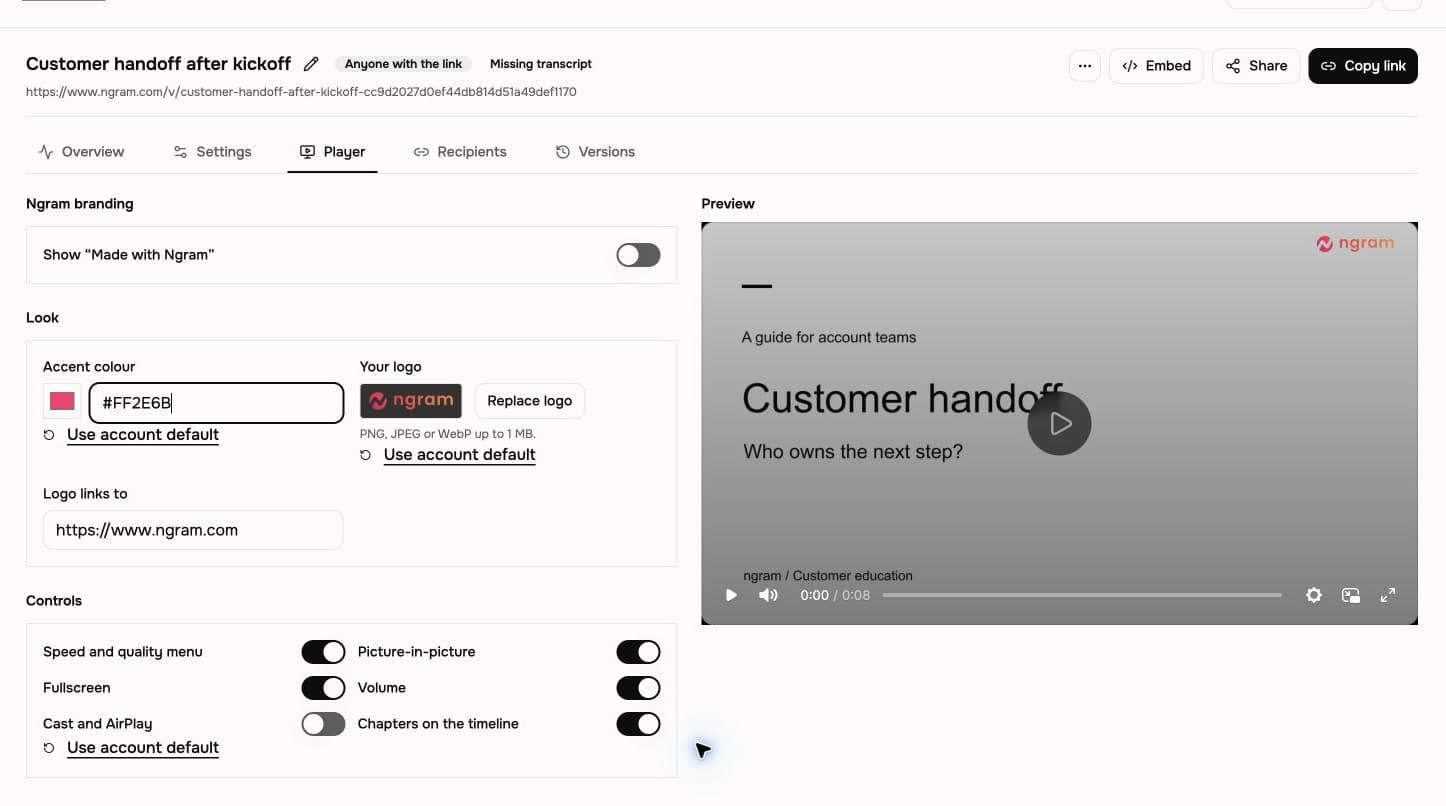
One tutorial can have its own look without changing the rest of the library.
Enter a hex color for the player and check the result against the background of your video.
Upload your logo and set its website link. A help article can send viewers back to documentation, while a lesson for partners can point to their portal.
Choose whether to show fullscreen, picture-in-picture, volume, the speed and quality menu, or casting controls.
Think about where the video will play. A support article on a laptop and a training lesson on a shared screen call for different settings.
Enter a timestamp and title on each line, starting at 0:00. Use procedure names your viewers already recognize, such as “Assign the account owner.”
Choose a start time for one video, or turn on muted autoplay for a clip intended to play as someone reads. A link to a specific moment still takes the viewer to that moment.
Publish the video, copy its embed code and place it in the help center or learning portal. Open the result there to check its size and controls.
Watch a short kickoff lesson with the creator’s logo linked to its website.
See how to mark the introduction and the point where the account owner gets the next action.
The lesson keeps its playback controls in the embed, with casting turned off for this video.
Start with a published video in the Video library. Player customization is available on Premium and higher plans.
For a whole series, open Video library and select Player defaults. To change a single published video, open it and select Player.
Set the accent color, upload your logo and enter the website it should open. Choose the playback controls you want to keep, then select Save player. Add chapter timestamps separately with Save chapters.
Open the watch link or select Embed and copy the code into your site. Play the video there, check the logo link and try the controls your audience will use.
Use a branded embed when a viewer should be able to watch and return to the surrounding article, course or customer portal.
Embed a walkthrough beside the written steps. Link the player logo to the support site so viewers who opened the watch page separately can find the rest of the guides.
Name chapters for the tasks in a training recording. A returning learner can use the labels to find the section they need.
Use account defaults for a consistent onboarding series. On a partner-specific lesson, change the player logo link to the portal the customer uses.
Choose the setup that matches what your viewer is doing before and after the video plays.
Place a branded walkthrough beside the written support steps.
Let viewers recognize the procedure they need by its chapter title.
Use the same player controls across training for new customer success hires.
Set a suitable logo destination on the player used for the kickoff video.
Give prospects a hosted player they can open from a follow-up email.
Check the embedded video at the width your documentation uses.
A player suits a page you maintain. An MP4 is useful when a course platform or publishing channel requires a file upload and supplies the playback controls.
| Capability | ngram hosted player | MP4 file upload |
|---|---|---|
| Logo destination | ● The logo can link viewers back to your site | A logo in the footage is an image |
| Playback controls | ● Set controls for the library or an individual video | The destination supplies its own player |
| Where to use it | ● On a watch page or a site that accepts the embed | In a course or channel that requires a file |
Use these features for the other parts of the viewer’s experience, from publishing the file to keeping captions readable.
Publish a watch page or get the embed code that carries your chosen player settings.
Set the visual identity used in the video before choosing the logo and accent shown by the player.
Prepare captioned content before selecting caption preferences on a player that offers the language viewers need.
Start with the approved source behind a lesson or walkthrough, then publish the finished video to your site.
Turn an approved article into a tutorial you can embed beside the written steps.
Prepare a walkthrough of a real task before customizing the player that delivers it.
Turn an SOP into a lesson and use its procedure names as chapter labels.
Use existing lesson material to make a video for a training portal that accepts embeds.
Player controls affect playback. Use these tools when the change belongs in the video itself.
Record the product steps that viewers will watch inside your embedded player.
Remove dead time before setting chapter timestamps against the finished video.
Burn subtitles into the picture when the same video also needs to play as a file.
Prepare a smaller MP4 for destinations that require an upload instead of a website embed.
If your help article needs to show the interface, start with the browser extension and finish in the Video library.
Explore other ways to create videos from the sources your team already uses.
See all integrationsSet the look once under Player defaults if the same settings should apply across your series.
Open a published video and choose Player to change how people watch it.
Player customization starts on Premium.