Read before this
Read these direct prerequisites in order. Each guide lists any earlier context it assumes.
Choose a single-purpose tool for a finished asset
A colleague sends a finished training recording and asks for searchable text. Find the tool that produces a transcript and check where its output is saved. The recording remains the source for that task.
When several sources must become a new explanation with a reviewed sequence, start in the creation workspace. Create a multi-scene video.
Start from the requested deliverable (illustrated guide)
Before you start
Sign in and prepare an input you own or are permitted to process. Tool availability, supported files, duration limits, plan access, and credit cost are shown on the live input screen and can differ from older screenshots.
Browse and search
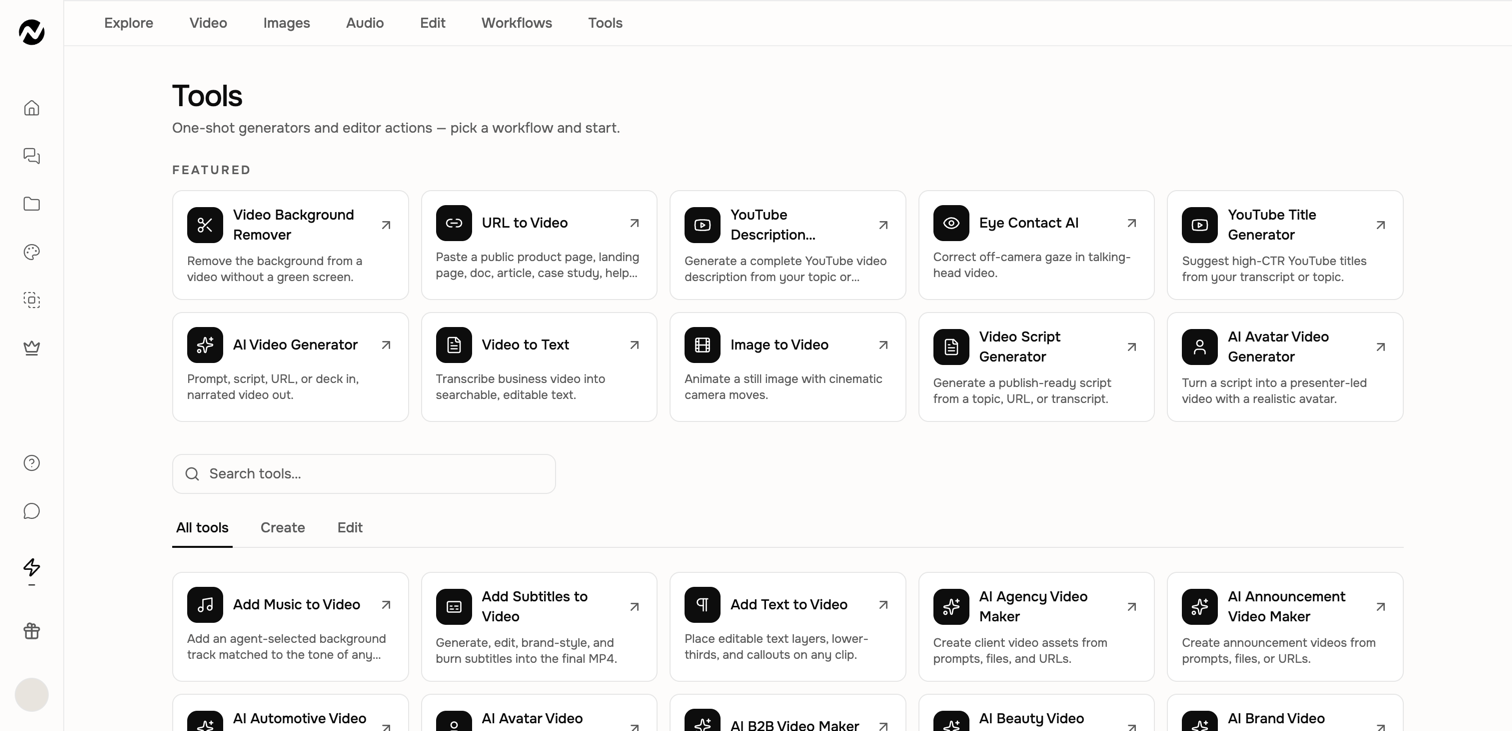
The library highlights popular tools and includes search plus All tools, Create, and Edit filters. Some cards open a dedicated upload-and-process workflow. Others return to the Home composer with the corresponding intent.
Choose the right kind of tool
- Create tools turn prompts, URLs, scripts, files, and media into new output.
- Edit tools apply a focused operation to an existing video or audio file.
- Image Lab and Clip Studio are dedicated creative workspaces.
- Screen Recorder starts a recording-to-editor workflow.
Where results go
Agentic requests are saved as conversations. Dedicated one-shot runs are saved under Projects → Tool results when the tool supports saved output. Download the processed file from the result screen and rename important projects so they are easy to find later. Most one-shot results also offer a continuation action that opens Agentic Chat with the result already attached as context, so you can keep building on it without starting a new request from scratch.
Availability
The library and individual Tools can differ by account. Use the live card and its current input screen as the source of truth for supported files, cost, and limits. A public Tool page can also hand off to a different visible creation path when the job needs a full project.
A safe first pass
- Open the dedicated Tool or app and read its current input requirements.
- Use a short safe sample, choose only the necessary settings, and review the estimate.
- Run the job and inspect the complete result for quality, timing, text, faces, and audio as applicable.
- Download or save the approved output and verify where the run appears in Projects.
Keep going
Choose, run, verify, and recover focused video and audio editing Tools.
Prepare, process, review, and troubleshoot an MP4, MOV, or WebM with the Eye Contact AI Tool.
Use Video Translator, lip sync, Voice Dubber, Video to Text, and Audio to Text without confusing their outputs.
Use Image Lab prompts, templates, references, styles, platform sizes, models, history, and downloads.