Read before this
Read these direct prerequisites in order. Each guide lists any earlier context it assumes.
Choose the output your second audience needs
A training team wants employees to hear an existing tutorial in another language. Choose a localized video or replacement voice track when audio matters. For a searchable handout from the same recording, choose a transcript and review its terminology.
If the spoken language stays the same and viewers need on-screen words, use captions on the video. Set captions on an existing video.
Watch the video translation example
Use this guide when you need a localized video, replacement voice track, or transcript, or when translated narration, captions, or on-screen text is wrong, incomplete, or left in the source language. It helps you select the right Tool, verify the result, and make one safe recovery attempt for a technical failure.
This workflow does not certify linguistic, legal, or regulatory accuracy. A fluent, qualified reviewer must approve names, product claims, required wording, and regulated content before publication.
Choose the output you need
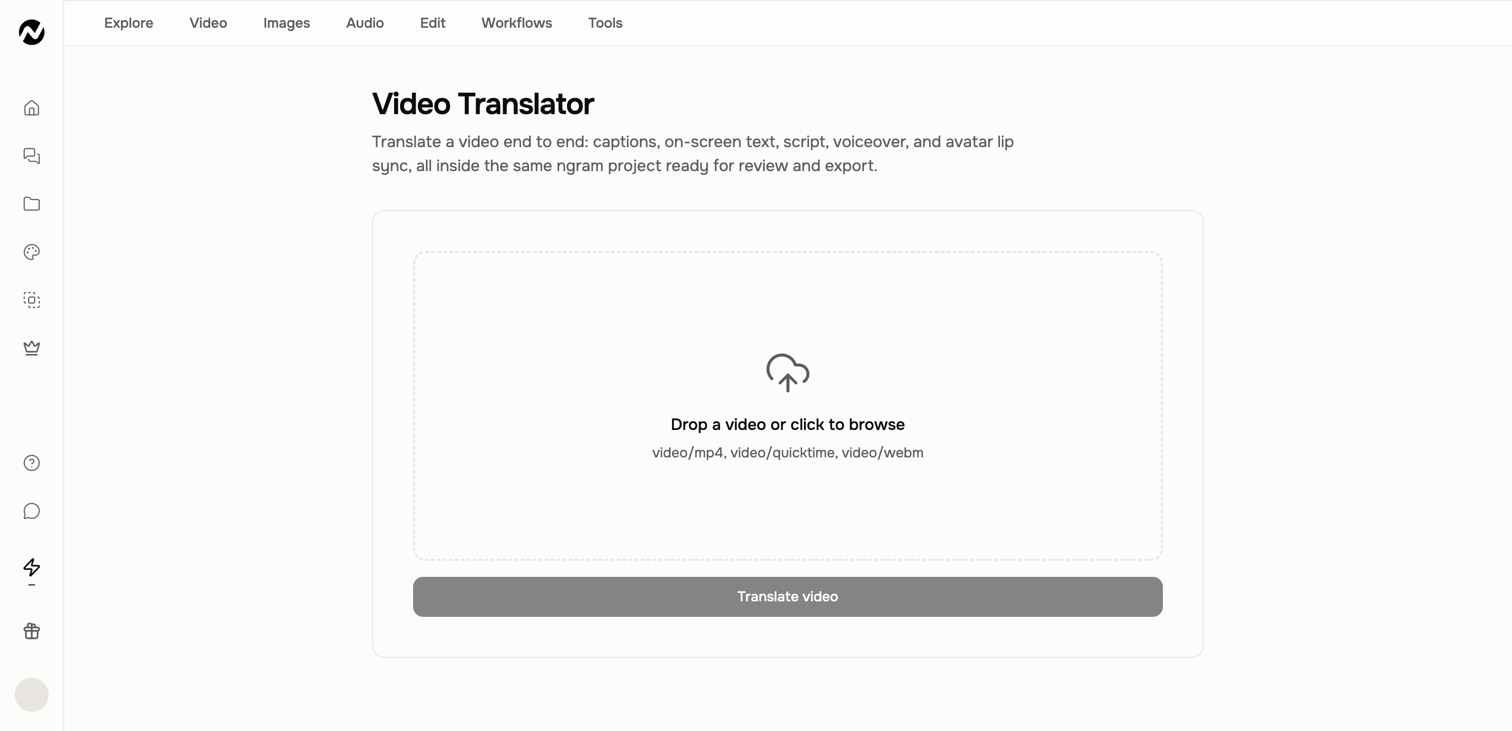
- Video Translator: localize the project's captions, on-screen text, script, and voiceover using the options shown after upload.
- Video Translator with lip sync: add supported mouth-motion alignment when that visual change is required.
- Voice Dubber: replace the spoken track without asking for a full translation workflow.
- Video to Text: turn spoken video into editable, searchable text.
- Audio to Text: transcribe a supported audio file with the result format shown by the Tool.
Before you start
Use media and voices you are authorized to process. The Video Translator upload surface accepts MP4, MOV, and WebM. Target languages, lip-sync support, limits, and cost are live choices; do not rely on a fixed language count from an older article.
Run a localization
- Open the translation or dubbing Tool that matches the required output.
- Upload a short representative file and wait for the Tool to expose its compatible options.
- Choose the target language, voice, and lip-sync behavior only where the live screen offers them.
- Review the displayed estimate and start the job.
- Play the complete result and download the approved localized file.
Review language and timing
- Check names, numbers, product terms, legal wording, and the final CTA against an approved translation.
- Check captions and on-screen text for line breaks, overflow, and untranslated fragments.
- Check voice pacing, speaker ownership, scene timing, and lip sync where used.
- Ask a fluent reviewer to approve customer-facing or regulated content.
Expected result
A translation job produces a playable localized video whose narration, captions, and on-screen text use the selected target language where those layers are present. A dubbing job replaces the spoken track, and a transcription job produces editable, searchable text. Download only after the complete result passes language and timing review.
If translation or localization is incorrect
- Preserve the original and localized result. Record the first affected timestamp and whether the problem is narration, captions, on-screen text, speaker assignment, timing, or lip sync.
- Compare the output with an approved translation. If a project workflow is editable, request only the exact wording or affected scene change and state what must remain unchanged. Do not ask for another general translation.
- If the job is incomplete or failed technically, confirm that the original speech is audible and the file meets the current Tool limits. Retry one short representative segment once after reviewing any displayed credit estimate.
- Replay and review the corrected segment. If the same wording, missing layer, timing, or processing problem remains, do not retry again; contact Support.
Contact Support after one failed localization recovery
Stop after one targeted correction or short technical retry if translated narration, captions, on-screen text, timing, or lip sync remains wrong or missing. Send Support the Tool or project URL, approximate time, source and target languages, input format and duration, affected timestamp, visible error, browser, whether you retried once, and whether Usage shows a credit change. Do not send private media unless Support provides a secure path.
Translation and localization FAQ
Keep going
Choose, run, verify, and recover focused video and audio editing Tools.
Select narration, language, presenter, and custom identity options for a video.
Change captions, background music, narration, and sound-effect settings.
Choose the right help channel and include useful, privacy-safe diagnostic details.