Read before this
Read these direct prerequisites in order. Each guide lists any earlier context it assumes.
When to use Conversation mode
Use this guide when a question helps your audience understand the answer. For example, a product marketer has an approved answer about using an existing screen recording and wants a questioner and an expert to explain it in a short video. Conversation mode creates a scripted discussion between two or more on-screen avatars, each with its own voice.
The example below turns one product question into a 20-second Q&A. You supply the topic, audience and facts; ngram chooses the avatars and voices, then shows you the dialogue to review before production.
For a direct explanation from one speaker, choose a voice and presenter in the normal video setup. If the viewer needs to follow real clicks, attach your recording or collect the relevant product screens with Browser Handoff.
Make a walkthrough with Browser Handoff
Before you start
Sign in to ngram with Opus 5.5 available in the model selector. Prepare the question, approved answer, audience and source material. Check the model availability and credit estimate in your account before creating the video. MP4 downloads require a paid plan; the available resolutions depend on that plan.
A video brief is the prompt that tells ngram what to make. Describe the discussion and speaker roles there. Use source facts you can stand behind, and attach the real recording or screenshots when the video needs to show your interface.
Step 1. Write the discussion in Video brief
Open ngram, choose Home, then Prompt to video. In Video brief, enter the topic, audience, question and answer. Identify what each avatar should contribute. You can adapt this brief:
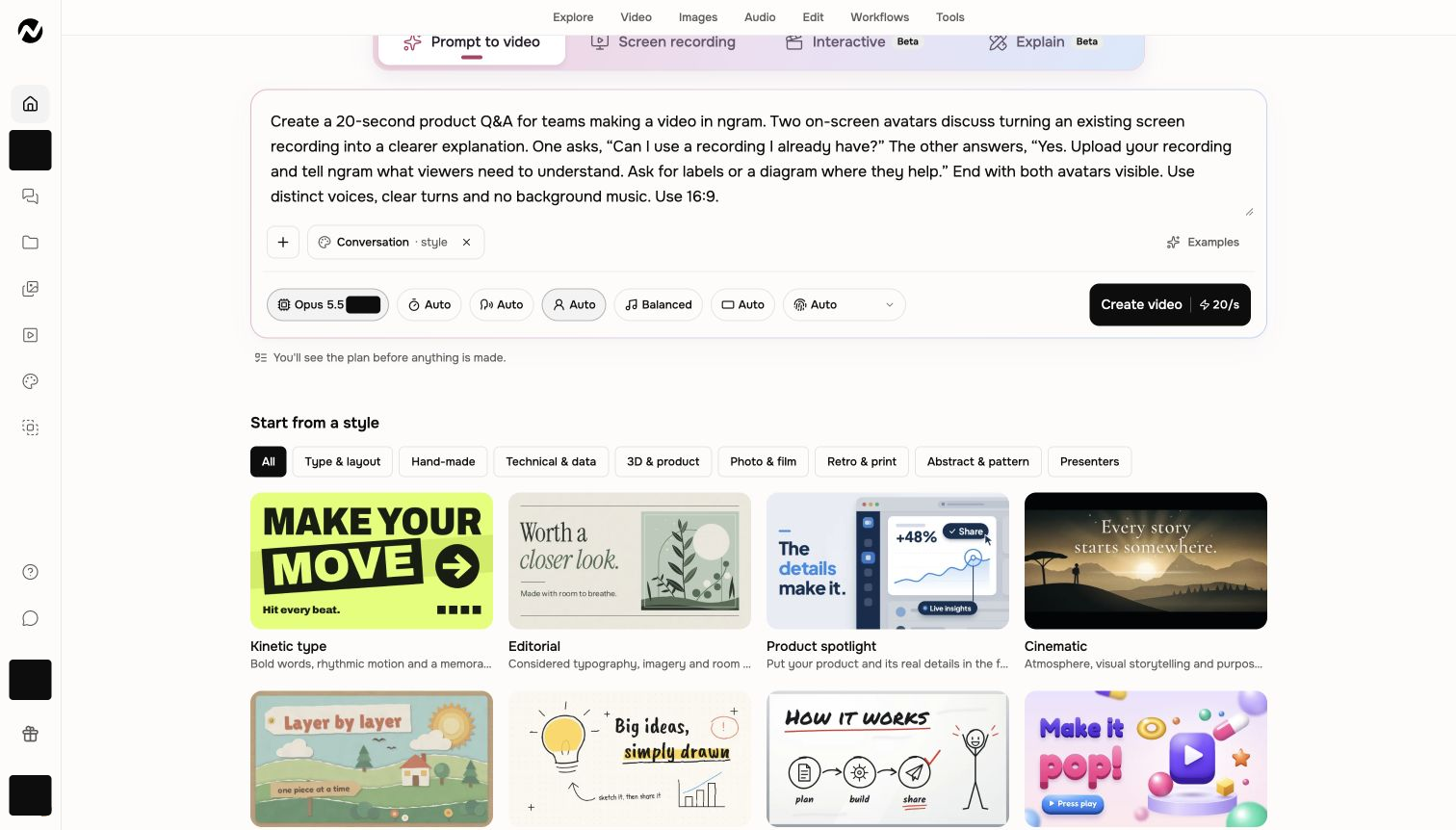
Create a 20-second product Q&A for teams making a video in ngram. Two on-screen avatars discuss turning an existing screen recording into a clearer explanation. One asks, “Can I use a recording I already have?” The other answers, “Yes. Upload your recording and tell ngram what viewers need to understand. Ask for labels or a diagram where they help.” End with both avatars visible. Use distinct voices, clear turns and no background music. Use 16:9.Step 2. Select Conversation style
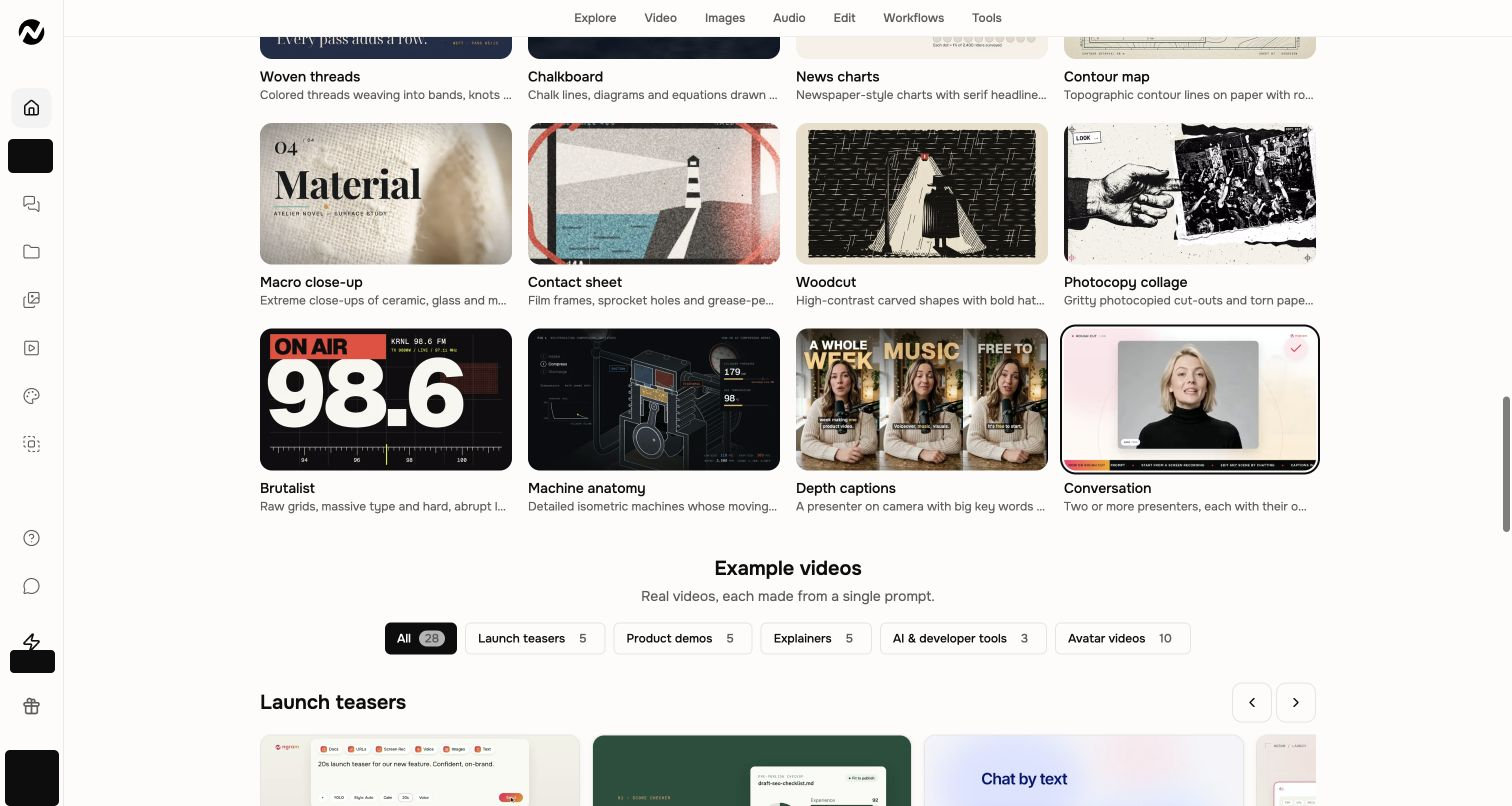
Under the brief, find Start from a style. Scroll through the All gallery and select Conversation. It appears beside Depth captions at the end of the style list. The selected card gains a check mark, and Conversation appears beside your brief.
Step 3. Use Opus 5.5 and keep both selectors on Auto
Return to the video setup beside your brief. Set Model to Opus 5.5, Presenter to Auto and Voice to Auto. Selecting Conversation brings Presenter to Auto when no presenter was selected. If you previously chose a specific avatar or voice, open each selector and choose Auto.
Auto lets ngram choose the cast and voices from your brief. You do not need to pick a lead presenter or assign every voice before starting. Review Length and Format as well, or describe the duration and aspect ratio in your brief.
Step 4. Choose Create video and wait for the plan
Choose Create video. The project opens with chat on the left and Preview on the right. ngram reads the brief and prepares the discussion. Wait for Needs your review and the plan; production starts after you approve it.
Keep working in this project when you ask for a change. If the plan is still being prepared, follow its activity in chat rather than submitting the same video again.
Step 5. Review the speakers and approve the plan
Read the proposed cast, voices and dialogue in the chat. In the example, Jules asks the question with the Aoede voice, and Andre answers with Iapetus. Your video can have a different cast.
- Check that the plan includes two or more on-screen avatars with clear speaking roles.
- Read each line against your approved answer. Check the voices, order of turns, source visuals and closing exchange.
- Choose Request changes if a role or answer needs work. When the discussion is ready, choose Approve plan to start production.
Step 6. Watch the complete result
Follow production in the chat while the right pane shows the video being made. When it is ready, play the preview from beginning to end. Check that each avatar says the right lines, the voices are easy to distinguish and the answer uses your approved facts.
This finished example pairs the two avatars with an illustrative report screen. Attach your own recording when your video needs to show the actual interface.
Step 7. Download the MP4
On a paid plan, open Download and export in the Preview toolbar, choose Download, select an available resolution and choose Download video. Wait for Video downloaded, then play the saved MP4 to check the sound, speaking turns and final frame.
What a successful result looks like
The video contains two or more visible avatars taking clear turns in the discussion. Each has its own voice, the planned question receives the approved answer, and the supporting visuals explain the point. The saved MP4 should contain the same exchange you reviewed.
If Conversation or an Auto setting is missing
Check Model first. Conversation is a presenter style, so use Opus 5.5 and check that it is available in your account. Return to Start from a style and select Conversation again. Then open Presenter and Voice and verify Auto. If the option remains unavailable, contact Support with the project URL and the visible availability message.
If a speaker or answer needs a change
Before approval, choose Request changes and identify the speaker and line to correct. After generation, send the correction in the same project, naming the scene, timestamp or avatar. Review the estimate before a new generation and replay the affected exchange.
If the preview or download does not play
Reopen the same completed project and try the preview again. On a paid plan, you can also download the completed MP4 and check that file. Follow the export guide if the download is still being prepared or fails. Avoid starting a duplicate video to recover an existing result.
Download and export a completed video
Adapt the discussion for another video
For training, let an employee ask about one policy decision and an expert explain the approved procedure. For a product Q&A, keep the question focused on the buyer’s task. Replace the facts and source material in your brief, then review the new speaking turns before production.
Questions about Conversation mode
Keep going
Find and select styles for other kinds of explanations.
Choose a single presenter, narration or approved identity assets.
Check the planned script and scenes before production.
Request a focused change to an existing project.
Save the completed video at a resolution supported by your plan.