Screen recording editor for product walkthroughs
ngram is a screen recording editor for raw product captures. Upload a recording or record in the browser, then use Screencast mode to trim dead air, smooth the cursor, emphasize clicks, add step labels and captions, and edit the finished walkthrough.
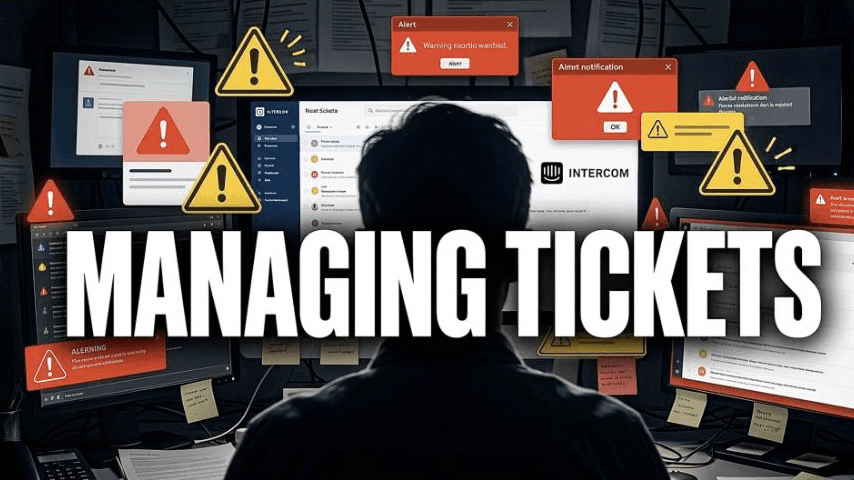
- Upload an existing screen recording or record one in the browser
- Clean up cursor movement, click emphasis, pauses, labels, and transitions
- Edit the polished walkthrough in the same canvas, chat, and timeline tools
- Add captions and brand treatment, then download the finished video as MP4
Trusted by teams at









Raw screencasts contain the answer, but not the story
A screen recording shows the workflow, but viewers still need context. Someone has to cut dead air, explain why each step matters, add zooms, write captions, and turn the capture into a video people will finish.
The useful moments are buried
Clicks, page changes, form submissions, and setup steps sit inside one long timeline that someone has to scrub by hand.
The recording does not explain itself
A viewer can see the cursor move, but they still need narration, labels, captions, and a clear reason for each step.
Every audience needs a different cut
A prospect demo, customer tutorial, internal update, and help-center clip may all start from the same capture.
Manual polish takes longer than the recording
Trimming pauses, setting zooms, styling captions, and adding branded frames can turn a five-minute screencast into an afternoon edit.
Screencast mode keeps the recording in the project, then gives the walkthrough the pacing and guidance it needs.
Turn a raw capture into a guided walkthrough
ngram turns a raw screen recording into a guided product walkthrough. In Screencast mode, the agent adds cursor smoothing, click emphasis, dead-air trimming, step labels, transitions, captions, and brand treatment.
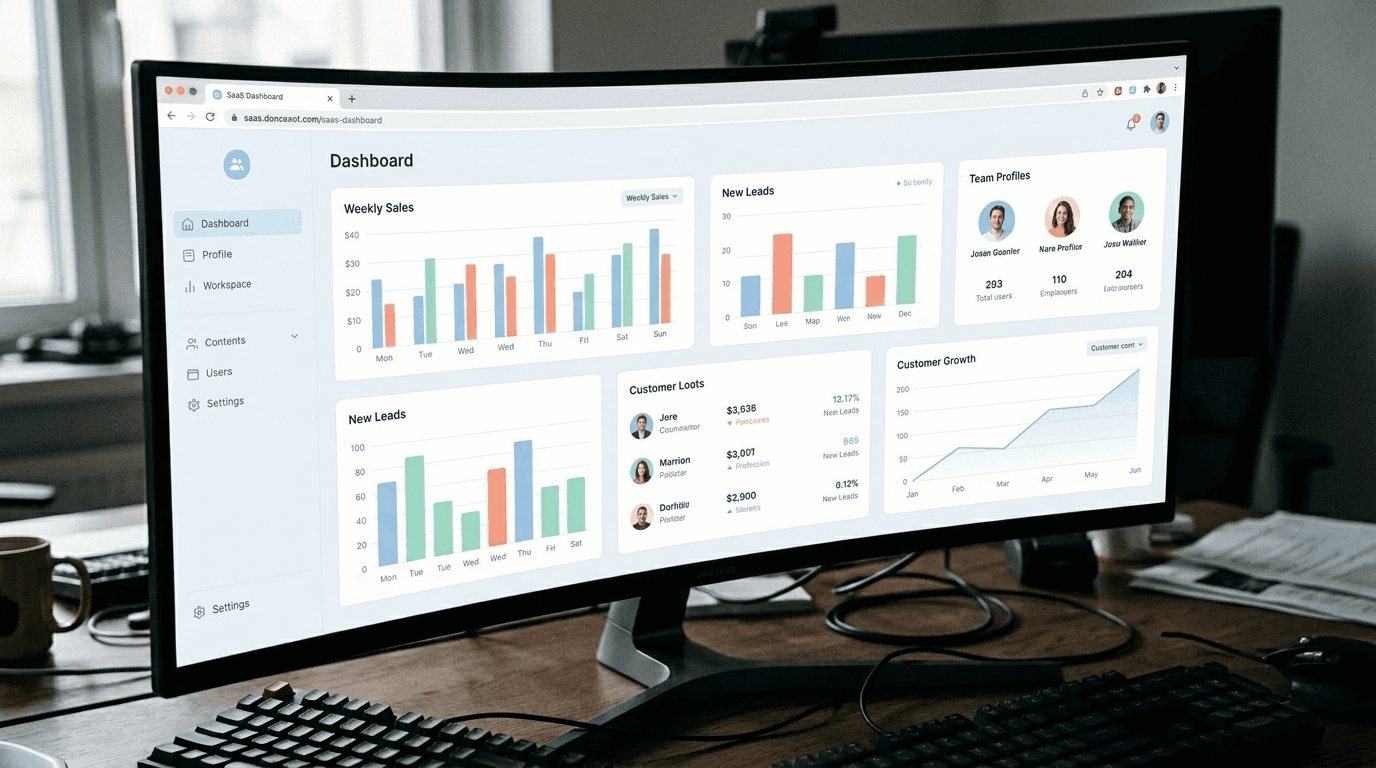
A recording becomes a walkthrough viewers can follow.
Keep the source recording in context
Upload an existing capture or record in the browser, so the project starts with the product flow your viewer needs to see.
Make every action legible
Cursor smoothing, click emphasis, smart zooms, and step labels help viewers see where to look while the workflow moves.
Finish in the editor
Open the same scene editor to adjust the canvas, captions, callouts, script, or timeline before downloading the finished MP4.
Keep the product flow. Improve how it plays.
The recording remains the source. ngram adds the pacing, visual guidance, and editing controls that help a viewer follow it.
Start from the workflow you already captured
Bring an existing screen recording or make one in the browser. The product actions and narration stay connected to the video project.
Point viewers to each important action
Cursor smoothing, click emphasis, smart zooms, and step labels clarify the parts of the product flow that deserve attention.
Clean up the take without leaving the project
Dead-air trimming, captions, section transitions, branded backgrounds, and frames stay with the screencast as the walkthrough takes shape.
Edit the same scenes you use to explain the product
Use chat, the scene editor, and the timeline to adjust copy, visual elements, captions, or timing before you export the finished video.
How Screencast workflows work in ngram
Record or upload the product flow, choose the right Screencast workflow, let the agent polish it, then finish the walkthrough in the editor.
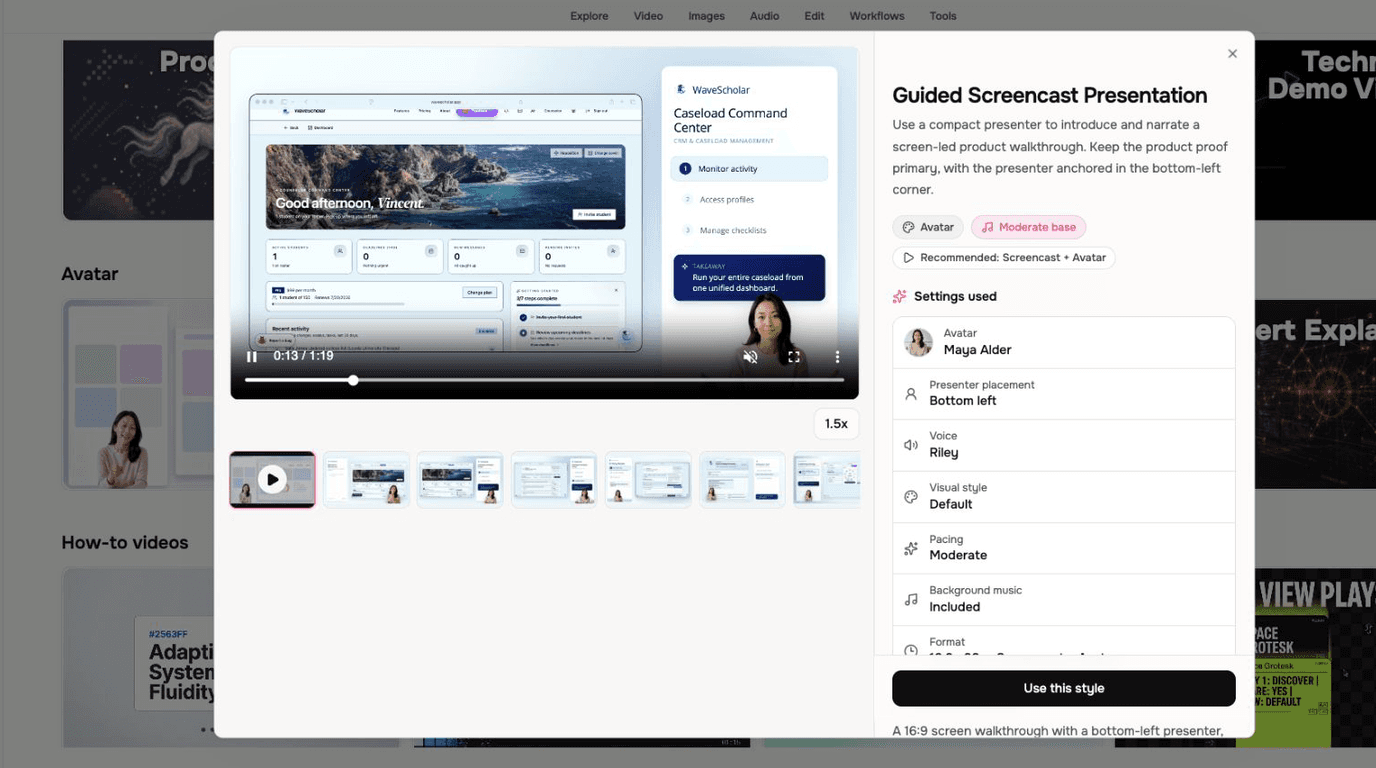
Record or upload the product flow
Bring an existing screen recording or use in-browser capture to record the workflow, narration, and cursor movement.
Choose a Screencast workflow
Select Screencast, currently marked Beta, for a screen-led edit, or use Screencast + Avatar when a presenter should guide the walkthrough.
Let the agent polish the capture
ngram applies screen-recording cleanup such as cursor smoothing, click emphasis, dead-air trimming, step labels, captions, and transitions.
Finish in the scene editor
Review the walkthrough, then use chat, canvas controls, or the timeline to make changes before downloading the finished MP4.
Who uses screencast understanding
Teams use screencast understanding when a raw product recording needs to become a clear video for a specific audience.
Product marketing
Upload a rough walkthrough and create a customer-facing demo or explainer that explains what shipped and why it matters.
Sales enablement
Start from one product recording, then tailor the script, sequence, and emphasis for the buyer or account.
Customer success
Turn repeated setup steps, help-center flows, and troubleshooting recordings into polished tutorials customers can replay.
Product managers
Convert rough internal recordings into roadmap updates, bug reports, feature notes, or stakeholder recaps.
Where can you use Screencast Understanding and Editing?
Use it anywhere a product recording needs to become a shorter, clearer, audience-specific video.
Product Demo Video
Drop in a rough screen recording or paste your product URL. A product demo video maker built for SaaS hands you back a clean walkthrough with smart zooms, captions, and brand polish — no timeline editor in sight.
Product Explainer Video
Drop in a feature doc, a landing-page URL, or a rough product walkthrough. An explainer video maker built for product teams turns either source into a structured explainer with motion graphics, voiceover, and branded styling — no animation skills, no agency timeline.
Sales Demo Video
Record your product once. Spin up a prospect-specific sales demo video for every deal in your pipeline — branded, captioned, and ready in fifteen minutes. No SE waitlist, no agency invoice, no "picture your data here."
Customer Onboarding Video
Turn help docs or a screen recording of the setup flow into a polished customer onboarding video new accounts actually finish. Reach first-value the same day, not the following week, without booking another live kickoff call.
Feature Announcement Video
Paste your release notes, the PRD, or the product URL. Get back a polished feature announcement video with motion graphics, captions, and your brand kit — ready to ship the same sprint the feature does.
Bug Report Video
Record the bug, drop in the footage, get a polished bug report video with zoomed-in steps and zero dead air. No more "cannot reproduce." No more three-day Jira ping-pong over which tab you clicked.
Support Help Video
A customer support help video maker built for the broader knowledge base — troubleshooting flows, multi-step fixes, error-state recoveries. Smart zooms on every click, captions for muted browsing, embedded across the help center, chatbot, and in-app drawer. Fewer tickets. Faster resolutions.
Training Video
Turn your SOPs, screen recordings, and process docs into a corporate training video in under thirty minutes. Smart zooms on every click, step labels on every menu, captions burned in, branded intro applied — ramp new hires faster without booking a video team.
Screencast editing compared with capture and manual cleanup
This is a category-level comparison. ngram combines screen capture cleanup with the video editing controls needed to finish a guided walkthrough.
| Capability | ngram | Basic screen recorder | Timeline editor |
|---|---|---|---|
| Capture source | ● Upload a recording or capture in the browser | ● Captures footage | ~ Works from an imported recording |
| Screen-recording polish | ● Cursor smoothing, click emphasis, labels, captions, and transitions | ~ Capture is the main job | ~ Set up effects and labels manually |
| Finish the walkthrough | ● Edit scenes with chat, canvas controls, and timeline tools | × Download the raw capture | ● Edit directly on a timeline |
| Brand and captions | ● Add burned-in captions and apply the selected brand kit | ~ Usually needs another app | ~ Set styles and captions manually |
| Final delivery | ● Download the finished video as MP4 | ● Download the recording | ● Render the edited video |
Keep polishing the walkthrough in ngram
A screen recording becomes easier to follow when its script, visual guidance, captions, brand treatment, and final edits stay in the same project.
Script Generation
Use the recording as source material for a tighter narration and scene plan before you refine the walkthrough.
Motion Graphics
Add product callouts, text overlays, and motion treatment around the screen recording once the main product flow is clear.
AI Voiceover
Choose a voice, fix a pronunciation, or change narration after the screen recording has a script worth sharing.
Brand Kit
Apply the selected logo, colors, fonts, caption styling, and screenshot treatment to the final walkthrough.
Captions & Subtitles
Style burned-in captions for a product walkthrough, then translate captions when the video needs a localized version.
Video Editing
Move between chat, the script editor, canvas controls, and the timeline when the walkthrough needs a precise final change.
Start from the source that explains the product
Use a converter page when the product story starts with a recording, screenshots, product docs, a URL, a meeting, or a webinar rather than a finished walkthrough.
Screen recording to Video
Start with a raw product recording and build a polished demo, tutorial, or walkthrough around the source capture.
Screenshots to Video
Use static product screens when a walkthrough needs a cleaner visual for an explanation or transition.
Product docs to Video
Add product documentation when the recorded steps need supporting context or a clearer explanation.
URL to Video
Start from a product page, help article, or release note URL before adding a screen recording to the project.
Meeting recording to Video recap
Turn an exported call or screen-share recording into a shorter branded recap with captions and selected product moments.
Webinar to Clips
Repurpose longer recorded sessions when a product walkthrough should become short clips.
Tools for the jobs around a screencast
Use a focused tool to capture, transcribe, caption, clean up, trim, or convert a file before or after its guided walkthrough is ready.
Screen Recorder
Capture the raw product flow in the browser, then bring the take into a full Screencast project when it needs guided polish.
Video Editor
Use direct editing controls when a Screencast draft needs a precise trim, clip change, or final scene adjustment.
Video to Text
Get editable text from a recording when you need a transcript for a script, captions, or a written summary.
Auto Subtitle Generator
Generate and review subtitle lines when a standalone caption job is all the recording needs.
Video Caption Generator
Create and edit captioned versions of a recording for a help article, training material, or social post.
Video Cutter
Trim a recording into a focused clip when you only need a shorter file, not a guided video project.
Remove Background Noise from Video
Clean microphone noise from an uploaded recording before using it as source audio or reference material.
Video Converter
Convert a separate media file when the finished walkthrough needs another supported container after MP4 export.
Connect screencast work to live ngram integrations
Start a video project from a live creation integration, then publish a finished walkthrough through a supported social channel.

Chrome Extension
Use the Chrome Extension when a webpage should become source material for the product video that includes your walkthrough.

Zapier
Trigger ngram work from Zapier when a form, CRM event, or request should open a product-video task around a recorded flow.

n8n
Connect n8n workflows to ngram when an internal system should start a video project that uses a recorded product flow.

MCP Server
Let a supported AI agent start ngram work from a prompt or source bundle that includes a product recording.

Social Publishing is in Beta. Connect LinkedIn with OAuth and publish a finished screen-recorded product walkthrough now or on a one-off schedule.

YouTube
Social Publishing is in Beta. Connect YouTube with OAuth and publish a finished screen-recorded tutorial now or on a one-off schedule.

X (Twitter)
Social Publishing is in Beta. Connect X with OAuth and publish a finished screen-recorded product walkthrough now or on a one-off schedule.
These are the live integration routes relevant to Screencast work. Screen capture, chat, and the editor are native product surfaces, not integrations.
Explore integrationsQuestions about Screencast Understanding and Editing
What does Screencast Understanding and Editing do?
Can I upload an existing screen recording?
What does Screencast mode do to a recording?
Can it create both product demos and explainers?
Can I edit the walkthrough after ngram polishes it?
How is this different from a normal screen recorder?
Does it add captions and callouts?
Can I use the original narration?
What file does ngram export for a screencast walkthrough?
Turn the next recording into a polished video
Keep the recording, cursor and click treatment, captions, brand treatment, and final edits in one project.
Upload a screen recording or record in the browser, then use Screencast mode to polish the flow and finish it in the editor.
Record or upload. Polish the flow. Download the finished MP4.