Text to Speech Video by ngram
Text to Speech Video for scripts your team needs to publish
Use a script, outline, product note, training step, or announcement
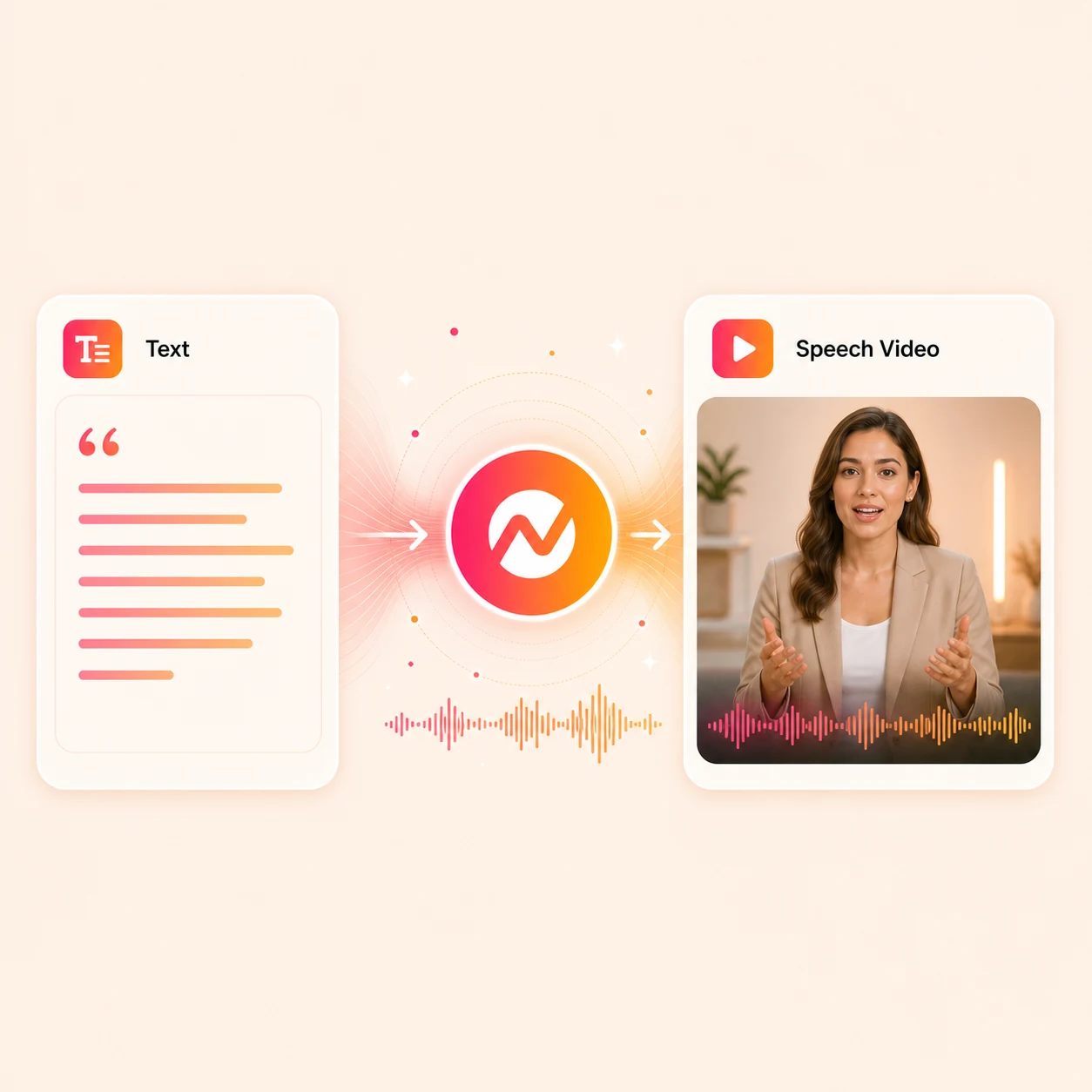
What it does
Turn an approved script into a voiceover and pair it with the right product visuals, captions, and brand. Update the words or voice without rebuilding the entire video.
Trusted by teams at












How it works
From script to narrated video.
Give ngram the words, choose the voice direction, review the plan, then keep editing the video.
Paste the text
Start with a script, outline, support answer, product update, lesson, or sales note that should become a voiced video.
Text ready
Choose voice and tone
Pick the voice direction and tone for the audience, then let ngram generate narration that matches the script.
Voice selected
Build scenes and captions
ngram maps the narration to scenes, visual direction, captions, timing, text overlays, and brand treatment.
Storyboard built
Edit and export
Revise the script, change the voice, regenerate a scene, translate the project, resize it, or export the finished video.
Ready for channels
What it can do
What text-to-speech video can do inside ngram.
Use the script as the source of truth, then let the rest of the video workflow handle scenes, captions, brand, and export.
Generate AI voiceover
Turn a script into narration using the supported voiceover systems in ngram.
Plan the message first
Use prompts, docs, URLs, decks, or raw notes to create a script, storyboard, scene plan, and CTA.
Create captions from narration
Add captions that follow the voiceover and can be styled with the brand kit.
Match visuals to the script
Generate or select scene visuals, motion graphics, and text overlays that fit each spoken section.
Localize when needed
Translate script, captions, on-screen text, and voiceover for multilingual video variants.
Export the final version
Render the narrated video or keep editing it for different channels and audiences.
Part of the ngram narration workflow
When it matters
Where narrated video starts with written material.
These use-case pages fit scripts, docs, support answers, product notes, and training material that need a clear voiceover.
Training Video
Turn SOPs, lessons, or recordings into training videos with captions, structure, and repeatable branding.
Open AI video use caseCustomer Onboarding Video
Turn docs, URLs, and screen recordings into onboarding videos that guide users toward first value.
Open AI video use caseEducator Course Content Video
Turn lessons, outlines, and course material into video modules with narration, captions, and visual structure.
Open AI video use caseSupport FAQ Video
Turn repeated support answers into short narrated videos customers can watch before opening a ticket.
Open AI video use caseProduct Explainer Video
Create product explainers from docs, screenshots, URLs, scripts, and brand context.
Open AI video use caseInternal Communication Video
Turn team updates into polished internal videos with captions, brand treatment, and clear next steps.
Open AI video use caseHR Training Video
Turn policy, onboarding, and enablement material into narrated HR videos employees can revisit.
Open AI video use caseDevRel Tutorial Video
Create developer tutorials from docs, examples, code context, and narration that explains each step.
Open AI video use caseSales Demo Video
Create sales demo videos from product context, account notes, and narration that buyers can share internally.
Open AI video use caseProduct stack
Features that support narrated video.
These product pages explain the parts of ngram that take text through script, voiceover, captions, visuals, and export.
AI Voiceover
Generate narration from a script and keep audio connected to scenes in the project.
Learn more about AI voiceoverScript Generation
Turn prompts, PDFs, URLs, screenshots, recordings, decks, and notes into a video script and storyboard.
Learn more about script generationCaptions & Subtitles
Generate captions, style them to the brand kit, and use them as a base for localization.
Learn more about captionsAI Visuals
Generate images, scenes, and visual systems for the narrated video.
Learn more about AI visualsMotion Graphics
Add lower thirds, callouts, text overlays, transitions, and visual pacing.
Learn more about motion graphicsTranslation & Localization
Translate the script, captions, on-screen text, and voiceover for localized video variants.
Learn more about translationMore tools
Related tools for AI narration.
Use these public tool pages when the script needs a voice, captions, translation, or a different starting point.
Voice and narration
Create or replace the spoken layer
Add Subtitles to Video
Generate subtitles from narration and keep them editable in the project.
Open toolBuild from source material
Use text, pages, slides, or avatars as the starting point
AI Avatar Video Generator
Create a presenter-led video from a script when a talking head fits the message.
Open toolFinish the narrated video
Add visible structure and channel-ready formats
Video Translator
Translate the narrated video into localized script, captions, and voiceover.
Open toolConvert
Start from text, audio, docs, or slides.
These converter pages are the closest source-to-video paths for a narrated project.
Text to Video
Paste a script, product copy, or announcement and let ngram plan scenes, voiceover, captions, and an editable timeline.
Open converterDocs to Video
Turn document text into a structured video with narration, motion graphics, and captions.
Open converterWho it is for
Teams that start with words and need video.
These solution pages fit teams that already have scripts, docs, notes, lessons, or product context ready to narrate.
Product Marketing
Launch videos, explainers, and demos built from release notes, scripts, screenshots, and product context.
See product marketing workflowsCustomer Success
Onboarding and education videos made from help docs, account notes, and product walkthroughs.
See CS workflowsSales Enablement
Narrated follow-ups and demo videos tailored to buyer questions and account context.
See sales workflowsSupport Teams
FAQ and help videos built from repeated answers and support articles.
See support workflowsHR & Internal Comms
Policy, training, and internal update videos created from written material.
See HR workflowsEducators & Trainers
Course and lesson videos that turn teaching material into narrated modules.
See educator workflowsDeveloper Relations
Technical tutorials and integration guides built from docs, examples, and narrated steps.
See DevRel workflowsIntegrations
Route written material into narrated video.
Each integration below is a public ngram integration page and maps to a live local route.
Zapier
No-codeWhenA new doc, form response, ticket, or CRM note needs a narrated video
ThenCreate the ngram task and notify the owner
n8n
WorkflowWhenA content operation needs repeatable narrated video generation
ThenRoute source text into ngram
MCP Server
AgenticWhenAn AI agent needs to generate video from source material
ThenUse MCP for supported video calls, then open ngram to review the narrated video
Chrome Extension
CaptureWhenYou find a page that should become a narrated video
ThenSend the page to ngram with source context
WhenThe team has reviewed the narrated text video for LinkedIn.
ThenPrepare the LinkedIn post; schedule the narrated text video for one release.
YouTube
BetaWhenThe team has reviewed the narrated text video for YouTube.
ThenCompose the YouTube post for the narrated text video, then set its one-off schedule.
Why ngram
How ngram compares with other text-to-speech video paths.
The alternatives below are named because their public pages describe AI video, text-to-video, avatars, or AI voice workflows.
| Compare | ngram | Synthesia | HeyGen | Fliki |
|---|---|---|---|---|
| Workflow fit | Best fit when the script needs voiceover, scenes, captions, brand, edits, and export in one project. | Synthesia describes a workflow for turning text and source material into professional AI videos. | HeyGen publishes AI avatar, text-to-video, AI voice, dubbing, and localization tools. | Fliki presents text-to-video with AI voices, voiceover, dubbing, screen recording, and editing tools. |
| How ngram fits | Works from text plus business source material such as docs, URLs, slides, screenshots, and recordings. | Strong fit when avatar-led presentation is the main format. | Strong fit when avatar presentation or localization is central to the video. | Strong fit for creator-style narrated videos and voice-first workflows. |
| Best use | Useful when the narrated video must become variants for different audiences, channels, or languages. | Compare it with ngram when the source material also needs product context, motion graphics, and editable business-video variants. | Compare it with ngram when the project starts from business docs, pages, or product material and needs a broader production workflow. | Compare it with ngram when the narrated video needs brand kit, scene planning, product context, and follow-on assets. |
FAQ
Common questions about text-to-speech video
Still curious?
Start with text. End with video.
Paste the script, generate AI voiceover and scenes, then keep editing the narrated video for brand, captions, translation, and export.
Use the focused narration tool now, then finish the full video in ngram.
Script, voiceover, captions, export