Text to Video by ngram
Text to Video for the business stories behind the prompt

Use a script, outline, brief, release note, lesson, or raw idea
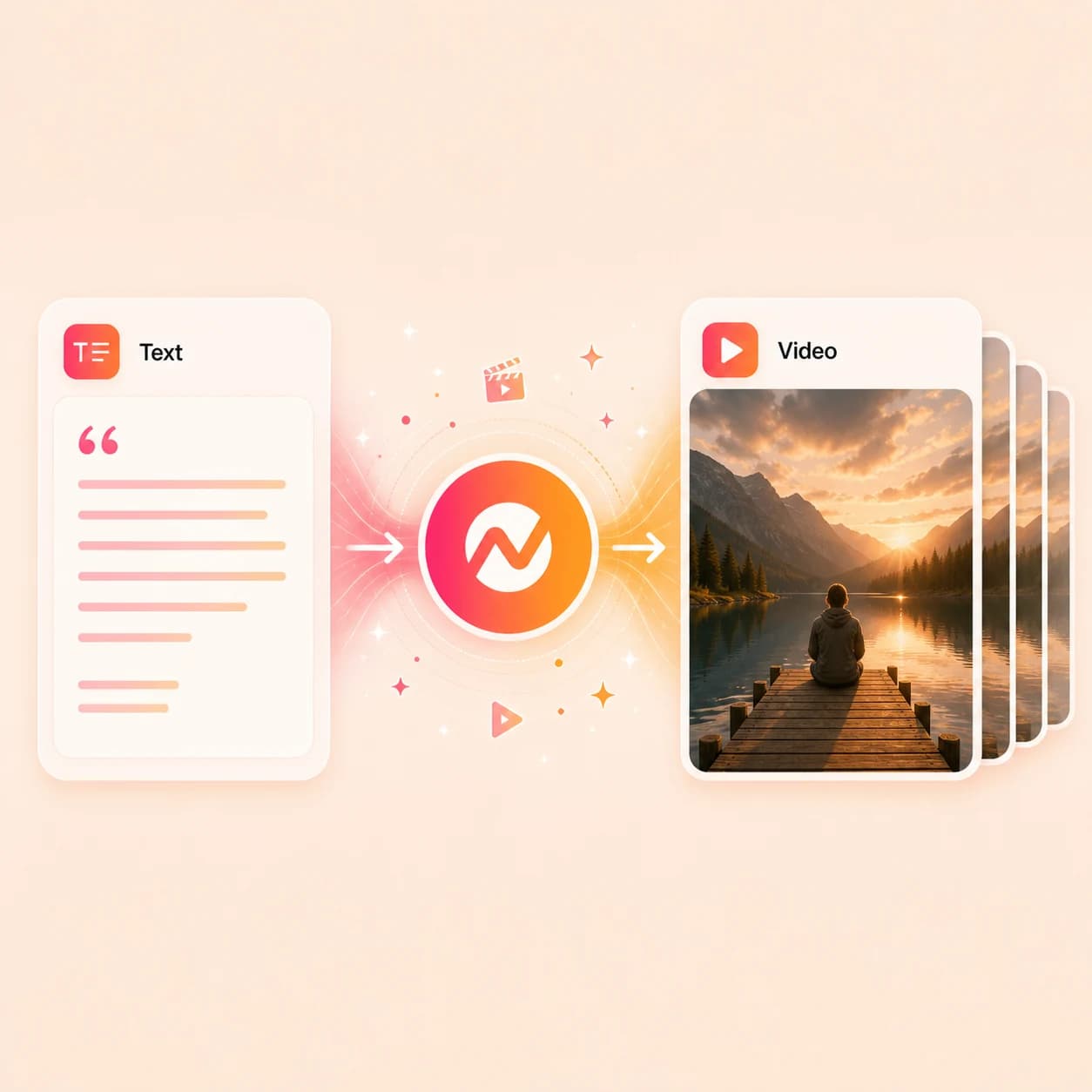
What it does
Start with more than a one-line prompt: bring the brief, audience, product context, and approved message. Turn it into a video project you can edit, brand, and adapt across the full campaign.
Trusted by teams at












How it works
From rough text to a reviewable cut.
Give ngram the source, review the plan, then keep editing the video in the same project.
Paste the message
Start with a prompt, script, outline, notes, or a longer piece of copy. ngram reads the source for intent, audience, format, and key points.
Source understood
Review the script and scenes
ngram turns the text into a script and storyboard so you can check the structure before the video is rendered.
Storyboard ready
Generate the video draft
The project gets voiceover, captions, scene visuals, motion graphics, music when useful, and brand direction from your workspace.
Draft generated
Edit, resize, and export
Use chat, the script editor, canvas controls, or the timeline to revise scenes, then export channel-ready versions.
Ready to publish
What it can do
What text-to-video handles in ngram.
The text becomes a planned video project, not a flattened render you have to rebuild elsewhere.
Start from plain language
Use a rough idea, approved script, course note, release note, or product summary as the source for the video.
Script and storyboard first
ngram drafts the script and scene plan before rendering so the message can be reviewed while it is still easy to change.
Voiceover from the script
Generate narration from the approved script, then adjust tone, pacing, and voice direction inside the project.
Captions from the narration
Add burned-in captions that follow the voiceover and can be styled with the same brand system as the rest of the video.
Brand-aware visuals
Apply brand kit direction, motion graphics, intros, outros, callouts, and generated or uploaded visuals where they fit the scene.
Plain-language revisions
Ask ngram to shorten, sharpen, localize, or regenerate a scene without starting the text-to-video workflow again.
Built for message-led business video
When it matters
Where text already has the whole story.
These use cases fit teams that have the message written and need a video version for launch, training, sales, or support.
AI Video Creator for Business
Turn business docs, URLs, and notes into polished videos with a script, storyboard, brand treatment, voiceover, and captions.
Open AI video use caseAI Explainer Video Maker
Create explainers from source material when the message needs structure, narration, motion graphics, and captions.
Open AI video use caseProduct Explainer Video
Turn product docs, screenshots, and positioning into an explainer that shows what the product does and who it helps.
Open AI video use caseFeature Announcement Video
Turn release copy into a feature announcement with a clear story, on-screen context, voiceover, captions, and brand.
Open AI video use caseProduct Launch Video Maker
Turn launch messaging into a video for the announcement page, social channels, and sales follow-through.
Open AI video use casePMM Explainer
Create product marketing explainers from positioning, launch notes, and customer-facing copy without starting from a blank canvas.
Open AI video use caseTraining Video
Turn SOPs, lessons, or internal guidance into training videos with structure, captions, voiceover, and repeatable brand treatment.
Open AI video use caseInternal Communication Video
Convert team updates, announcements, and async notes into videos employees can understand without joining another meeting.
Open AI video use caseLinkedIn Video
Turn a written idea, point of view, or launch note into a professional LinkedIn video with captions and brand polish.
Open AI video use caseProduct stack
The product stack behind text-to-video.
These feature pages show the parts of ngram that take text from source material to finished video.
Script Generation
Turn prompts, PDFs, URLs, decks, recordings, and source material into scripts and storyboards.
Learn more about script generationAI Voiceover
Generate narration from the approved script and keep voice edits tied to the video timeline.
Learn more about AI voiceoverAI Visuals
Create scene imagery, backgrounds, and supporting visuals when the source text needs visual support.
Learn more about AI visualsMotion Graphics
Add title cards, callouts, lower thirds, transitions, and branded scene motion to the draft.
Learn more about motion graphicsCaptions & Subtitles
Generate and style captions from the voiceover so the video works with or without sound.
Learn more about captionsBrand Kit
Apply logos, colors, fonts, motion style, screenshot style, voice, tone, and approved phrases.
Learn more about brand kitVideo Editing
Revise clips, audio, captions, effects, scenes, and scripts after the first draft is built.
Learn more about video editingMore tools
Related tools for the next edit.
Move from text generation into voice, captions, editing, or localization without rebuilding the project.
Build from another source
Use a different input when the message is not only text.
Add voice and captions
Make the text easier to watch and follow.
Text to Speech Video
Turn written copy into a narrated video with scene visuals and captions.
Open toolAI Voice Generator
Generate voiceover from a script and keep the narration editable in ngram.
Open toolAdd Subtitles to Video
Generate timed subtitles, edit the words, and style captions with brand settings.
Open toolAdd Music to Video
Add background music, balance it under speech, and keep the project editable.
Open toolConvert
Converters that feed text-to-video work.
Use the converter that matches the source material, then keep the project editable in ngram.
Blog to Video
Turn blog copy into a narrated video that can be embedded, shared, or reused for social.
Open converterURL to Video
Paste a public page and let ngram use the page context to build the first video draft.
Open converterWho it is for
Teams that start from written material.
These teams already have briefs, docs, launch notes, or enablement copy that can become video.
Product Marketing Managers
Turn positioning, launches, and product narratives into videos for customers and sales teams.
See product marketing workflowsGrowth & Marketing
Turn campaign briefs, landing-page copy, and social ideas into video variants for each channel.
See growth workflowsCustomer Success
Turn onboarding notes, QBR summaries, and feature education material into videos customers can revisit.
See customer success workflowsSupport Teams
Turn FAQ answers, help text, and troubleshooting steps into visual support videos.
See support workflowsProduct Managers
Turn changelogs, roadmap notes, and internal updates into videos for teams and stakeholders.
See product workflowsSales Enablement
Turn talk tracks, objection notes, and follow-up copy into videos reps can send or reuse.
See sales workflowsFounders & Solopreneurs
Turn founder notes, pitches, and updates into videos without waiting for a separate production cycle.
See founder workflowsDeveloper Relations
Turn docs, integration notes, and tutorials into developer videos with a clear story and visual steps.
See DevRel workflowsAgencies & Consultants
Turn strategy notes, client briefs, and campaign copy into repeatable branded video deliverables.
See agency workflowsIntegrations
Send source text into the video workflow.
Use live integrations to start, route, or publish text-to-video work without copying the same brief between tools.
Zapier
No-codeWhenA new brief, form response, or content request is approved.
ThenCreate a text-to-video project and notify the owner when it is ready to review.
n8n
WorkflowWhenA CMS item, release note, or internal note changes status.
ThenSend the text into ngram and route the generated video draft for review.
MCP Server
AgenticWhenAn AI agent has the script, audience, and channel context.
ThenCall ngram to generate the video and return the project or render link.
Chrome Extension
CaptureWhenYou are reading a page or note that should become a video.
ThenSend the source context to ngram without rebuilding the brief manually.
WhenThe text-to-video project has cleared review for LinkedIn.
ThenCompose the LinkedIn post, then put the text-to-video project on a one-off schedule.
X (Twitter)
BetaWhenThe text-to-video project is approved and ready for X.
ThenDraft the X post and schedule one release for the text-to-video project.
YouTube
BetaWhenThe text-to-video project is ready to share on YouTube.
ThenCompose and publish the YouTube post for the text-to-video project.
Why ngram
How text-to-video options differ.
The right choice depends on whether you need generative shots, a complete video draft, or a branded business workflow that stays editable.
| Compare | ngram | Runway | Invideo AI | Template editor |
|---|---|---|---|---|
| Workflow fit | Turns prompts, scripts, docs, and URLs into planned video projects. | Focused on text-to-video prompts that describe visual action and motion. | Uses natural-language prompts to generate and edit complete videos. | Starts from a layout or stock-media workflow rather than a reviewed storyboard. |
| How ngram fits | Keeps script, storyboard, voiceover, captions, brand, and export work in one place. | Useful for generated shots, B-roll, and experimental visual scenes. | Useful for marketing, sales, social, product demos, and explainer-style videos. | Works when the structure is already decided and the edit is simple. |
| Best use | Best fit when the video needs review, revision, and channel versions after the first draft. | May still need a separate workflow for script, narration, captions, brand, and distribution. | Compare carefully when brand governance, source context, and post-draft editing depth matter. | Usually means more manual assembly for script, visuals, captions, versions, and approvals. |
FAQ
Common questions about text to video
Still curious?
Start with text, leave with a video to refine
Paste the message, generate a storyboarded draft, then keep editing voiceover, captions, visuals, brand, and export formats in ngram.
Use the focused text-to-video workflow now, then finish the full video in the editor.
Script, storyboard, voiceover, captions