Read before this
Read these direct prerequisites in order. Each guide lists any earlier context it assumes.
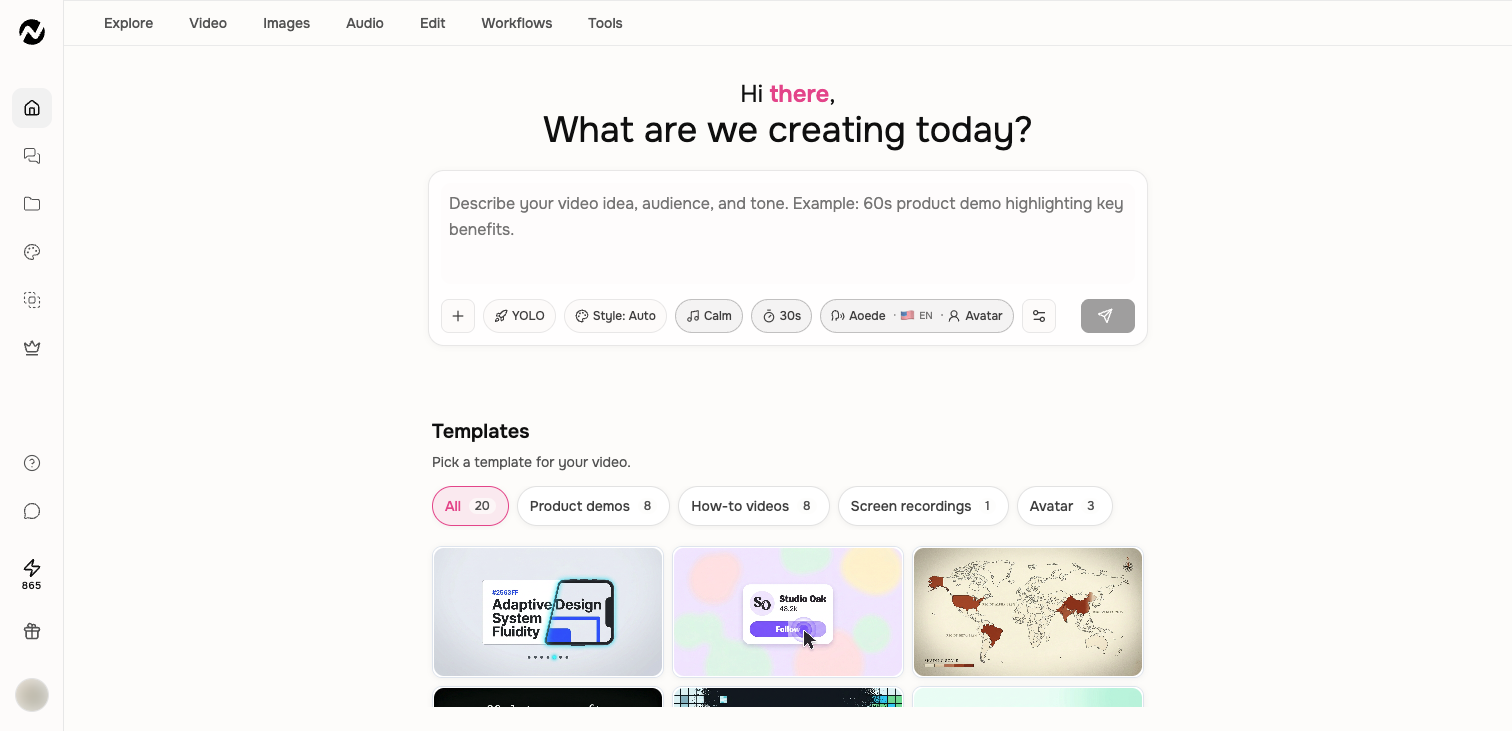
What each choice controls
- Home template: a starting use case, structure, layout, and production pattern.
- Style preset: the visual treatment selected for a creation run.
- Theme: a reusable creative system saved to your account when the Themes surface is available.
- Brand Kit: approved logos, colors, typography, mascots, rules, and optional intro or outro slides.
- Reference video: a visual reference that can guide a run or, when the control is available, become a reusable style template.
Start from a Home template
- Open Home and browse the visible template categories.
- Choose the template closest to the desired video outcome.
- Replace its example topic, source, audience, and CTA with your own approved brief.
- Review mode, style, duration, aspect ratio, voice, and models before submitting.
- Treat the template as a starting point; the current prompt and sources control the actual video.
Choose a reusable option
Use a style when you only need a look for this run. Use a theme when you want a saved creative system across projects. Use Brand Kit when identity and governance matter. Combine them only after checking that their instructions do not conflict.
Availability
Template, theme, custom style, and Brand Kit controls can differ by account and current availability. Follow the visible picker and any plan message in Studio. If an older screenshot shows a choice that is absent, use the current alternatives rather than assuming the project is broken.
Keep going
Use Auto, style presets, templates, and Brand Kit without confusing their roles.
Create, import, and manage personal or team Brand Kits and current plan limits.
Create a first ngram video from the current Home and agentic workflow.
Choose between motion graphics, avatar, screencast, and other video types visible in Studio.