Turn decks into narrated videos with Slides
Use ngram as a PPT to video slide animator and slide show maker. Upload a PowerPoint or PDF deck, let each slide become a scene, then generate narration, branded transitions, captions, and a matching PPTX deck from the same material.
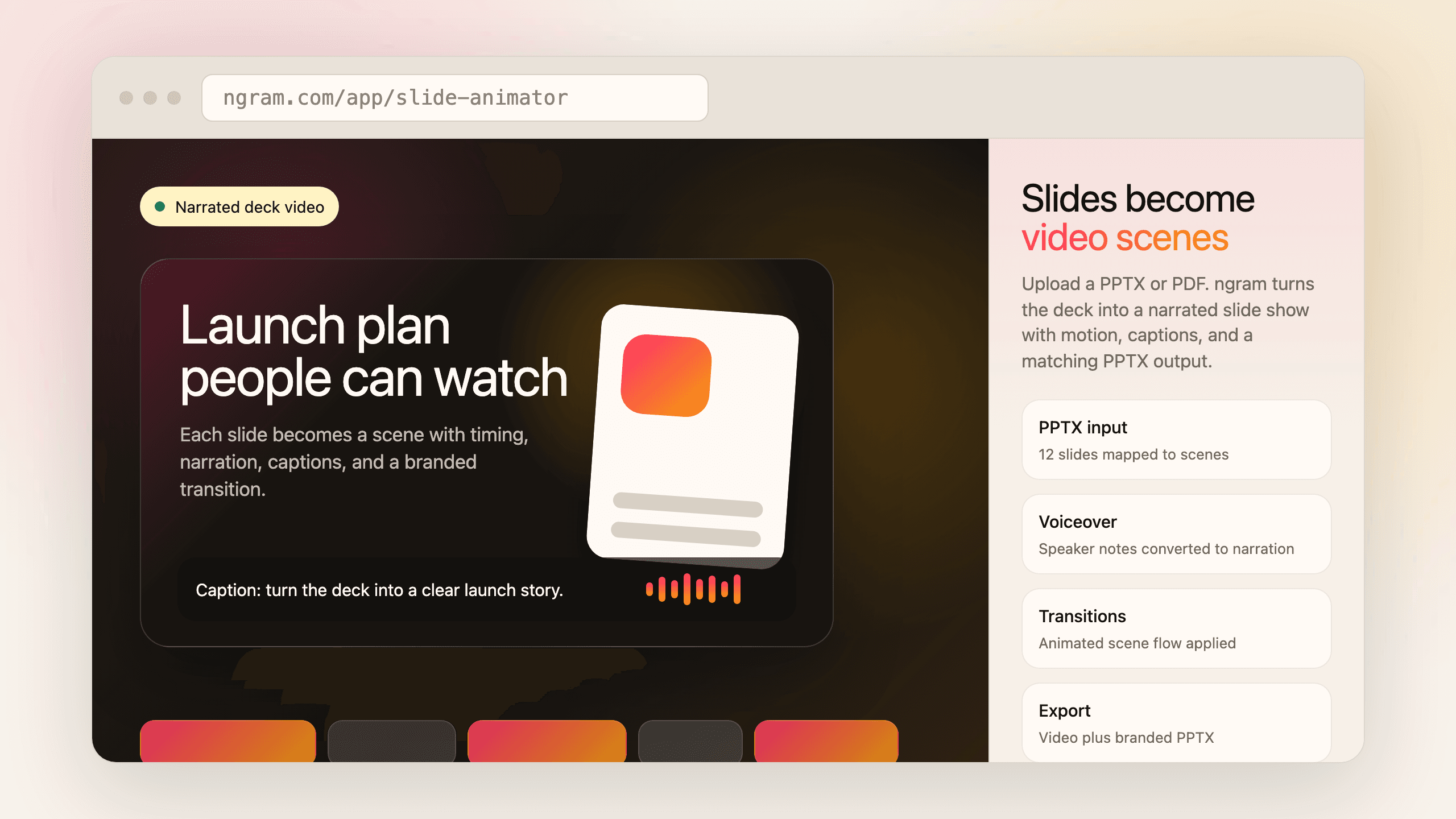
- Upload PPTX or PDF decks and turn each slide into a video scene blueprint
- Generate narration, captions, branded backgrounds, and animated scene transitions
- Create launch, training, or sales decks as PPTX outputs from the same source
- Use the same message for a deck, narrated video, carousel, and social cutdown
Trusted by teams at












Decks already explain the story, but they do not move by themselves
Teams build launch decks, training decks, sales decks, and PDF briefings because the source material is already organized. Turning that deck into a watchable video still means rewriting narration, rebuilding slides as scenes, adding captions, and creating a second deck if the message changes.
Slide decks do not carry timing.
A deck tells people what to read, but it does not decide pacing, voiceover, captions, or where a transition should land.
Deck-to-video work is usually rebuilt by hand.
Teams export slides, import them into an editor, record narration, add motion, and then adjust every cut when one slide changes.
Training and sales decks need versions.
The same material has to become an internal training video, a customer-facing overview, a sales deck, and a shorter social clip.
Static slides lose brand context in video tools.
Once slides move into another editor, teams often re-apply fonts, colors, layouts, captions, and transitions one layer at a time.
Slides keeps the deck as source material, then turns it into narrated video scenes and branded deck outputs.
Upload the deck, animate the story
ngram reads a PowerPoint or PDF deck, extracts each slide as a scene blueprint, and builds a narrated video with transitions, captions, and branded output options.
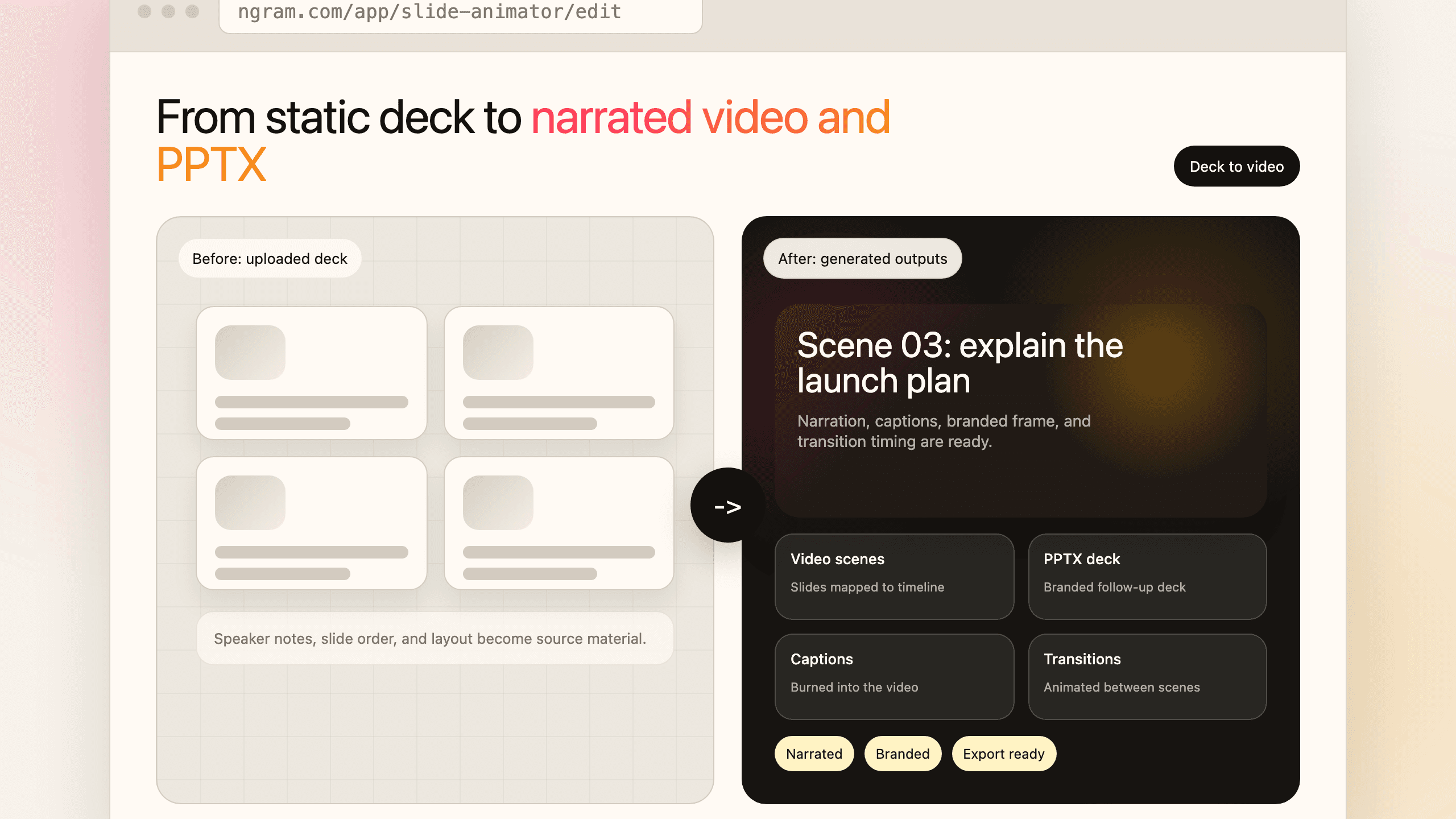
One deck becomes a narrated video and a reusable branded PPTX.
Each slide becomes a scene
The slide order becomes the video structure. ngram uses slide content and notes as source material for script, storyboard, and scene timing.
Narration and transitions are generated
The system adds voiceover, captions, branded backgrounds, and animated scene transitions so the deck feels like a video instead of a screen share.
Deck outputs stay connected
Generate launch, training, or sales decks as PPTX outputs from the same material you used for the narrated video.
Slides treats the deck as source material, not a flat image export
The slide order, text, notes, and brand context become the plan for a video and the basis for the next deck version.
PPTX and PDF decks become scenes
Upload a PowerPoint or PDF deck. ngram extracts the slide structure and uses each slide as a scene blueprint instead of asking you to rebuild the story from scratch.
Speaker notes can become voiceover
Use existing speaker notes where they are useful, or let the agent draft narration from the slide content and audience you choose.
Animated transitions fit the story
ngram applies scene transitions, captions, branded backgrounds, and pacing so the finished result feels like a video, not a recorded slideshow.
Generate branded PPTX decks too
Create launch, training, and sales decks from the same source material so the video and deck stay aligned.
How Slides works
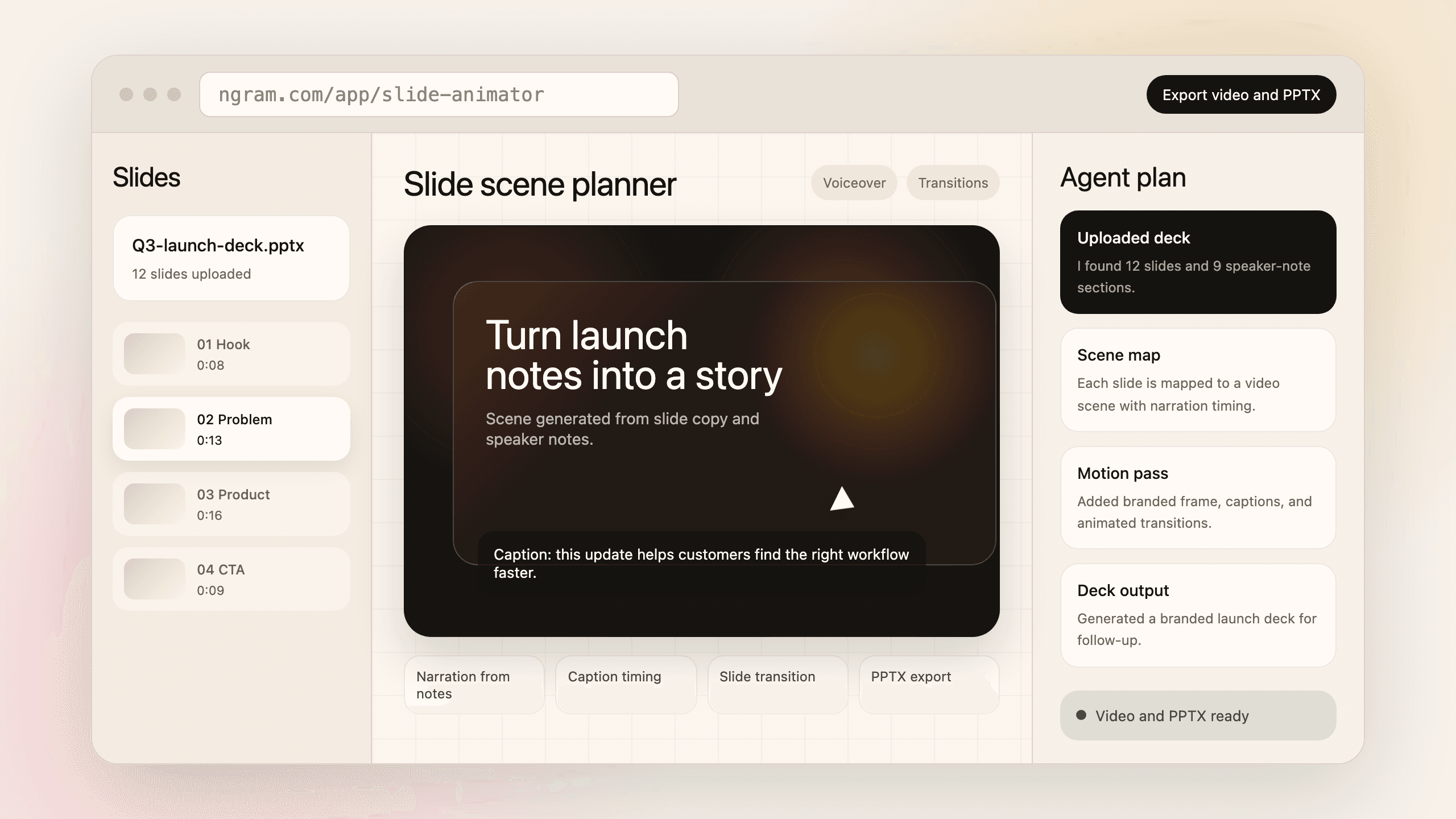
Start with a PowerPoint or PDF deck. ngram plans the scenes, adds narration and transitions, then exports the video and deck assets your team needs.
Upload PPTX or PDF
Add a PowerPoint deck or PDF. ngram reads slide text, visual order, and speaker notes where they are available.
Review slide scenes
Each slide becomes a storyboard scene with timing, narration draft, caption plan, and visual treatment.
Generate narration and motion
ngram adds voiceover, captions, branded frames, and animated transitions between the slide scenes.
Export video and deck
Render the narrated video and generate a branded PPTX deck for launch, training, or sales follow-up.
Who uses Slides
Slides is for teams that already have the outline in a deck and need the same message to become a video, a new deck, or both.
Product marketing
Use a launch deck as source material for a narrated product video, LinkedIn carousel, and refreshed sales deck.
Training teams
Turn onboarding, compliance, or enablement decks into narrated training videos with captions and branded transitions.
Sales enablement
Give reps a narrated version of the deck and a refreshed PPTX they can send after a call.
Customer success
Turn customer-facing decks into shorter explainers, onboarding videos, and follow-up assets without rebuilding the story.
Where can you use Slides?
Use Slides anywhere a deck already holds the message and the audience needs a video, a refreshed PPTX, or a channel-ready asset.
Training Video
Turn your SOPs, screen recordings, and process docs into a corporate training video in under thirty minutes. Smart zooms on every click, step labels on every menu, captions burned in, branded intro applied — ramp new hires faster without booking a video team.
Customer Onboarding Video
Turn help docs or a screen recording of the setup flow into a polished customer onboarding video new accounts actually finish. Reach first-value the same day, not the following week, without booking another live kickoff call.
Sales Demo Video
Record your product once. Spin up a prospect-specific sales demo video for every deal in your pipeline — branded, captioned, and ready in fifteen minutes. No SE waitlist, no agency invoice, no "picture your data here."
Product Launch Video Maker
Turn the feature PRD, the screenshots, or a rough screen recording into a launch-ready video. A product launch video maker built for SaaS hands you back motion graphics, captions, brand polish, and every channel ratio — without an agency invoice or a missed release window.
Feature Announcement Video
Paste your release notes, the PRD, or the product URL. Get back a polished feature announcement video with motion graphics, captions, and your brand kit — ready to ship the same sprint the feature does.
Internal Communication Video
Drop in a webcam recording, paste a written announcement, or upload the all-hands replay. An internal communication video maker built for distributed teams hands you back short, captioned, brand-matched updates employees finish across every timezone.
Product Demo Video
Drop in a rough screen recording or paste your product URL. A product demo video maker built for SaaS hands you back a clean walkthrough with smart zooms, captions, and brand polish — no timeline editor in sight.
PMM Sales Enablement
Your battlecards are sharp. Your reps still don't open them. A sales enablement video maker built for PMMs turns the same positioning into 60-second clips that AEs drop into outbound — not PDFs that sleep in the content portal.
Slides compared with manual deck-to-video work
ngram starts from the deck structure and creates video plus deck outputs. Manual workflows usually export slides first, then rebuild narration and motion elsewhere.
| Capability | ngram Slides | Manual video editor | Static deck workflow |
|---|---|---|---|
| PPTX or PDF deck input | ● Reads deck slides as scene blueprints | ~ Usually imports exported images or clips | ● Starts from the deck, but stays static |
| Narrated slide video | ● Adds voiceover, captions, and scene timing | ~ Requires recording and timing by hand | × Speaker must present live or record separately |
| Animated transitions | ● Applies transitions between scenes | ~ Manual transition setup per cut | ~ Deck transitions rarely become full video pacing |
| Brand consistency | ● Uses brand kit across video and PPTX output | ~ Brand styling must be rebuilt in the edit | ● Works if the original deck is already on brand |
| PPTX deck output | ● Generates branded decks from the same material | × Video editor does not usually create decks | ~ Deck exists, but video changes may drift |
| Multi-channel reuse | ● Reuse message for video, deck, carousel, and social | ~ Exports video, then needs more design work | ~ Useful for meetings, less useful for async video |
Slides works best with the rest of the video workflow
Once the deck becomes scenes, use nearby ngram features for narration, captions, motion, brand styling, editing, and export.
AI Voiceover
Turn speaker notes or generated narration into a voiceover track for the deck video.
Motion Graphics
Add animated transitions, overlays, callouts, and movement around slide scenes.
Captions & Subtitles
Burn accurate captions into narrated slide videos and style them with the brand kit.
Brand Kit
Keep deck videos, generated PPTX files, thumbnails, and carousel slides aligned with the same brand.
Video Editing
Tighten pacing, regenerate weak scenes, or ask chat to adjust narration and visuals after the deck video draft is built.
Multi-Format Export
Export the narrated deck video as 16:9, vertical, square, GIF, WebM, or PPTX where the format fits.
Start from decks, docs, pages, or screenshots
Use these converter workflows when the slide video starts from existing business material instead of a blank prompt.
PPTX to Video
Upload a PowerPoint deck and turn the slides into a narrated branded video.
PDF to Video
Turn a PDF deck, brief, policy, or report into a storyboarded video.
Document to Video
Use a source doc alongside slides when the deck needs more explanation.
Text to Video
Start with a written outline when the deck does not exist yet.
URL to Video
Use a product page or article as source material for the deck video.
Screenshots to Video
Turn product screenshots into scenes when slides need stronger visual proof.
Utilities that help finish deck videos
Use these tools when a slide video needs a focused conversion, caption, edit, audio, or packaging step.
PPT to Video
Convert a PowerPoint deck into a narrated video with transitions, captions, and brand styling.
Video Caption Generator
Generate captions for narrated slide videos and style them for the brand.
Add Music to Video
Add background music when the slide video needs a more finished presentation feel.
Add Subtitles to Video
Add or adjust subtitles for training and sales videos created from decks.
Online Video Editor
Tighten the slide video after generation with timeline, canvas, and chat edits.
Video Converter
Convert the final deck video into the file format needed for handoff or publishing.
Video Compressor
Reduce file size when a narrated deck video needs to be sent through email or LMS tools.
Use Slides with the integrations already live
Use current ngram integration routes for browser capture, automation, agent access, and publishing workflows around deck-based video projects.

Chrome Extension
Capture web context from the browser and send it into ngram as source material for a deck or video workflow.

Zapier
Trigger ngram workflows from Zapier when a form, request, or content handoff is ready for video.

Make.com
Build Make scenarios that pass prompts, files, or source material into ngram workflows.

n8n
Connect self-hosted or managed n8n workflows to ngram for repeatable deck and video production jobs.

MCP Server
Let AI agents call ngram through the Model Context Protocol endpoint when a deck-based video needs to be created.

Create business videos and carousel-style assets for LinkedIn launches, updates, and sales enablement.

YouTube
Prepare narrated deck videos for YouTube workflows while keeping source projects in ngram.

X (Twitter)
Use deck-derived clips and visual updates for X while keeping the source project in ngram.
Only the live integration routes are included here: Chrome Extension, Zapier, Make, n8n, MCP, LinkedIn, YouTube, and X.
Explore integrationsSlides questions
Still curious?
Turn your next deck into a narrated video
Use Slides for launch decks, training decks, sales decks, customer presentations, and executive updates that need to work without a live presenter.
Upload the PowerPoint or PDF, review the slide scenes, and export a video plus deck assets from one project.
PPTX, PDF, scenes, narration, captions, transitions, PPTX export