Animated Explainer AI Video Maker by ngram
Animated Explainer AI Video Maker for clear product education
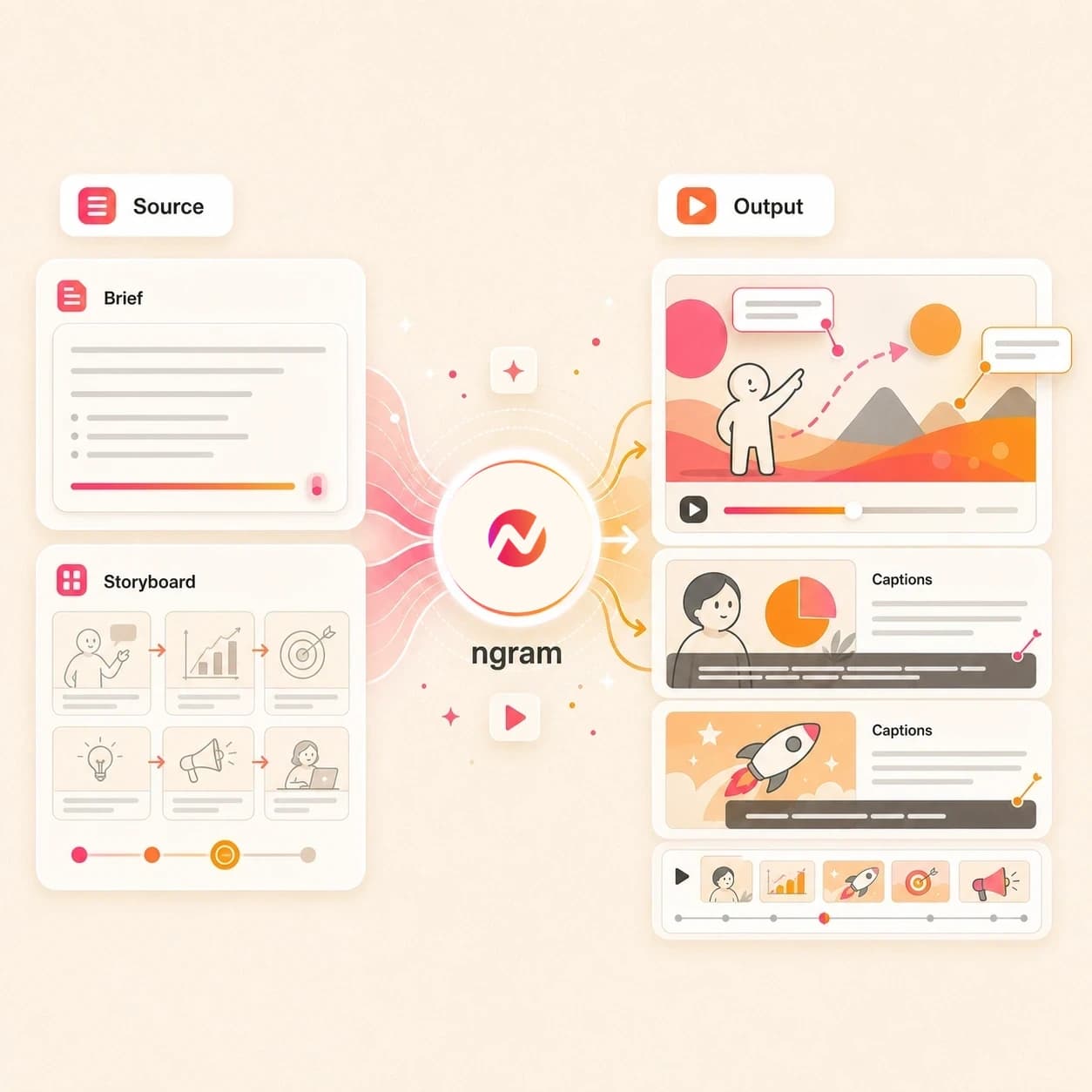
Describe the audience, source material, length, and outcome you want ngram to create.
What it does
Explain a product or workflow with animated scenes built from your real source material. Keep the story editable for launch, sales, onboarding, and customer education versions.
Trusted by teams at












How it works
How the animated explainer ai video maker works.
The workflow starts with structure: ngram turns source material into an explainer plan before it generates animated scenes.
Add the concept and source
Give ngram the explainer brief, product page, PDF, screenshot, script, or source note. The agent reads the source for message, audience, claims, and visual cues.
Source ready
Review the storyboard
ngram drafts the script, scene order, visual metaphor, timing, callout notes, and CTA before the first render, so the animation follows a clear explanation.
Storyboard ready
Generate motion scenes
The draft can combine AI visuals, generated video clips, animated overlays, product callouts, smart zooms, transitions, voiceover, captions, music, and brand treatment.
Scenes generated
Edit the explanation
Use chat, visual chat, the script editor, scene regeneration, canvas controls, or the timeline to revise the explainer. Prepare and review each framing separately before downloading its MP4.
Ready to export
What it can do
What this animated explainer ai video maker builds.
Create animated explainers that show the idea on screen with planned scenes, motion graphics, narration, captions, and brand rules in one editable project.
Storyboard before render
Turn a brief, URL, PDF, screenshot, or script into a reviewable scene plan with narration, visual beats, timing, and CTA.
Learn more about script generationVisual metaphors for abstract ideas
Generate scene imagery and animated frames that give a product concept, workflow, or business idea something concrete to look at.
Learn more about AI visualsMotion graphics and callouts
Add lower thirds, labels, arrows, highlight boxes, smart zooms, and animated overlays that point attention to the important detail.
Learn more about motion graphicsVoiceover tied to scene pacing
Generate narration from the approved script, switch voices from the picker, and regenerate affected audio after a script change.
Learn more about AI voiceoverCaptions and translated cuts
Burn captions into the explainer by default, style them with the brand kit, and translate caption text for localized versions.
Learn more about captionsBrand kit across scenes
Apply logos, colors, fonts, motion style, screenshot style, voice, tone, approved phrases, and blocked phrases across the explainer.
Learn more about brand kitBuilt for storyboard-first animated explainers
When it matters
Where animated explainer videos fit.
Use these workflows when the message needs motion graphics, visual metaphors, and callouts rather than a static deck or generic talking-head script.
AI Explainer Video Maker
Create a broader AI explainer from PDFs, URLs, source notes, or screenshots, then use this tool when the page needs motion graphics and scene-by-scene animation.
Open AI video use caseCreate Explainer Video with AI
Move from a rough idea to a planned animated explainer with a script, storyboard, motion direction, voiceover, captions, and reviewable scenes.
Open AI video use caseExplainer Video
Use animated scenes and callouts to explain a product, service, or workflow when the idea needs more than a voiceover on stock footage.
Open AI video use caseProduct Explainer Video
Turn product pages, screenshots, and feature notes into an animated product story with UI callouts, visual metaphors, captions, and brand styling.
Open AI video use caseSaaS Explainer Video
Explain SaaS workflows with animated scenes, screen-based callouts, and smart zooms that make a product concept visible before a full demo.
Open AI video use caseSaaS Product Explainer Video
Build a software explainer from feature notes, screenshots, and source URLs, then keep storyboard, narration, captions, and callouts editable.
Open AI video use casePMM Explainer
Give product marketing a motion-first explainer for positioning, launch pages, sales enablement, and campaign handoffs from the same source material.
Open AI video use caseFounder Explainer Video
Turn a founder brief, homepage, or pitch note into an animated explainer that shows the product idea without waiting on a full production cycle.
Open AI video use caseEducator Explainer Video
Convert lesson notes, diagrams, or screen captures into an animated explainer with narration, captions, and structured scenes for review.
Open AI video use caseProduct stack
The ngram features behind animated explainer videos.
These product features cover the planning, motion, narration, editing, and export layers this tool uses to create storyboard-first explainers.
Script Generation
Convert source material into the explainer script, storyboard, scene timing, visual direction, and CTA before any motion scene renders.
Learn more about script generationMotion Graphics
Add animated labels, lower thirds, product callouts, smart zooms, scene transitions, and React-based motion scenes where the explanation needs precision.
Learn more about motion graphicsAI Visuals
Generate scene art, background frames, and visual fills that match the script, brand kit, screenshots, and source context.
Learn more about AI visualsAI Voiceover
Turn the approved explainer script into narration, choose a voice, and update audio when a scene or line changes.
Learn more about AI voiceoverCaptions & Subtitles
Burn captions into the animated explainer, style them with the active brand kit, and translate captions for localized cuts.
Learn more about captionsBrand Kit
Carry logo, colors, fonts, motion style, screenshot treatment, voice, tone, approved phrases, and blocked phrases into every scene.
Learn more about brand kitVideo Editing
Revise the explainer with chat, visual chat, script edits, scene regeneration, canvas controls, and timeline edits after the first draft.
Learn more about video editingMore tools
More tools around animated explainer creation.
Use these tools when the explainer starts from a narrower source or needs a specific production layer before export.
Adjacent creation workflows
Use these related ngram tools when the same source material needs a tutorial, explainer, narrative cut, or walkthrough format.
AI Explainer Video Maker
Turn a brief, URL, screenshot, or PDF into an editable explainer video with storyboard, voiceover, captions, and brand context.
Open toolTutorial AI Video Maker
Create step-by-step product tutorials from docs, URLs, screenshots, and approved instructions with captions and labels.
Open toolStorytelling AI Video Maker
Shape product updates, customer proof, launch context, and business briefs into a coherent story-led video draft.
Open toolHow to AI Video Maker
Convert procedures, help content, screenshots, and URLs into editable how-to videos for support, onboarding, and enablement.
Open toolAnimation entry points
Start with the tool that best matches the kind of animated video you need.
Animated AI Video Maker
Use the broader animated video maker when the draft can include promos, launch clips, social cuts, and visual story scenes beyond explainers.
Open toolAnimation AI Video Maker
Plan a storyboarded animation video from source material when the output is a general business animation, not a specific explainer.
Open toolText to Video
Paste the explainer script or outline when the words are already approved and the job is to build scenes around them.
Open toolImage to Video
Animate a product still, diagram, screenshot, or reference image before placing it inside a larger explainer storyboard.
Open toolCartoon AI Video Maker
Turn an approved brief or script into an editable cartoon-style story with narration and captions.
Open toolExplainer production layers
Add the pieces that make an animated explainer easier to follow.
Video Script Generator
Draft the hook, setup, scene notes, visual metaphor, and CTA before turning the explainer into animated scenes.
Open toolAdd Text to Video
Place animated labels, lower thirds, concept cards, UI callouts, and CTA text over the explainer scenes.
Open toolAI Voice Generator
Generate narration from the approved explainer script and keep the voice direction consistent with the video plan.
Open toolAuto Subtitle Generator
Create timed subtitle lines for an explainer video, edit the wording, and style captions with the active brand kit.
Open toolDemo and edit handoffs
Use these when the animated explainer needs product footage, a screen walkthrough, or a tighter final edit.
AI Product Demo Video Maker
Shift from conceptual animation into a product demo when the explainer needs to show the workflow step by step.
Open toolScreen Recorder
Document the product flow that should anchor the explainer, then polish it with callouts, labels, captions, and zooms.
Open toolVideo Editor
Trim scenes, revise the script, adjust clips on the timeline, and ask chat to update the animated explainer.
Open toolAdd Music to Video
Add background music under narration while keeping captions, scene timing, and export versions connected.
Open toolConvert
Converters that feed animated explainer videos.
Start from the source format that already holds the explanation, then let ngram turn it into a motion-first storyboard.
Storyboard to Video
Use existing panels, shot notes, or scene sketches as the structure for an animated explainer with motion, narration, and captions.
Open converterScript to Video
Paste a finished explainer script and keep the lines intact while ngram builds animated scenes and voiceover around it.
Open converterProduct Page to Video
Turn product page copy, benefits, screenshots, and specs into an animated explainer for a feature or offer.
Open converterWho it is for
Teams that use animated explainer videos.
These teams need explanations that show structure on screen: what the idea is, why it matters, and where the viewer should look next.
Product Marketing Managers
Turn positioning notes, launch briefs, screenshots, and feature pages into animated explainers for campaigns, web pages, and sales handoffs.
See product marketing workflowsGrowth & Marketing Teams
Build animated explainer cuts from landing pages and campaign briefs, then adapt the same project for paid, social, and website placements.
See growth workflowsFounders
Explain a new product, category, or pitch from rough notes and source pages when there is no dedicated motion designer on the team.
See founder workflowsSaaS Companies
Convert product docs, release notes, and screenshots into animated explainers that show how the software works before a deeper demo.
See SaaS workflowsCustomer Success
Turn onboarding notes, feature education material, and help content into animated explainers customers can revisit after a call.
See customer success workflowsSupport Teams
Create animated support explainers from FAQs, troubleshooting notes, screenshots, and help articles without building each overlay by hand.
See support workflowsSales Enablement
Turn objection handling notes, competitive context, and demo follow-up scripts into animated explainers reps can send after calls.
See sales enablement workflowsEducators & Trainers
Convert lessons, process notes, diagrams, and screen captures into animated explainers with narration, captions, and editable scenes.
See educator workflowsProduct Managers
Use animated explainers for product updates, roadmap context, bug summaries, and research takeaways when the audience needs a visual version.
See product manager workflowsIntegrations
Automate animated explainer creation.
Use live ngram integrations to pass approved source material into the explainer workflow and route the project link back for review.
Brief to animated explainer
ZapierWhenAn intake form, campaign brief, or launch request is approved in an upstream app
ThenSend the prompt, audience, source links, and brand context into ngram so the explainer draft can be generated
Approved doc to motion draft
n8nWhenA release note, enablement doc, lesson, or support article moves into an approved state
ThenPush the source into ngram, create the animated explainer draft, and attach the project link to the original record
Agent-created explainer
MCPWhenAn AI agent has a brief, source URL, or file context and needs an editable explainer video
ThenCall ngram through MCP with the prompt and source context, then return project or render status to the agent
Page context to explainer
ChromeWhenA product page, release note, docs page, or help article is the source for an animated explainer
ThenSend page context from the browser into ngram so the storyboard starts from the real source copy
Use these routes when animated explainer creation needs to start from intake forms, workflow steps, agents, or browser-captured source pages.
Why ngram
How animated explainer workflows differ.
Some tools start with templates. Others make short generated clips. ngram is built for source-led animated explainers that stay editable after the first draft.
| Compare | ngram | Template editor | Manual motion design workflow | Single-purpose AI generator |
|---|---|---|---|---|
| Workflow fit | Starts from prompts, URLs, PDFs, screenshots, images, approved source notes, and product context. | Starts from a preset scene layout or template timeline rather than source material and a generated storyboard. | Gives high control for custom animation, but the brief, script, storyboard, design, animation, and review loop take separate handoffs. | Can make a short generated clip from a prompt, but may not preserve a full explainer structure across scenes. |
| How ngram fits | Plans the script, storyboard, visual metaphor, callouts, timing, voiceover, captions, and brand direction before render. | Works when the explainer already fits the template, but concept mapping and callout planning usually stay manual. | Best for highly bespoke brand films or complex character animation where a motion designer owns every frame. | Useful for B-roll or a single visual beat, not always for storyboard review, product callouts, captions, and brand rules. |
| Best use | Keeps scenes editable with chat, visual chat, script editing, scene regeneration, canvas controls, timeline edits, localization, and MP4 export. | Often separates writing, design, voiceover, captions, and export cleanup into several passes. | Harder to refresh quickly when product copy, screenshots, CTA, or audience framing changes. | Usually needs another editor when the team wants script changes, localized cuts, or format variants. |
FAQ
Animated explainer ai video maker FAQs
Questions before you start
Turn source material into animated explainer scenes
Start with the brief, source page, PDF, screenshot, or script. ngram plans the storyboard, builds animated scenes with motion graphics and callouts, adds voiceover and captions, and keeps the explainer editable.
Use it for product concepts, SaaS workflows, founder pitches, support explanations, training material, and campaign pages.
The handoff opens ngram so the agent can start the video workflow.