ngram V2 is live: a new way to create videos
Turn your brief into a video with ngram V2. See finished launch films and explainers, and explore the new creation experience in Product Update 028.
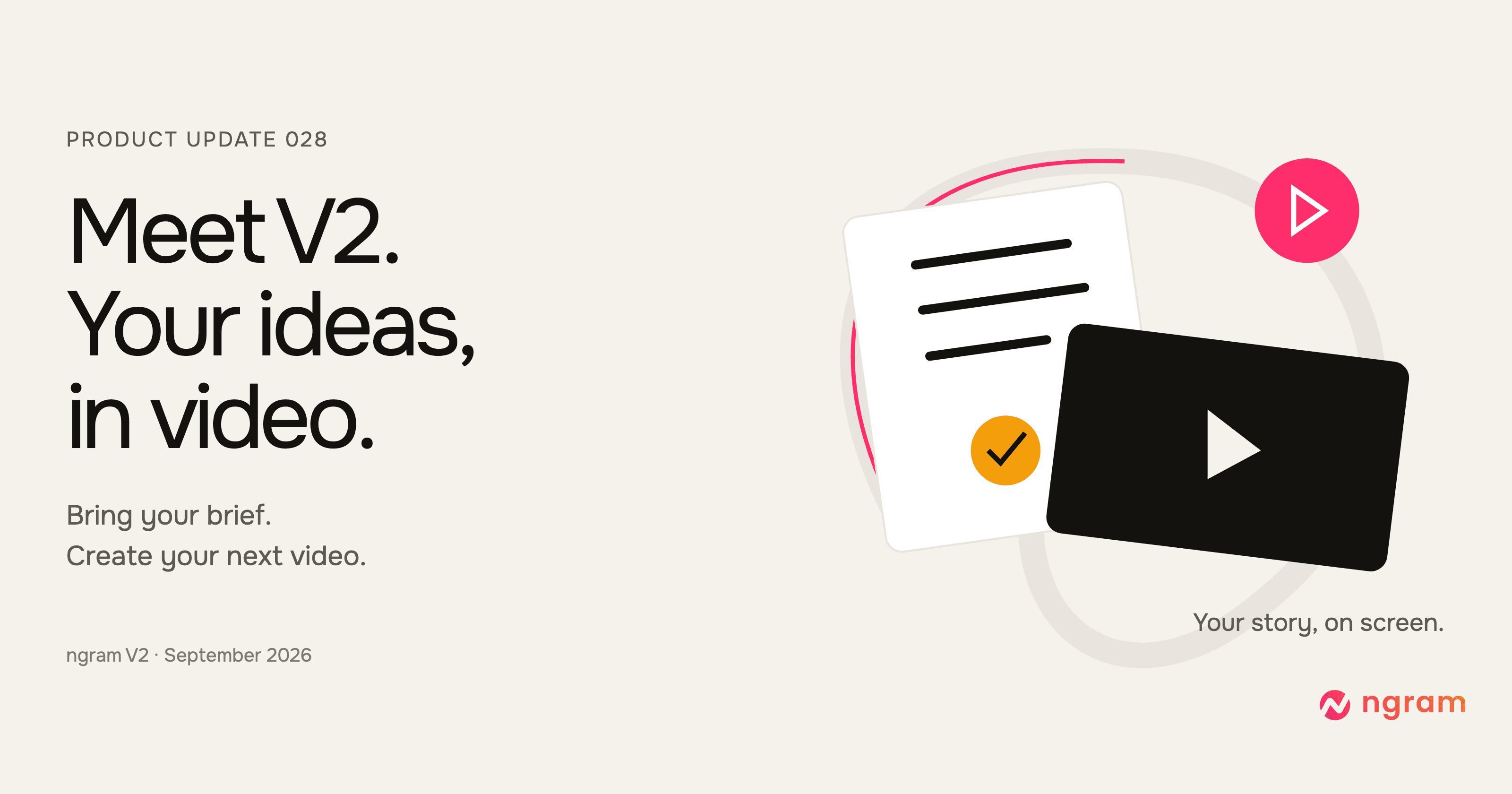


ngram V2 is live. Bring an idea and the source material behind it, and create a video from your brief. Finished V2 examples include launch films and visual explainers, with motion and illustration shaped around different stories.
A 20-second launch video made with V2. Animated typography and recurring shapes carry an idea through to a closing invitation.
See what you can create with ngram V2
Explore five finished V2 videos and briefs
A new creation workspace
You'll see V2 marked Beta in the experience switch. It is the new default for accounts that haven't chosen V1, and you can choose V1 if you prefer the previous experience.
A 60-second release summary made with ngram V2. The motion graphics illustrate the workflow; the documentation screenshots below show the actual Studio controls.
Review the plan before generation
Read the narration in Script and open Production details to check the approach. Choose Request changes to adjust the direction, then Approve plan when you are ready to continue.
The proposed script and production details show how ngram will turn your brief into a video. Approve the direction to start production, or request an adjustment first.
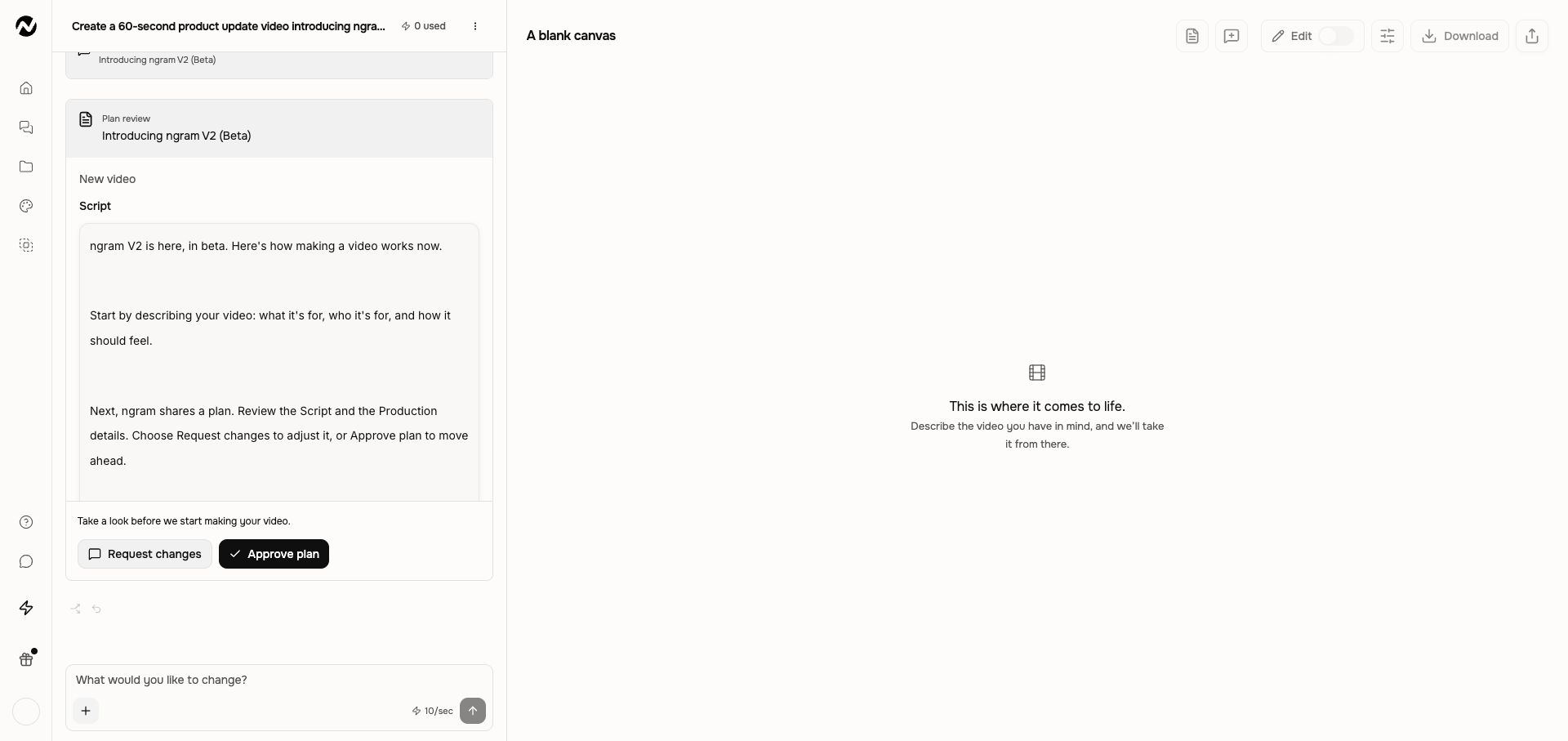
Review scripts and production plans
Watch the preview, then request changes
V2 can play a live video composition before preparing the final MP4. Use Make changes to attach a request to a moment in the preview, or describe a revision in chat. For example: “Keep the opening, but make the closing message about booking a demo.” Review the next version to check the result.
The Versions menu lets you revisit earlier outputs and download the version you choose. When a final render is needed, the download control shows Preparing download while the MP4 is prepared.
Choose whether to show captions
New V2 videos start with captions off. When a caption track is available, open the caption controls to turn captions on and choose their appearance before downloading. This changes the starting setting in V2; it does not change the captions on existing V1 videos.
Manage music, voiceover, and captions
Keep V1 within reach
Switch between V1 and V2 from Home, or save your choice under Default experience in settings. Your existing V1 conversations remain available. Switching the default does not convert those projects into V2 projects, and some tool or template entry points still use V1.
Create your next video with V2
Open V2 on Home and describe the video you need. The Made with V2 gallery has finished examples to explore before you start.
Past issues
Product Update: Layered Image Editing, Timeline Controls, and GIF Downloads — September 28, 2026
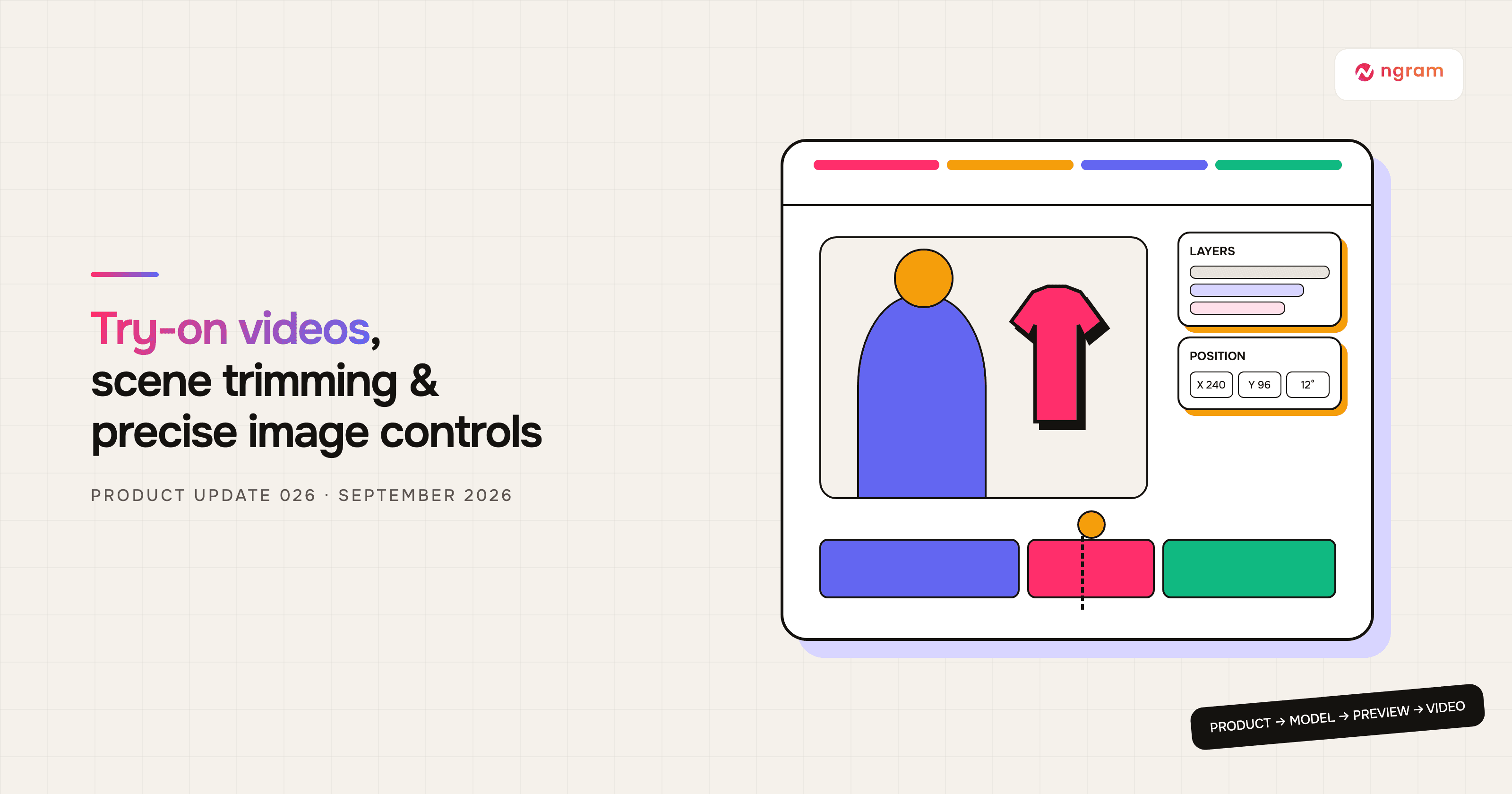
Product Update: Try-On Videos, Scene Trimming, and Precise Image Controls — September 21, 2026
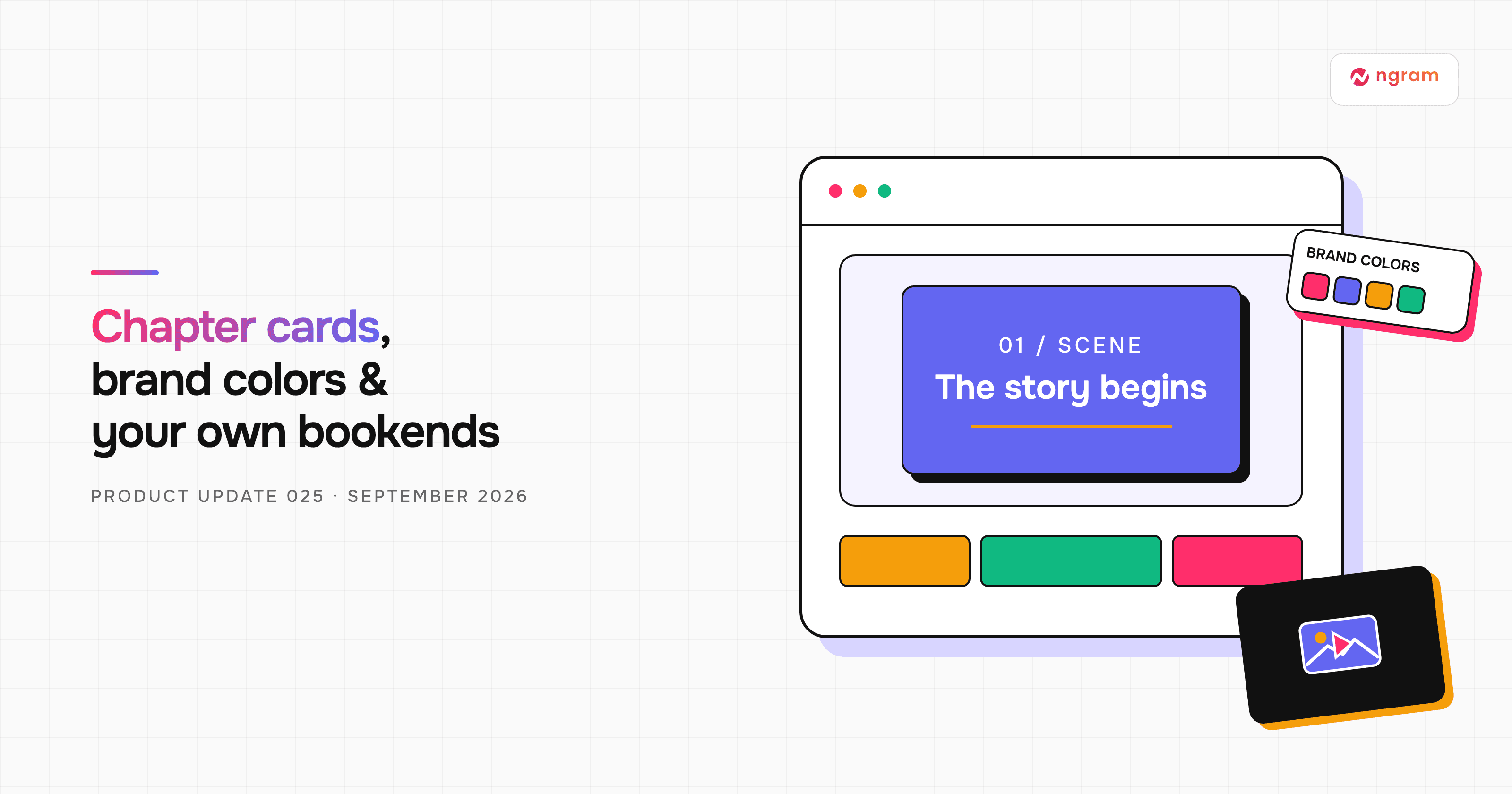
Product Update: Chapter Cards, Brand Color Roles, and Custom Bookends — September 14, 2026
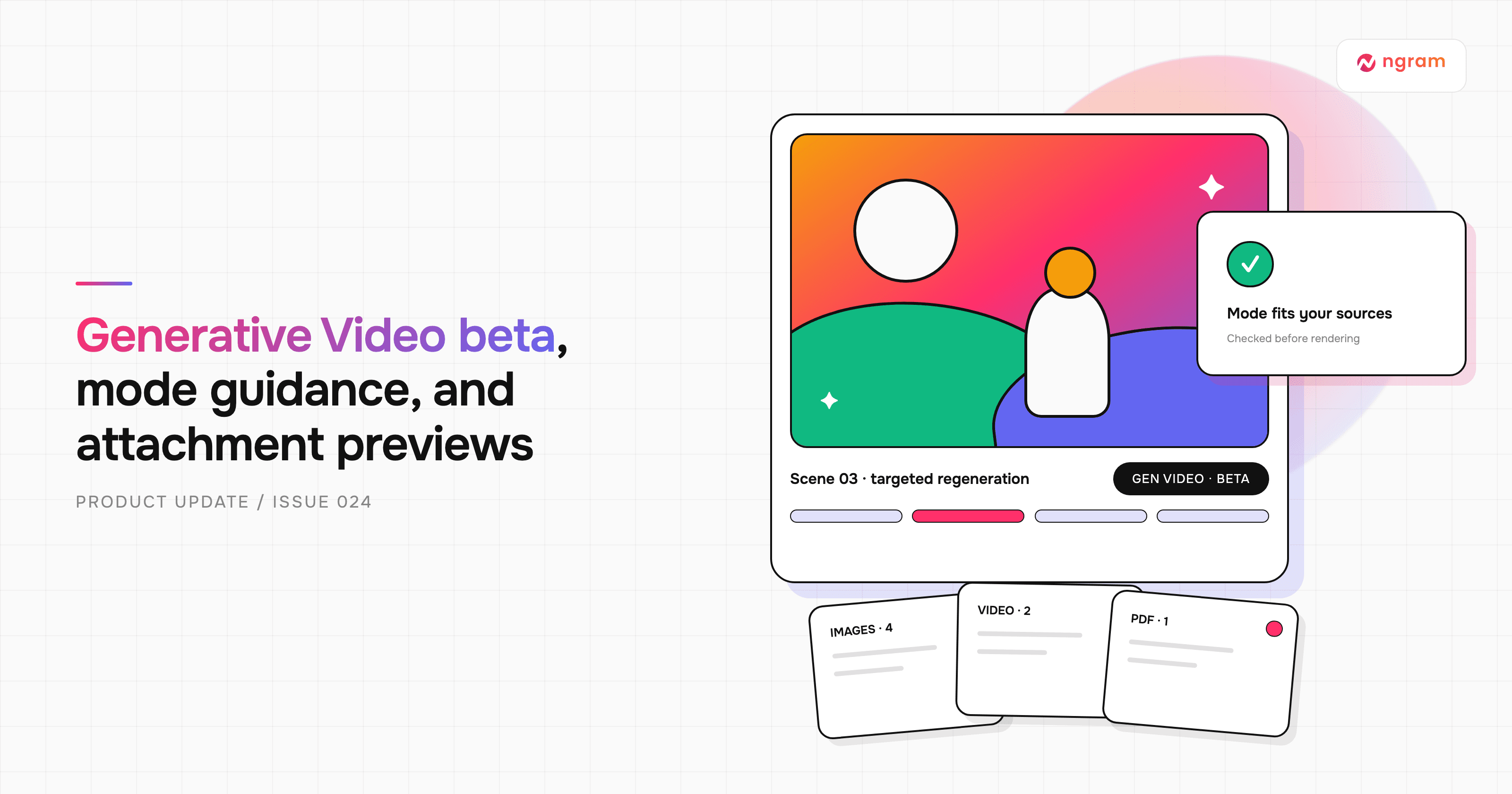
Product Update: Generative Video Beta, Smarter Mode Guidance, and Attachment Previews — September 9, 2026

Product Update: Video Style Templates, Square Videos, and Avatar Layouts — August 31, 2026
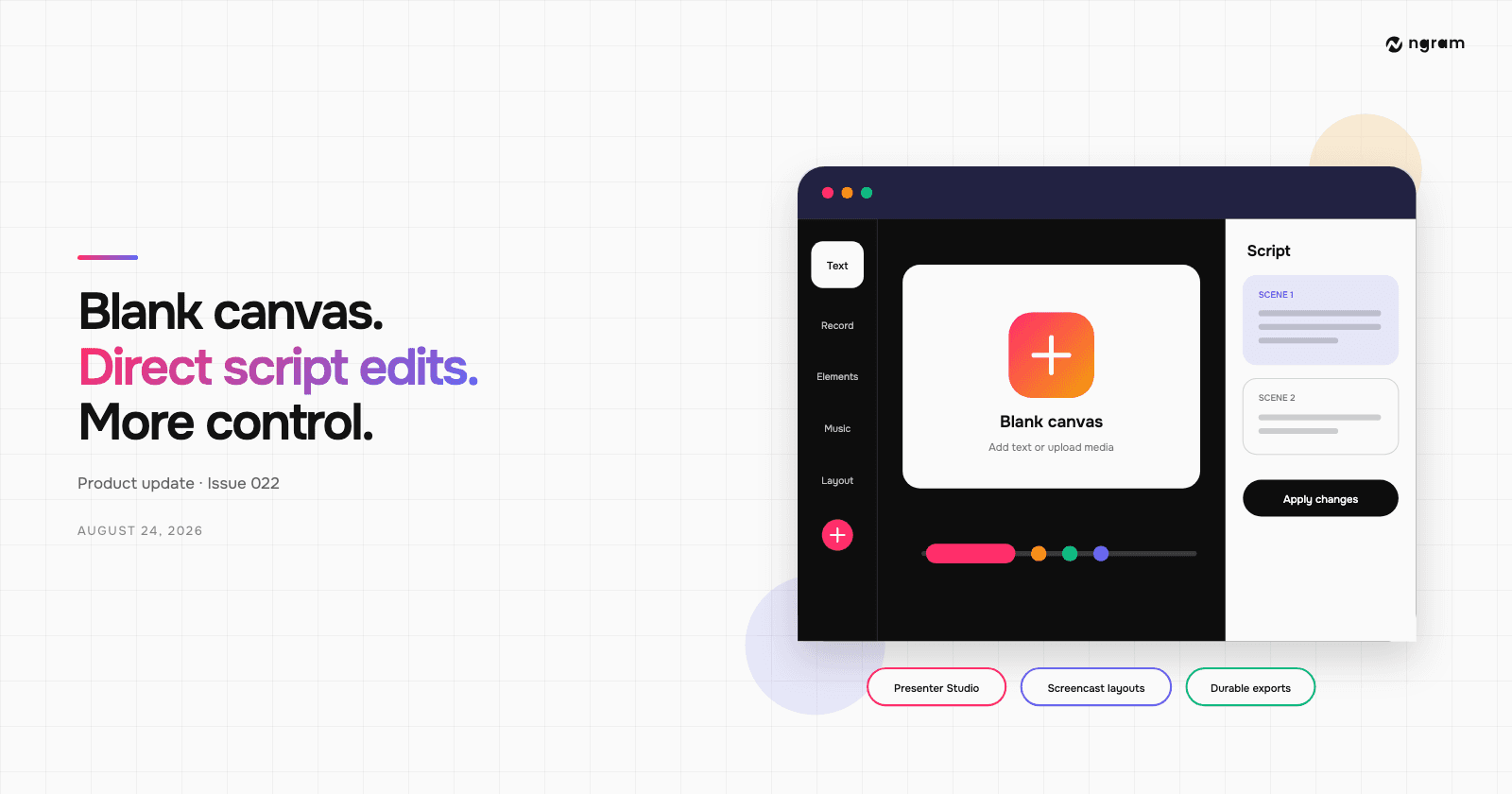
Product Update: Blank Canvas, Script Editing, and More Editor Controls — August 24, 2026
Product Update: Creator Video Hosting, Unified Screencast Editing, and Cancellation Surveys — August 15, 2026
Product Update: Intent-First Onboarding, Tool Continuations, and Publish Fixes — August 8, 2026