Product Update: Layered Image Editing, Timeline Controls, and GIF Downloads — September 28, 2026
Edit Image Lab results by layer, add and reorder scenes, control every canvas element, style captions precisely, download short videos as GIFs, and use the full ngram toolset from Claude.
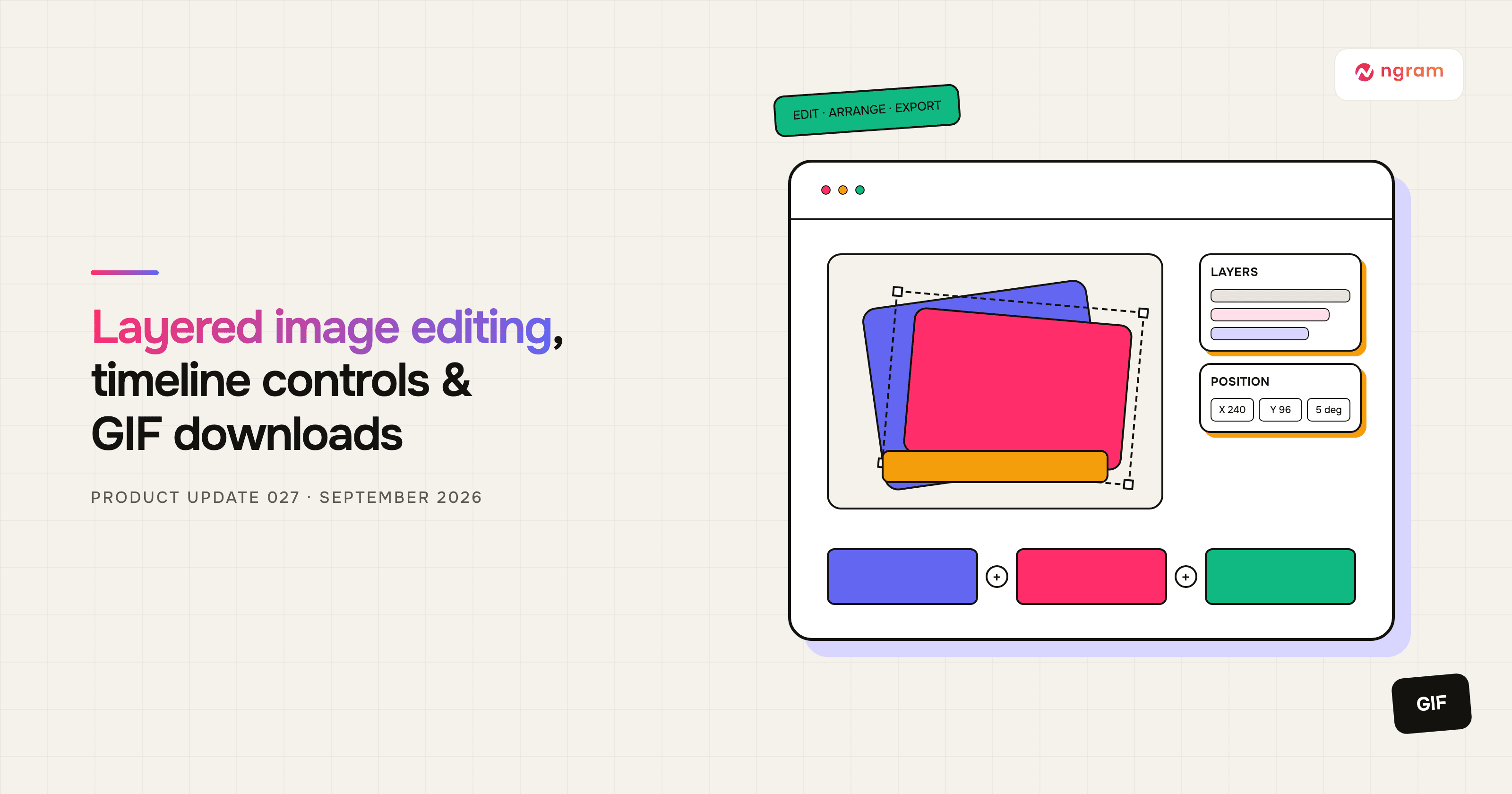


This release gives you more control after ngram generates an image or video. You can edit Image Lab results by layer, add and reorder scenes on the timeline, position any canvas element precisely, and match captions to your brand. Short finished videos can now be downloaded as GIFs, and Claude can use ngram's full account, catalog, video, and image toolset.
What's new
Edit Image Lab results by layer
On a paid plan, open a completed Image Lab result in the layer editor to work on individual parts instead of starting over. Check the displayed credit cost before converting the image into layers. Move, resize, rotate, hide, reorder, or update a layer, then save the result as a new history version so the original stays available.
Add and reorder scenes on the timeline
In a finished agentic video, turn on Edit and use a plus button to insert a scene before or after the current one. Generate the new scene from a prompt or upload your own asset, then drag scene cards into the order you want. Replay the staged sequence before saving it.
Control every canvas layer precisely
Position controls now work across editable text, shapes, containers, and images. Enter horizontal and vertical coordinates or a rotation angle for repeatable placement, resize and move inline text directly, use Arrange to change stacking order, and adjust opacity without leaving the editor.
Style captions with brand colors
Open Edit, choose Captions, and select Custom to set caption colors and fonts. Pick a Brand Kit color, enter an exact color, or choose a different font so captions fit the rest of the video.
Download short videos as GIFs
Eligible short agentic videos now have a GIF download alongside the standard video download. Open Share, choose Save, and select Download as GIF when you need a lightweight loop for a message, presentation, or social post.
Download a finished video or GIF
Use the full ngram toolset from Claude
The Claude connector now exposes the same account, catalog, video, and image tools available through ngram's main connector. Existing connections may need a reconnect or tool rescan before the expanded set appears.
Reliability fixes
- Arabic text is preserved more reliably in downloaded videos instead of falling back to broken characters.
- Generated narration that skips part of the script is detected and retried instead of being saved as complete. Reopening a cached conversation also preserves its existing voiceover.
- Avatar layout edits now save correctly in scenes that do not contain a separate image layer.
- A silent source video used as an overlay no longer prevents the finished video from exporting.
- When a chat stops for insufficient credits, the reply now offers an "I've topped up, continue" control so you can resume after adding credits.
- Uploaded asset links are less likely to leak into on-screen text, and video scene thumbnails now use a frame from the actual clip.
Try it in Studio
Open an existing image or finished agentic video to try the new editing controls, or start a new project and download a short result as a GIF. Replay staged video edits before saving, and reconnect Claude if its expanded ngram toolset has not appeared yet.
Past issues
Product Update: Try-On Videos, Scene Trimming, and Precise Image Controls — September 21, 2026
Product Update: Chapter Cards, Brand Color Roles, and Custom Bookends — September 14, 2026
Product Update: Generative Video Beta, Smarter Mode Guidance, and Attachment Previews — September 9, 2026

Product Update: Video Style Templates, Square Videos, and Avatar Layouts — August 31, 2026
Product Update: Blank Canvas, Script Editing, and More Editor Controls — August 24, 2026
Product Update: Creator Video Hosting, Unified Screencast Editing, and Cancellation Surveys — August 15, 2026
Product Update: Intent-First Onboarding, Tool Continuations, and Publish Fixes — August 8, 2026
Product Update: Clip Studio, Independent Editor Copies, and Embed Branding Controls — August 1, 2026