Product Update: Try-On Videos, Scene Trimming, and Precise Image Controls — September 21, 2026
Create a model-led try-on video from product photos or a product page, trim or split scenes in the inline timeline, find nested layers, and size or position images with exact controls.
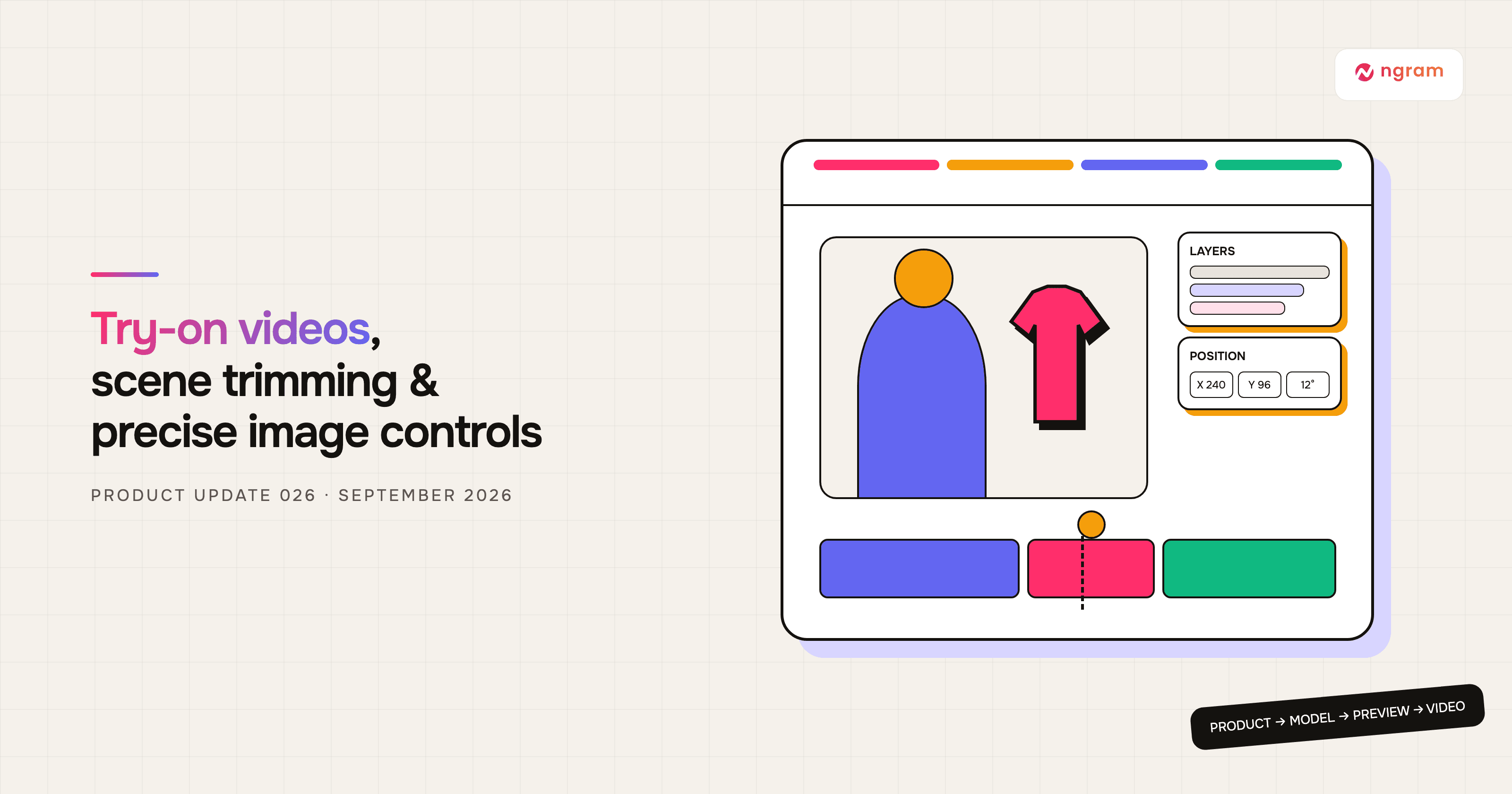


This release adds a guided Try-On Video Generator for turning product photos into model-led videos. It also brings direct trimming and splitting to the inline timeline, a searchable Layers panel for crowded scenes, and exact image sizing, position, and rotation controls. Several editing and recording fixes help finished work stay closer to what you approved.
What's new
Create a try-on video in four guided steps
Open Try-On Video Generator with product photos or a public product page. The workspace guides you through Product, Model & setting, Preview, and Video. Choose the product references and main photo, pick a model and background, inspect and approve the still image, then select movement, format, and duration for the video.
The generator shows the credit cost before each generation and keeps selections, approvals, and completed versions with the project. You can compare a preview with the original, correct it before approval, download the finished MP4, or create another motion from the same approved image. The flow works on desktop and mobile.
Follow the Try-On Video Generator guide
Trim a scene or split it at the playhead
In a finished agentic video, turn on Edit and select a scene. Drag its timeline edges inward to remove time from the start or end, or place the playhead on the frame where you want a cut and select Split at playhead. The change stays staged until you save it, and Reset trim restores the full source range when you need to start over.
Find the right layer in a crowded scene
The inline editor now has a Layers panel. Search by name, expand groups, hover a row to locate it on the canvas, and select it for editing. If an animated layer is not visible at the current playhead time, preview it temporarily without changing its saved timing.
Size, position, and rotate images with exact values
Select an editable image to open its new controls. Image properties offers repeatable width presets from 10% to 100% of the video frame. Position lets you enter horizontal and vertical canvas coordinates plus rotation in degrees. Dragging and resize handles still work when you want a quick visual adjustment.
Use the inline editor controls
Editing and recording fixes
- Brand Kit text using Outfit now renders with the intended font in HTML-based scenes, and supplied logos stay more consistent across generated scenes.
- Caption placement and sizing now match more closely between preview and export. Rich inline text edits also preserve the surrounding markup instead of flattening a text block.
- Changing narration length is less likely to disturb authored scene visuals. When shorter narration would cut off an animation, ngram can keep the scene long enough for that animation to finish.
- The screen recorder now keeps a recording safe when you close mid-capture, warns before discarding an unsaved recording, and waits for processing before opening the result in the editor.
- Uploaded asset filenames no longer appear as URL pills, existing-image controls return when a scene already contains the image, and saving inline motion-graphics edits works again.
Try it in Studio
Start a try-on with one clear product photo, or reopen a finished agentic video and turn on Edit to use the new timeline, Layers, and image controls. Review the displayed credit estimate before generating new media, and replay staged edits before selecting Save.
Past issues
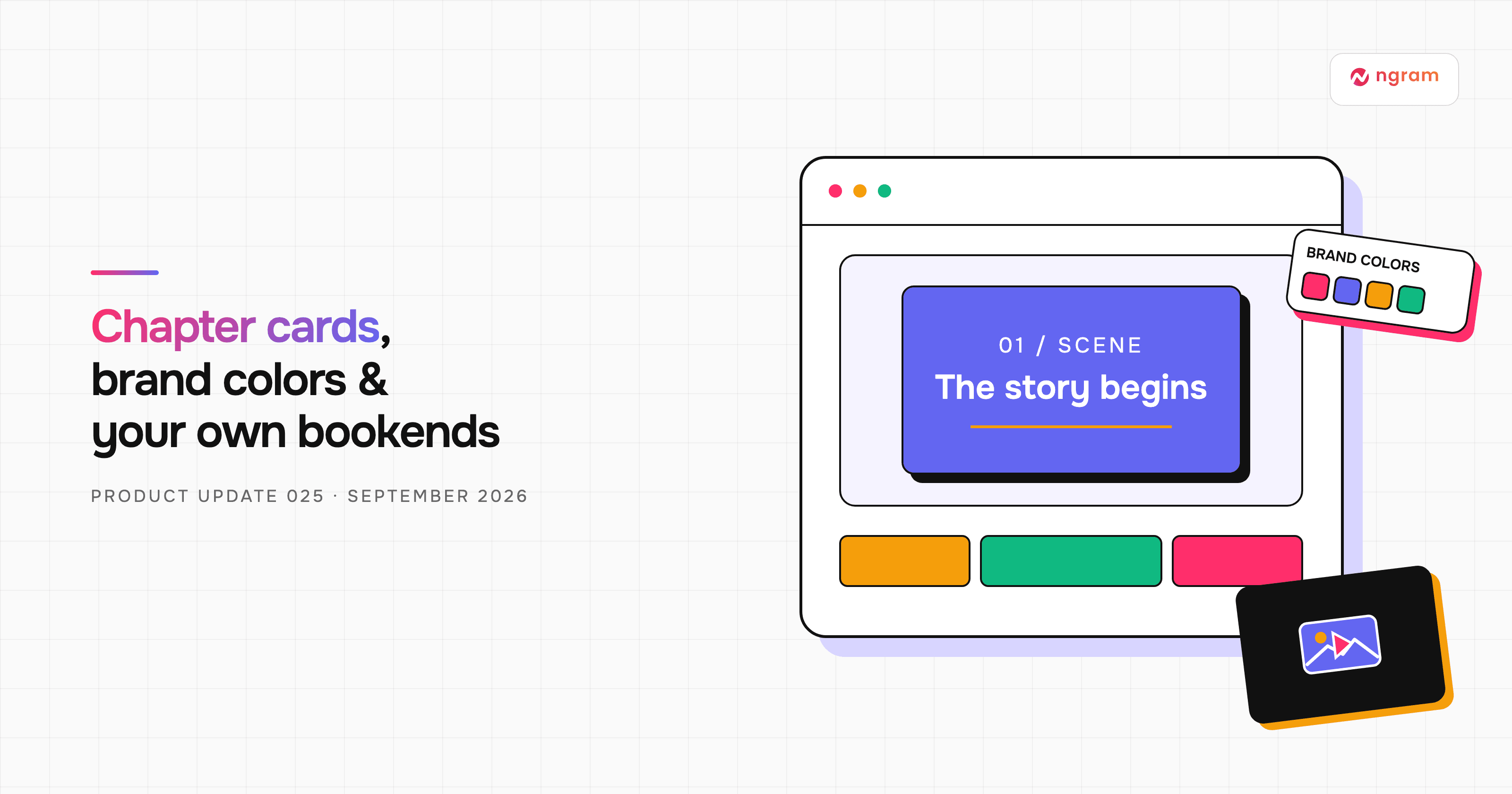
Product Update: Chapter Cards, Brand Color Roles, and Custom Bookends — September 14, 2026
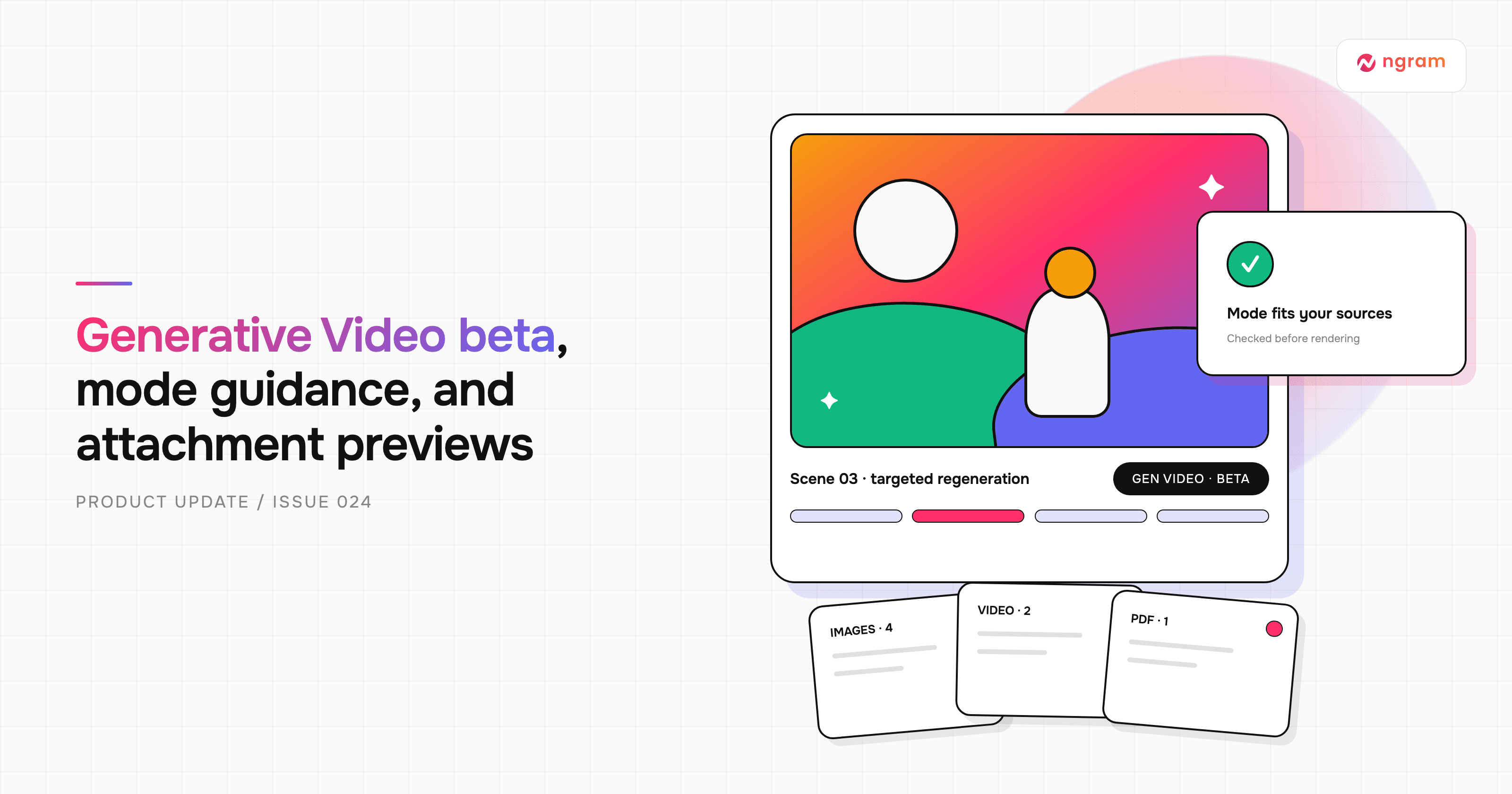
Product Update: Generative Video Beta, Smarter Mode Guidance, and Attachment Previews — September 9, 2026

Product Update: Video Style Templates, Square Videos, and Avatar Layouts — August 31, 2026
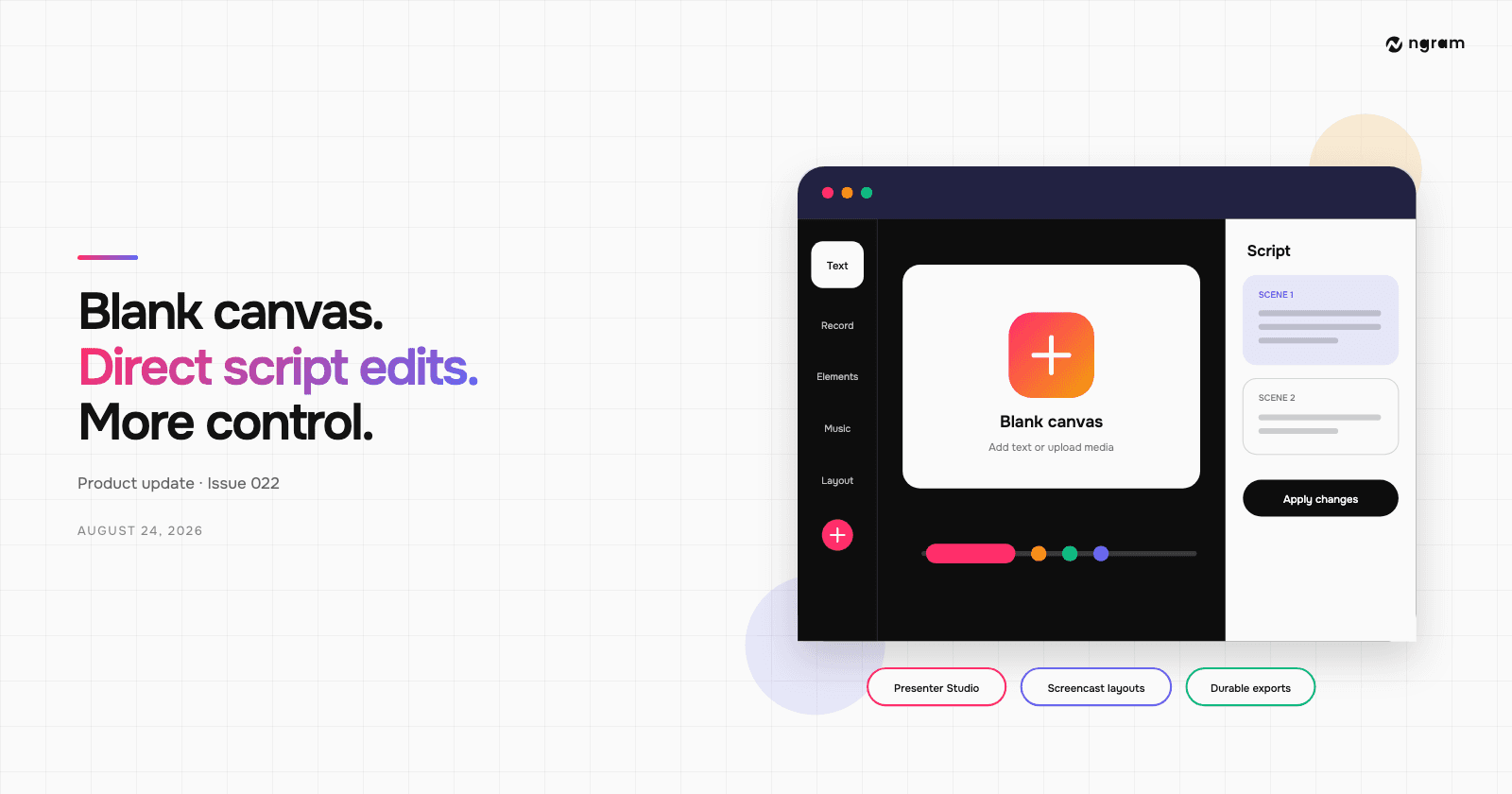
Product Update: Blank Canvas, Script Editing, and More Editor Controls — August 24, 2026
Product Update: Creator Video Hosting, Unified Screencast Editing, and Cancellation Surveys — August 15, 2026
Product Update: Intent-First Onboarding, Tool Continuations, and Publish Fixes — August 8, 2026
Product Update: Clip Studio, Independent Editor Copies, and Embed Branding Controls — August 1, 2026
Product Update: Video Version History, Self-Serve Subscription Pause, and Repurpose Kits — July 25, 2026
