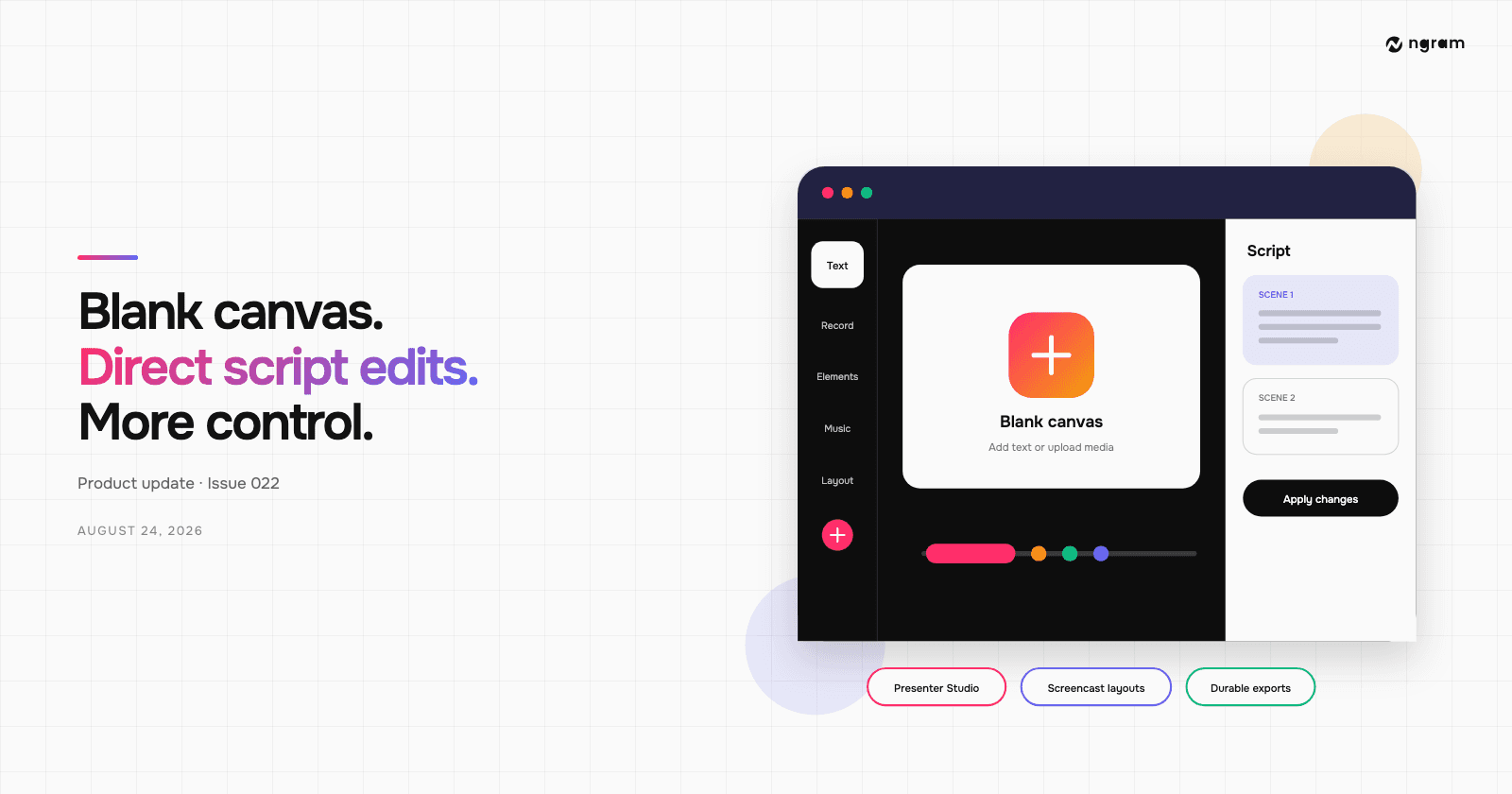
From prompt to play button
ngram now hosts the videos it makes. Upload or share them in Projects › Hosted videos, embed them anywhere, replace them without changing the link, and customize the player.
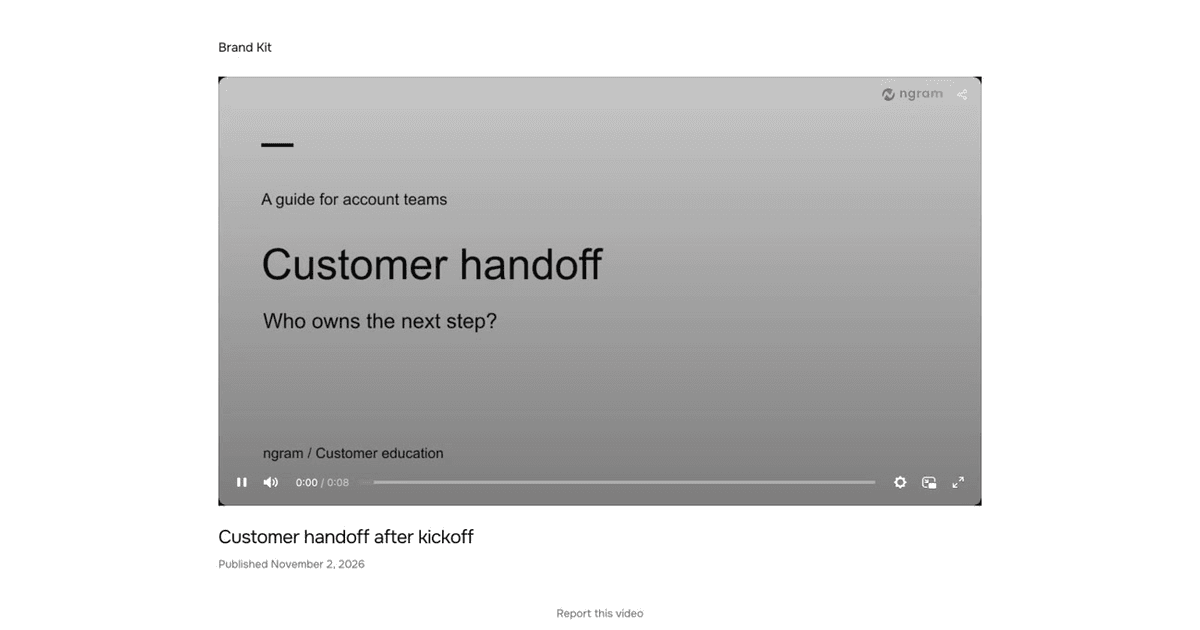


ngram makes your video, and now it hosts it too. Hosted videos keep each video at one link you can paste into an email, a help article or a course. When the video changes, the link and every embed stay the same. Open Projects and choose the Hosted videos tab to start; it is marked Beta while we keep improving it.
Keep every video at one link
Choose Upload in Hosted videos, or drop files onto the page. When a video shows Ready to publish, choose Copy link, check the title and choose Publish and copy link. To add a video you made in ngram, open it, choose Download and export, set Visibility to Unlisted and turn sharing on, then choose Open video page to manage it. Uploads and unlisted links are included in Basic, Premium and Ultimate.
Embed it once and update it later
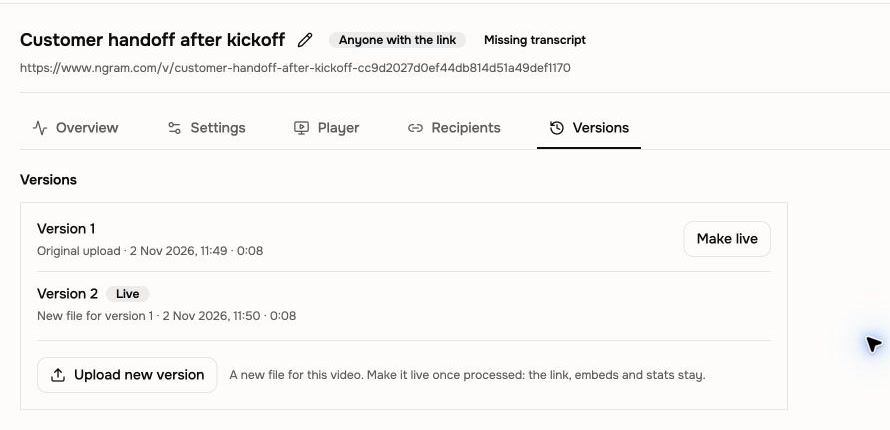
Choose Embed for responsive or fixed-size code, with an iframe version for site builders that remove scripts. When the content changes, open the video's Versions tab, upload a new version and choose Make live. Your links and embeds play it, and the stats for every version are kept. For a video made in ngram, revise it and choose Update in Download and export.
Get captions, chapters and a description from the upload
When someone speaks in an uploaded video, ngram adds captions and writes a title, description and chapters from what is said. Edit the title, description and chapters on the video's page, and upload your own thumbnail if you want a different first frame.
Make the player yours
Each video's Player tab sets autoplay, loop, start time, default captions and the player's language. Every paid plan can hide the “Made with ngram” badge. On Premium and Ultimate, choose your accent colour, add your logo and decide which controls viewers see. Set Player defaults once to apply your choices to every video.
Explore the custom video player
Choose who watches and see what they watched
On Premium and Ultimate, add a password or an expiry date, or give each recipient their own link and see when it was opened. A video's Overview tab shows plays and viewers on every plan. Premium and Ultimate add retention and a watch strip for each recent viewer. Ultimate adds email gates and forms, call-to-action performance, and a breakdown by source, device and country.
What each plan includes
- Free: make videos in ngram and share them with a public watch link or embed.
- Basic: upload videos, publish unlisted links, replace a video at the same link and hide the “Made with ngram” badge.
- Premium: your player colour, logo and controls, branded watch pages, passwords, expiry dates, recipient links, version restore and retention analytics.
- Ultimate: everything in Premium, plus email gates and forms, call-to-action performance, audience breakdowns and team analytics.
Past issues
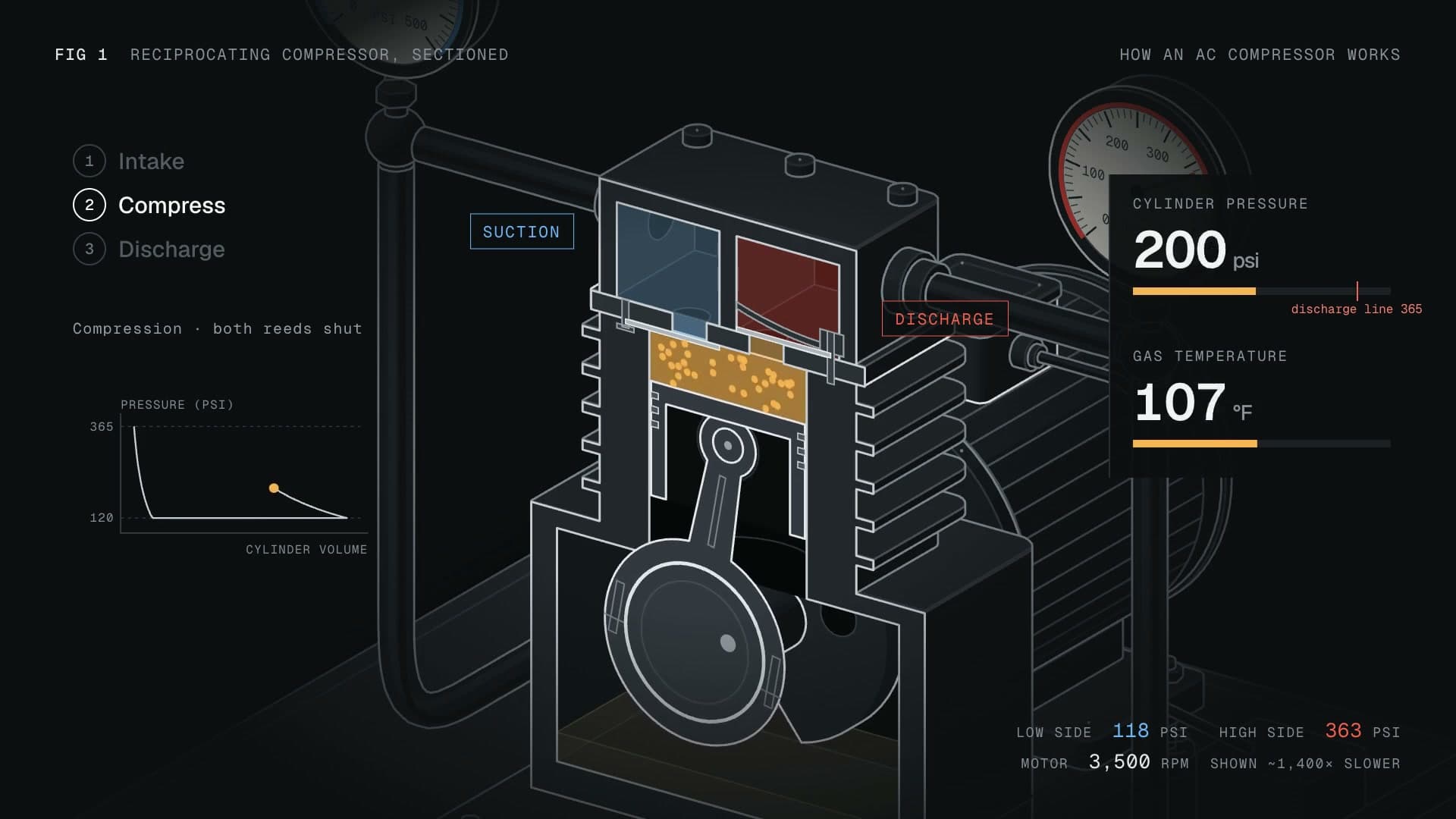
More ways to explain with ngram
Brand slides, pasted media, and direct editing

A new way to create videos with ngram
Product Update: Layered Image Editing, Timeline Controls, and GIF Downloads — September 28, 2026
Product Update: Try-On Videos, Scene Trimming, and Precise Image Controls — September 21, 2026
Product Update: Chapter Cards, Brand Color Roles, and Custom Bookends — September 14, 2026
Product Update: Generative Video Beta, Smarter Mode Guidance, and Attachment Previews — September 9, 2026

Product Update: Video Style Templates, Square Videos, and Avatar Layouts — August 31, 2026