Brand slides, pasted media, and direct editing
Set up your video in Creation Studio, choose Brand Kit opening and closing slides, paste media into chat, and refine eligible results on the canvas.
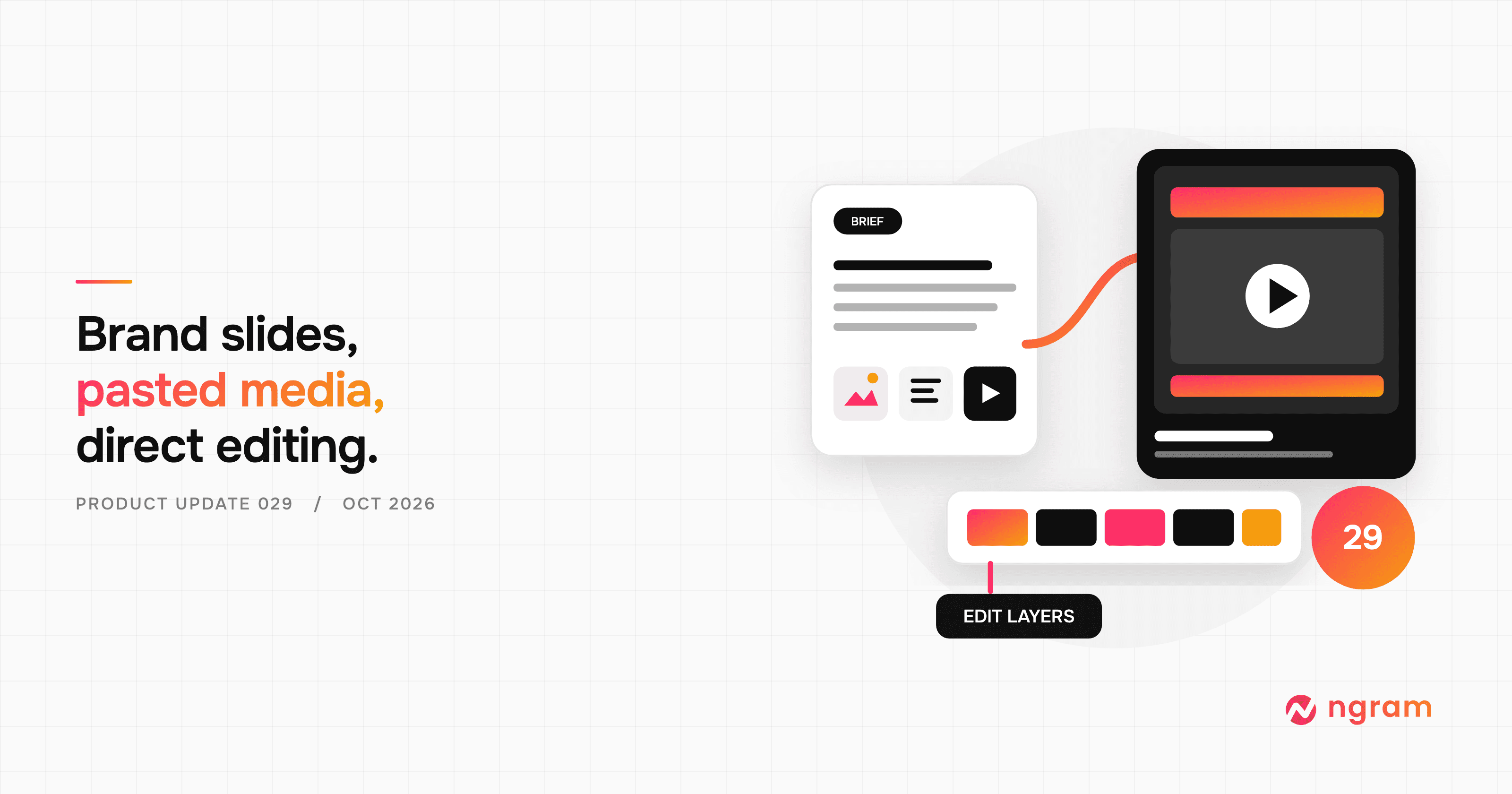


Start with a brief and the material behind it, then review the plan before production. As the video takes shape, you can add missing media, change its look or voice in chat, and adjust eligible layers on the canvas.
Start with the right brief and look
When you sign in, Creation Studio is the starting point for a new video. Choose Prompt to video or Screen recording, add your source material, and set the format, length, voice, presenter, and visual style that fit the message. The style gallery groups looks by type, so you can preview a direction before you create. When a plan needs approval, you can review it before production begins.
See how to create your first video
Add an opening and ending from your Brand Kit
If your Brand Kit has saved intro or outro slides, choose either one in Creation Studio before you make the video. Both are off by default. You can change or remove a selected slide from the preview storyboard afterward, so a reusable brand treatment does not lock every video into the same opening.
Bring in more of the source material
Paste supported images or video into an active chat and tell ngram how to use them: as evidence, a visual reference, or footage to work from. For a website that requires sign-in, an attended Opus 5.5 creation chat can show the agent’s browser and hand it to you for the sign-in step.
Work with sources and attachments
Change the voice or style in the conversation
Creation Studio now offers a wider choice of narration voices alongside a filterable presenter library. After a video is under way, open Video settings in the chat to choose a different visual style, voice, or presenter. ngram offers a change request for you to send, so the new choice becomes part of the next revision.
Make precise edits on the canvas
On desktop, eligible video owners can open an editable composition and adjust visual layers directly. Edit supported text, move or resize images and video, and use width presets when you need an element to occupy a specific share of the frame. Save the change, then replay the result.
Keep the versions worth returning to
Use Saved versions to restore a conversation checkpoint or fork it into another direction. Clone or fork an eligible chat when you want to try a different approach. Earlier rendered videos can be previewed or downloaded separately; opening one does not restore the conversation on its own.
Try it with your next brief
Past issues
ngram V2 is live: a new way to create videos
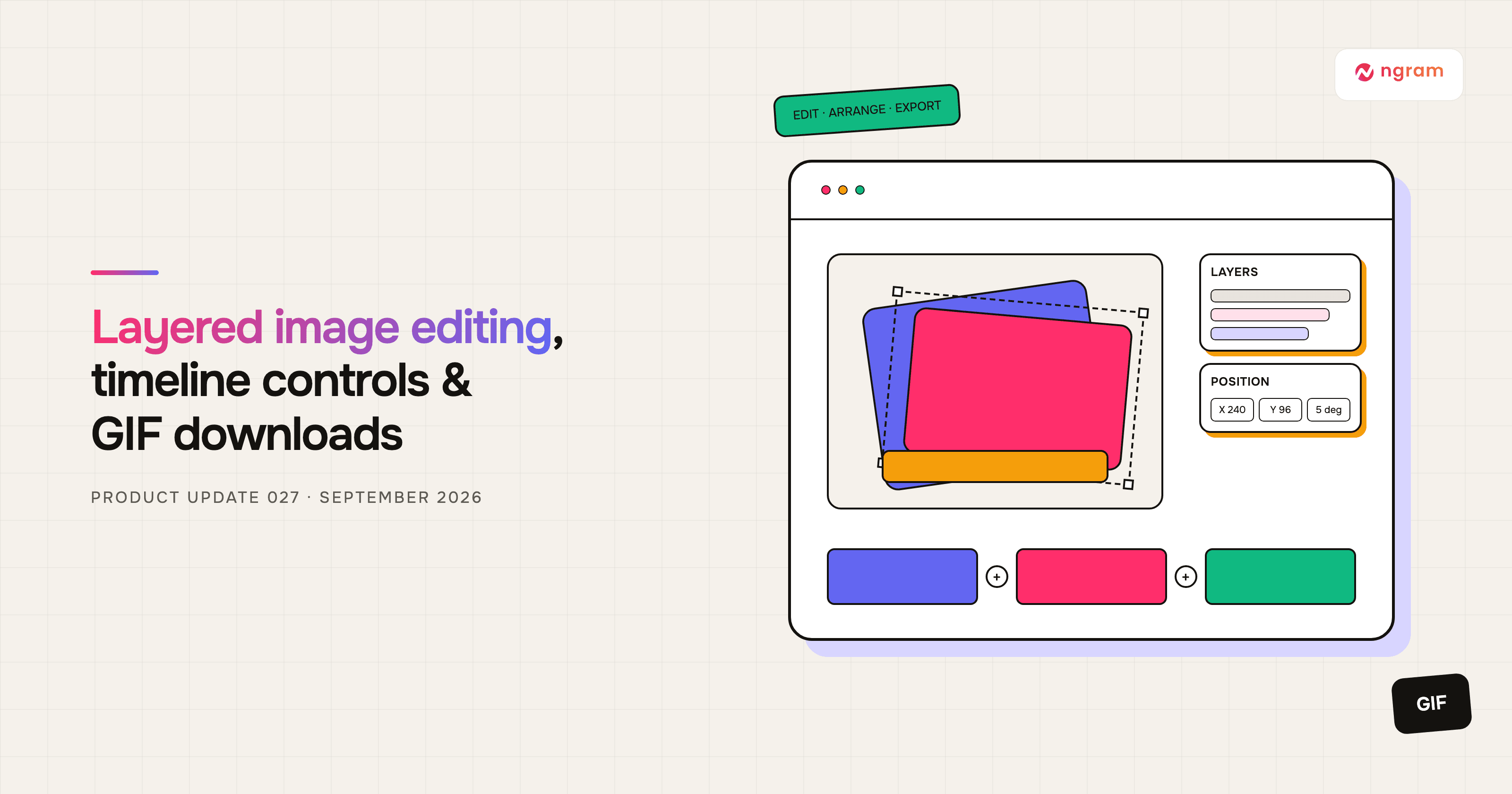
Product Update: Layered Image Editing, Timeline Controls, and GIF Downloads — September 28, 2026
Product Update: Try-On Videos, Scene Trimming, and Precise Image Controls — September 21, 2026
Product Update: Chapter Cards, Brand Color Roles, and Custom Bookends — September 14, 2026
Product Update: Generative Video Beta, Smarter Mode Guidance, and Attachment Previews — September 9, 2026

Product Update: Video Style Templates, Square Videos, and Avatar Layouts — August 31, 2026
Product Update: Blank Canvas, Script Editing, and More Editor Controls — August 24, 2026
Product Update: Creator Video Hosting, Unified Screencast Editing, and Cancellation Surveys — August 15, 2026