Highlight Reel AI Video Maker by ngram
Highlight Reel AI Video Maker for the moments your campaign needs
Upload a source recording
Use an MP4, MOV, WebM, MKV, AVI, or M4V recording as the source video for the highlight reel.
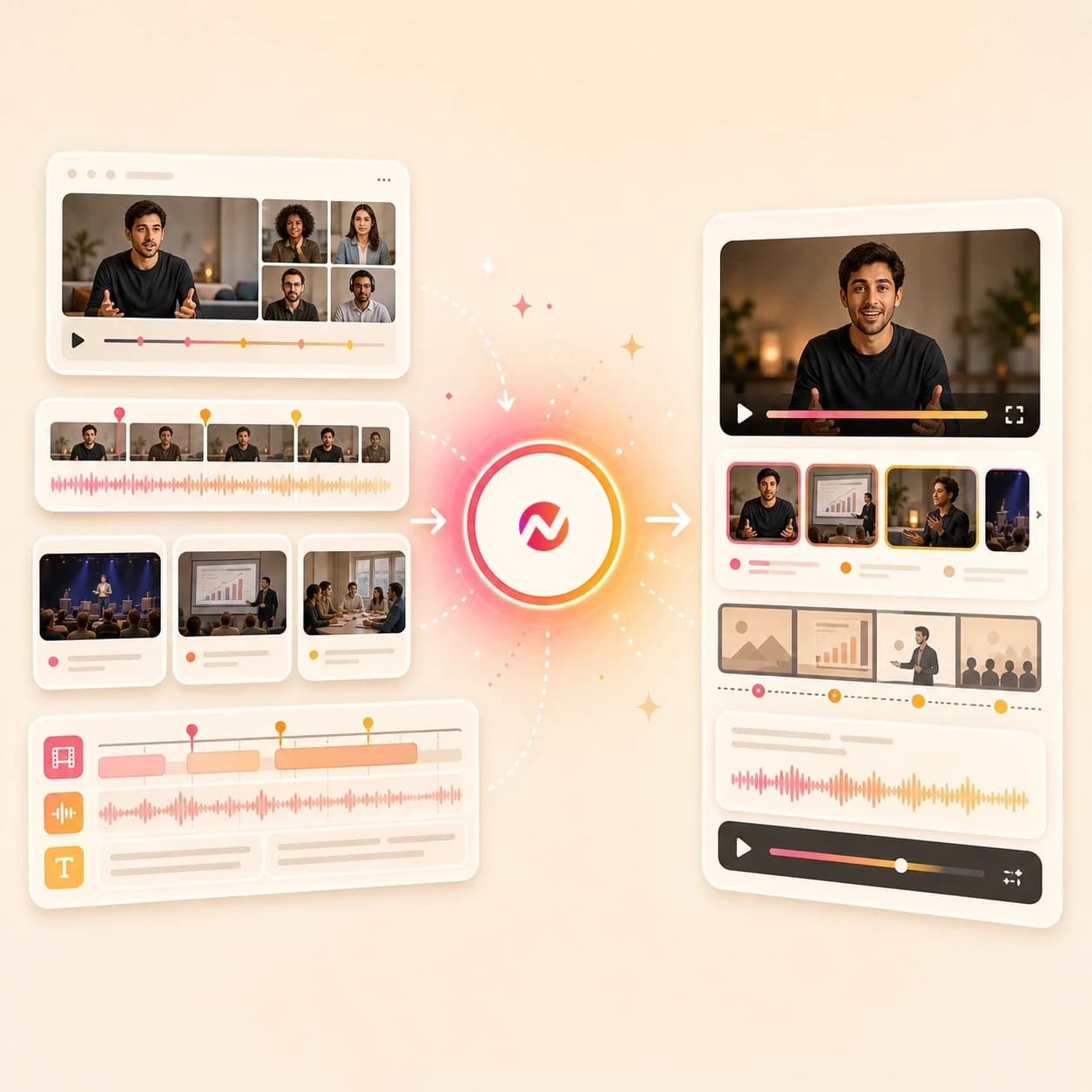
What it does
Pull the strongest moments from a long event, webinar, or product recording. Turn them into captioned campaign cuts without losing the source context or brand.
Trusted by teams at











How it works
From source recording to editable highlight reel.
ngram keeps the job structured: understand the source, plan the reel, generate the draft, then let your team edit before export.
Add the recording or brief
Start with a webinar replay, demo, event file, screen recording, raw video upload, prompt, or approved source URL. The brief tells ngram what the reel should emphasize.
Source ready
Map candidate moments
ngram transcribes the source and turns the useful sections into a reviewable moment map with hooks, product beats, speaker lines, proof points, and possible scene order.
Moments mapped
Draft the reel story
The agent writes a short script and storyboard so the reel has a beginning, body, CTA, caption direction, voiceover notes, and visual plan before the cut is rendered.
Storyboard ready
Edit and export
Refine the cut in chat, the script editor, canvas controls, or the timeline. Prepare and review each framing separately before downloading its MP4.
Ready to review
What it can do
What the highlight reel AI video maker handles.
Use it when the source is too long to share as-is and the finished video needs a clear story, not a loose batch of clips.
Transcript-assisted moment selection
Turn long source audio and video into a candidate list of sections worth reviewing, trimming, and shaping into a highlight reel.
Script and storyboard first
Draft the hook, scene order, narration, CTA, caption plan, and timing before rendering so the reel has a point of view.
Learn more about script generationScreen recording polish
Use smart zooms, cursor treatment, click emphasis, step labels, and section transitions when the reel depends on product or workflow footage.
Learn more about screencast editingCaptions across every clip
Burn styled captions into the reel so speaker lines, demo notes, and product moments stay readable when viewers watch without sound.
Learn more about captionsVoiceover for the curated cut
Use an approved script to create narration that ties separate moments together, then regenerate affected audio after edits.
Learn more about AI voiceoverBuilt for curated highlight reels with human review
When it matters
Where highlight reel videos fit.
These workflows start from useful source material and need a shorter, clearer cut for review, sharing, or campaign reuse.
Webinar clips
Turn a long webinar recording into a highlight reel with selected speaker moments, product sections, captions, and a tighter story arc.
Open AI video use caseMarketing webinar clips
Use the highlight reel AI video maker to pull campaign-ready moments from a webinar replay without treating the whole session as one asset.
Open AI video use caseEvent recap videos
Shape keynote recordings, booth footage, attendee clips, and recap notes into a short event highlight reel with brand treatment.
Open AI video use caseMeeting recap videos
Cut a recorded meeting into a focused reel with decisions, product moments, follow-up notes, and captions for teammates who missed the call.
Open AI video use caseProduct demo videos
Turn demo recordings and product context into a curated highlight reel that shows the workflow, calls out key UI moments, and stays editable.
Open AI video use casePM product demos
Help product managers turn rough sprint recordings into shorter demo reels for stakeholders, product marketing, sales, or customer teams.
Open AI video use caseSales demo followups
Build a post-call highlight reel from the demo sections the buyer cared about, then add captions, voiceover, and brand before handoff.
Open AI video use caseMarketing social clips
Repurpose webinar moments, launch clips, demos, and source recordings into shorter reels that support a campaign calendar.
Open AI video use caseProduct launch videos
Combine launch recordings, product moments, release notes, and approved visuals into a highlight reel for the launch story.
Open AI video use caseProduct stack
The ngram feature stack behind highlight reels.
These shipped features support the work between a long source recording and a polished, editable reel.
Planning
Script Generation
Turn selected moments and source context into a concise reel script, storyboard, scene order, and CTA before render.
Plan the reelScreen footage
Screencast Understanding and Editing
Polish product screen captures with smart zooms, cursor treatment, step labels, click emphasis, and transitions for clearer demo reels.
Polish screen recordingsEditing
Video Editing
Refine highlight order, pacing, scene timing, captions, audio, and export versions through chat, script edits, canvas controls, or timeline edits.
Edit the reelCaptions
Captions & Subtitles
Caption speaker lines, narration, and demo moments so the finished reel works in email, docs, chat, and muted feeds.
Add captionsNarration
AI Voiceover
Generate a narration track from the approved reel script when separate source moments need a cleaner connecting voice.
Add voiceoverBrand
Brand Kit
Apply logos, colors, fonts, motion style, screenshot style, tone, approved phrases, and blocked phrases to every reel cut.
Apply brand rulesGraphics
Motion Graphics
Add lower-thirds, speaker labels, product callouts, intro cards, closing cards, and transitions that make the reel easier to follow.
Add motion graphicsMore tools
Related tools for highlight reel workflows.
Use these tools to capture source material, trim the right sections, build adjacent video drafts, and finish the reel.
Adjacent creation workflows
Use these related ngram tools when the same source material needs a tutorial, explainer, narrative cut, or walkthrough format.
Screencast AI Video Maker
Polish raw screen recordings into clearer walkthroughs with smart zooms, cursor emphasis, captions, and step labels.
Open toolTutorial AI Video Maker
Create step-by-step product tutorials from docs, URLs, screenshots, and approved instructions with captions and labels.
Open toolStorytelling AI Video Maker
Shape product updates, customer proof, launch context, and business briefs into a coherent story-led video draft.
Open toolAI News Video Maker
Turn approved updates, articles, reports, and URLs into reviewed narrative videos with source-grounded scenes and captions.
Open toolPrepare the source
Start with clean source footage, transcripts, and rough cuts before the reel is assembled.
Screen Recorder
Capture a product walkthrough or browser flow that can become source footage for a screen recording highlight reel.
Open toolVideo Cutter
Trim webinars, demos, event recordings, and long videos into the source moments that belong in the reel.
Open toolVideo to Text
Create a transcript from a webinar, demo, or event file so the highlight reel can be planned around real lines.
Open toolVideo Editor
Open the timeline when the highlight reel needs clip order changes, audio cleanup, scene edits, or final export checks.
Open toolBuild adjacent reels
Move between broader AI video creation and related reel formats without starting from a blank project.
AI Video Generator
Create a broader business video draft when the highlight reel needs generated scenes, narration, and source context together.
Open toolCompilation AI Video Maker
Plan a multi-source compilation when the highlight reel combines demos, webinar moments, event footage, and screenshots.
Open toolMontage AI Video Maker
Use a montage workflow when the reel needs tighter pacing across short source moments, images, and product clips.
Open toolAI Demo Video Maker
Create a guided demo video when the source recording should become a clearer walkthrough rather than a broad highlight reel.
Open toolAI Product Demo Video Maker
Turn product footage, screenshots, and feature context into a SaaS demo cut with callouts, captions, and brand.
Open toolAI Social Media Video Maker
Adapt the highlight reel into short social cuts with captions, brand treatment, and channel-specific framing.
Open toolFinish the cut
Add the layers that make a highlight reel easier to review and reuse.
Add Subtitles to Video
Add subtitles to the finished reel so quotes, product notes, and narration remain clear without sound.
Open toolVideo Caption Generator
Generate styled captions for social cutdowns, speaker moments, and product sections pulled from the highlight reel.
Open toolAI Voice Generator
Create a clean narration track to connect separate source moments inside the final reel.
Open toolAdd Music to Video
Add background music under speaker clips, demo sections, and transition moments without separating the project.
Open toolVideo to GIF
Turn one strong highlight into a lightweight loop for docs, launch pages, email, or support replies.
Open toolConvert
Converters that feed highlight reels.
Start from the source type you already have, then use the highlight reel workflow to choose moments, write the story, and finish the cut.
Webinar to Clips
Turn a long webinar replay into source clips before shaping the best sections into a concise highlight reel.
Open converterScreen Recording to Video
Polish raw product captures with smart zooms, captions, and cursor treatment before cutting the highlight reel.
Open converterMeeting Recording to Video
Turn a recorded call into a cleaner video source, then pull decisions, demos, and recap moments into the reel.
Open converterWho it is for
Teams that turn recordings into highlight reels.
Highlight reels fit teams that already have useful footage and need a shorter, reviewable video asset.
Product marketing
Turn launches, webinars, customer proof, and product demo recordings into curated reels that keep the message tied to positioning.
See PMM workflowsGrowth and marketing teams
Repurpose campaign recordings, webinar replays, and event footage into shorter cuts for paid and organic programs.
See growth workflowsProduct managers
Turn sprint demos, rough screen recordings, and release-note context into highlight reels stakeholders can review quickly.
See product workflowsSales enablement
Package demo recordings, objection answers, and buyer-specific moments into shorter recap reels for rep handoff.
See sales workflowsCustomer success teams
Turn onboarding calls, QBR recordings, feature walkthroughs, and customer education moments into clearer follow-up reels.
See CS workflowsSupport teams
Condense troubleshooting recordings and repeated walkthroughs into short answer videos with captions and visible steps.
See support workflowsAgencies and consultants
Turn client footage, webinars, demos, interviews, and event files into branded reel drafts clients can review.
See agency workflowsHR and internal comms
Create company event recaps, leadership update reels, and internal training highlights from approved recordings.
See internal workflowsIntegrations
Automate highlight reel intake and review.
Use live ngram integrations to move approved source material into a reel workflow and route the finished draft back for human review.
Zapier reel request intake
AutomationWhenA form, spreadsheet row, CRM note, or project task includes a reel brief and approved source recording.
ThenSend the source context to ngram, create a highlight reel draft, and notify the reviewer when it is ready.
Chrome source capture
BrowserWhenA product page, release note, recap page, or help article should guide the story for a highlight reel.
ThenCapture the page as context for ngram so the reel script and storyboard follow approved wording.
MCP agent workflow
AgentsWhenAn AI agent is preparing a recap, launch package, demo follow-up, or event asset from approved sources.
ThenCall ngram as a tool to draft the highlight reel and return the output for review.
n8n review routing
Self-hostedWhenA self-hosted workflow marks a webinar, demo, event recording, or screen capture as ready for reel production.
ThenCreate the highlight reel in ngram and route the completion status back to the team's approval flow.
Use integrations for intake, status, and review routing. Keep distribution, training delivery, fact review, and channel management in the systems that own them.
Why ngram
How ngram compares for AI highlight reels.
Different workflows can shorten footage. ngram focuses on turning source recordings into a planned, branded, editable video project.
| Compare | ngram | Manual timeline editor | Clip selection tool | Template social editor |
|---|---|---|---|---|
| Workflow fit | Starts from source recordings, prompts, URLs, and product context, then drafts a script and storyboard before render. | Works when an editor already knows the exact moments, order, transitions, caption style, and export versions. | Useful for finding short sections inside a long recording when the output is mainly a set of clips. | Useful when the team already has short clips and only needs a fixed social layout. |
| How ngram fits | Adds captions, voiceover, framing adjustments in the editor, product callouts, brand kit, and MP4 export in one editable project. | Requires more manual work for transcript review, brand styling, framing adjustments in the editor, voiceover, and source-to-script planning. | May leave story structure, voiceover, brand kit, captions, and MP4 export to separate tools. | Less direct when the source is a long recording that needs transcription, moment selection, and a new story arc. |
| Best use | Fits webinars, demos, events, screen recordings, launch moments, and recap videos that need human review before sharing. | Best for teams with editing capacity, less direct for recurring business reels from webinars and demos. | Works for simple cutdowns, but broader reels still need planning, editing, and review. | Often separates the finished file from the original script, storyboard, voiceover, and brand rules. |
FAQ
Highlight reel AI video maker questions.
Answers for source-recording workflows
Turn the best moments into an editable reel
Start with a source recording, prompt, or approved URL. ngram plans the reel, drafts the script and storyboard, adds captions, voiceover, framing adjustments in the editor, brand treatment, and keeps the cut editable before export.
Use it for webinars, demos, events, product moments, screen recordings, and campaign recap videos.
CTA opens ngram sign-in. The project starts after authentication.