Screencast AI Video Maker by ngram
Screencast AI Video Maker for product walkthroughs worth sharing
Upload a screen recording
Use an MP4, MOV, WebM, MKV, AVI, or M4V recording as the source video.
What it does
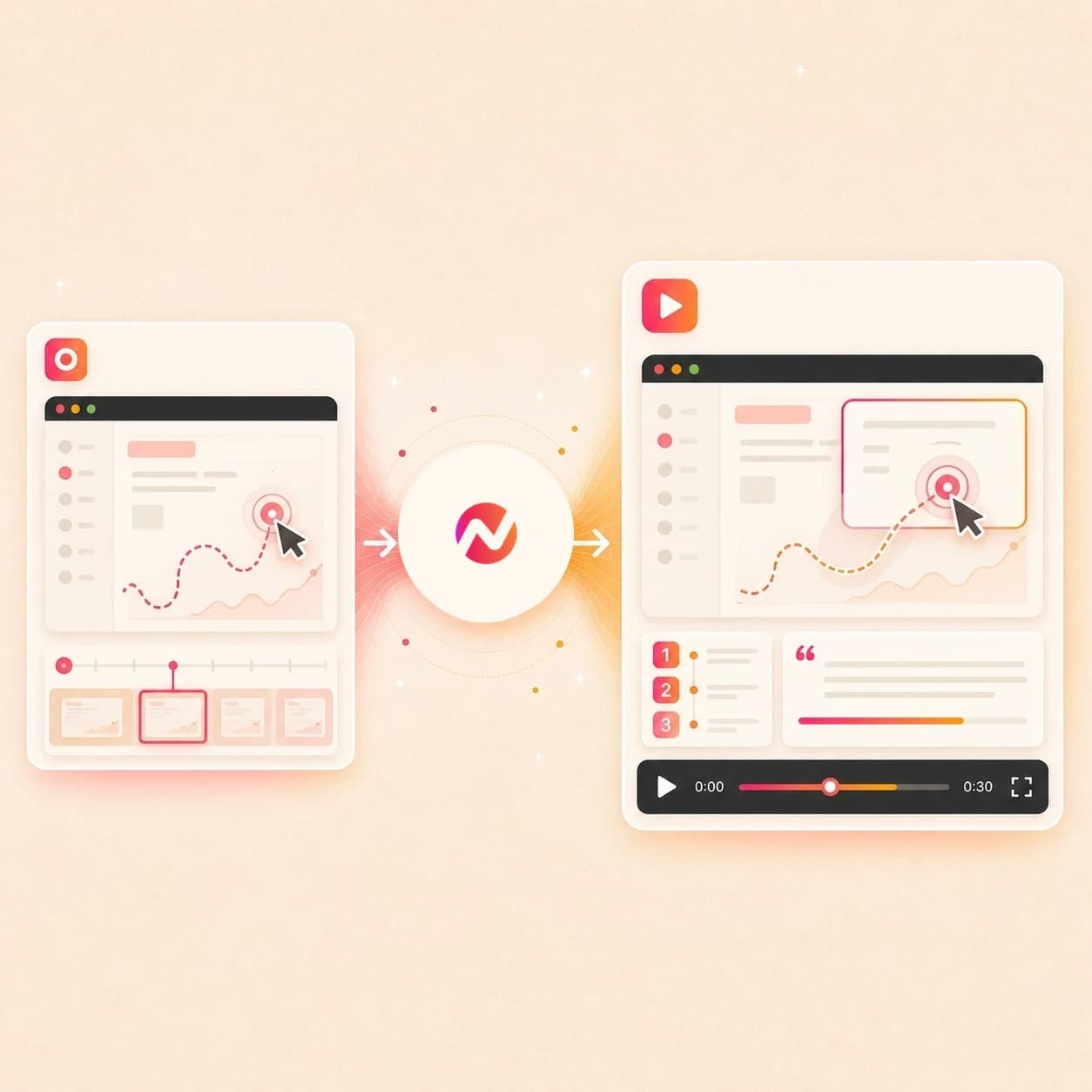
Start with the actual screen recording and turn it into a walkthrough customers or prospects can follow. Remove dead time, clarify each step, and add the brand and narration the raw take was missing.
Trusted by teams at









How it works
From rough screencast to edited walkthrough.
Start with the recording you already have, then review the AI draft before the final render.
Upload the walkthrough
Upload an existing screen recording that shows the steps viewers need to follow, or start from a prompt when the recording is not ready yet.
Source ready
Let ngram read the recording
ngram transcribes the narration, detects key clicks, finds dead air, and identifies where the viewer needs zooms, labels, or callouts.
Recording understood
Review the editable draft
Tighten the script, accept or change smart zooms, edit captions, adjust step labels, and ask for changes in chat or on the timeline.
Draft editable
Finish with captions and brand
Apply brand kit styling, add polished captions, keep the walkthrough editable, and export the version your team needs.
Ready to export
What it can do
Screencast AI video maker controls for cleaner walkthroughs.
ngram treats the screen recording as source material for a finished walkthrough, not just a capture to trim.
Transcribe the narration
Turn spoken explanation into a transcript that drives captions, script cleanup, section timing, and transcript-aware edits.
Add smart zooms
Focus the viewer on the UI detail that matters without hand-keyframing every push-in or pan.
Smooth cursor motion
Reduce distracting cursor movement and emphasize important clicks so the walkthrough is easier to follow.
Trim dead air
Cut pauses, loading gaps, repeated attempts, and off-topic moments while preserving the steps that explain the workflow.
Label each step
Add chapter cards, step labels, callouts, and lower thirds that explain what is happening on screen.
Apply captions and brand
Style captions, frames, logo treatment, colors, and outro details from the active brand kit before export.
Built for product demos, support walkthroughs, tutorials, and internal updates
When it matters
Where screencast AI video maker pages fit.
These live use-case pages match the teams most likely to polish screen recordings into finished walkthrough videos.
Product demo videos
Use a rough screencast as the base for a clearer demo with transcript edits, zooms, click emphasis, and a branded ending.
Open use caseProduct walkthrough videos
Turn a multi-step product flow into a walkthrough where each click, label, and caption helps the viewer keep up.
Open use caseTutorial videos
Build tutorial videos from screen recordings with step labels, cleaned narration, captions, and a draft you can still edit.
Open use caseHelp center videos
Replace a long screenshot sequence with a captioned walkthrough that shows the action and keeps the support answer on brand.
Open use caseCustomer onboarding videos
Turn setup recordings into onboarding walkthroughs that explain the first workflow with clear pacing and visible UI details.
Open use caseTraining videos
Clean up subject-matter expert recordings into structured training videos with captions, chapters, and branded framing.
Open use caseSupport feature walkthroughs
Create short feature walkthroughs from support recordings when a ticket, release, or known issue needs a clearer answer.
Open use casePM product demos
Turn a product manager's rough feature recording into an async demo with step labels, captions, and stakeholder-ready polish.
Open use caseSales product demos
Use a prospect-specific screencast to create a demo recap with clearer pacing, branded captions, and focused UI moments.
Open use caseProduct stack
Features that polish the screencast.
These live ngram features are the product pieces behind a screencast AI video maker workflow.
Screencast understanding and editing
Read the recording, detect key moments, add step structure, and turn screen capture into a walkthrough draft.
Learn about screencast editingVideo editing
Use chat, timeline, canvas controls, and the script editor to refine the screencast after ngram creates the draft.
Learn about video editingCaptions and subtitles
Generate captions from the screencast transcript and style them so the walkthrough works without sound.
Learn about captionsMotion graphics
Add callouts, lower thirds, smart zooms, section transitions, and UI-focused overlays to the recording.
Learn about motion graphicsBrand kit
Apply logos, colors, fonts, screenshot style, approved phrases, intro cards, and outro treatment to each walkthrough.
Learn about brand kitAI voiceover
Replace rough narration with generated voiceover from the cleaned script when the screen recording has usable visuals but poor audio.
Learn about voiceoverMore tools
Related tools for screencast workflows.
Use these live tool pages when the screencast needs capture, cuts, captions, text, transcript work, or a demo variant.
Adjacent creation workflows
Use these related ngram tools when the same source material needs a tutorial, explainer, narrative cut, or walkthrough format.
Tutorial AI Video Maker
Create step-by-step product tutorials from docs, URLs, screenshots, and approved instructions with captions and labels.
Open toolHow to AI Video Maker
Convert procedures, help content, screenshots, and URLs into editable how-to videos for support, onboarding, and enablement.
Open toolHighlight Reel AI Video Maker
Use approved recordings, URLs, or briefs to frame a concise highlight video with captions, pacing, and brand context.
Open toolAI Explainer Video Maker
Turn a brief, URL, screenshot, or PDF into an editable explainer video with storyboard, voiceover, captions, and brand context.
Open toolCapture and edit
Start with the recording, then tighten the edit
Screen recorder
Record the product flow in the browser before turning it into a polished screencast video maker draft.
Open toolVideo editor
Refine the generated walkthrough with transcript edits, timeline controls, visual chat, and scene-level changes.
Open toolVideo cutter
Cut extra setup time, repeated steps, and dead air before captions, labels, brand, and export.
Open toolCaption and explain
Make the walkthrough easier to follow
Add subtitles to video
Generate timed subtitles from the screencast transcript and burn them into the final walkthrough.
Open toolVideo caption generator
Style captions for a product walkthrough when the important explanation is spoken in the recording.
Open toolAdd text to video
Place step labels, product callouts, lower thirds, and section titles on top of the screencast.
Open toolRepurpose the walkthrough
Reuse the same recording in other formats
Video to text
Turn the recording into an editable transcript for captions, follow-up copy, support notes, and script cleanup.
Open toolVideo to GIF
Convert a short walkthrough moment into a lightweight loop for docs, release notes, and support replies.
Open toolAI product demo video maker
Build a broader demo around the screencast with script, storyboard, voiceover, captions, and brand.
Open toolConvert
Convert source material into screencast videos.
These convert pages cover the source formats teams often pair with a screen recording.
Screen recording to polished video
Turn a raw capture into a branded walkthrough with trims, smart zooms, captions, and step labels.
Open converterScreenshots to walkthrough video
Use screenshots when the screencast needs still UI references, callouts, and a narrated sequence.
Open converterTutorial to video
Pair a written tutorial with the screen recording so ngram can draft a clearer walkthrough structure.
Open converterWho it is for
Teams that use screencast AI video maker workflows.
Screencast polish matters most when the recording explains a product flow that other teams need to reuse.
Product managers
Turn a rough feature walkthrough into a clear async update with captions, labels, and an editable draft.
Open solutionProduct marketing demo teams
Build polished demo assets from screen recordings without losing the product details buyers need to see.
Open solutionCustomer success teams
Create onboarding and adoption walkthroughs from screen captures that already explain the customer workflow.
Open solutionSupport teams
Turn repeat-answer recordings into support walkthroughs with step labels, captions, and focused UI moments.
Open solutionSales enablement
Use screencast drafts to create demo follow-ups that highlight the product path a prospect asked about.
Open solutionDeveloper relations
Polish API, SDK, and integration walkthrough recordings into videos developers can follow step by step.
Open solutionIntegrations
Route screencast work through live integrations.
Use these integration pages to start, route, or track video creation work around a screencast project.
Chrome Extension
BrowserWhenA product page, doc, or help article should provide context for the screencast
ThenSend the page context into ngram before drafting the walkthrough video
Zapier
No-codeWhenA ticket, CRM note, or launch task asks for a polished screencast walkthrough
ThenCreate a ngram video task with the walkthrough brief, owner, and source context
n8n
WorkflowWhenA private workflow collects product education requests and screencast notes
ThenRoute the request into ngram and track the draft through the same workflow
MCP Server
AgenticWhenAn AI agent is preparing instructions from a product workflow and a screen recording
ThenCall ngram through MCP to create the screencast video task with the right context
Why ngram
How ngram compares with other screencast paths.
Choose based on whether you only need a recording or a polished walkthrough with editable video structure.
| Compare | ngram | Basic screen recorder | Manual video editor | Step documentation tool |
|---|---|---|---|---|
| Workflow fit | Best fit when a rough screencast needs transcript-aware cuts, smart zooms, click emphasis, captions, and brand. | Best fit when the main job is capturing the screen and keeping the original recording. | Best fit when an editor wants to place every cut, zoom, caption, and callout by hand. | Best fit when the desired output is a written guide with screenshots and ordered steps. |
| How ngram fits | Turns the recording into an editable draft instead of leaving the team with the original take. | The recording can still include pauses, cursor drift, missed clicks, and long setup moments. | Useful for custom craft work, but the team must decide the structure before editing starts. | Strong for process documentation, but the result is usually doc-first rather than video-first. |
| Best use | Keeps script, storyboard, captions, callouts, voiceover options, timeline edits, and export in one project. | A separate editing workflow may be needed for captions, labels, brand, and alternate cuts. | Screen-recording-specific polish can take extra time when every zoom and label is manual. | ngram is better when the same workflow needs pacing, narration, captions, brand, and export. |
FAQ
Screencast AI video maker FAQs
Answers for screen-recording workflows.
Turn the rough screencast into an editable walkthrough
Bring an existing screen recording. ngram can transcribe it, add smart zooms, trim dead air, label the steps, apply captions and brand, then keep the draft editable.
Use ngram when a raw capture needs to become a finished walkthrough your team can reuse.
Record, upload, polish, export