Montage AI Video Maker by ngram
Montage AI Video Maker for campaign stories built from clips
This tool input is coming soon. Browse all workflows below while we finish the direct handoff.
Name the source material, audience, channel, tone, must-keep moments, and the message the highlight edit should carry
What it does
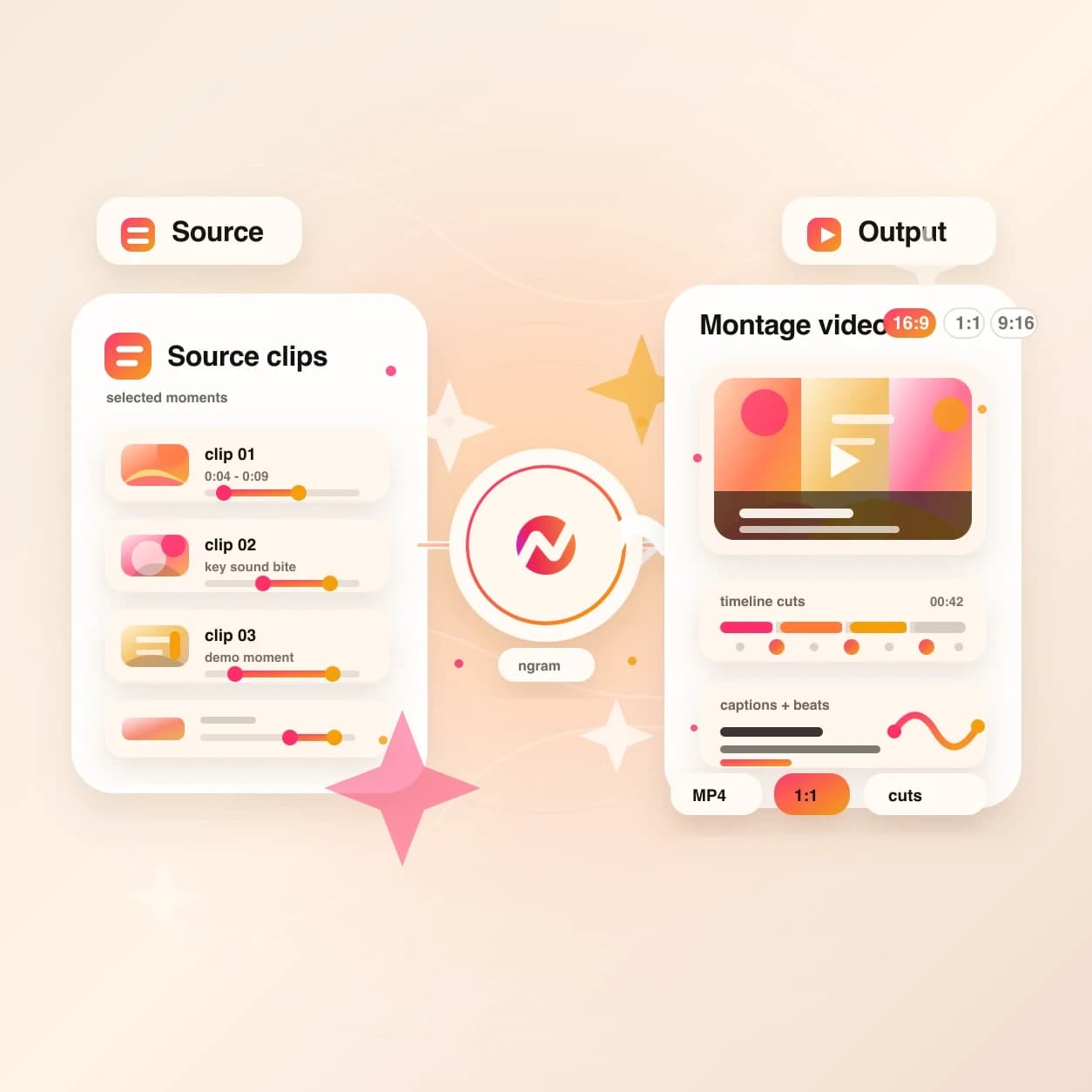
Plan a montage from product footage, event clips, or campaign images. Direct submission is coming soon; use the linked ngram workflows to build the edit, add captions, and export it today.
Trusted by teams at












How it works
Plan the montage first, then build it in live ngram workflows.
This coming-soon tool page frames the montage job clearly while routing production through ngram's shipped creation, editing, and export paths.
Gather the moments
Start with event footage, webinar clips, screen recordings, interviews, product captures, or images. The page helps define which moments belong in the montage before production starts.
Source set defined
Write the montage brief
Describe the audience, channel, pacing, must-include clips, and closing CTA so the edit has a purpose instead of becoming a loose clip reel.
Brief ready
Continue in live tools
Use ngram's video generator, webinar clipping, screen-recording polish, video cutter, or editor to create the source cuts and assemble the highlight sequence.
Workflow chosen
Caption, brand, and export
Finish the montage with captions, motion graphics, music, brand kit, and MP4 export so the same story works for social, follow-up, launch, or internal channels.
Ready to publish
What it can do
What Montage AI Video Maker helps you plan.
Direct montage submission is not live yet. The page maps the source set, edit structure, and finishing layers into ngram workflows that are live today.
Highlight selection
Plan which clips, quotes, demo moments, event shots, and proof points should make the final cut before opening a production workflow.
Open the video cutterStory order before timeline work
Turn scattered source material into a rough beat list with hook, build, proof, product moment, and CTA before the edit reaches the timeline.
Learn more about script planningEditor handoff for assembly
Move the planned montage into the video editor for trimming, arranging, caption timing, scene fixes, and frame-level polish.
Learn more about editingCaptions for mixed source clips
Add burned-in captions after the montage is assembled so voice lines, quotes, and clip transitions read clearly in muted feeds.
Learn more about captionsBrand treatment across every source
Use brand kit, motion graphics, lower-thirds, intros, outros, and approved phrases so clips from different sources still feel like one video.
Learn more about brand kitBuilt around multi-clip business video planning
When it matters
Where a montage plan keeps the edit focused.
These use cases need a strong highlight sequence, not a folder of unrelated clips.
Event Recap Video
Turn event footage, speaker clips, venue shots, and attendee moments into a focused recap with captions, brand, and a clear closing CTA.
Open AI video use caseWebinar Clips
Plan the highlight arc from a long webinar before cutting the best questions, demo moments, and customer quotes into separate montage clips.
Open AI video use caseMarketing Webinar Clips
Shape one webinar replay into a batch of campaign clips with the strongest hooks, proof moments, and social-ready caption treatment.
Open AI video use caseMarketing Social Clips
Use montage planning to turn recordings, product assets, and customer proof into short social clips that carry one campaign message.
Open AI video use caseSocial Media Clips
Build vertical and square highlight edits from approved source material, then keep captions, pacing, and brand consistent across each cut.
Open AI video use caseCustomer Testimonial Video
Pull the best lines from customer interviews, calls, and proof cards into a tighter testimonial montage that stays approved and on brand.
Open AI video use caseProduct Launch Video
Plan a launch montage from screenshots, demo recordings, founder clips, product visuals, and headline proof before creating the final video.
Open AI video use caseTeaser Video
Cut a short teaser from a longer source set by picking one hook, a few proof moments, and a clear final frame instead of showing everything.
Open AI video use caseSales Demo Followup
Turn demo recordings into a buyer-specific montage that keeps the features, objections, and proof points the prospect needs to forward.
Open AI video use caseProduct stack
The live ngram features behind montage work.
These feature pages cover the shipped parts that support a montage workflow after the planning page points you into production.
Video Editing
Arrange source clips on the timeline, tighten the pacing, rewrite lines in the script editor, and use chat for broader montage changes.
Learn more about video editingScreencast Understanding and Editing
Turn product recordings into cleaner source moments with cursor smoothing, click emphasis, smart zooms, and labeled steps before they enter the montage.
Learn more about screencast polishMotion Graphics
Add lower-thirds, callouts, transitions, animated graphics, and product labels so a highlight montage has structure between clips.
Learn more about motion graphicsCaptions and Subtitles
Generate captions on the assembled montage so quotes, narration, and speaker moments stay readable when the clip plays without sound.
Learn more about captionsBrand Kit
Apply logos, colors, fonts, motion style, screenshot style, voice, tone, and approved phrases across clips from different sources.
Learn more about brand kitBackground Music
Score the montage with a track that supports pacing and energy without burying narration, quotes, or caption timing.
Explore Video EditingMore tools
Related tools for building montage videos.
Use these live and adjacent ngram tools to prepare source clips, assemble the highlight edit, and reuse the final montage.
Create source material
Start with prompts, recordings, images, or source footage before the montage takes shape.
AI Video Generator
Create the source video, script, scenes, voiceover, captions, and brand treatment that can feed a later montage cut.
Open toolScreen Recorder
Record a product walkthrough, demo, or browser flow that can become one of the anchor moments in a highlight montage.
Open toolImage to Video
Animate product screenshots or event photos before placing them between live-action clips in the montage.
Open toolAI Image Generator
Generate proof cards, title frames, thumbnails, and supporting visuals that bridge clip sections in the montage.
Open toolCut and assemble
Shape the clips into a paced edit with captions, labels, and sound.
Video Editor
Arrange the montage on the timeline, refine individual scenes, and keep script, captions, and brand in the same project.
Open toolVideo Cutter
Trim long recordings into the short source moments that belong in the montage before the final assembly starts.
Open toolAdd Text to Video
Add speaker names, event labels, product notes, proof points, and CTA cards across the montage.
Open toolAdd Subtitles to Video
Generate subtitles for the finished montage and style them so each quote and clip change stays easy to follow.
Open toolAdd Music to Video
Add a background track to the montage and balance it under voiceover, interview clips, and sound bites.
Open toolExport and repurpose
Turn the montage into shareable formats and adjacent short assets.
Video to GIF
Convert the strongest montage moment into a lightweight loop for docs, launch pages, email, or support replies.
Open toolVideo Compressor
Shrink the finished montage for email, lightweight sharing, social previews, and internal docs.
Open toolVideo Converter
Change the finished montage into the file format each destination expects before handoff.
Open toolGIF AI Video Maker
Plan a short looping version from one montage beat when the campaign needs a repeating asset.
Open toolConvert
Source workflows that feed a montage.
These converters handle the kinds of clips and recordings that often become highlight edits.
Webinar to Clips
Turn a long webinar into shorter source clips, then assemble the strongest moments into a montage for launch, recap, or social.
Open converterScreen Recording to Video
Polish raw product captures with captions, zooms, and cursor treatment before using them as source clips in a montage.
Open converterMeeting Recording to Video
Convert a recorded call into a cleaner recap, then pull the useful sections into a highlight montage for follow-up.
Open converterWho it is for
Teams that use montage edits often.
Montage work is most useful when teams already have a source set and need the best moments to land quickly.
Growth & Marketing
Turns webinars, launches, campaign shoots, and event recordings into short highlight edits for social and paid channels.
See growth workflowsProduct Marketing Managers
Builds product launch montages from screenshots, demos, customer proof, and founder clips while keeping the message on brand.
See product marketing workflowsSales Enablement
Turns demo recordings and customer proof into short buyer-specific montage videos that AEs can send after calls.
See sales workflowsCustomer Success
Cuts onboarding calls, QBRs, training sessions, and customer proof into recap videos that accounts can rewatch.
See CS workflowsSupport Teams
Turns rough troubleshooting recordings into short visual answers by keeping only the steps and screen moments that solve the issue.
See support workflowsAgencies & Consultants
Assembles client footage, campaign stills, and approved clips into montage deliverables without starting each edit from scratch.
See agency workflowsHR & Internal Comms
Builds company event recaps, leadership updates, culture clips, and training highlights from internal recordings.
See internal comms workflowsIntegrations
Connect montage work to capture, automation, and publishing.
Use live ngram integrations to move source material into a workflow or route the finished highlight edit to the next channel.
Chrome Extension
CaptureWhenA teammate captures a product walkthrough, browser flow, bug demo, or quick proof clip for a future montage.
ThenSend the capture into ngram as source material, then continue in the editor or cutter to isolate the usable moments.
Zapier
AutomationWhenA new content request, event asset, webinar file, or customer quote lands in a form, folder, or CRM workflow.
ThenStart the ngram workflow so the team can turn approved source material into a highlight edit with less manual intake.
n8n
WorkflowWhenA self-hosted workflow tags a recording, event gallery, or testimonial asset as ready for montage planning.
ThenRoute the source into ngram and keep the resulting clips connected to the team's review and publishing steps.
MCP Server
AgentsWhenAn AI agent is coordinating source clips, launch notes, and review instructions for a highlight edit.
ThenCall ngram through MCP so montage planning and video work can happen from the agent's task flow.
WhenThe finished video montage is cleared for LinkedIn.
ThenCompose the LinkedIn post, then publish the video montage now.
YouTube
BetaWhenThe team approved the video montage; it is ready for YouTube.
ThenWrite the YouTube post and schedule this video montage once.
For custom montage pipelines, use MCP or automation integrations to pass approved source material into ngram.
Why ngram
How Montage AI Video Maker planning compares.
Use ngram when the montage belongs inside a broader business video workflow instead of ending as a one-off clip export.
| Compare | ngram | Template montage app | Manual timeline editor | Prompt-only montage generator |
|---|---|---|---|---|
| Workflow fit | Plans across clips, recordings, images, prompts, and URLs, then routes the work into live ngram creation and editing. | Useful when the job is choosing a fixed montage template and dropping clips into preset slots. | Gives detailed control when an editor already knows the exact clip order, transitions, timing, and sound design. | Can sketch a montage idea quickly when exact source clips and approved product assets are not required. |
| How ngram fits | Keeps script, captions, callouts, brand kit, music, aspect ratios, and exports in the same project. | Often leaves script, captions, source context, brand rules, and downstream export variants outside the montage file. | Requires hand work for captions, quote labels, crops, aspect ratios, music balance, and versioning. | Usually separates the output from real recordings, customer quotes, screenshots, brand kit, and review workflows. |
| Best use | States that direct Montage AI Video Maker submission is coming soon while pointing users to live workflows today. | Fits simple highlight layouts better than launch, event, or proof videos that need reviewable story structure. | Best for teams with editing capacity, less useful when non-editors need frequent highlight cuts from business source material. | Works for rough exploration, but business teams usually need the highlight edit tied to approved source material. |
FAQ
Montage AI Video Maker questions.
Clear answers for the coming-soon montage planning page.
Plan the montage. Build the video in ngram.
Direct Montage AI Video Maker submission is coming soon. Today, use ngram's live AI video generator, webinar clipping, screen-recording polish, video cutter, editor, captions, brand kit, music, and export workflows to build the source video.
Start with the workflow that matches your source set: webinar, recording, event footage, product demo, image set, or finished clip.
Coming soon for direct montage input.