Reels AI Video Maker by ngram
Reels AI Video Maker for repeatable vertical campaigns
Name the hook, audience, product, CTA, tone, and vertical-video goal for the draft
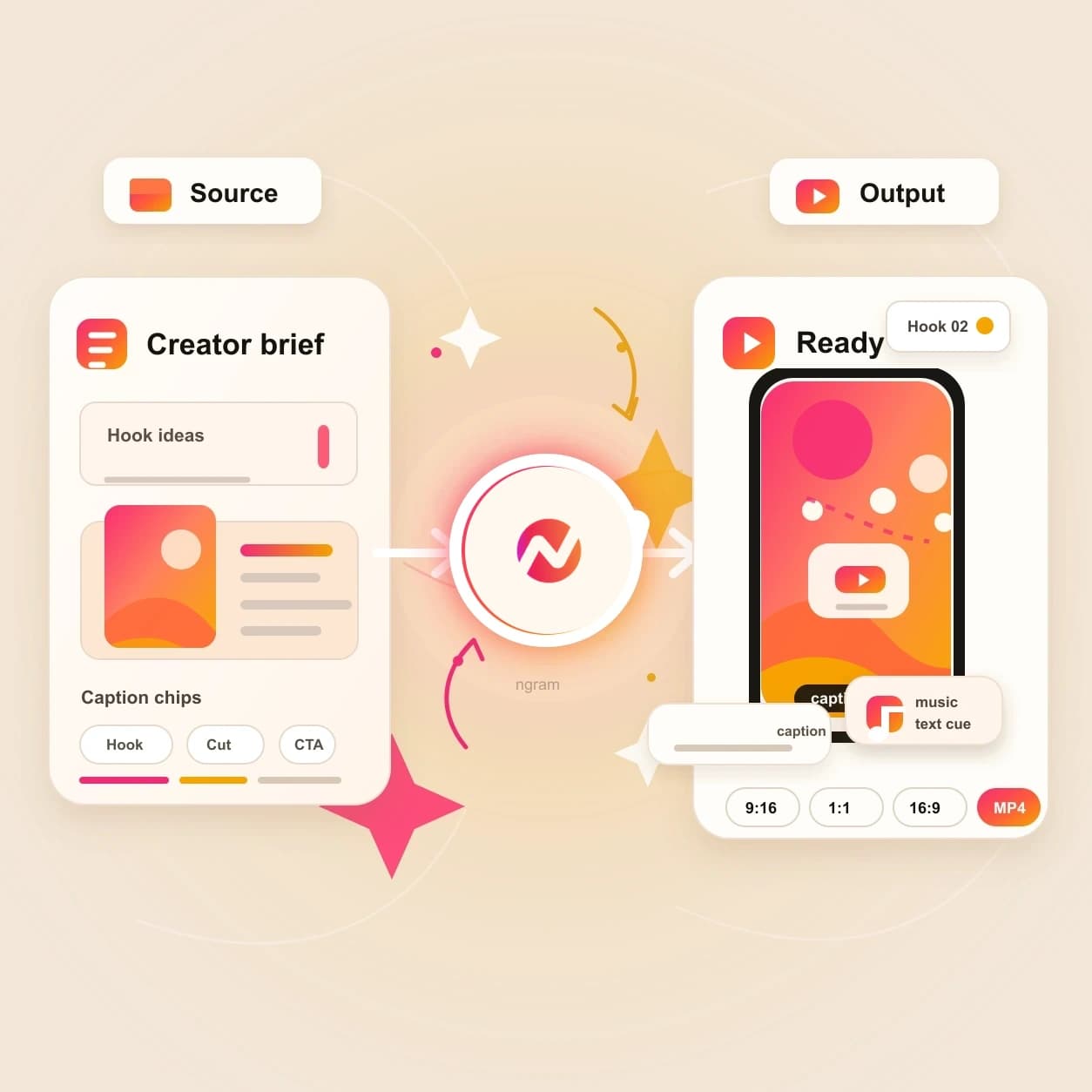
What it does
Create vertical campaign cuts from the product story and assets you already have. Test different hooks and lengths while keeping captions, brand, and message connected in one project.
Trusted by teams at












How it works
From Reels idea to vertical draft.
Start with the source, review the story plan, then export a 9:16 cut that is ready for manual upload to the Reels surface your team owns.
Add the source
Start with a prompt, JPEG, PNG, WebP, PDF, or URL. The agent reads the source for the hook, audience, offer, CTA, and vertical-video context.
Source ready
Review the script and storyboard
ngram turns the source into a short script, scene plan, visual direction, caption approach, and first-frame hook before the render starts.
Plan reviewed
Generate the 9:16 video
The draft is built with vertical framing, scene visuals, motion graphics, AI voiceover when needed, branded captions, and phone-first pacing.
Draft generated
Edit, export, and upload manually
Refine the cut in chat or the editor, export a Reels-ready vertical MP4, then upload it through the platform account your team manages.
Ready to upload
What it can do
What the Reels AI video maker handles.
This tool is tuned for generic Reels-style vertical video creation, not a platform-specific publisher. The workflow keeps source context, captions, brand, and export connected.
Prompt to Reel-style video
Turn a short brief into a 9:16 storyboard with hook, pacing, scene direction, voiceover notes, captions, and a clear CTA.
Open AI video generatorReference file context
Use a JPEG, PNG, WebP, or PDF to steer the script, scenes, product visuals, and opening frame without uploading a finished video file.
URL to vertical draft
Paste a product page, release note, article, or help page and let ngram turn the useful parts into a short vertical video plan.
Open URL to VideoCaptions for phone playback
Burn in captions that fit the 9:16 frame, follow the narration, and keep the main point readable in muted feeds.
Learn more about captionsBrand kit on every cut
Carry logos, colors, fonts, motion style, tone, approved phrases, and blocked phrases into each Reels-ready draft.
Learn more about brand kitBuilt for Reels-ready vertical videos
When it matters
Where Reels-ready vertical video fits.
These use cases match teams turning prompt, file, and URL context into short vertical assets for campaigns, creators, product updates, and social calendars.
Social Media Clips
Use the Reels AI video maker when a campaign needs a vertical short-form clip from a product URL, screenshot, or one-line hook.
Open AI video use caseMarketing Social Clips
Turn launch notes, webinar takeaways, articles, and campaign pages into Reels-ready cuts with captions and brand treatment.
Open AI video use caseGrowth Social Clips
Generate vertical clip variants around different hooks when a growth team needs more creative tests from one source asset.
Open AI video use caseCreator Social Clips Video
Create Reels-ready drafts from creator prompts, reference images, or approved URLs while keeping the edit available for captions and pacing changes.
Open AI video use caseAgency Social Content Video
Package client briefs, approved files, and page URLs into vertical drafts for social calendars without starting each account from a blank timeline.
Open AI video use casePMM Social Content
Turn product notes, walkthrough URLs, and launch screenshots into Reels-style clips that explain one feature or proof point quickly.
Open AI video use caseFounder Social Content
Draft short founder updates from a prompt or reference file, then export a vertical clip for manual upload to the feed.
Open AI video use caseAd Creative Video
Build 9:16 ad concepts from a product page, offer, or image reference when the campaign needs hooks and captions fast.
Open AI video use caseProduct Launch Teaser Video
Use a launch prompt, product page, or PDF brief to generate a teaser that can become a Reels-ready vertical announcement.
Open AI video use caseProduct stack
The product stack behind Reels-ready drafts.
These feature pages explain the pieces ngram uses when a prompt, file, or URL becomes a short vertical video project.
Script Generation
Draft the hook, body, scene plan, and CTA that make a Reels-ready video clear before generation starts.
Learn more about script generationAI Visuals
Generate scene imagery from the source material so each vertical cut has visuals tied to the prompt, file, or URL.
Learn more about AI visualsAI Voiceover
Turn the short script into narration, change the voice direction, and keep the audio connected to scene timing.
Learn more about AI voiceoverCaptions & Subtitles
Burn readable captions into the vertical draft and style them with the brand kit for phone-first playback.
Learn more about captionsBrand Kit
Apply logo, colors, fonts, tone, approved phrases, and blocked phrases to each Reels-ready video your workspace creates.
Learn more about brand kitMotion Graphics
Add animated text, lower thirds, callouts, smart zooms, and transitions that keep the vertical story moving.
Learn more about motion graphicsVideo Editing
Tighten the generated cut with chat edits, visual chat, script edits, scene regeneration, and timeline controls.
Learn more about video editingMore tools
More tools for the Reels-ready workflow.
Use these live tools when a vertical video needs source conversion, captions, editing, or a more specific platform handoff.
Generate from source material
Start from the broader source type when the input is already clear.
AI Video Generator
Use the broader generator with the same source context, then prepare and review vertical, square, and widescreen edits separately.
Open toolText to Video
Turn a script, outline, or launch note into a video draft before asking for a Reels-ready vertical version.
Open toolImage to Video
Animate a product still, launch graphic, or screenshot when the Reel-style clip starts from one strong image.
Open toolURL to Video
Paste a product page, release note, article, or help page before shaping the output into a vertical draft.
Open toolShape the vertical cut
Polish the opening hook, captions, and on-screen text before export.
Video Script Generator
Draft the hook, beat structure, and CTA before the Reels AI video maker turns the source into a storyboard.
Open toolVideo Caption Generator
Generate social-style captions for the vertical draft and review line breaks before the final export.
Open toolAdd Text to Video
Add a title card, product callout, lower third, or CTA that supports the first-frame hook.
Open toolFinish and repurpose
Edit the result or move the same idea into another finished asset.
Video Editor
Trim, reorder, recaption, and adjust the generated vertical cut before manual upload.
Open toolVideo Converter
Convert the exported file when another workflow needs a different video format after the Reels-ready cut is approved.
Open toolYouTube AI Shorts Maker
Use the Shorts-specific tool when the same vertical idea needs YouTube title, description, thumbnail, and publishing context.
Open toolRelated social video makers
Use these channel-specific tools when the same source should become another social cut.
Instagram AI Reels Maker
Create an Instagram-specific Reel draft with captions, hooks, and export-ready framing.
Open toolFacebook AI Reels Maker
Create a Facebook Reels-specific vertical draft for manual export and upload.
Open toolShorts AI Video Maker
Create generic short-form vertical videos before choosing the final social channel.
Open toolTikTok AI Video Maker
Create TikTok-style vertical videos for manual upload with fast pacing and captions.
Open toolConvert
Converters that feed Reels-ready videos.
Start from the source type you already have, then turn the converted project into a short vertical video with captions and brand treatment.
Prompt to Video
Type the Reel-style idea in plain language and let ngram expand it into a script, scenes, and vertical draft.
Open converterImage to Video
Animate a product still, campaign image, or screenshot into a Reels-ready draft with captions and motion.
Open converterURL to Video
Convert a product page, release note, article, or help page into a video project that can become a vertical clip.
Open converterWho it is for
Teams that make Reels-ready videos from source material.
These teams already have the prompt, page, file, or campaign context. The Reels AI video maker turns that material into a vertical asset.
Growth & Marketing
Create Reels-ready video variants from campaign briefs, landing pages, and product images when the content calendar needs more tests.
See growth workflowsProduct Marketing
Turn release notes, launch pages, and screenshots into vertical product clips that explain one message at a time.
See product marketing workflowsContent Creators
Draft Reels-style videos from a prompt, reference file, or page URL while keeping captions and timing editable.
See creator workflowsAgencies & Consultants
Package client briefs, approved product images, and source URLs into vertical drafts without rebuilding the same workflow for every account.
See agency workflowsE-commerce Teams
Turn product pages, campaign images, and offer notes into Reels-ready clips for launch days and product pushes.
See ecommerce workflowsFounders
Create short vertical updates from rough product notes, screenshots, or launch prompts while keeping the final edit in ngram.
See founder workflowsStartups
Turn early product pages, pitch notes, and screenshots into Reels-ready assets without waiting on a production queue.
See startup workflowsSolopreneurs
Use one prompt or reference file to draft a vertical marketing clip, then edit the message before manual upload.
See solo workflowsIntegrations
Connect Reels-ready creation to live workflows.
Use live integrations to bring source context into ngram, automate drafts from approved work, and repurpose approved vertical cuts for supported publishing destinations.
Brief to Reels-ready draft
ZapierWhenA campaign request, intake form, or content brief is approved for a Reels-ready vertical slot.
ThenSend the prompt, source URL, audience, and CTA into ngram so the agent drafts the vertical video.
Page capture to vertical idea
ChromeWhenA product page, release note, article, or help page should become a short vertical clip.
ThenSend the page context into ngram from the browser and ask for a Reels-ready video draft.
Agent-created vertical drafts
MCPWhenAn AI agent has a Reels-style brief and needs ngram to create the video project.
ThenInvoke ngram through MCP with the prompt, file context, URL, audience, and export notes.
YouTube
BetaWhenThe team has reviewed the finished vertical campaign video for YouTube.
ThenPrepare the YouTube post; schedule the finished vertical campaign video for one release.
WhenThe social-ready campaign video is approved and ready for LinkedIn.
ThenCompose the LinkedIn post and publish the social-ready campaign video now.
X (Twitter)
BetaWhenThe feed-ready campaign video has cleared review for X.
ThenCompose and publish the X post for the feed-ready campaign video.
Use integrations when Reels-ready creation should start from an intake form, browser capture, agent workflow, or supported publishing destination.
Why ngram
How Reels AI video makers differ.
Some tools clip existing footage. Others provide manual templates or native upload fields. ngram is built for teams starting from prompts, files, and URLs that need an editable vertical video project.
| Compare | ngram | Clip repurposing tools | Template editors | Native Reels upload surfaces |
|---|---|---|---|---|
| Workflow fit | Turns prompts, supported reference files, and source URLs into script, storyboard, scenes, captions, and a 9:16 draft. | Usually start from an existing long recording and pick highlight moments for vertical clips. | Give users layouts, stock footage, and manual controls for building vertical videos piece by piece. | Handle the final upload after the vertical file, caption text, and account settings are already decided. |
| How ngram fits | Keeps source context, brand kit, voiceover, captions, editing, and export connected to the same project. | Useful when the finished source video already exists and the main job is cutting it down. | Useful when a designer wants full control over each screen and asset choice. | Work best when the creative is finished and the team only needs to post or schedule inside the platform. |
| Best use | Fits product, marketing, creator, agency, and founder clips that need reviewable edits before manual upload. | Less direct when the clip needs to be generated from a prompt, image, PDF, or source page before footage exists. | Less connected when the team also needs script planning, source reading, voiceover, captions, and brand guardrails. | ngram sits before that step by creating the draft, editing the message, and exporting a Reels-ready MP4. |
FAQ
Common questions about the Reels AI video maker
Still curious?
Turn the source into a Reels-ready video
Start with a prompt, supported reference file, or URL. ngram plans the script, creates the 9:16 draft, adds captions and brand treatment, and keeps the edit ready for export.
Make the vertical video first, then export the MP4 and upload it manually through the platform account your team owns.
Prompt, file, URL, 9:16 export