AI Event Video Maker by ngram
AI Event Video Maker for recaps that extend the event
Upload an event recording
Use an MP4, MOV, WebM, MKV, AVI, or M4V event, webinar, conference, or product session recording.
What it does
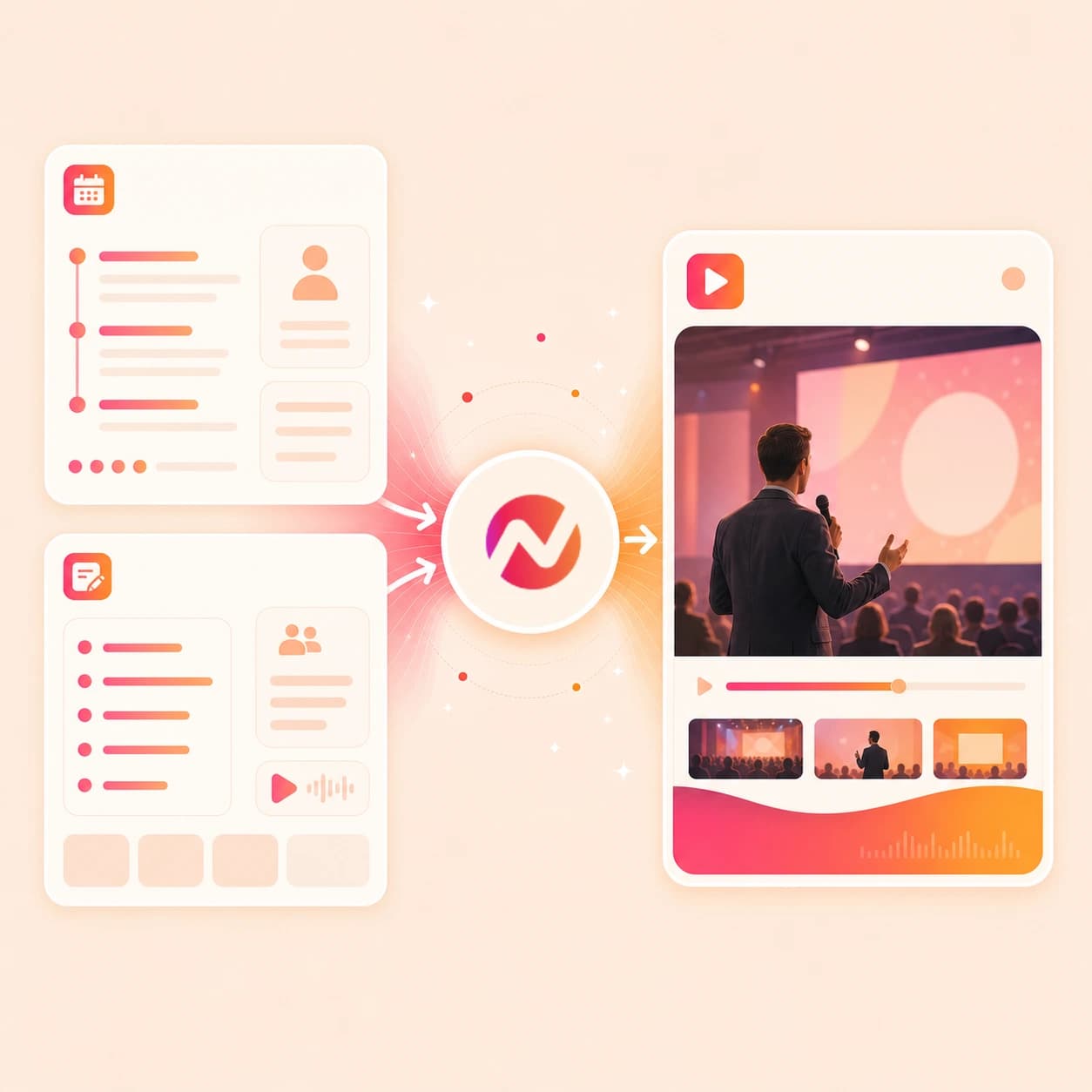
Turn a finished event into recap videos and speaker clips for the campaign that follows. ngram finds useful moments, adds captions and brand treatment, and keeps each cut editable.
Trusted by teams at











How it works
From event source to editable recap.
Start with the recording or the brief, review the plan, then refine the generated event video before export.
Add the event source
Upload an exported event, webinar, conference, meeting, or product session recording. You can also start from a prompt, script, storyboard, transcript, or approved URL.
Source ready
Map the moments
ngram transcribes the source, reads the context, and turns useful sections into a reviewable map of speaker lines, demo beats, audience questions, and recap scenes.
Moments mapped
Review the script and storyboard
Approve the hook, scene order, captions, voiceover notes, product callouts, and closing CTA before the draft is rendered.
Plan approved
Edit and export the cut
Change the draft in chat, the script editor, canvas controls, or the timeline. Apply brand kit styling and export the recap or clips in the formats your team needs.
Ready to export
What it can do
What the ai event video maker handles.
Use ngram when the event source is too long to send around and the finished asset needs a clear story, captions, brand, and editable structure.
Transcript-aware moment selection
Use the event transcript to find speaker lines, product demos, questions, decisions, and sections worth shaping into a recap or short clip.
Script and storyboard planning
Draft the hook, scene order, narration, caption plan, CTA, and visual direction before rendering the event video.
Recording cleanup
Trim dead air, repeated setup talk, long pauses, and off-topic sections while keeping the moments that explain the event.
Captions for speaker moments
Generate and style captions from the event recording so quotes, demo notes, and recap narration stay readable without sound.
Voiceover for the recap
Create narration from the approved script when the event video needs a cleaner connecting voice between separate recording moments.
Brand, callouts, and export
Apply brand kit styling, callouts, smart zooms, intro and outro treatment, and MP4 export while keeping the draft editable.
Built for event recaps, conference highlights, webinar recordings, launch sessions, and post-event clips
When it matters
Where event video maker workflows fit.
These live use-case pages cover the event recordings, recaps, launch sessions, and clips that map most directly to this tool.
Event Recap Video
Create a branded event recap from conference footage, session recordings, speaker moments, and approved notes without treating the whole event as one long upload.
Open AI video use caseWebinar Clips
Turn a webinar recording into shorter event clips with transcript-aware cuts, captions, speaker lines, and a reviewable draft.
Open AI video use caseMarketing Webinar Clips
Repurpose campaign webinars into recap videos and post-event clips that keep the original message, speaker context, and brand treatment intact.
Open AI video use caseDevRel Conference Talk Video
Shape a long conference talk into a recap, demo cut, or short technical clip with captions, diagrams, and product callouts.
Open AI video use caseMeeting Recap Video
Use the same event video maker pattern for recorded roundtables, customer sessions, and internal meetings that need a shorter recap.
Open AI video use caseProduct Launch Video Maker
Turn a launch session, product page, or release recording into a product event summary with storyboard, captions, voiceover, and brand.
Open AI video use casePMM Product Launch
Give product marketing a way to turn launch briefings, demos, and event recordings into recap cuts for the launch follow-up.
Open AI video use caseMarketing Social Clips
Use post-event recordings as source material for short marketing clips with captions, brand frames, and channel-ready aspect ratios.
Open AI video use caseProduct Demo Video
Turn product sessions from an event into cleaner demo videos with smart zooms, callouts, transcript edits, captions, and export options.
Open AI video use caseProduct stack
Features behind event recap video creation.
These ngram features support the path from event source material to an editable recap, highlight cut, or post-event clip.
Planning
Script Generation
Turn event notes, prompts, URLs, recordings, and transcripts into a concise recap script and storyboard before rendering.
Plan the event videoEditing
Video Editing
Refine the event draft through chat, the script editor, canvas controls, or the timeline when the recap needs a tighter cut.
Edit the recapCaptions
Captions & Subtitles
Caption speaker quotes, demo sections, and recap narration so the finished event video works without sound.
Add captionsNarration
AI Voiceover
Generate narration from the approved event recap script when separate recording moments need a clean connecting track.
Add voiceoverGraphics
Motion Graphics
Add speaker labels, product callouts, chapter cards, lower thirds, transitions, and recap title frames.
Add motion graphicsBrand
Brand Kit
Apply logos, colors, fonts, motion style, tone rules, approved phrases, intro cards, and outro treatment to the event cut.
Apply brand rulesScreen footage
Screencast Understanding and Editing
Polish event sessions with product screen shares by adding smart zooms, click emphasis, callouts, captions, and step labels.
Polish screen recordingsMore tools
Related tools for event video workflows.
Use these tools when the event source needs highlight selection, cleanup, captions, or adjacent video formats.
Event recap cluster
Use these adjacent tools to turn company events, sessions, and recordings into recaps, announcements, and editable cuts.
AI Webinar Video Maker
Create webinar recaps and clips from long recordings, speaker notes, transcripts, and approved source context.
Open toolAI Corporate Video Maker
Use the corporate workflow when the event video needs leadership context, business framing, or company storytelling.
Open toolAI Announcement Video Maker
Turn event notes, launch moments, and leadership updates into concise announcement videos with captions and brand polish.
Open toolHighlight Reel AI Video Maker
Extract high-signal event moments into a branded highlight reel with captions, voiceover, and smart framing.
Open toolAI Nonprofit Video Maker
Turn approved nonprofit event pages, recaps, images, and scripts into editable outreach videos.
Open toolPrepare the recording
Clean, transcribe, or inspect the event source before the recap is assembled.
Video Cutter
Trim long event files, session recordings, and product segments before the recap draft is built.
Open toolVideo to Text
Create a transcript from an event or webinar file so the recap can be planned around exact speaker lines.
Open toolScreen Recorder
Capture a product walkthrough or session segment that can become source footage for an event summary.
Open toolVideo Editor
Open the timeline when the event recap needs clip order changes, audio checks, scene edits, or final export review.
Open toolFinish event clips
Add the final layers that make recap and highlight clips easier to review and reuse.
Video Caption Generator
Generate styled captions for speaker quotes, product sessions, and event clips pulled from the source recording.
Open toolAdd Subtitles to Video
Burn readable subtitles into the final event video so the recap can be watched without sound.
Open toolAdd Music to Video
Add a background track under recap scenes, transitions, and highlight clips while keeping speech clear.
Open toolAI Social Media Video Maker
Adapt approved event moments into short clips with captions, brand treatment, and vertical or square framing.
Open toolConvert
Converters that feed event video drafts.
Start from the event source you already have, then use the ai event video maker workflow to shape the recap, clips, and follow-up assets.
Webinar recording to event clips
Turn a long webinar into source clips before shaping the best sections into a recap or post-event cut.
Open converterMeeting recording to recap video
Use a recorded roundtable, customer call, or internal session as the base for a tighter event summary.
Open converterEvent gallery to video
Turn event photos, screenshots, and approved image sets into a sequenced video with motion, captions, and brand.
Open converterWho it is for
Teams that use ai event video maker workflows.
Event videos matter most when a team already has useful source material and needs a shorter, reviewed asset after the session ends.
Product marketing
Turn launch sessions, product events, webinars, and demo recordings into recap videos tied to approved positioning.
See PMM workflowsGrowth and marketing teams
Repurpose campaign webinars, event recordings, and customer sessions into shorter clips for follow-up campaigns.
See growth workflowsDeveloper relations
Turn conference talks, product demos, and technical sessions into recap videos, tutorial clips, and dev-hub assets.
See DevRel workflowsHR and internal comms
Create company event recaps, leadership update videos, and internal session summaries from approved recordings.
See internal workflowsSales enablement
Package product event moments, demo sessions, and webinar clips into follow-up videos reps can use after the event.
See sales workflowsCustomer success teams
Turn customer webinars, onboarding sessions, and QBR recordings into recap videos for accounts that need the short version.
See CS workflowsProduct managers
Summarize sprint demos, launch sessions, roadmap reviews, and research readouts as shorter event videos for stakeholders.
See product workflowsAgencies and consultants
Turn client events, webinars, interviews, and launch recordings into branded recap drafts clients can review.
See agency workflowsIntegrations
Route event video intake through live integrations.
Use live ngram integrations to move approved event briefs, source links, and review tasks into a video creation workflow.
Zapier event recap intake
AutomationWhenA form, spreadsheet row, CRM note, or project task includes an event recap brief and approved source material.
ThenCreate a ngram video task with the event context, source links, owner, and reviewer fields attached.
Chrome context capture
BrowserWhenAn event page, agenda, product launch page, or recap brief should become context for the event video.
ThenSend the page context to ngram so the script and storyboard start from approved source material.
MCP agent handoff
AgenticWhenAn AI agent is preparing a recap from event notes, recording metadata, transcripts, and product context.
ThenCall ngram through MCP to create the event video task and keep the source context attached.
n8n source workflow
WorkflowWhenA self-hosted workflow collects event recordings, transcripts, and approvals before the recap edit starts.
ThenCreate the ngram task from n8n and track the event video status inside the same workflow.
Why ngram
How ngram compares with other event video paths.
Choose based on whether the job is only capture, manual editing, templated assembly, or an editable AI draft built from event context.
| Compare | ngram | Recording platform | Manual video editor | Template editor |
|---|---|---|---|---|
| Workflow fit | Best fit when event recordings, webinar files, product sessions, prompts, scripts, or URLs need to become an editable recap or clips. | Best fit when the main job is recording the session and storing the original event file. | Best fit when an editor wants to place every cut, caption, zoom, label, transition, and music choice by hand. | Best fit when the event story already fits a fixed layout and the team mainly needs to swap text, photos, and clips. |
| How ngram fits | Uses transcript-aware editing, script and storyboard planning, captions, voiceover, smart zooms, callouts, brand kit, and export in one project. | The exported recording may still include setup talk, long pauses, speaker drift, and sections that do not belong in a recap. | Useful for custom craft work, but the team still has to watch the source, choose moments, and write the recap structure. | Templates can move quickly, but they may not understand speaker lines, product sessions, transcript timing, or recap priorities. |
| Best use | Keeps the draft editable so teams can adjust the story, remove a moment, fix captions, or change format before export. | A separate editing workflow is usually needed for story structure, captions, callouts, brand treatment, and clips. | Long webinars and conference recordings can turn into slow review cycles when every change is manual. | ngram is a stronger fit when the source material needs to be read, planned, edited, captioned, branded, and exported as a video draft. |
FAQ
ai event video maker FAQs
Answers for event recaps and clips.
Turn the event source into an editable recap
Bring the recording, prompt, transcript, storyboard, script, or approved URL. ngram can plan the story, create the draft, add captions and voiceover, apply brand kit styling, and keep the event video editable before export.
Use ngram when the useful event moments are buried inside a long recording or scattered across source context.
Upload, map moments, review, export