Photo Slideshow AI Video Maker by ngram
Photo Slideshow AI Video Maker for stories built from real photos

This tool input is coming soon. Browse all workflows below while we finish the direct handoff.
Use event images, product shots, customer photos, campaign stills, or screenshots as source material
What it does
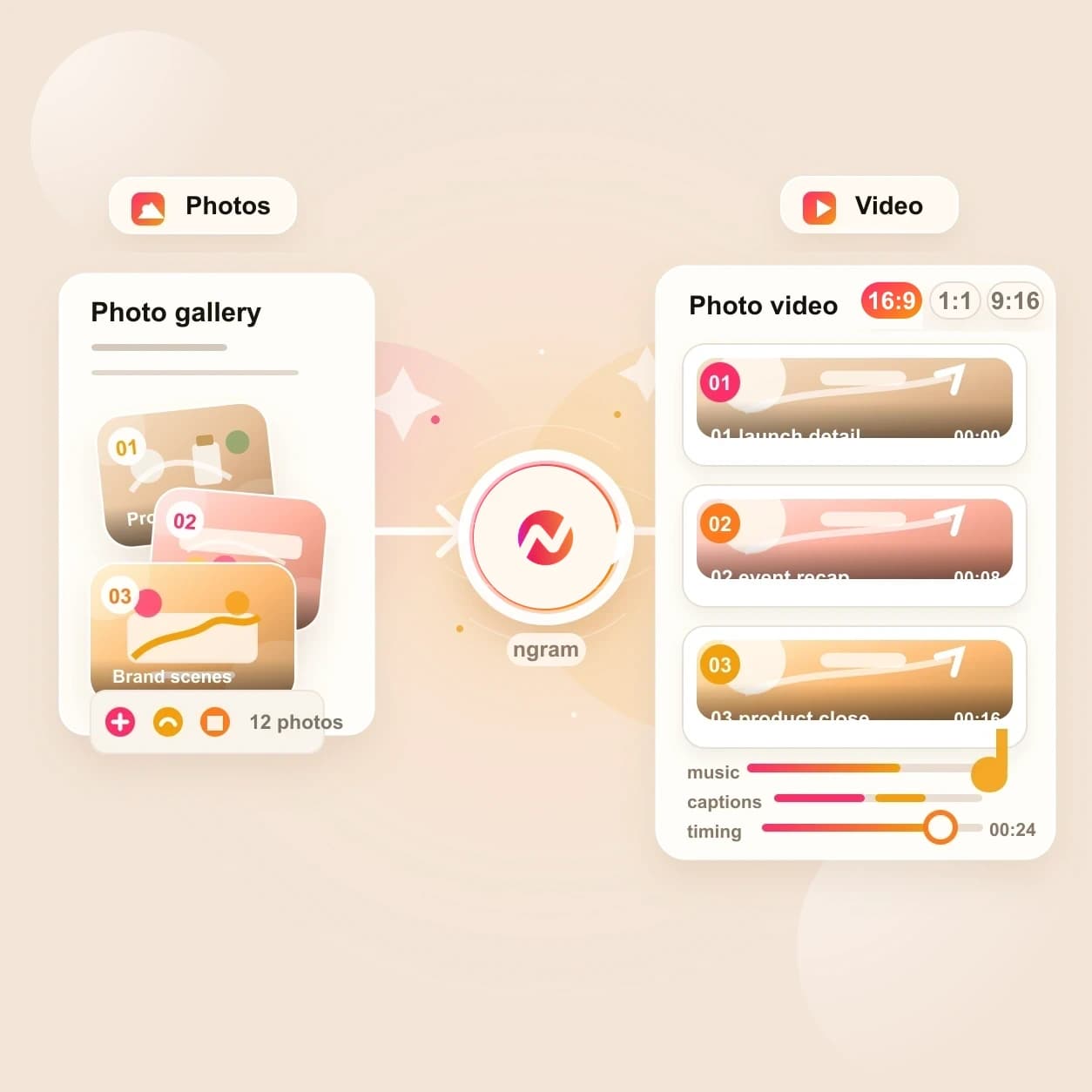
Plan a slideshow from event, product, or customer photos, including pacing, captions, music, and brand. Direct submission is coming soon; use the linked ngram photo and video workflows to build it today.
Trusted by teams at












How it works
Plan the photo slideshow, then build it in live ngram workflows.
This coming-soon tool page defines the slideshow job while routing production through ngram paths that already handle photo-to-video, editing, captions, brand kit, music, and export.
Collect the photo set
Start with product photos, event images, listing shots, screenshots, or customer-supplied pictures. The upload tabs help shape the source set before you choose a live workflow.
Source set ready
Write the slideshow brief
Describe the audience, sequence, captions, music mood, aspect ratio, and call to action so the slideshow has a clear story before any video work starts.
Brief prepared
Continue in live photo workflows
Use Photos to Video, Album to Video, Photo to Video, Image to Video, or Gallery to Video to create the source video project inside ngram today.
Workflow chosen
Finish the story
Add captions, voiceover, motion graphics, background music, brand kit, and MP4 export so the slideshow works for web, social, sales, or customer updates.
Ready to share
What it can do
What Photo Slideshow AI Video Maker helps you plan.
Direct photo slideshow submission is not live yet. The page maps albums and image sets into shipped ngram workflows for source creation, story planning, finishing, and export.
Photo sequence planning
Turn a loose folder of images into a planned order with opening frame, proof frames, context shots, and a final CTA before you enter production.
Single-photo motion path
Use the live Image to Video and Photo to Video workflows when one hero image needs push-in motion, captions, and brand treatment.
Open image to videoAlbum and gallery routes
Route larger image sets through Photos to Video, Album to Video, or Gallery to Video so the source material becomes an editable ngram project.
Open photos to videoCaption and narration plan
Draft frame captions, chapter titles, and voiceover notes before render so the slideshow carries meaning without relying on the viewer to infer the story.
Learn more about captionsBrand treatment
Plan logo, colors, intro, outro, caption style, and visual tone up front, then apply brand kit inside the ngram project after the source video is created.
Learn more about brand kitBuilt for photo-led business video planning
When it matters
Where photo slideshow planning pays off.
These use cases already rely on photos, albums, screenshots, customer images, or campaign stills that can become a focused video story.
Event Recap Video
Plan an event slideshow from photographer selects, team phone shots, sponsor photos, and venue images before turning the album into a recap video.
Open AI video use caseShopify Product Video
Use product photos, colorway images, packaging shots, and review snippets as the source set for a photo slideshow that supports a product page.
Open AI video use caseMarketing Brand Video
Turn approved campaign stills and brand images into a planned slideshow video that carries the same visual identity as the wider marketing push.
Open AI video use caseProduct Launch Video Maker
Use launch screenshots, product photos, team images, and proof cards to plan a photo-led launch video when polished screen footage is not ready yet.
Open AI video use caseSocial Media Clips
Plan vertical slideshow clips from a small set of approved images, then add captions, music, and brand styling for feed-ready cuts.
Open AI video use caseMarketing Social Clips
Turn campaign stills, webinar screenshots, quote cards, or event photos into a planned social slideshow before exporting platform variants.
Open AI video use caseProduct Hunt Launch Video
Plan a launch-day photo slideshow from product images, maker photos, page screenshots, and feature cards when the launch needs a fast visual story.
Open AI video use caseCustomer Testimonial Video
Use customer photos, quote screenshots, result images, and headshots to plan a testimonial slideshow when a full interview is not available.
Open AI video use caseAgency Social Content Video
Plan client slideshow videos from brand folders, campaign stills, product images, and event photos while keeping each client brand separate.
Open AI video use caseProduct stack
The live ngram features behind photo slideshow work.
These product features carry a photo slideshow plan through source creation, story structure, captions, narration, brand treatment, and export.
AI Visuals
Generate supporting scene imagery when the photo set has gaps, then keep the added visuals tied to the same script, storyboard, and brand kit.
Learn more about AI visualsImage Lab
Create or edit thumbnails, social graphics, product cards, and supporting images before those assets become part of a photo-led video project.
Learn more about Image LabScript Generation
Turn the slideshow brief, captions, notes, and source context into a scene-by-scene script before voiceover or final render begins.
Learn more about script generationAI Voiceover
Narrate the photo slideshow from the approved script and keep the audio connected to scene timing, captions, and later edits.
Learn more about AI voiceoverCaptions and Subtitles
Add burned-in captions, chapter titles, and translated caption variants so the slideshow still makes sense when it plays without sound.
Learn more about captionsMotion Graphics
Layer lower-thirds, animated titles, transitions, and product callouts around the photo sequence when the slideshow needs more structure.
Learn more about motion graphicsVideo Editing
Add background music chosen for the slideshow tone while keeping narration and captions clear in the finished video.
Explore Video EditingMore tools
Tools that pair with Photo Slideshow AI Video Maker.
Use these related tools to create source visuals, plan adjacent video formats, or finish the slideshow for a specific channel.
Photo and image starts
Create or animate source visuals before the slideshow is assembled.
Image to Video
Animate one approved photo, screenshot, or product still before using it as a scene in a longer slideshow story.
Open toolAI Image Generator
Generate missing thumbnails, scene art, social graphics, or product cards that can fill gaps in the photo sequence.
Open toolCollage AI Video Maker
Plan a multi-image layout when the photo story needs grouped frames, side-by-side proof, or a campaign mood board.
Open toolAdjacent video plans
Choose a nearby format when the photo slideshow becomes a highlight edit, deck story, or multi-source video.
Slideshow AI Video Maker
Use the deck-focused slideshow path when the source is a PowerPoint, PDF, speaker notes, or a hosted presentation.
Open toolMontage AI Video Maker
Plan a highlight video when photos need to sit alongside webinar clips, product recordings, interviews, or event footage.
Open toolCompilation AI Video Maker
Map a multi-source video when the final story needs photos, clips, recordings, links, and written context in one plan.
Open toolShort export paths
Finish the photo slideshow as a loop, GIF, or captioned video after the main project is created.
Looping AI Video Maker
Plan a repeat-ready product or social loop from the strongest frames in the photo slideshow.
Open toolGIF AI Video Maker
Plan a short GIF-style loop from the slideshow when the output needs to live in docs, email, or launch notes.
Open toolVideo Caption Generator
Add captions to a finished photo slideshow so the story works in muted feeds and embedded pages.
Open toolConvert
Converters for photo slideshow source material.
These conversion pages are the clearest live routes for turning images, albums, and galleries into editable ngram video projects today.
Photos to Video
Use a full batch of event, campaign, or product images as the source set for a paced slideshow video.
Open converterAlbum to Video
Start from a saved album when the photo order already matters and the slideshow should preserve that sequence.
Open converterPhoto to Video
Animate one hero photo into a short clip before using it alone or as part of a longer slideshow sequence.
Open converterWho it is for
Teams that use photo slideshow videos.
Photo-led videos are useful when teams already have approved images and need a watchable story without booking a new shoot.
Product Marketing Managers
Plan launch slideshow videos from screenshots, product stills, customer images, and proof cards while keeping the narrative tied to the GTM brief.
See product marketing workflowsGrowth and Marketing Teams
Turn campaign image sets into photo slideshow videos for landing pages, social posts, email, and paid creative tests.
See growth workflowsE-commerce Teams
Use product photos, lifestyle images, and catalog shots as a source set for PDP videos and social cutdowns.
See ecommerce workflowsAgencies and Consultants
Package client photos, event selects, and brand assets into slideshow plans that stay inside the right client brand kit.
See agency workflowsContent Creators
Plan short visual stories from a folder of stills, sponsor images, course graphics, or behind-the-scenes photos.
See creator workflowsReal Estate
Turn listing photos, neighborhood images, agent headshots, and market cards into property and local-market slideshow videos.
See real estate workflowsIntegrations
Automate photo slideshow handoffs with live integrations.
Use integrations around the live ngram workflows that create, review, publish, or distribute the finished video project.
Zapier
AutomationWhenA new album brief, product photo request, or campaign form lands in your connected apps.
ThenSend the source links and instructions into an ngram video workflow, then route the result for review.
n8n
Self-hostedWhenYour internal content pipeline approves a set of images for a launch, listing, or client deliverable.
ThenTrigger the ngram workflow from your own n8n stack and keep status updates inside the same graph.
Chrome Extension
CaptureWhenYou find a page with product images, a public gallery, launch copy, or source context worth turning into video.
ThenCapture the page into ngram, use it as source context, and continue with a linked photo-to-video workflow.
WhenThe photo slideshow video has cleared review for LinkedIn.
ThenCompose the LinkedIn post, then publish the photo slideshow video after its final review.
YouTube
BetaWhenThe team approved the photo slideshow video; it is ready for YouTube.
ThenWrite the YouTube post and schedule this photo slideshow video once.
Why ngram
Photo slideshow planning compared with common alternatives.
This comparison uses workflow categories because direct photo-slideshow submission from this page is coming soon.
| Compare | ngram | Template slideshow builder | Manual editor | Static gallery |
|---|---|---|---|---|
| Workflow fit | Photo slideshow input on this page is prepared for a coming-soon handoff, with visible tabs for photos, album links, and briefs. | Useful for simple personal slideshows, but the story usually follows the template instead of the message. | Gives precise control, but every photo hold, caption, transition, and aspect ratio becomes timeline work. | Fast to publish, but the viewer has to infer the sequence, message, and CTA from still images. |
| How ngram fits | Live ngram workflows already cover photos-to-video, album-to-video, image-to-video, editing, captions, voiceover, brand kit, music, and export. | Brand rules, captions, narration, and export variants often need manual setup per project. | Best when an editor needs frame-level control and has time to build each version by hand. | Works for browsing, less useful when the team needs a story for social, sales, onboarding, or launch pages. |
| Best use | The same project can keep captions, brand, music, and output variants connected after the source video is created. | Harder to connect a photo slideshow to product launch, sales, or customer workflows already living in another tool. | Revision requests can turn small copy or brand changes into another export pass. | Does not provide narration, captions, music, or MP4 video outputs without another production step. |
FAQ
Photo Slideshow AI Video Maker FAQ
Answers for teams planning photo-led videos
Plan the photo slideshow finish it in ngram
Use this page to shape the album, caption plan, story order, and channel target. Then move into live ngram workflows for photo-to-video creation, editing, captions, brand treatment, music, and export.
Direct hero submission is coming soon; the linked workflows are available today.
Start with Photos to Video, Album to Video, Photo to Video, or Image to Video.