GIF AI Video Maker by ngram
GIF AI Video Maker for repeatable product loops
This tool input is coming soon. Browse all workflows below while we finish the direct handoff.
Write the product moment, audience, channel, visual style, and ending frame you want the GIF to repeat
What it does
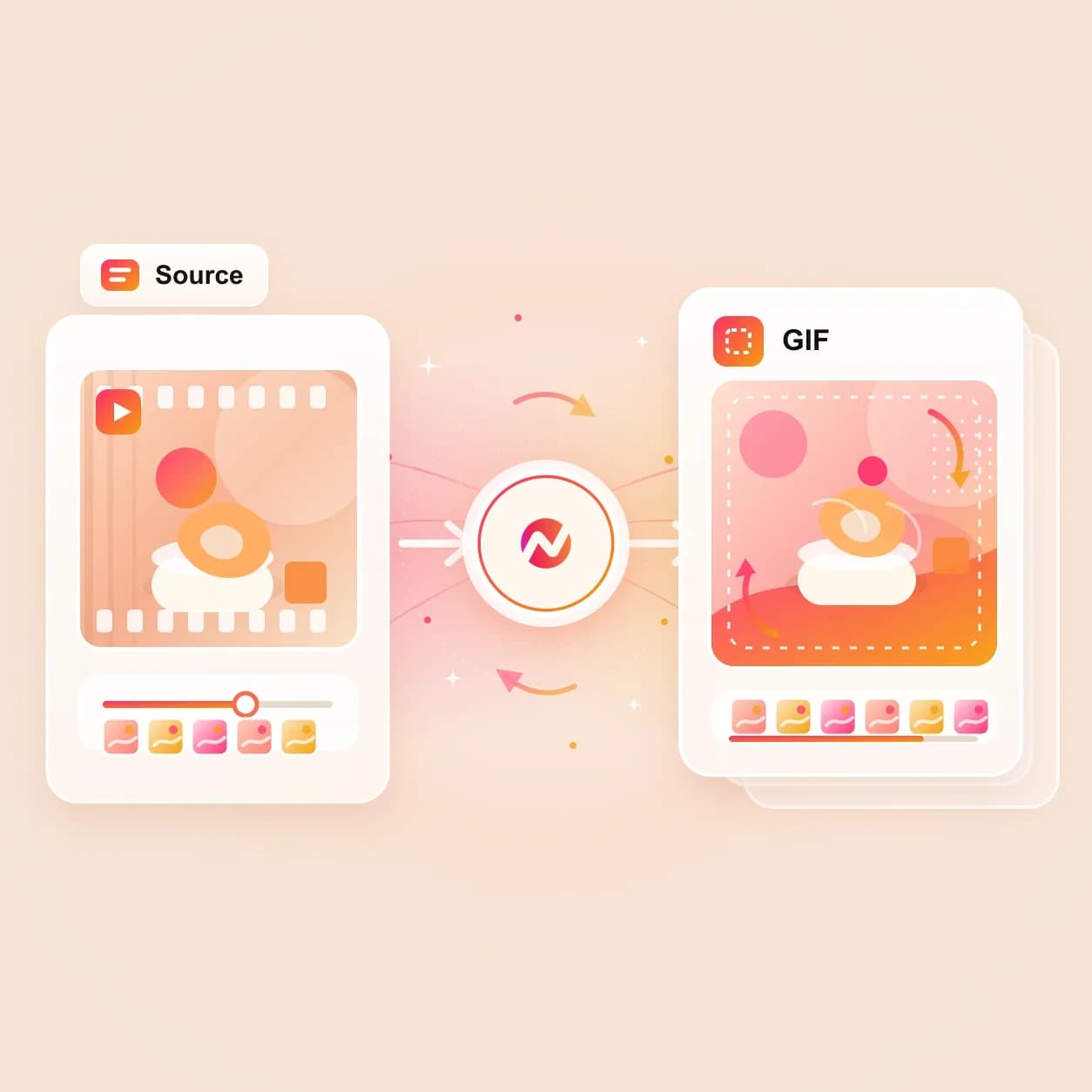
Plan a short product loop for docs, launch pages, or customer updates. Direct AI GIF submission is coming soon; use the linked ngram video and GIF workflows to make the asset today.
Trusted by teams at












How it works
How to plan a product GIF loop in ngram.
The dedicated GIF AI input flow is not wired yet. The workflow below shows how teams plan the loop here, then use live ngram creation and conversion tools today.
Write the loop brief
Name the product action, viewer, channel, and final frame. A good GIF AI Video Maker prompt describes one motion, not a full explainer.
Brief ready
Gather the source
Add the screenshot, product recording, release note, or landing page that contains the moment. ngram's live workflows can use those inputs to build the source video.
Source selected
Create and polish the motion
Use ngram to generate or edit a short video with motion graphics, callouts, captions, brand treatment, and the exact crop the loop needs.
Clip prepared
Export the GIF path
Move the finished source clip into Video to GIF or MP4 export, then use the GIF in docs, launch notes, newsletters, support replies, and social previews.
Loop ready
What it can do
What the GIF AI Video Maker page helps you plan.
Use the page as a planning surface for short product loops, then continue with the live ngram tools that create, edit, and export the source motion.
Prompt-led loop brief
Turn a rough idea into a focused GIF brief: one product moment, one viewer need, one repeatable ending frame, and a clear channel target.
Script and storyboard context
Use ngram's script and storyboard workflow to decide what the loop should show before generating or trimming the source video.
Learn more about script generationSource visuals for motion
Create scene art, product cards, or supporting images for a loop when the source is a screenshot, product still, or launch graphic.
Learn more about AI visualsShort callouts and labels
Plan the feature name, arrow, label, or one-line caption the GIF needs so the loop makes sense without audio.
Learn more about motion graphicsBrand-ready treatment
Keep colors, logo use, text style, screenshot treatment, and tone consistent before the source clip becomes a GIF.
Learn more about brand kitBuilt for short product motion, not long-form video
When it matters
Where a planned GIF loop fits the work.
These use cases match the GIF AI Video Maker intent: one small product moment needs to repeat clearly inside a launch, support, docs, or social workflow.
Marketing Social Clips
Plan a GIF loop from the strongest motion in a campaign clip, then reuse it as the visual hook for social teasers, ads, and newsletter blocks.
Open AI video use caseChangelog Video
Turn one shipped feature into a short product loop that sits inside the changelog and shows the update without asking readers to open a player.
Open AI video use caseFeature Announcement Video
Use a GIF plan to pull the hero interaction out of a launch video, then place that loop in announcement emails, in-app updates, and release posts.
Open AI video use caseProduct Demo Video
Mark the exact demo moment that deserves to loop, such as a filter opening, report changing, or workflow finishing inside a prospect follow-up.
Open AI video use caseProduct Walkthrough Video Creator
Pull a small step from a longer walkthrough so docs readers can see the click sequence before they commit to the full tutorial.
Open AI video use caseHelp Center Video
Use the GIF AI Video Maker brief to isolate a support action, then add the loop beside the help-center instructions that answer the ticket.
Open AI video use caseNewsletter Video
Create a lightweight loop for the top of a product newsletter, then link readers to the full ngram video when the story needs more context.
Open AI video use caseLanding Page Video
Plan a short product motion asset for a landing-page hero, feature module, or comparison section where a full video would slow the scan.
Open AI video use caseProduct Launch Video Maker
Use one launch narrative to produce the full video and the small GIF loops that carry the same message into posts, docs, and sales follow-ups.
Open AI video use caseProduct stack
Live ngram features behind GIF-ready source motion.
The GIF AI Video Maker page points into the product features that create the source video, add context, apply brand, and export the finished asset.
Script Generation
Turn the GIF idea into a small script and scene plan so the loop starts with a clear product action and ending frame.
Learn more about script generationAI Visuals
Generate product cards, scene art, or supporting visuals when the loop starts from a screenshot or launch still.
Learn more about AI visualsMotion Graphics
Add labels, arrows, lower thirds, and small transitions that make a silent GIF explain the product moment quickly.
Learn more about motion graphicsVideo Editing
Trim the source, crop the frame, adjust timing, and keep the project editable before it moves into a GIF export workflow.
Learn more about video editingBrand Kit
Apply logo, color, type, screenshot style, voice, and approved language before the short loop ships across channels.
Learn more about brand kitMore tools
Related tools for building GIF-ready motion.
Use these live ngram tools to create the source clip, tighten the motion, and export or reuse the result while GIF AI input is coming soon.
Create the source clip
Start with a prompt, URL, image, or script before selecting the short moment that should loop.
AI Video Generator
Generate the source video from a prompt, source file, URL, or rough notes before cutting out a GIF-sized moment.
Open toolText to Video
Turn a short product message into an editable video draft, then trim the best motion into a loop.
Open toolImage to Video
Animate a product screenshot, launch still, or graphic so the GIF has motion before export.
Open toolURL to Video
Use a product page, help article, or release note as the source for a short video that can become a GIF.
Open toolShape the loop
Clean up the source motion before the GIF export step.
Video Editor
Edit the source clip on the timeline, in the script, or through visual chat before turning the motion into a GIF.
Open toolVideo Cutter
Cut the source down to the exact action the GIF should repeat, without dragging a long demo into every channel.
Open toolAdd Text to Video
Add the product label, step name, or CTA that gives a silent GIF enough context to stand alone.
Open toolScreen Recorder
Capture the product action in the browser, then polish the recording into a short source clip for GIF export.
Open toolExport and reuse
Convert, compress, and repurpose the prepared source clip.
Video to GIF
Use the live converter when the prepared source clip is ready to become a lightweight GIF.
Open toolVideo Compressor
Shrink the source video or exported asset for email, Slack, support replies, and docs embeds.
Open toolVideo Converter
Change video formats before or after the GIF workflow when a channel needs a different source file.
Open toolAI Image Generator
Create the static thumbnail, cover graphic, or product card that sits beside the GIF loop.
Open toolGIF Maker
Create a focused GIF workflow when the final asset needs a short, silent, looping export.
Open toolConvert
Converters that sit next to GIF AI planning.
These converters cover the source and output formats teams usually pair with short product loops.
Video to GIF
Convert the prepared source clip into a GIF for changelogs, docs, email, support replies, and launch pages.
Open converterGIF to Video
Turn an existing GIF back into an editable video when it needs captions, brand styling, voiceover, or a new aspect ratio.
Open converterScreen Recording to Video
Polish a raw screen recording into a branded source clip before trimming the moment into a loop.
Open converterWho it is for
Teams that use short product loops.
GIF AI Video Maker planning fits teams that need one small moment to move through many channels without rebuilding the whole video each time.
Product marketing
Plan launch loops that pull one feature moment into emails, landing pages, sales follow-ups, and release posts.
See product marketing workflowsGrowth marketing
Turn campaign clips into GIF-ready hooks for landing tests, social previews, and paid creative experiments.
See growth workflowsProduct managers
Show a shipped change inside a roadmap update, issue comment, or stakeholder recap without cutting a full demo every time.
See product workflowsSupport teams
Use short loops to show the fix inside help-center articles, support replies, and troubleshooting macros.
See support workflowsDeveloper relations
Add tiny UI or CLI motion to docs, launch posts, and integration guides where a full tutorial would slow the reader down.
See DevRel workflowsCustomer success
Turn adoption moments into small loops for onboarding emails, QBR follow-ups, and feature-education campaigns.
See customer success workflowsIntegrations
Automate the work around GIF-ready videos.
Use live ngram integrations to start source videos, route finished assets, and publish related clips while direct GIF AI submission is coming soon.
Zapier
AutomationWhenA release note, support article, or campaign row is approved in your source system
ThenCreate a short ngram video draft that can be trimmed and converted into a GIF loop
n8n
Self-hostedWhenA docs or changelog workflow needs a repeatable visual asset for each shipped item
ThenGenerate the source video through ngram and track the job status inside your own automation flow
MCP Server
AgentWhenAn AI agent is preparing launch assets from a brief, doc, or product URL
ThenCall ngram to create the source video and return the job status to the agent workspace
Chrome Extension
CaptureWhenYou are looking at the product page, help article, or release note that should become motion
ThenStart the ngram video workflow from the browser, then trim the finished source into a loop
Why ngram
How GIF AI Video Maker planning compares.
Use ngram when the GIF is one output from a broader product-video workflow, not a disconnected file conversion task.
| Compare | ngram | Point GIF converter | Manual video editor | Prompt-only GIF tool |
|---|---|---|---|---|
| Workflow fit | Plans the source motion from prompts, URLs, screenshots, recordings, docs, or product pages | Best when the source clip is already finished and only needs a GIF output | Gives precise control when an editor already knows the exact source, crop, timing, and loop point | Can create a quick animated idea from text when source fidelity does not matter |
| How ngram fits | Keeps script, storyboard, captions, brand treatment, and export paths in the same project | Usually leaves prompt planning, product context, brand treatment, and source-video edits outside the workflow | Requires hand work for the labels, trims, aspect ratios, captions, and export variants | Often separates the GIF from the product footage, brand kit, script, and launch workflow |
| Best use | Connects the planned loop to live video creation, editing, MP4 export, and Video to GIF workflows | Can be useful for quick conversion, but it does not plan the product story behind the loop | Fits production teams with editing capacity, less so teams turning frequent product updates into small assets | Works for experiments, but business teams usually need the loop tied to real product context |
FAQ
GIF AI Video Maker questions.
Clear answers for the coming-soon GIF planning page.
Plan the GIF. Build the source video in ngram.
Direct GIF AI submission is coming soon. Today, use ngram's live video creation, editing, export, and Video to GIF workflows to turn a product moment into a shareable loop.
Start with the workflow that matches your source: prompt, URL, image, screen recording, or finished video.
Coming soon for direct GIF AI input.