Green Screen AI Video Maker by ngram
Green Screen AI Video Maker for branded presenter videos

Drop a video for green screen cleanup
Use a presenter clip, demo recording, testimonial, lesson, or social cut where the speaker should sit on a cleaner background
What it does
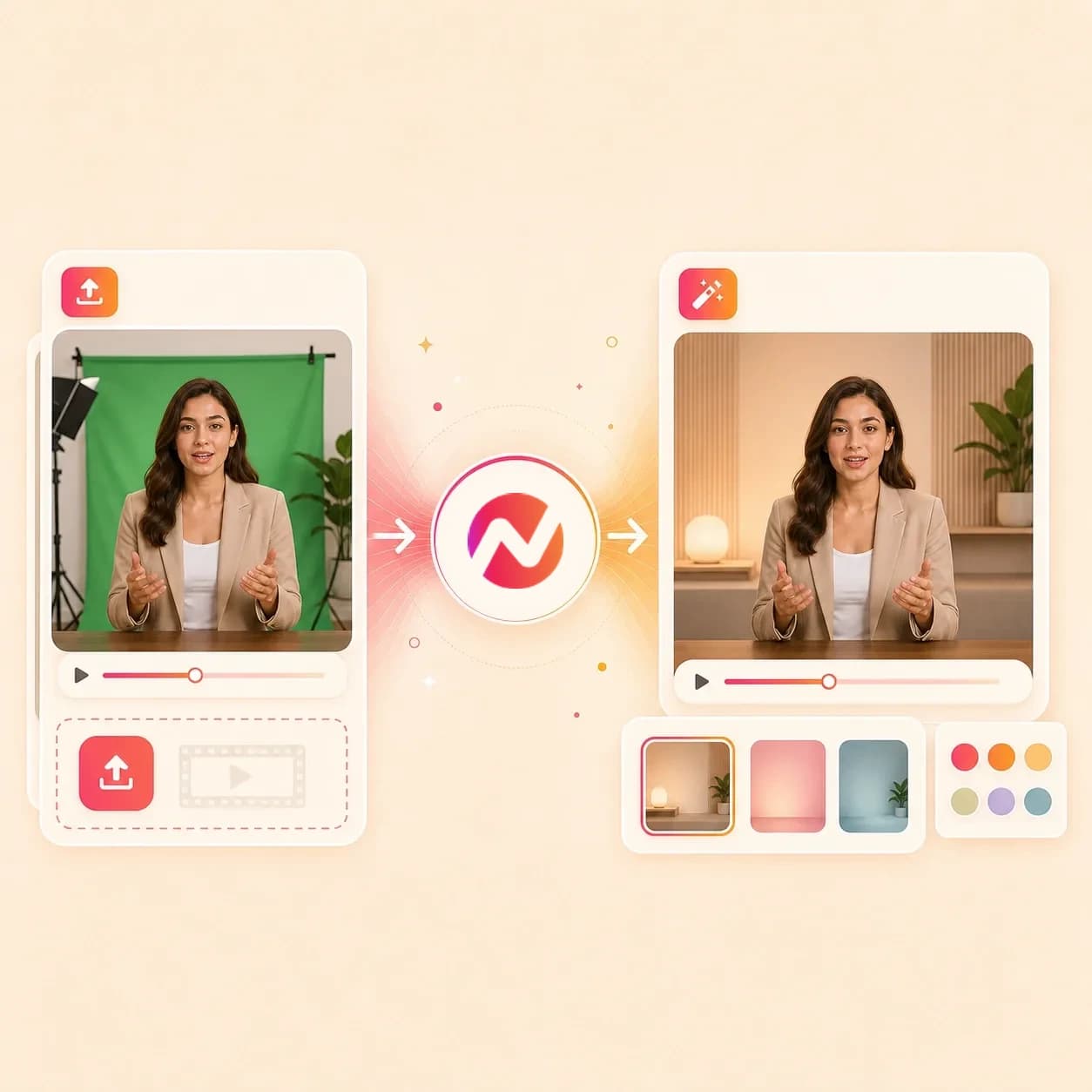
Replace the room behind a presenter with a branded scene that fits the message. Keep the speaker, captions, and project editable for demos, training, or company updates.
Trusted by teams at












How it works
From rough presenter clip to branded green screen video.
Start with the video file, clean the frame behind the subject, choose the new backdrop, then finish the cut in the same ngram project.
Upload the source clip
Bring in a presenter recording, product demo, customer quote, lesson, or social video where the room behind the subject should be removed or replaced.
Clip ready
Separate the subject
ngram detects the foreground subject and separates it from the original background so the clip can move into a cleaner green screen style edit.
Subject isolated
Choose the new backdrop
Place the speaker on a brand color, approved visual, product screenshot, or generated scene plate that matches the video campaign.
Backdrop chosen
Finish the video
Add captions, voiceover, music, text overlays, brand frames, and format changes inside the editor before exporting the final cut.
Ready to export
What it can do
What the green screen AI video maker handles.
The cleanup step sits inside the full ngram editor, so the background swap stays connected to brand, captions, voiceover, and the timeline.
Remove the room behind the presenter
Separate a speaker or foreground subject from webcam, phone, or office footage so the original room no longer drives the look of the video.
Use branded backgrounds and frames
Apply brand colors, visual frames, logos, fonts, and motion style around the cleaned subject so the clip matches the rest of your video library.
Learn more about brand kitSwap in product and campaign visuals
Place the subject over product screenshots, generated plates, launch art, or approved images when the video needs more context than a plain color.
Learn more about AI visualsAdd captions on the cleaned frame
Generate captions and place them where they do not compete with the speaker or the new backdrop, then adjust styling to match the brand kit.
Learn more about captionsPair the visual edit with voiceover
Use generated voiceover or edited narration when the green screen cut needs a clearer script, localized variant, or more polished audio layer.
Learn more about AI voiceoverKeep the cut editable on the timeline
Move the subject, trim clips, adjust scene timing, edit captions, and refine overlays without exporting a stranded background-removal file.
Learn more about video editingBuilt for presenter-led clips, demos, lessons, and social edits
When it matters
Where green screen AI video cleanup helps.
These teams use ngram to turn presenter-led recordings into cleaner, branded videos without rebuilding the full edit in another tool.
Product Demo Video
Put a demo host on a clean brand backdrop while the product walkthrough, captions, and callouts stay editable in the same project.
Open AI video use caseSales Demo Video
Clean the room behind a rep's recorded walkthrough before sending a follow-up clip that feels prepared for the account.
Open AI video use caseCustomer Testimonial Video
Place customer proof clips on a consistent backdrop so the message stays human while the frame matches the brand.
Open AI video use caseFounder Social Content
Turn fast founder recordings into cleaner social clips by replacing the room with a backdrop that fits the launch message.
Open AI video use caseMarketing Social Clips
Run presenter-led social cuts through green screen AI cleanup before adding brand captions, overlays, and channel formats.
Open AI video use caseTraining Video
Give instructor recordings a consistent background across modules even when each clip was filmed in a different room.
Open AI video use caseTutorial Video
Keep the presenter frame clean while ngram adds step labels, captions, and screen context around the tutorial.
Open AI video use caseLinkedIn Video
Replace the background behind a speaker before exporting a LinkedIn-ready cut with branded captions and a clear frame.
Open AI video use caseFeature Announcement Video
Use a green screen style presenter layer to introduce a feature while the rest of the announcement shows product visuals.
Open AI video use caseProduct stack
The ngram features around green screen edits.
Background cleanup is one step in the video. These features help turn the cleaned subject into a finished brand asset.
Video Editing
Adjust the cleaned subject, trim the clip, edit scene timing, and refine overlays on the timeline after the background has changed.
Learn more about video editingBrand Kit
Keep colors, logos, fonts, frames, intro style, and outro style consistent around every green screen AI video your team exports.
Learn more about brand kitMotion Graphics
Add lower thirds, callouts, product labels, and animated overlays that sit cleanly over the new background.
Learn more about motion graphicsCaptions & Subtitles
Generate readable captions for the cleaned presenter clip, then place and style them around the subject and backdrop.
Learn more about captionsAI Visuals
Create replacement backgrounds, supporting scene art, or product visuals when the source recording does not include a useful setting.
Learn more about AI visualsMore tools
Tools that pair with a green screen AI video maker.
Prepare the source clip, create the replacement scene, and finish the video without leaving ngram.
Clean the clip first
Fix recording quality before the background swap.
Remove Background Noise from Video
Clean room tone, fan hum, and echo in the same video before the presenter sits on the new backdrop.
Open toolVideo Cutter
Trim false starts and dead air before the green screen AI video maker builds the polished version.
Open toolEye Contact AI
Correct off-camera gaze in presenter footage so the cleaned frame feels more direct.
Open toolPresenter and backdrop formats
Use the cleaned frame inside adjacent presenter, UGC, and motion-led workflows.
Talking Head AI Video Maker
Build a talking-head video when the cleaned presenter should remain the main visual layer.
Open toolSpokesperson AI Video Maker
Use a spokesperson format when the green-screen clip belongs to a campaign, update, or announcement.
Open toolUGC AI Video Maker
Turn cleaned source footage and product context into a channel-ready UGC-style draft for manual upload.
Open toolMotion Graphics AI Video Maker
Add animated charts, callouts, and branded motion around the cleaned presenter frame.
Open toolFinish the video
Add text, captions, and final format polish.
Add Subtitles to Video
Add subtitles after the new backdrop is in place so the speaker and captions do not compete.
Open toolAdd Text to Video
Place lower thirds, labels, and product callouts around the cleaned presenter frame.
Open toolAdd Music to Video
Add background music under the finished green screen video and balance it against the speaker.
Open toolVideo Editor
Use the full editor when the green screen cut needs timeline, script, audio, and canvas changes.
Open toolConvert
Converters that feed green screen video work.
Start from the source material around the presenter clip, then use ngram to clean the frame and finish the edit.
Screen Recording to Video
Turn a rough screen recording with webcam narration into a polished video where the presenter sits on a clean frame.
Open converterVideo Converter
Bring existing MOV, MP4, or WebM footage into ngram before the green screen edit begins.
Open converterScript to Video
Start from an approved script when the green screen video needs a presenter, voiceover, captions, and scene direction.
Open converterWho it is for
Teams that use green screen AI video cleanup.
These teams record quickly but still need the presenter frame, captions, and brand to look deliberate.
Product Marketing Managers
Clean up launch presenters, demo hosts, and explainer talent so each campaign video shares a consistent visual frame.
See product marketing workflowsGrowth & Marketing Teams
Turn quick speaker clips into branded campaign assets by replacing the room with a backdrop built for the channel.
See growth workflowsSales Enablement
Give rep-recorded walkthroughs a cleaner look before they become demo follow-ups, proposal videos, or account-specific clips.
See sales workflowsCustomer Success
Make onboarding, QBR, and customer-education recordings feel consistent even when the instructor filmed in different rooms.
See customer success workflowsEducators & Trainers
Put instructors on a consistent teaching backdrop while ngram keeps captions, voiceover, and lesson pacing editable.
See educator workflowsContent Creators
Clean up talking-head footage for clips, courses, and sponsor deliverables without rebuilding the whole edit elsewhere.
See creator workflowsAgencies & Consultants
Turn client-recorded presenter footage into branded deliverables when the source clip was not filmed in a prepared set.
See agency workflowsSupport Teams
Replace busy support recording backgrounds before adding step labels, captions, and product context for help videos.
See support workflowsIntegrations
Route green screen video requests into ngram.
Use live ngram integrations to hand off source clips and context, then review the cleaned video before export.
Zapier
No-codeWhenA presenter clip lands in a request form, content intake sheet, or shared folder with green screen instructions.
ThenCreate an ngram project with the source video and backdrop notes so the green screen edit is ready for review.
n8n
WorkflowWhenA self-hosted content workflow receives a presenter recording that needs background cleanup before review.
ThenSend the clip into ngram with the approved backdrop brief and continue the workflow when the project is ready.
MCP Server
AgenticWhenAn AI agent has a presenter clip, a brand brief, and a request to create a cleaner green screen style cut.
ThenCall ngram through MCP so the agent can create an editable video project with the source and backdrop context attached.
Chrome Extension
CaptureWhenA browser tab contains the source page, campaign context, or hosted clip needed for the green screen video brief.
ThenSend the page context into ngram from Chrome so the edit starts with the right product and campaign notes.
Why ngram
How green screen AI video tools compare.
Green screen tools often stop at background removal. ngram keeps that step connected to brand kit, captions, voiceover, timeline editing, and export.
| Compare | ngram | Runway | VEED | Kapwing |
|---|---|---|---|---|
| Workflow fit | Removes or replaces the background behind a moving subject and keeps the video editable for captions, brand frames, voiceover, audio, and timeline changes. | Public materials describe Runway's background-removal workflow for cutting people, objects, or other elements out of video clips. | Public materials describe VEED's video background remover and Green Screen option for removing or replacing a video background. | Public materials describe Kapwing's video background remover for deleting, changing, or leaving a background transparent in an online editor. |
| How ngram fits | Uses brand kit context so the replacement scene, captions, fonts, colors, intros, and outros can stay consistent across a full video library. | Useful when the primary job is creative masking and the user wants to refine the removed region inside a visual AI workspace. | Useful when the job is quick online editing with background cleanup and simple branded video changes. | Useful when a team needs a general editor with stock media and background changes for social clips. |
| Best use | Fits presenter clips into product demos, lessons, testimonials, and social cuts without forcing the team to restart the edit elsewhere. | Compare fit when the cleaned presenter clip also needs brand-kit treatment, captions, voiceover, and business-video variants. | Compare fit when the same source clip needs script-led planning, brand governance, and reusable product or training video versions. | Compare fit when the cleaned cut needs to stay connected to ngram video generation, captions, brand frames, and team review. |
FAQ
Common questions about the green screen AI video maker
Ask ngram about background cleanup, brand backdrops, and video finishing.
Turn presenter clips into branded videos
Use the green screen AI video maker to replace the original background, add brand frames, captions, voiceover, and motion graphics, then keep editing the finished video in ngram.
Start with the video upload, then finish the full edit in one project.
Best for presenter clips, demos, lessons, and social cuts with a clear subject.