Back to How to
How to

How to Turn a Help Article Into a Video That Shows the Actual Product

Turn one step from a help article into a product walkthrough. Pair the written instruction with the real interface, use attended browser handoff and verify what the viewer sees.

How to Turn a Help Article Into a Video That Shows the Actual Product
3 min read•Updated at November 2, 2026
Written and edited by
Rishikesh Ranjan
Rishikesh Ranjan
all thing growth @ ngram.com

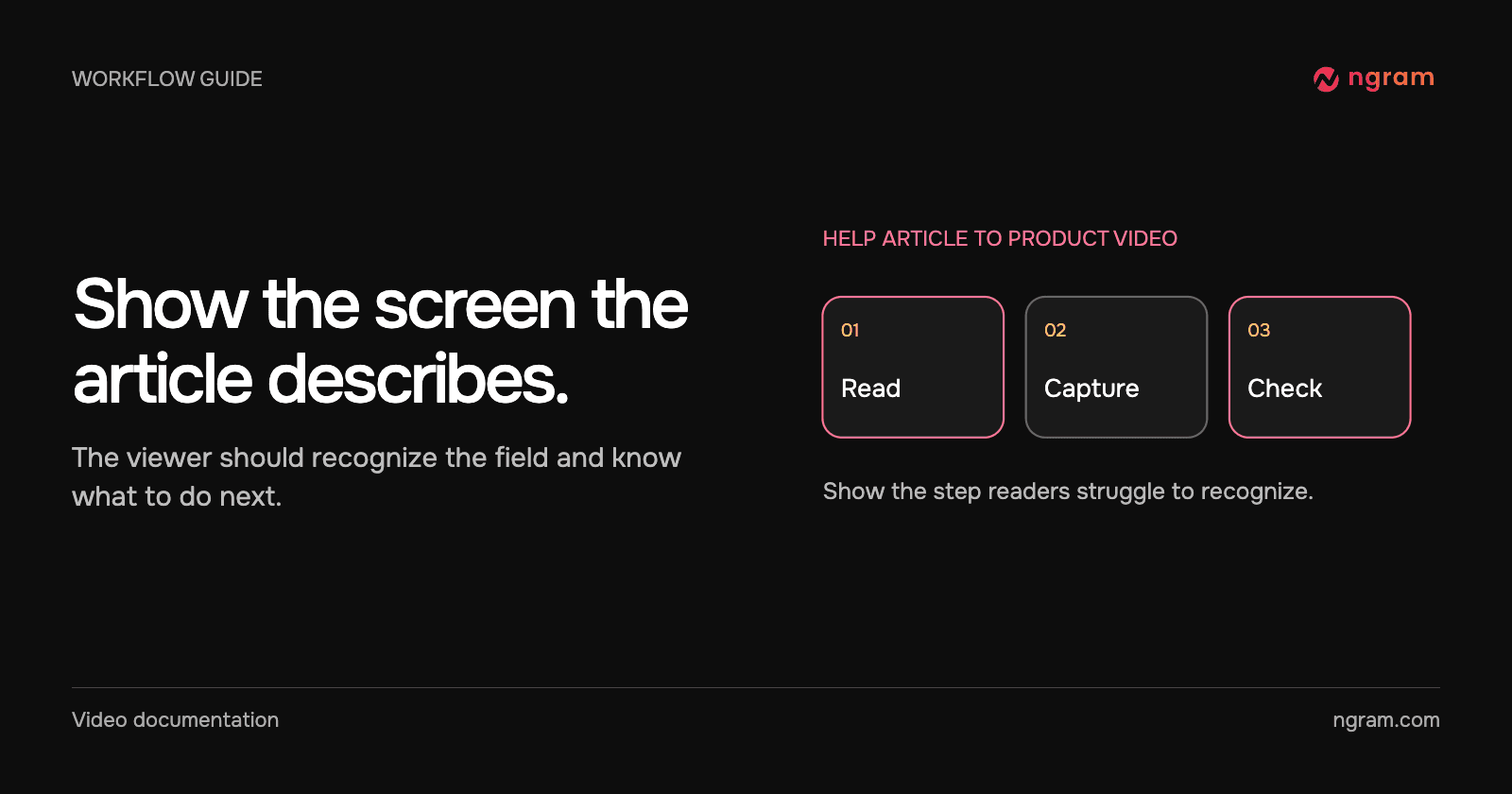
A help article can tell someone to “customize the brief” and still leave them wondering which text they are supposed to change. Reading the article aloud will not answer that question. A short video can show the right field and the next action while the article keeps the exact instructions easy to find.

Select one step a reader cannot picture

Find the point that sends people back to support: a hard-to-find control, an unfamiliar choice or a result they cannot recognize. Write down the starting page, the action and the visible result. Leave commands, URLs and plan exceptions in text so readers can copy or search them.

Consider a help article about choosing a video type. The narrower task here is “Find the Conversation style, customize its example brief and identify where to use it.” The footage comes from ngram’s public Conversation Video Style page. It shows the product side of the lesson. The help-article brief below is an editorial example.

Provide the article and the product destination

Use the article as the source for terminology and the intended sequence. Give ngram the product URL separately and say which screen the viewer should recognize. A useful brief is “Show someone making their first Conversation video where to select the style and which fields to customize. End on Use this style.” When an existing recording or a sequence of screenshots already shows the action, provide that instead. The help article conversion guide covers choosing a suitable source.

Take control of the browser when the task needs you

Start a compatible Studio project, ask ngram to browse the product URL and follow Live Preview. When control passes to you, complete the requested action inside the live page and choose Done so ngram can continue. The Browser Handoff guide also explains how to report a step you cannot complete.
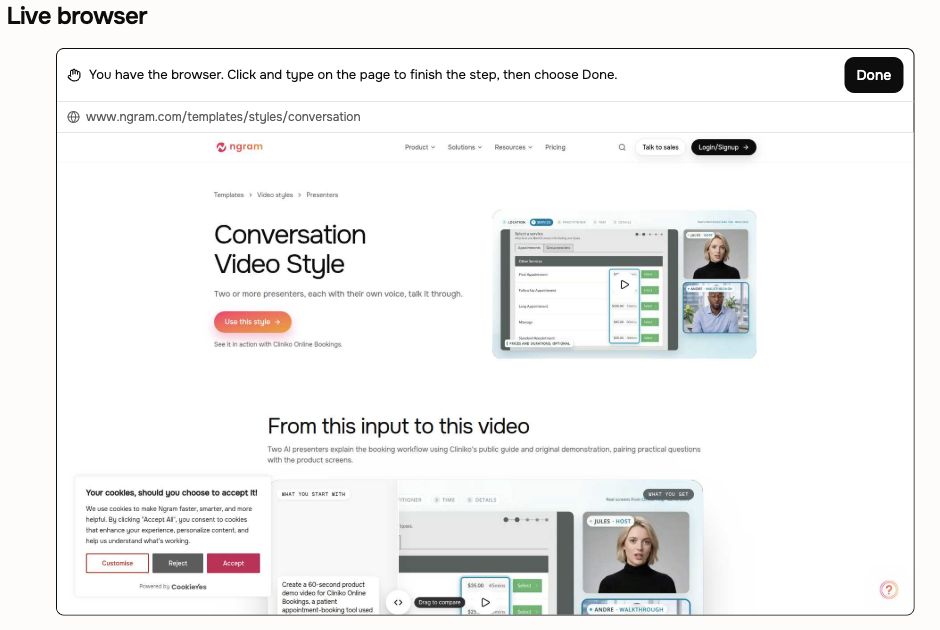
The Live browser shows the public Conversation style page, its user-control instructions and the Done button.

In the captured session, the creator has control of the public Conversation style page and Done is available. A task behind sign-in requires an authorized account and an attended session; this particular walkthrough uses a public page.

Compare the exported walkthrough with the article

The 20-second result first identifies the Conversation style. It highlights the Style selector, then shows the bracketed brief fields and the Use this style button. A support reader who could not find the editable text now has a frame to recognize. The clip ends at the button; it does not show a new project being created afterward.

Check the control names, the order of the steps and what is visible at the moment each instruction is spoken. If the article promises a result beyond the final frame, add footage of that result or narrow the promise. Place the video beside the matching step, keep the written directions and assign someone to recheck both when that screen changes. See the help center video workflow for deciding where to put the clip.
Related articles

Your Product Screens Changed. Which Help Center Videos Need an Update?
How to3 min read

Your Product Screens Changed. Which Help Center Videos Need an Update?

Audit help center videos after a product update. Prioritize instructions that now lead to the wrong action, choose the smallest accurate revision and test the original embed.

How Tongram
Rishikesh Ranjan
Rishikesh Ranjan
Growth Lead
Nov 2, 2026
When Do Depth Captions Help Viewers Follow a Talking-Head Video?
How to3 min read

When Do Depth Captions Help Viewers Follow a Talking-Head Video?

Decide when behind-the-speaker words help a talking-head video and when ordinary subtitles work better. Test the phrase, frame and viewing size before keeping the effect.

How Tongram
Rishikesh Ranjan
Rishikesh Ranjan
Growth Lead
Nov 2, 2026
How to Brief a Teammate Who Picks Up a Complex Ticket Mid-Sprint
How to3 min read

How to Brief a Teammate Who Picks Up a Complex Ticket Mid-Sprint

Prepare a mid-sprint ticket handoff that separates the problem, confirmed evidence, open questions and first reproducible check. Use a short video only for something the next owner needs to see.

How Tongram
Rishikesh Ranjan
Rishikesh Ranjan
Growth Lead
Nov 2, 2026
How to Send the Right Onboarding Video When Sales Hands Off an Account
How to3 min read

How to Send the Right Onboarding Video When Sales Hands Off an Account

Turn a sales handoff into an onboarding video that teaches one first task. Choose between an existing lesson and a new draft, then verify what the customer receives.

How Tongram
Rishikesh Ranjan
Rishikesh Ranjan
Growth Lead
Nov 2, 2026
How to Give Customer Tutorials a Consistent Look Across Authors
How to3 min read

How to Give Customer Tutorials a Consistent Look Across Authors

Give customer tutorials a consistent opening, closing and review standard across authors, while leaving each lesson free to demonstrate its own task clearly.

How Tongram
Rishikesh Ranjan
Rishikesh Ranjan
Growth Lead
Nov 2, 2026
How to Deliver a Customer’s Video as Soon as It’s Ready
How to3 min read

How to Deliver a Customer’s Video as Soon as It’s Ready

Design an asynchronous video handoff that matches a finished job to the intended customer, checks the correct version and avoids duplicate notifications.

How Tongram
Rishikesh Ranjan
Rishikesh Ranjan
Growth Lead
Nov 2, 2026

Ready to create your first video?

Turn your source material into a video. Shape the brief, review the plan and make it yours.