
A talking-head video has two requests for the viewer’s attention: listen to the presenter and read the screen. Large words behind the speaker can reinforce a phrase that matters. They can also turn a straightforward explanation into a reading test. Decide what the audience should retain before choosing the style.
Use emphasis for a phrase that changes the meaning
Good candidates include a contrast, a decision or a short phrase the speaker stresses naturally. A presenter saying “approve it before publishing” might emphasize “approve it” at that moment. A six-part procedure needs more than two emphasized words; viewers may need the full instruction, a demonstration or a reference they can revisit.
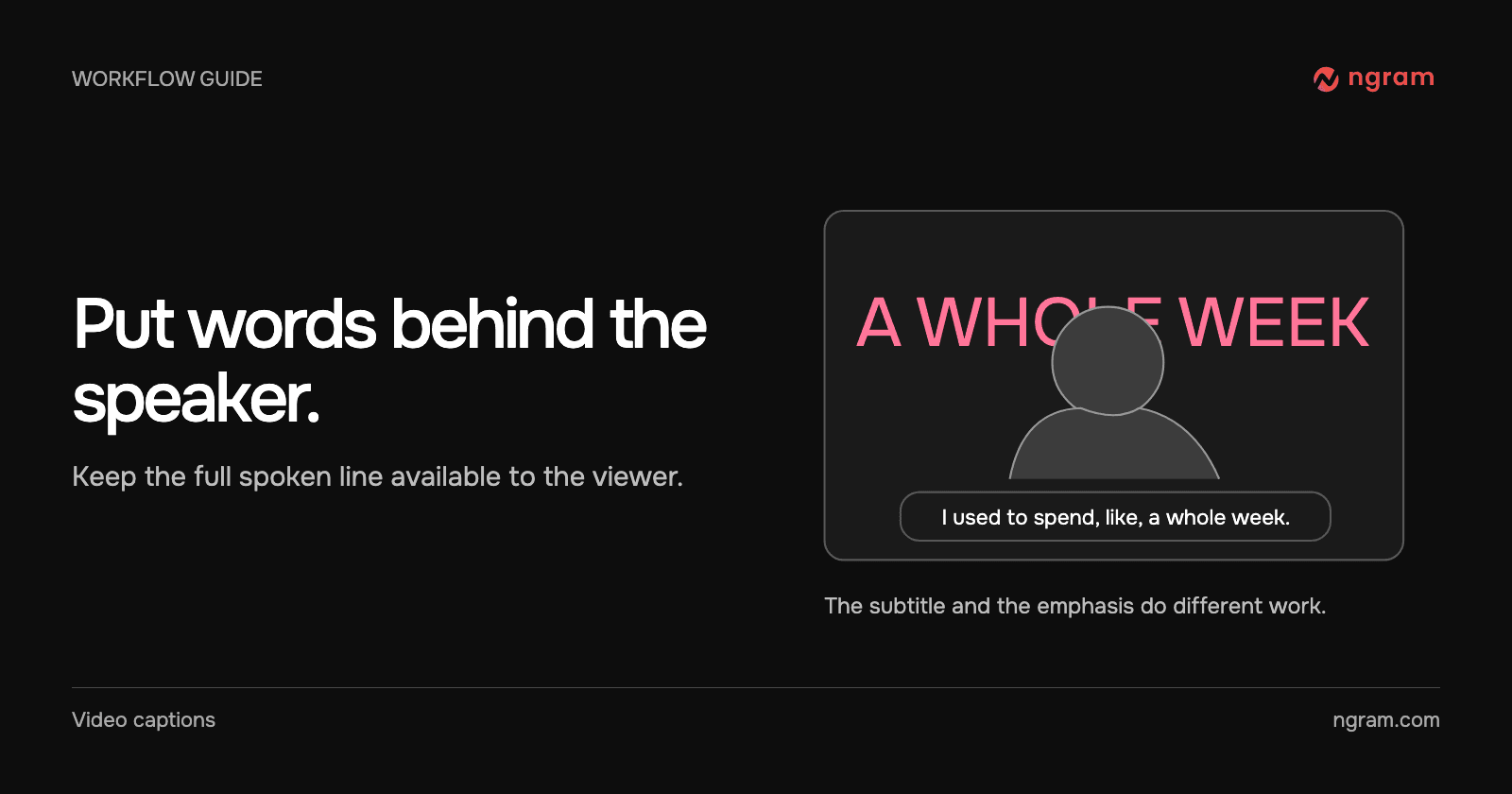
For exact product names, codes and numbers, first make the full text readable. Losing a letter in an ordinary word may be harmless; hiding part of a model number can change the instruction. Use regular captions for the speech and decide on emphasis separately.
Test the composition against the viewing conditions
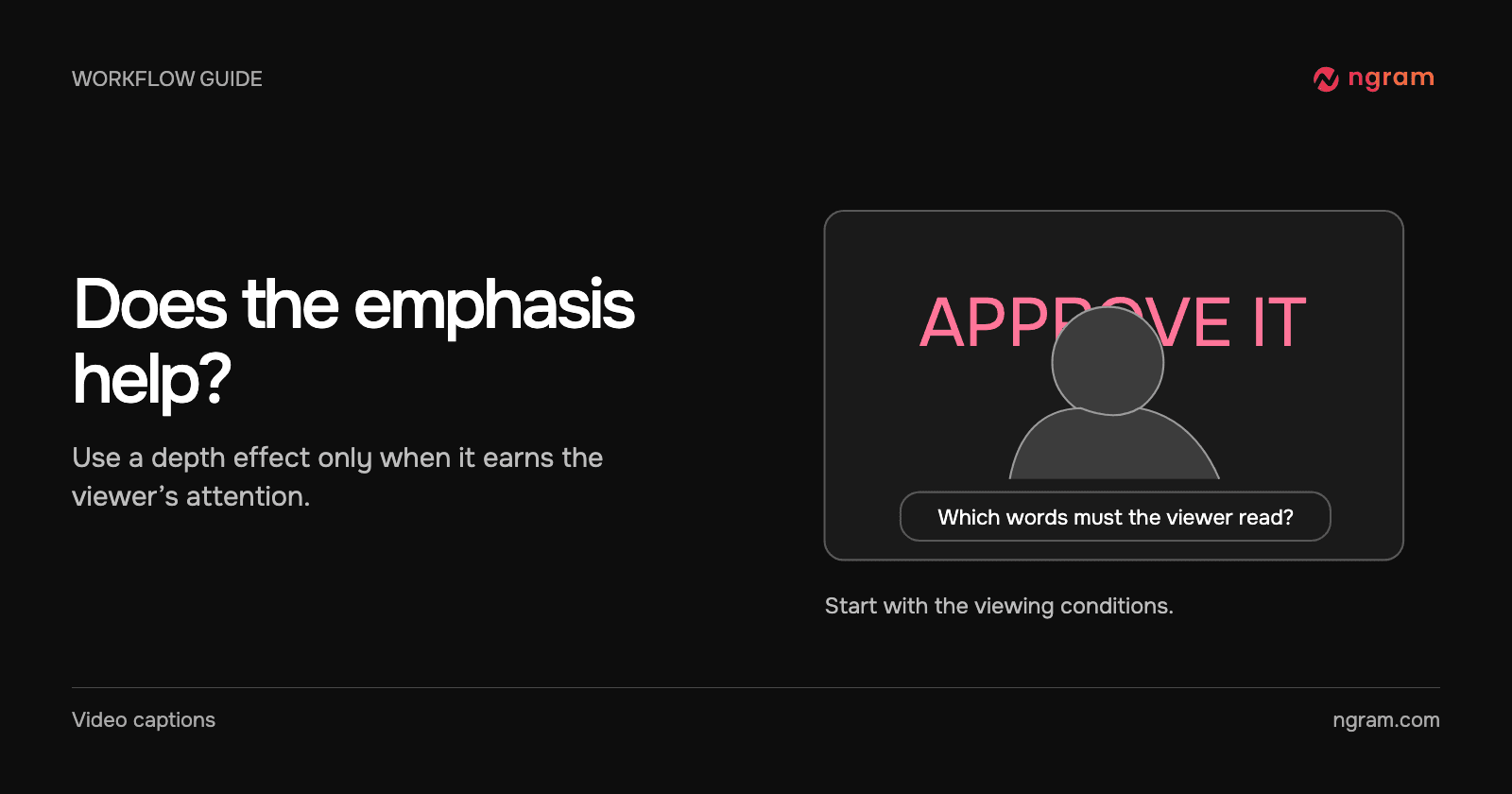
The presenter in this example occupies the center of a vertical frame. The larger words sit behind her, while the subtitles occupy their own reading area. Compare a moment with background words to the next plain shot. Can you still follow the sentence without pausing? Do the large words tell you what matters, or do they draw attention away from the speaker?
Try the same review at the size of a phone feed. If a face, a product screen and a caption all compete for the same small area, simplify the scene. A large foreground presenter usually offers a better depth cue than a tiny presenter over a dashboard.
Make a decision you can explain to another editor
Keep the effect when you can name the phrase it reinforces and still read the sentence around it. Reduce it when three phrases in succession all seem important. Remove it when the words obscure the face, make the instruction ambiguous or cover the interface someone must use.
Give a targeted revision: “Keep the ‘approve it’ emphasis in the presenter shot. Remove it when the dashboard appears. Leave the ordinary subtitles on in both scenes.” Use the Depth Captions feature for setup and video revision guide for a precise change. For a technical support video, a quiet caption and a clear view of the control often do the job.