
“Make it better” leaves almost every creative decision open. Useful video feedback points to a moment, describes the change, and says what should stay. That gives you a result you can check on the next watch.
In ngram V2, you can write a revision in chat or use Make changes to attach it to a moment in the preview. This guide shows how to turn an observation into a specific request. The requests are teaching examples; they are not a before-and-after record of changes made to the sample videos.
See what you can create with ngram V2
Follow the feedback and revision documentation
Start by naming the problem you can see
Watch the video once for the overall story. On the next pass, pause where the problem occurs. Is the claim wrong, the label hard to read, the shot distracting, or the closing message too brief? Those are different problems, and they need different requests.
- Factual: “The second benefit says unlimited exports. Replace that with the approved wording in the attached product sheet.”
- Readability: “The receiving-step labels disappear before I can read them. Give those steps more time.”
- Story: “The product appears before the viewer understands the problem. Explain the barcode mismatch first.”
- Tone: “Keep the sequence, but rewrite the narration for a new warehouse employee rather than a buyer.”
Review the script before generation
Use a location, a change, and a constraint
A good revision request answers three questions: where is the problem, what should happen instead, and what is already working? A timestamp or selected frame locates the request. An observable change makes it reviewable. A constraint helps avoid unnecessary changes to the rest of the video.
At the final card, keep the current wording and colors. Hold the invitation longer so there is time to read it. Preserve the opening and the order of the earlier scenes.
You do not need to dictate every animation. Give exact wording for a claim or label that must be correct; describe the intended effect when you are asking for a creative change. Replay the result to see whether the request worked.
Worked example: clarify a workflow
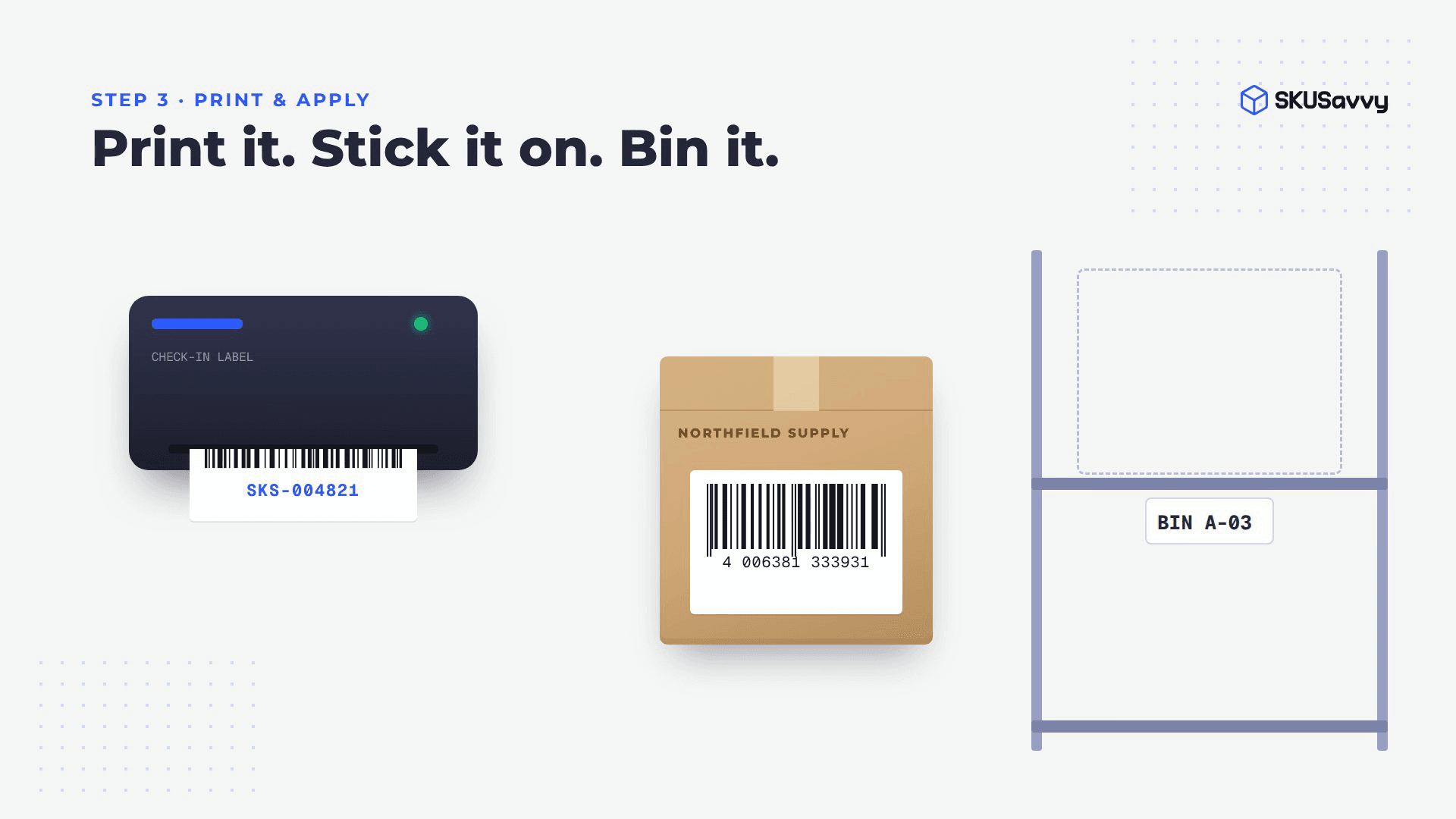
This 38-second SKUSavvy sample introduces a barcode mismatch and then shows a receiving workflow. Suppose your intended audience is seeing that process for the first time. Your concern might be the time available to read each step.
A vague request would be “Make this easier to understand.” A more useful request names the relevant sequence and protects the parts that already work:
In the receiving sequence, give the scan, label, and storage steps more time on screen. Keep the barcode-mismatch opening and the current box illustrations. Preserve the procedure order from the source document.
This request has a tradeoff: longer step holds may make the video longer. If the runtime is fixed, say where time can come from. For example, ask for a shorter opening rather than expecting every section to expand inside the same duration.
Choose a useful duration and aspect ratio
Separate plan feedback from video feedback
Use the plan review for message, claims, scene order, and narration. In V2, read Script and Production details, choose Request changes if needed, then choose Approve plan when the direction is ready. Catching a missing premise here gives the video a clearer starting point.
Use the finished preview for things you need to see or hear: pacing, legibility, visual emphasis, pronunciation, and the relationship between narration and the picture. If a factual error becomes apparent only after generation, correct it then; do not leave it in just because the plan was approved.
Make the request in V2
- Open the conversation containing the video and play the version you want to review.
- Pause at the relevant moment and choose Make changes. Use Pin a change at the current moment or click the frame; for a general revision, use chat.
- Write the change and the parts to preserve. Include exact replacement text when wording matters.
- For a pinned change, choose Add to chat, then Send message. Wait for the result before submitting the same request again.
- Replay the changed section and its neighboring scenes. Confirm the requested improvement and check for new problems.
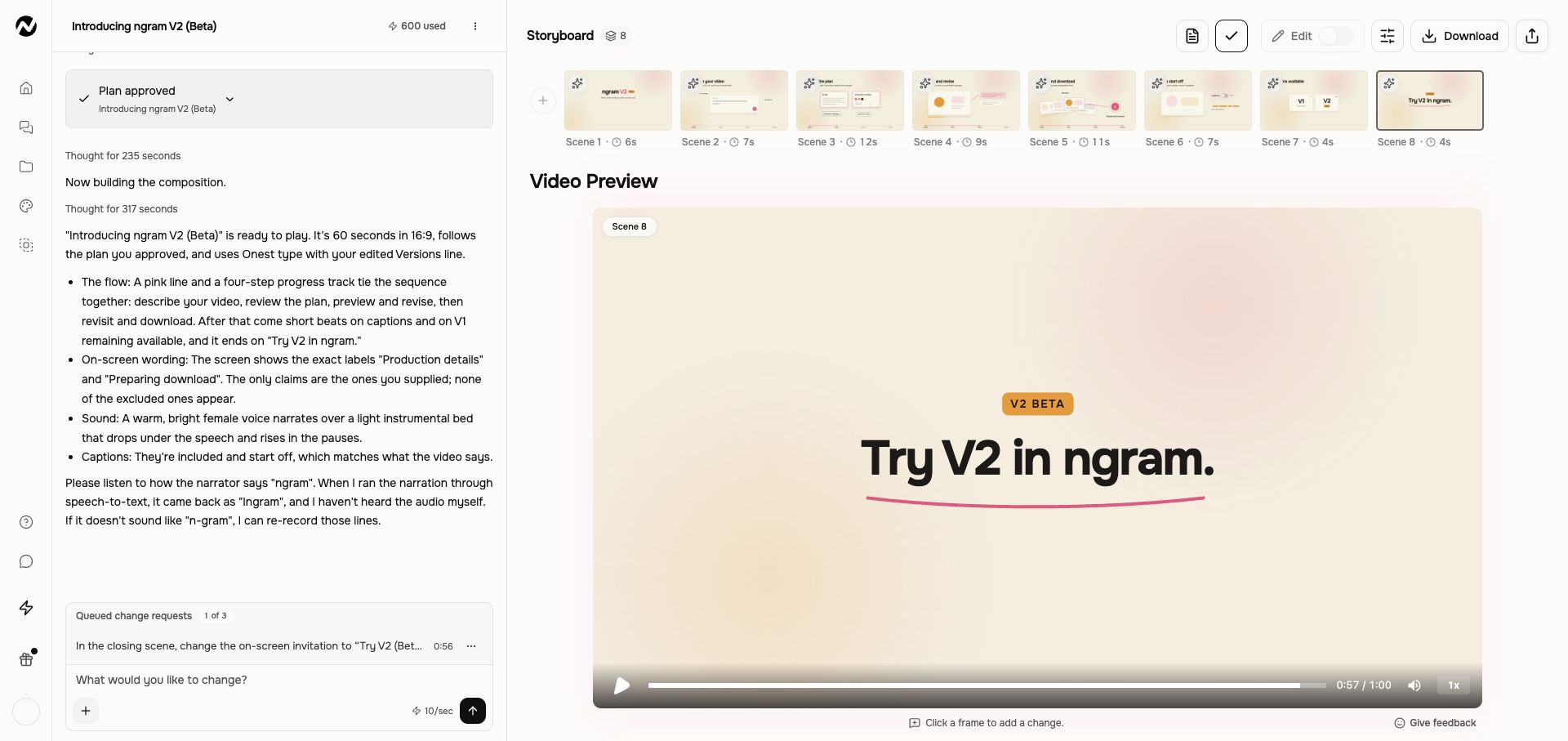
Follow the V2 revision workflow
Keep the review small enough to verify
Group related changes into one clear request. “Use this approved product name throughout” is coherent. A request that changes the audience, style, script, music, and duration at once is harder to evaluate because you cannot easily tell which decision caused the result.
For team reviews, consolidate conflicting instructions before sending them. If one reviewer wants a longer explanation and another wants a shorter video, decide which audience or constraint takes priority. The generation step cannot resolve an editorial disagreement for you.
When you compare versions, write down what improved and what still needs work. Selecting an older V2 output lets you review or download it; it should not be treated as a promise of a restore or undo action.
Understand versions and separate editor copies
Finish with a complete watch
- Verify names, numbers, claims, and calls to action against the approved source.
- Check that text is readable at the size where the video will be viewed.
- Listen for narration, pronunciation, music balance, and abrupt audio changes.
- Confirm the selected version and caption setting before preparing the final download.
Use Give feedback below the V2 preview when you want to tell ngram about the product experience. Use Make changes or chat when you want the video itself revised. Keeping those two actions separate helps your request reach the right place.
Try it on one moment
Choose the single moment that most affects the video, describe the change, and state what should stay. Then watch the next version with that request in mind.