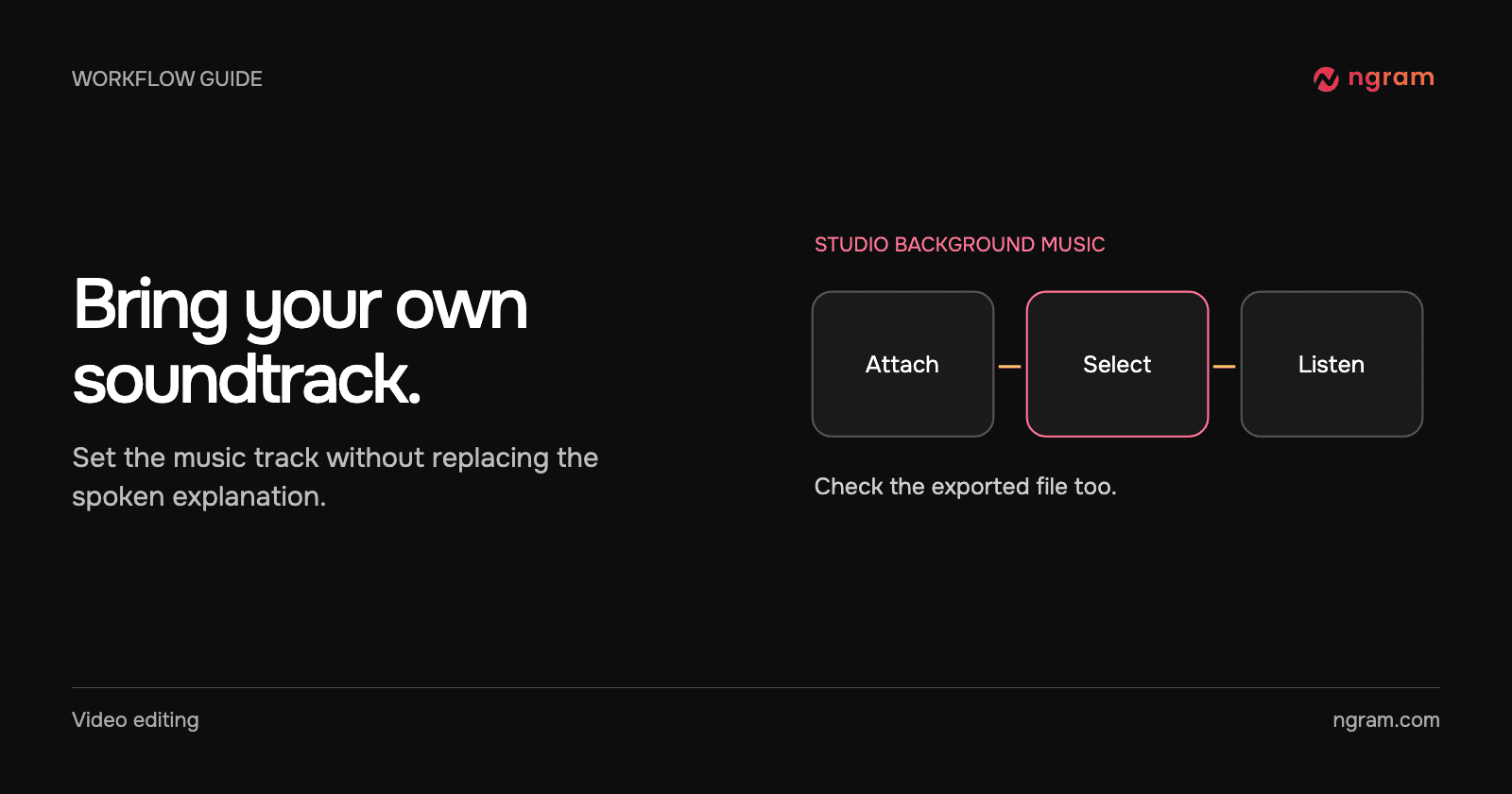

Your brand has an approved soundtrack for a customer onboarding series. The narrator still needs to explain the next action clearly. Treat those as two separate sources: the MP3 supplies the background music, and the narration carries the instructions.
Choose the passage worth listening to
Use an MP3 that you have permission to include in the finished video. Give the file a recognizable name. Before uploading it, identify a passage with a quiet spoken phrase or an important number. That is a better test of the mix than a silent opening title.
In a new Studio brief or an existing chat, upload the MP3 as a source and name its job. For example: “Use lesson-soundtrack.mp3 as background music in the onboarding lesson. Keep the narrator’s explanation of the due date. Let the voice remain easy to hear.” The music and voiceover guide explains where those tracks are managed.
Verify the attached file
The recorded example shows lesson-soundtrack.mp3 attached to a video brief and opened in the audio preview. This is the point to check that you supplied the intended file. Finding it among the sources is one step; hearing the intended mix in the finished cut is another.
Select the music in the editor
For an editable video with the relevant controls, open the inline editor’s music picker, choose Upload MP3 and select a file from the device or available library. Save the music edit. Work from the background music control when your goal is a soundtrack; attaching a recorded voice as a music bed will not turn it into timed narration.
If the picker rejects the file, verify that it is actually an MP3, within the displayed size limit, and accessible to the account editing the video. Check the inline editor guide before starting another project.
Listen beyond the first beat
Play the sentence with the music on. Listen for the end of the sentence as well as the opening word: an instrumental accent can land at exactly the moment the narrator says what to do next. Request a quieter bed or choose a less busy passage if the instruction becomes hard to understand.
Export the reviewed cut and replay that same moment from the file. The export guide covers checking that the selected output matches the preview.
If you can hear the song but miss the instruction, compare the two narrated passes in How to Mix Background Music So Viewers Can Hear Every Word. Use the repeated sentence to identify what changed before adjusting your own project.
Listen to the soundtrack in the exported MP4
This finished Studio video uses an uploaded two-note soundtrack under a narrated customer success update. Listen to the opening, then to the line comparing Q1 with Q2. The track is audible in the exported file, and the voice remains distinct from it.
The MP3 supplied the background music. The spoken update was generated separately. To check your own cut, play the exported MP4 at a comfortable volume and repeat the main instruction before looking at the captions.