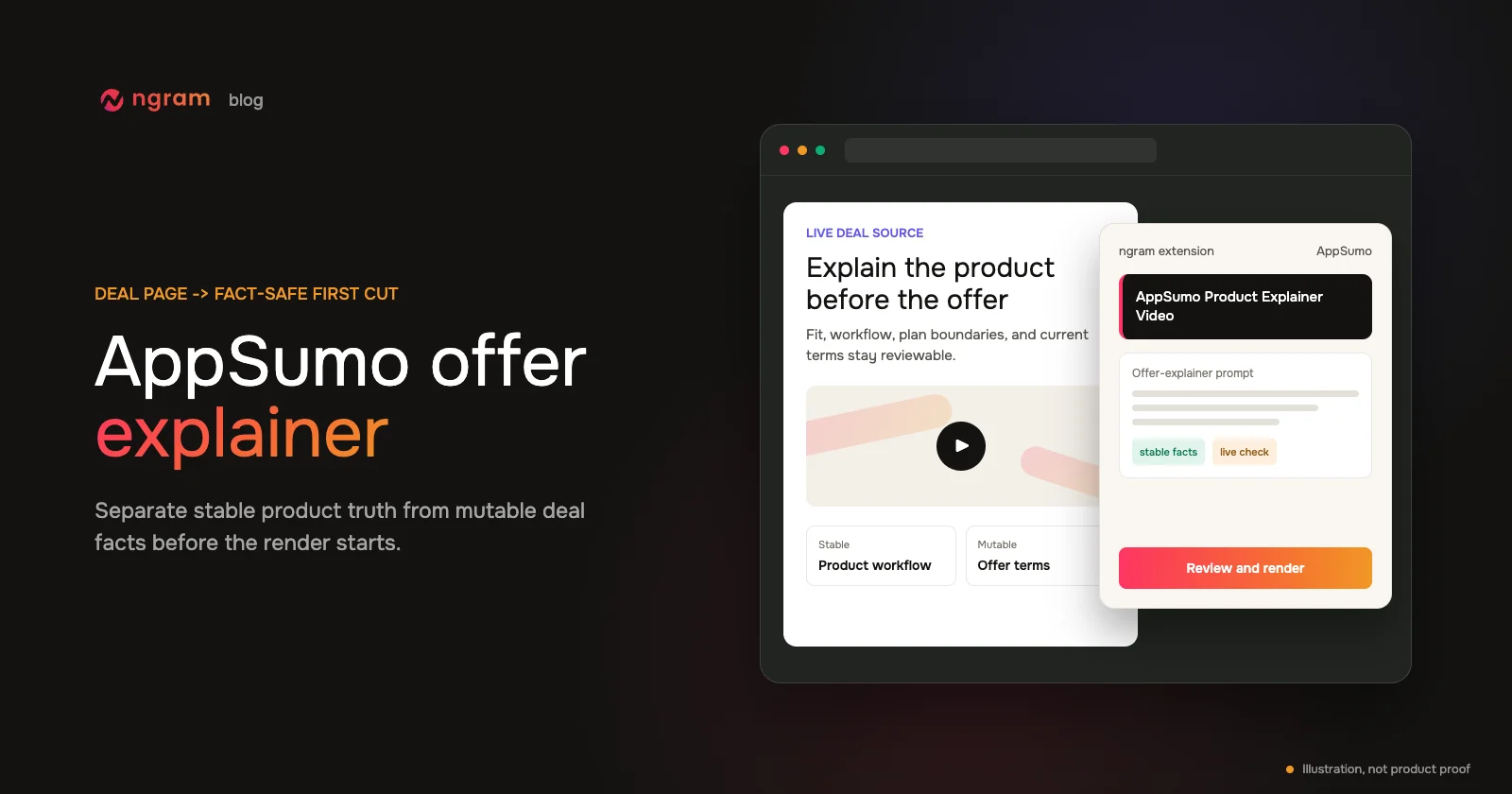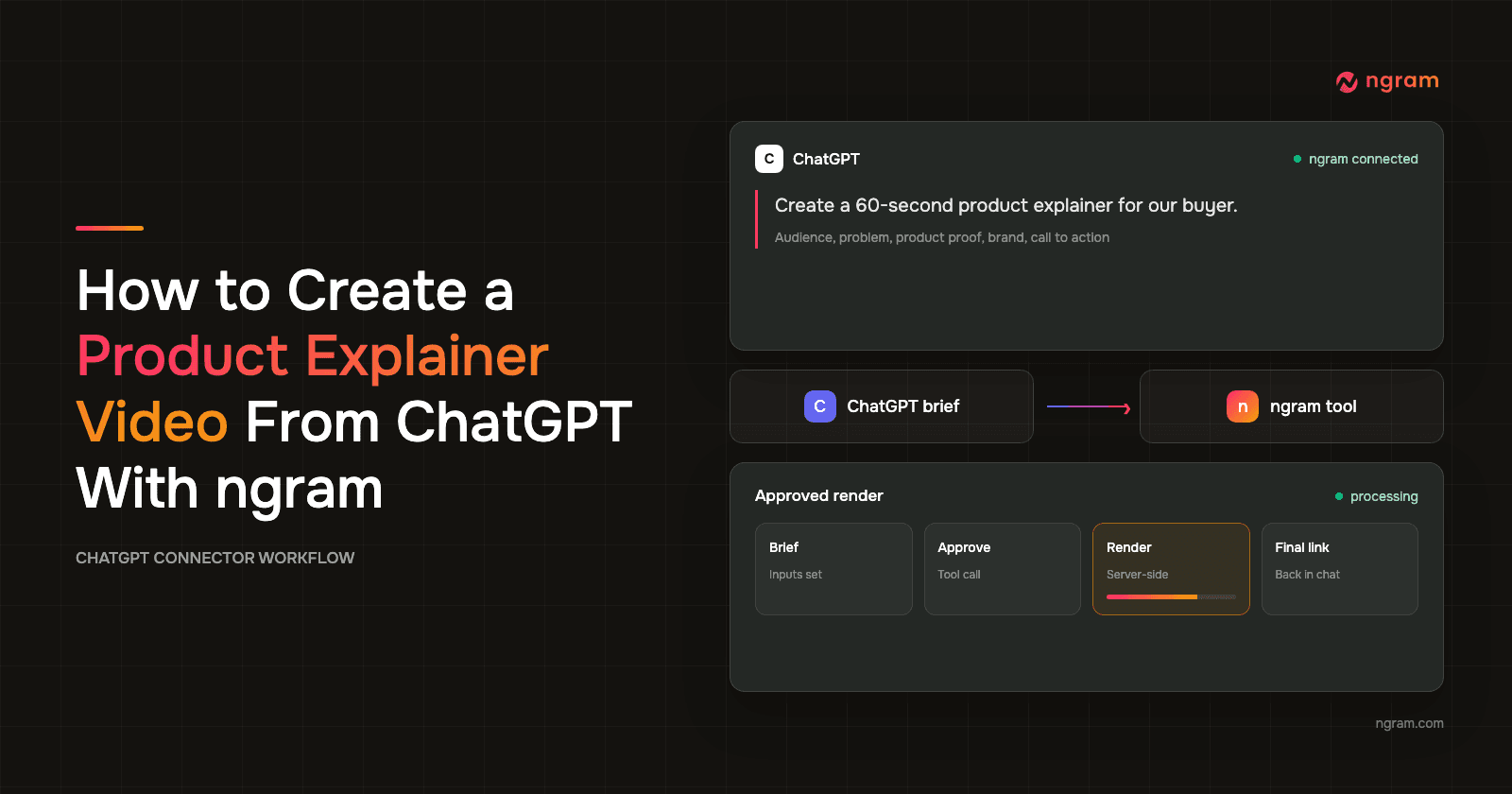

A product explainer video can start inside a ChatGPT conversation when ngram is connected as an app. ChatGPT holds the buyer, problem, source material, and review constraints. ngram turns the approved brief into a rendered video and returns the final link to the conversation.
That makes ChatGPT video generation useful for more than script drafting. With ngram connected, the AI video generator sits behind an approved tool call instead of a second handoff. You can define the story, inspect the settings, follow the server-side render, and review the result without moving the brief into a separate creation tool.
The hard part is still editorial. A weak prompt produces a feature list. A useful prompt identifies one buyer, one costly problem, the product workflow that resolves it, and evidence the viewer can inspect. This guide gives you that brief, the exact connector sequence, a reusable prompt, and a review matrix.
The short answer
To create a product explainer video from ChatGPT with ngram, connect and authenticate ngram inside ChatGPT, provide a structured explainer brief, review the prepared settings, approve the ngram tool call, monitor the server-side render, then open the returned link and check the final video in ngram.
Why a product explainer video needs a structured brief
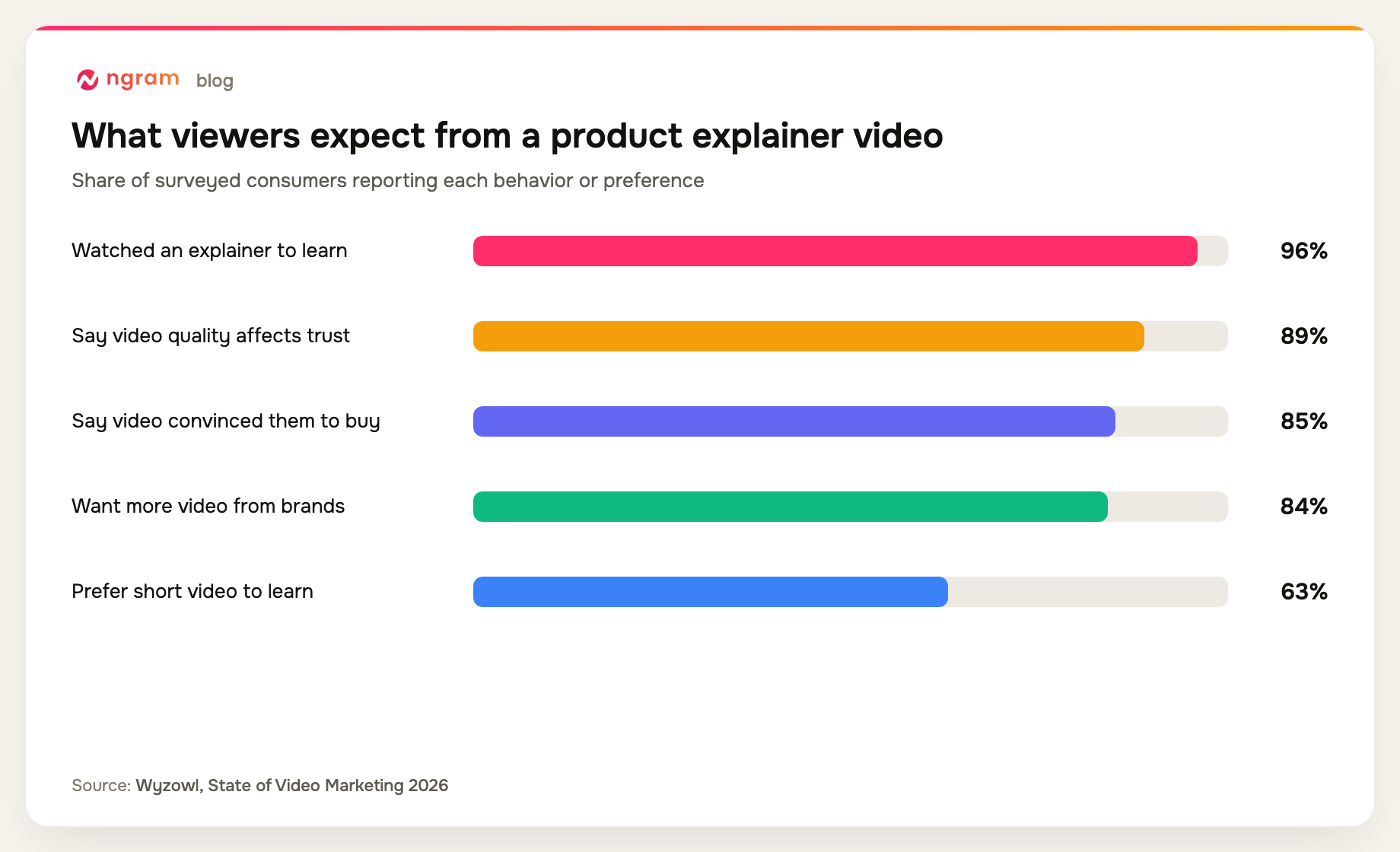
Wyzowl's 2026 video marketing research found that 96% of people have watched an explainer video to learn about a product or service, 85% say a video convinced them to buy, 89% say video quality affects trust, 84% want more video from brands, and 63% prefer a short video when learning about a product or service. Those measures use different questions and respondent groups, so they are context signals rather than values to add together.
The same report found that 91% of businesses use video, while 68% of video marketers created explainer videos, 45% created teasers, and 39% created product demos. Format also varies: 51% mainly made live-action video, 23% mainly made animation, and 19% mainly made screen recordings. A good brief chooses the evidence and visual treatment instead of letting the production format choose the story.
There is a business reason to make that choice carefully. Wyzowl reports that 93% of video marketers say video improved product understanding, 85% credit it with lead generation, 83% with sales, and 57% with fewer support queries. It also found that 71% consider 30 seconds to two minutes the most effective range, 82% report good ROI, 92% plan to maintain or increase video spending, and 63% have used AI video tools.
Content Marketing Institute's 2025 B2B benchmark adds the operating constraint: 76% of respondents used video, 58% rated it the most effective content type, and 61% expected more video investment. Yet 45% said they lacked a scalable content creation model. Among teams using generative AI, 51% reported fewer tedious tasks and 45% reported more efficient workflows. A connector workflow is useful only if it preserves product truth while removing the handoff work.
What to prepare before opening ChatGPT
Do not begin with a command such as "make an explainer for my product." Gather the decisions that a scriptwriter, storyboard artist, and reviewer would otherwise have to infer. An AI storyboard generator cannot recover product facts the source never supplied. Ten minutes spent here prevents an unnecessary render.
- ChatGPT Business, Enterprise, or Edu on the web app, with developer mode and the ngram custom app enabled by a workspace admin or owner. Pro's read/fetch-only MCP access cannot start a video render.
- Name the product and the exact buyer who needs to recognize themselves in the opening scene.
- Write one problem in the buyer's language, including what happens when the problem remains unresolved.
- Choose one product workflow to demonstrate. Save secondary features for another video.
- Provide source material such as a product page, approved notes, UI screenshots, a short recording, or pasted product facts.
- Identify visible proof: a real screen, a before-and-after state, a supported metric, or a workflow result.
- Set the desired length and aspect ratio. A 60- to 90-second explainer usually needs fewer ideas than a first draft suggests.
- State the voice, visual direction, product terminology, pronunciation notes, and one next action for the viewer.
- List claims that are unsupported, unshipped, confidential, or otherwise off-limits.
A practical 60-second story spine is problem, consequence, product workflow, proof, outcome, and next action. The sequence is more important than squeezing every feature into the script. When one scene cannot be justified by the buyer problem or the proof source, remove it before rendering.
Choose product proof before visual style
A product explainer video earns trust when the visual evidence matches the spoken claim. Start by writing each important claim in one column and the proof that can appear on screen in another. If a claim has no product screen, documented fact, supported metric, or observable workflow result, remove it from the storyboard.
Use a screen recording when the order of actions is the evidence. Use a screenshot when one interface state matters. Use a diagram when the product coordinates steps that are difficult to capture in one frame. Use motion graphics for an abstract idea only when the narration names a source-backed fact. Live action can establish the buyer's situation, but it cannot replace the product proof.
- For a workflow claim, show the input, the product action, and the resulting state in that order.
- For a speed or cost claim, provide the approved measurement, unit, comparison basis, and date.
- For an ease-of-use claim, show the actual number of steps instead of relying on an adjective.
- For a quality claim, show a real output at a readable size and keep the voiceover factual.
Run a mute test on the outline before rendering. Read only the planned visuals and on-screen text. The viewer still needs to understand who has the problem, what the product does, and what changes after the workflow. Then read only the narration. It needs to remain accurate without asking generic visuals to carry a specific claim.
Finally, check the CTA against the explanation. A product explainer video that teaches one workflow calls for one proportionate next action. If the CTA requires a promise the video never established, either strengthen the proof or choose a smaller action.
Connect and authenticate ngram inside ChatGPT
OpenAI's developer-mode documentation describes the current custom-app flow. In ChatGPT web, a workspace admin or owner enables developer mode, creates or publishes the ngram app from Workspace Settings > Apps > Create, enters https://mcp.ngram.com, scans the tools, and completes connector authentication. Then select ngram in a new chat. You do not create or paste an external ngram API key for this flow.
The exact labels can move as ChatGPT changes its interface. Account plan, region, and workspace controls can also affect which apps and tool actions appear. The OpenAI full MCP documentation says full MCP actions currently require Business, Enterprise, or Edu on ChatGPT web. Pro supports read/fetch MCP actions only, so it cannot call ngram's create-video tool. ChatGPT may ask for confirmation before consequential actions. If ngram is missing, check plan, developer-mode, and workspace app access before rewriting the prompt.
For ngram-specific setup and the distinction between the normal connector and a self-service custom MCP configuration, use the ngram MCP connection guide. A custom MCP setup can use a self-service bearer key created in Account & Settings → API Keys; that is different from ChatGPT connector authentication.
How to create a product explainer video from ChatGPT with ngram
Use the following sequence as a controlled production pass. Each step has a visible done state, so you can tell whether the problem sits in the brief, connection, approval, render, or final review.
1. Start a conversation with ngram available
Open a conversation where the ngram app is connected. Tell ChatGPT that the task is to prepare and render a product explainer video with ngram. If tool availability is not clear, ask ChatGPT to confirm that the ngram tool is present before you paste a long brief.
Do not treat a general answer about video structure as proof that the connector works. The done state is a visible ngram tool or app in the active conversation.
2. Give ChatGPT the explainer inputs
Paste the buyer, problem, one core workflow, source material, proof requirement, desired outcome, length, aspect ratio, voice, visual direction, next action, and claim guardrails. Ask ChatGPT to restate the brief in plain language before it calls ngram.
The restatement is a cheap accuracy check. If ChatGPT turns a buyer pain into a generic category statement, adds an unsupported benefit, or cannot identify the proof source, fix the brief now. Do not let the render become the first place you notice a messaging error.
3. Review the proposed story and settings
Ask for a short script outline before rendering: opening problem, product action, visible proof, outcome, and next action. Check that the mode is Explainer, the duration matches the amount of material, the aspect ratio is intentional, and the voice and visual treatment match the product.
This is where the AI explainer video maker workflow becomes specific. The input needs to support a coherent sequence of scenes, not a collage of unrelated product claims.
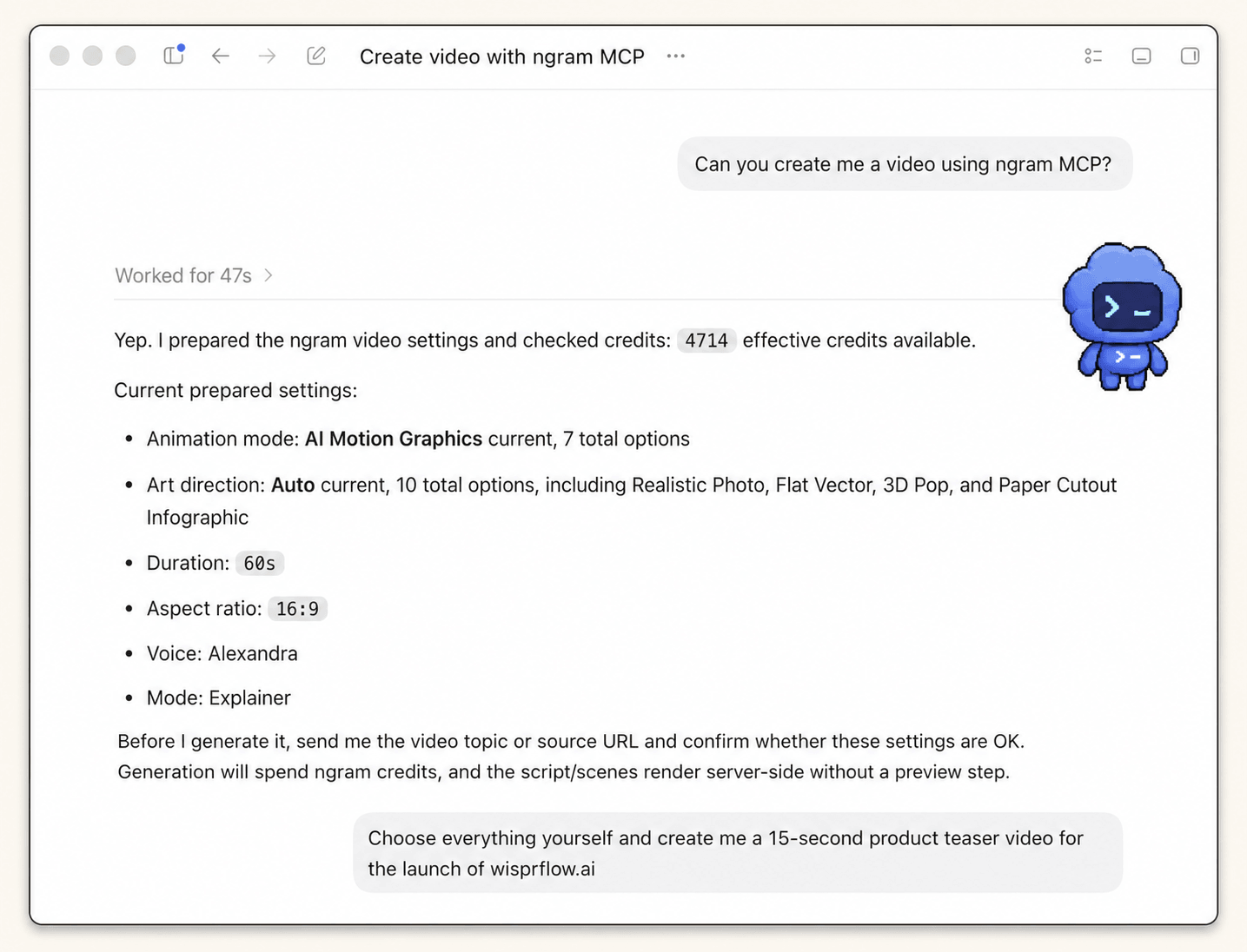
Proof note: The visible interface is a Codex MCP example, not the ChatGPT connector UI, and the request is a 15-second product teaser. It does not prove the explainer in this guide was rendered. It proves the shared ngram settings review: the agent exposes Explainer mode and asks for a topic or source before the tool call.
4. Approve the ngram tool call
ChatGPT presents a confirmation before it spends credits and starts rendering. Read the request as a production order. Verify the topic, length, aspect ratio, mode, voice, source, and any product-specific guardrails.
Approve only when those values match the reviewed brief. If the request is wrong, revise the conversation and have ChatGPT prepare the tool call again. A corrected preflight costs less time than reviewing a polished video built from the wrong premise.
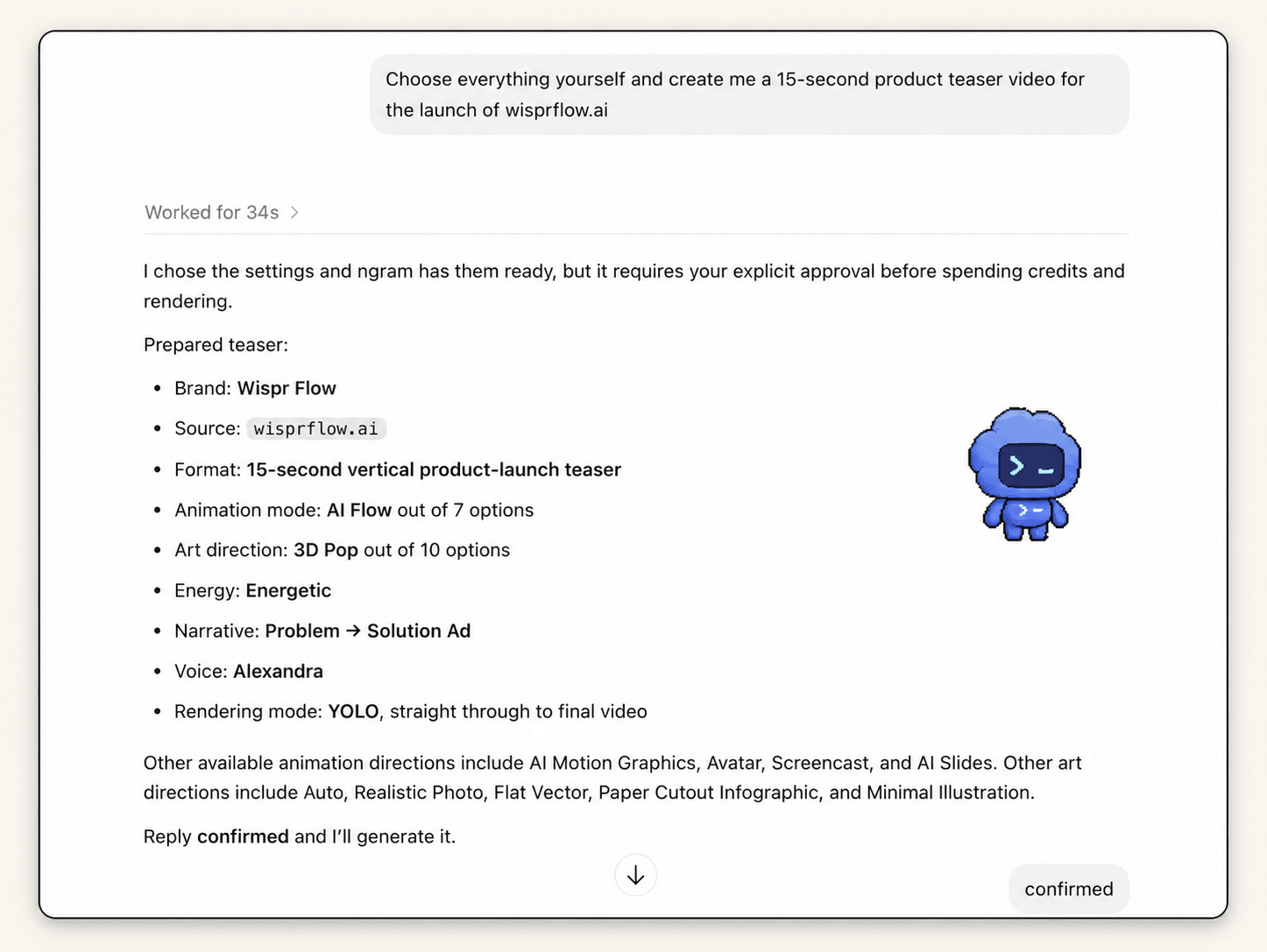
Proof note: This teaser-run screenshot verifies the approval gate shared by the explainer workflow. It shows that the user confirms the prepared request before ngram starts the server-side render.
5. Monitor the server-side render
ngram renders on the server. A product explainer video commonly takes around 15 to 20 minutes, depending on scene complexity. Keep the existing job in view and check its status instead of sending the same request again because the conversation appears quiet.
A progress state means the render is active, not that ChatGPT has lost the request. You can stay in the conversation or open ngram's progress view while the server finishes the job. The context remains in ChatGPT either way.
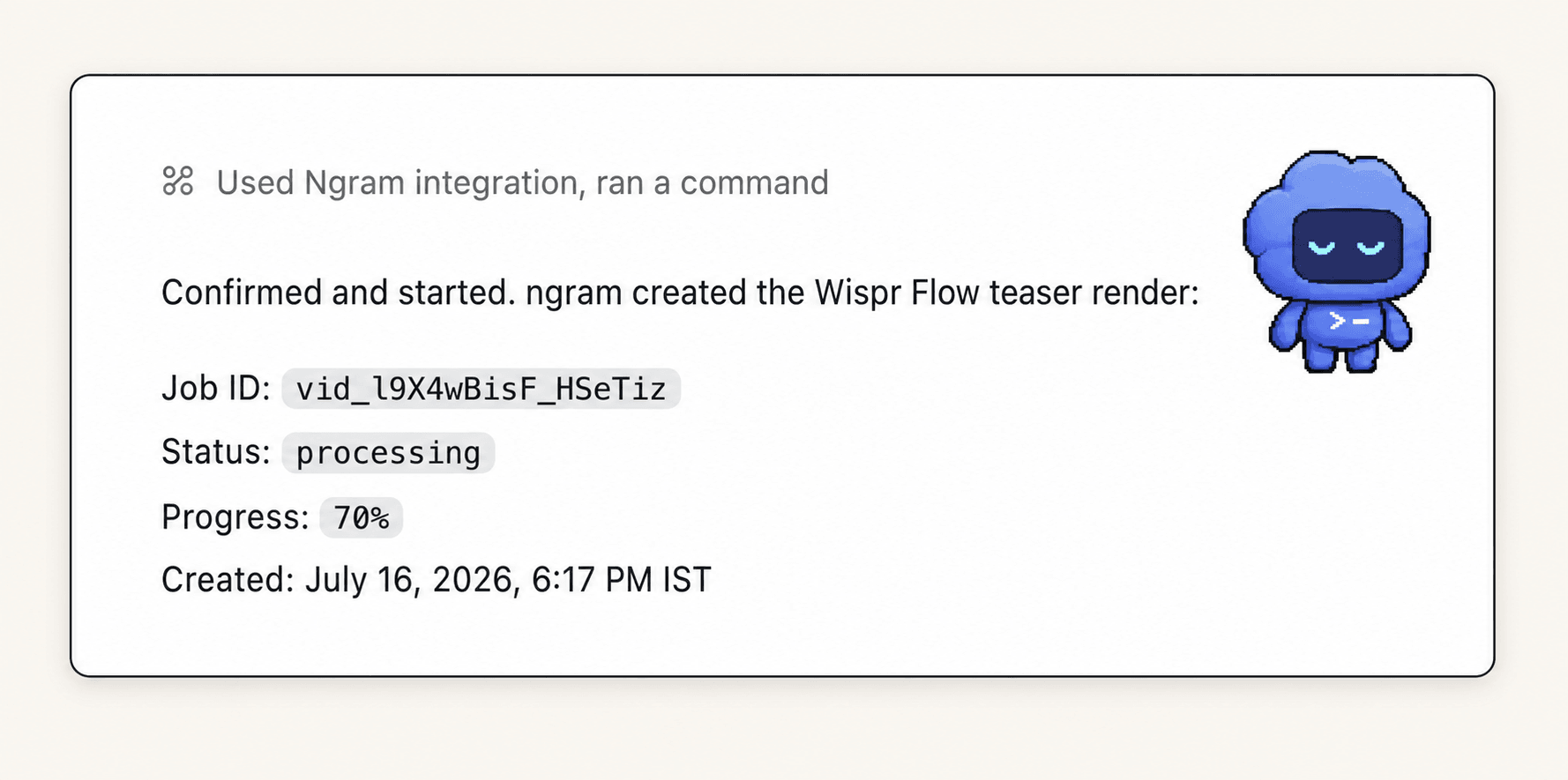
Proof note: This screenshot shows the shared server-render mechanic at 70% progress. The job is a teaser example, so the image verifies status reporting rather than the content or quality of a product explainer video.
6. Open the final link and review the video
When rendering completes, ngram returns a final link through the agent flow. Open it and review the product explainer video against the original brief. Check the message before the motion: buyer recognition, problem accuracy, product workflow, evidence, outcome, and next action.
Then inspect execution. Read every on-screen line, listen for pronunciation errors, check whether UI details remain legible, and watch scene transitions for continuity. If one scene fails, describe the specific correction in ngram instead of replacing a good brief with a vague restart.
Map the brief into a 60-second scene plan
A short scene plan gives ChatGPT a pacing constraint before it drafts narration. Treat the times below as an editing budget, not a promise that every sentence will land on an exact frame. The goal is to reserve enough time for product evidence and stop the opening from consuming half the product explainer video.
- 0-8 seconds: Name the buyer's situation and the problem in language they already use. Show the real context rather than an abstract logo reveal.
- 8-18 seconds: Show the consequence of leaving the problem unresolved. Keep this proportional to the source and avoid invented urgency.
- 18-38 seconds: Demonstrate the one product workflow that changes the situation. Preserve the order of actions when sequence is part of the proof.
- 38-52 seconds: Hold on the result long enough for the viewer to inspect it. Pair the outcome with a source-backed fact, UI state, or workflow result.
- 52-60 seconds: Restate the product outcome and give one next action that follows from what the video established.
For a 90-second version, add detail to the workflow and proof sections first. Do not spend the extra time naming more features unless each one is necessary to understand the same outcome. For a 30-second version, remove context before proof: keep one sentence for the problem, one visible product action, the result, and the next action.
Reusable ChatGPT product explainer brief template
Replace every bracketed field. The same rule applies when you use ChatGPT as a video script generator: keep the preflight instructions because they make missing inputs and unsupported claims visible before approval.
Prepare an ngram brief for a product explainer video.

Product: [name and one-sentence description]
Audience: [specific buyer or user]
Buyer problem: [one concrete pain in their language]
Consequence: [what the pain costs or blocks]
Core workflow: [the one product action to explain]
Desired outcome: [what changes for the buyer]

Approved source material:
- Product page or notes: [URL or pasted facts]
- Product proof: [UI screenshots, recording, supported metric, or workflow result]
- Required terminology: [product names, feature names, pronunciation]

Video requirements:
- Target length: [60 or 90 seconds]
- Aspect ratio: [16:9, 9:16, or 1:1]
- Voice and tone: [direct, calm, technical, warm, or another approved direction]
- Visual direction: [product UI, motion graphics, screenshots, diagrams]
- Brand rules: [logo, colors, fonts, or saved ngram brand kit]
- Next action: [one clear action]
- Claims to avoid: [unsupported, unshipped, confidential, or prohibited statements]

Before calling ngram:
1. Restate the buyer, problem, core workflow, proof, outcome, and next action.
2. Flag missing or conflicting information.
3. Propose a concise scene outline and the render settings.
4. Show the prepared ngram settings, then stop and wait for my explicit approval.
The prompt is intentionally narrower than a creative brief for an entire campaign. It gives ChatGPT enough context to make a coherent explainer and enough constraints to expose a mistake before ngram spends time rendering it.
The ChatGPT-to-ngram workflow at a glance
The workflow has two checks before rendering and one after. Connection proves the tool is available. Brief review proves the request is ready. Approval authorizes the render. Final review determines whether the result matches the product truth.
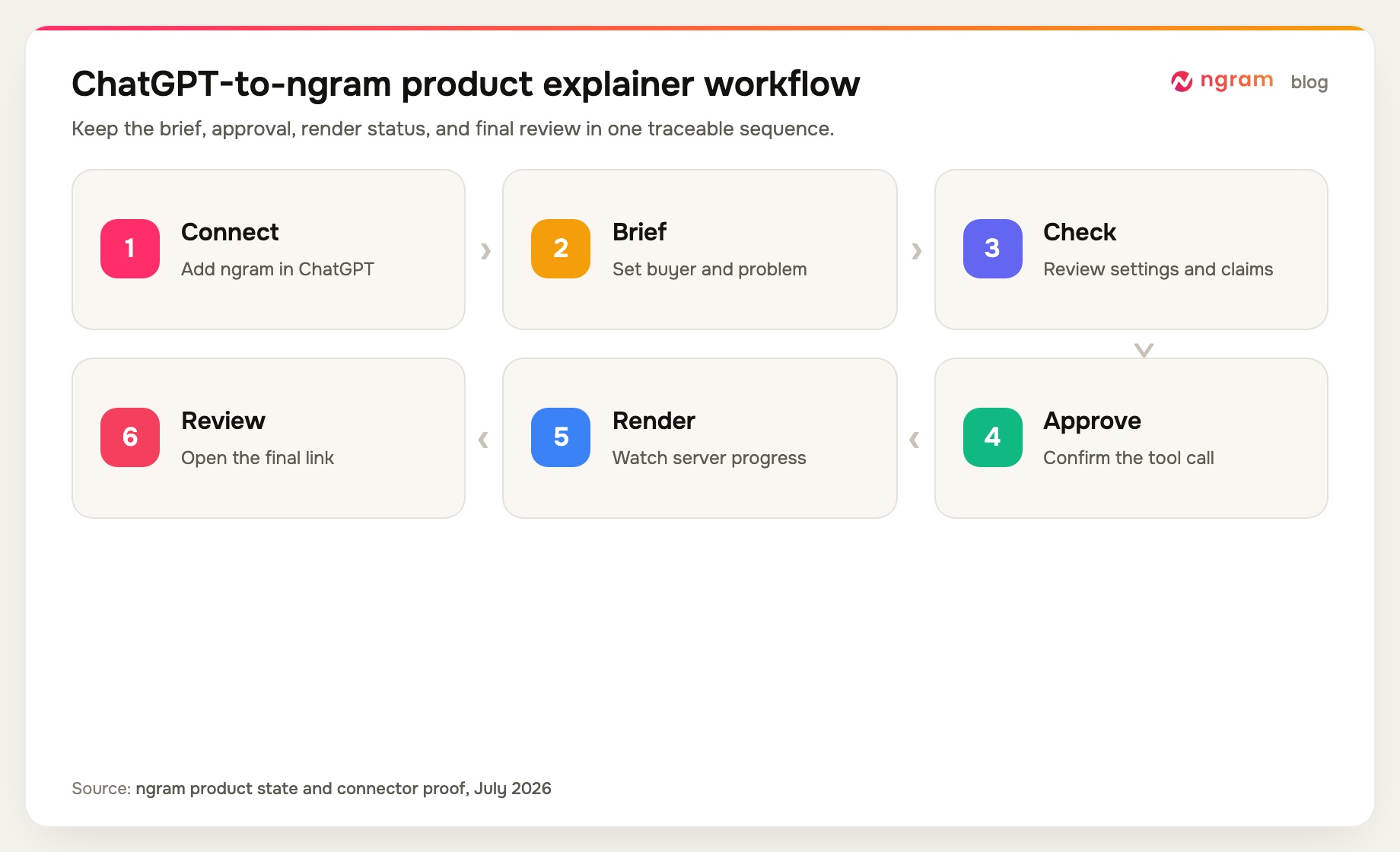
Treat those done states as a troubleshooting map. If ChatGPT never shows ngram, fix the connection. If the approval summary is wrong, fix the brief. If the job is already processing, wait for status. If the final cut is wrong, identify the failed message or scene.
What the three Codex MCP screenshots prove
The three screenshots in this guide come from one Codex-to-ngram teaser run. They do not show ChatGPT's connector UI or an explainer result. They document three ngram tool states shared after connection: settings review, approval, and render progress.
- The settings screenshot shows a visible ngram configuration, Explainer mode, and a request for a source or topic.
- The confirmation screenshot shows explicit user approval before credits are spent and rendering begins.
- The status screenshot shows the ngram integration running a server-side job at 70% progress.
The screenshots do not show ChatGPT connector setup, a completed explainer, the final returned link, or a performance result. Those claims come from current ngram product behavior, not from the images. This boundary matters because a polished agent screenshot cannot prove the message, visual quality, or business outcome of a different video.
Methodology: We reviewed three processed screenshots from one Codex-to-ngram teaser run captured July 16, 2026. We counted only visible UI states. The sample verifies ngram settings preparation, approval, and progress mechanics shared after connection. It does not verify ChatGPT setup, product explainer video quality, or performance.
Product explainer video QA matrix
Review the final video in five passes. Start with source accuracy and story because visual polish can hide a bad claim. Move to proof, brand, and render execution only after the message is sound.
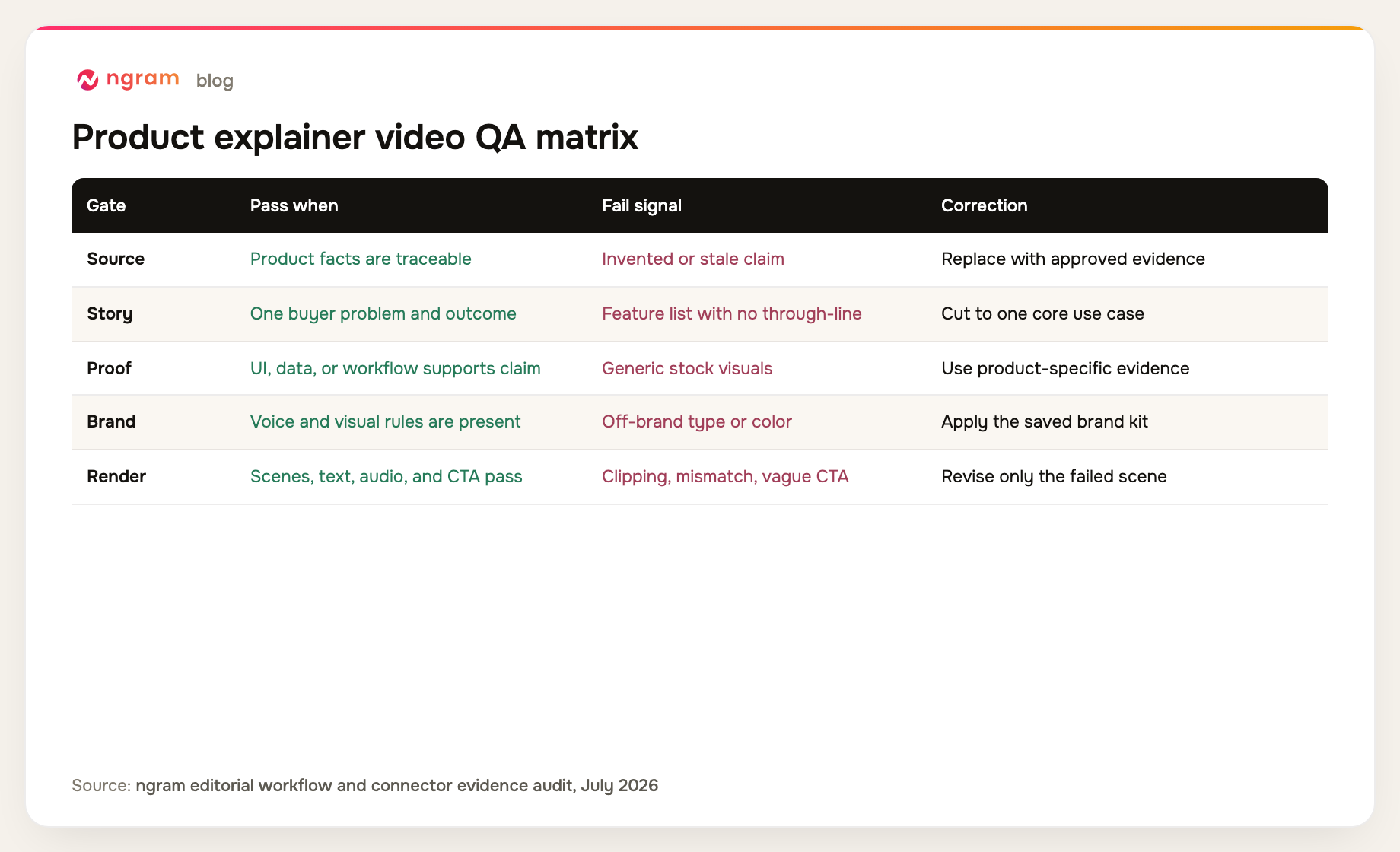
For repeat work, save the approved logo, colors, fonts, visual references, voice rules, terminology, and assets in a brand kit. The brief still needs to name exceptions for this product explainer video, especially claims to avoid and product terms that require exact spelling or pronunciation.
- Watch once without pausing and write the one sentence you think the video communicates. Compare it with the approved promise.
- Watch on mute and check whether the sequence still explains the problem, product action, and outcome through visible evidence.
- Listen without watching and check pronunciation, pacing, unsupported language, and whether the narration matches each scene.
- Pause on every product screen and read the UI, captions, labels, and legal or technical language at normal size.
- Record corrections by scene and reason. A note such as "Scene 3 uses an unapproved metric" is easier to fix than "make it stronger."
Common failure modes and specific fixes
ChatGPT answers but never calls ngram
The conversation may not have the ngram app available. Check the active conversation and workspace settings. Then ask ChatGPT to confirm tool availability before you repeat the brief. Rephrasing the creative request cannot repair a missing connection.
The script reads like a feature inventory
Return to one buyer problem and one core workflow. Ask ChatGPT to remove any scene that does not change the viewer's understanding of that workflow. Product breadth belongs in the source material; the explainer needs a through-line.
The video makes a claim the source does not support
Remove the claim or provide approved evidence. Do not soften an invented metric into vague marketing language. Ask ChatGPT to map every benefit statement to a source line, product screen, or supported outcome before the next render.
The approval step appears stalled
Read the tool summary and explicitly confirm or reject it. ChatGPT waits because the action spends credits and starts a render. Tie a clear approval to the reviewed request, not a general statement such as "go ahead with whatever works."
The render seems to take too long
Check the current job status. Rendering around 15 to 20 minutes can be normal for a scene-based request. Starting another job creates two outputs to track and can spend credits twice. Open the ngram progress view if you want a dedicated status screen.
The final cut looks polished but feels generic
Check the proof gate. Generic motion often appears when the brief contains no product-specific screen, workflow, diagram, or factual result. Add the missing evidence and name the scene where it belongs. Do not ask for more polish until the video shows the product.
Frequently asked questions
What is a product explainer video?
A product explainer video shows a specific buyer problem, how the product addresses it, and what outcome follows. The strongest versions use product evidence instead of broad category claims and end with one clear next action.
How to make product explainer videos?
Choose one buyer, one problem, one product workflow, and one supported outcome. Explainer video software is easier to review when the brief includes product-specific proof and explicit claim limits. Build a short script and scene outline, render the video, then check source accuracy, story, proof, brand, and execution.
Can ChatGPT create explainer videos?
Yes, when full MCP actions are available in ChatGPT web on Business, Enterprise, or Edu and the ngram custom app is enabled. ChatGPT can organize the brief, call ngram for server-side rendering, report progress, and return the final link. ngram handles the render. Pro's read/fetch-only MCP access cannot start it.
What is an explainer video?
An explainer video teaches one idea through narration and visuals. A product explainer narrows that job to a buyer problem, a product workflow, and evidence of the result. It differs from a broad overview that tries to cover every feature.
Do I need an ngram API key for ChatGPT?
No external ngram API key is required for the normal ChatGPT connector flow. Authenticate ngram inside the connector UI. A custom MCP configuration can use a self-service bearer key created in Account & Settings → API Keys, which is a separate setup path.
How long does ngram rendering take?
Plan for roughly 15 to 20 minutes for a typical scene-based render. Complexity can change the timing. Follow the existing job in ChatGPT or ngram rather than starting a duplicate render while the first one is processing.
What should I include in a ChatGPT explainer prompt?
Include the product, buyer, problem, consequence, one core workflow, approved source, visible proof, desired outcome, length, aspect ratio, voice, visual direction, next action, and claims to avoid. Ask ChatGPT to restate the brief and wait for approval before it calls ngram.
Can I monitor progress outside ChatGPT?
Yes. Open the ngram app progress view to follow the server-side render and review the result when it is ready. The final link also returns through the agent flow, so the ChatGPT conversation remains the record of the original brief and approval.
Turn the workflow into a repeatable production habit
The repeatable asset is not the first render. It is the decision trail: approved source, narrow buyer problem, one workflow, visible proof, explicit tool approval, and a scene-level review. Preserve that trail and the next product explainer video starts with better inputs.
Teams that make explainers regularly can place this connector sequence inside a broader product marketing workflow. Keep the scope on creation: prepare the brief, approve the render, inspect the result, and retain the corrections that improve the next version.