
An AppSumo video can become inaccurate before anyone notices. The product workflow may stay the same while the selected tier, included limits, redemption terms, price, discount, availability, or deadline changes on the deal page.
That makes an accurate AppSumo video different from a generic product overview. It has to explain who the product fits and how it works, then describe the current offer without turning a temporary deal fact into a permanent product promise.
This guide takes you from a live deal-page audit to a review-ready AppSumo video. You will select the exact extension workflow, write a prompt that separates product truth from offer truth, render the draft, inspect its scenes, and complete a deal-fact review.
Why an AppSumo video needs deal-fact discipline
Wyzowl's 2026 Video Marketing Statistics surveyed 266 unique respondents in late 2025. It found that 96% of people have watched an explainer video to learn about a product or service, 85% have been convinced to buy after watching a video, 89% say video quality affects brand trust, and 63% prefer a short video when learning about a product or service.
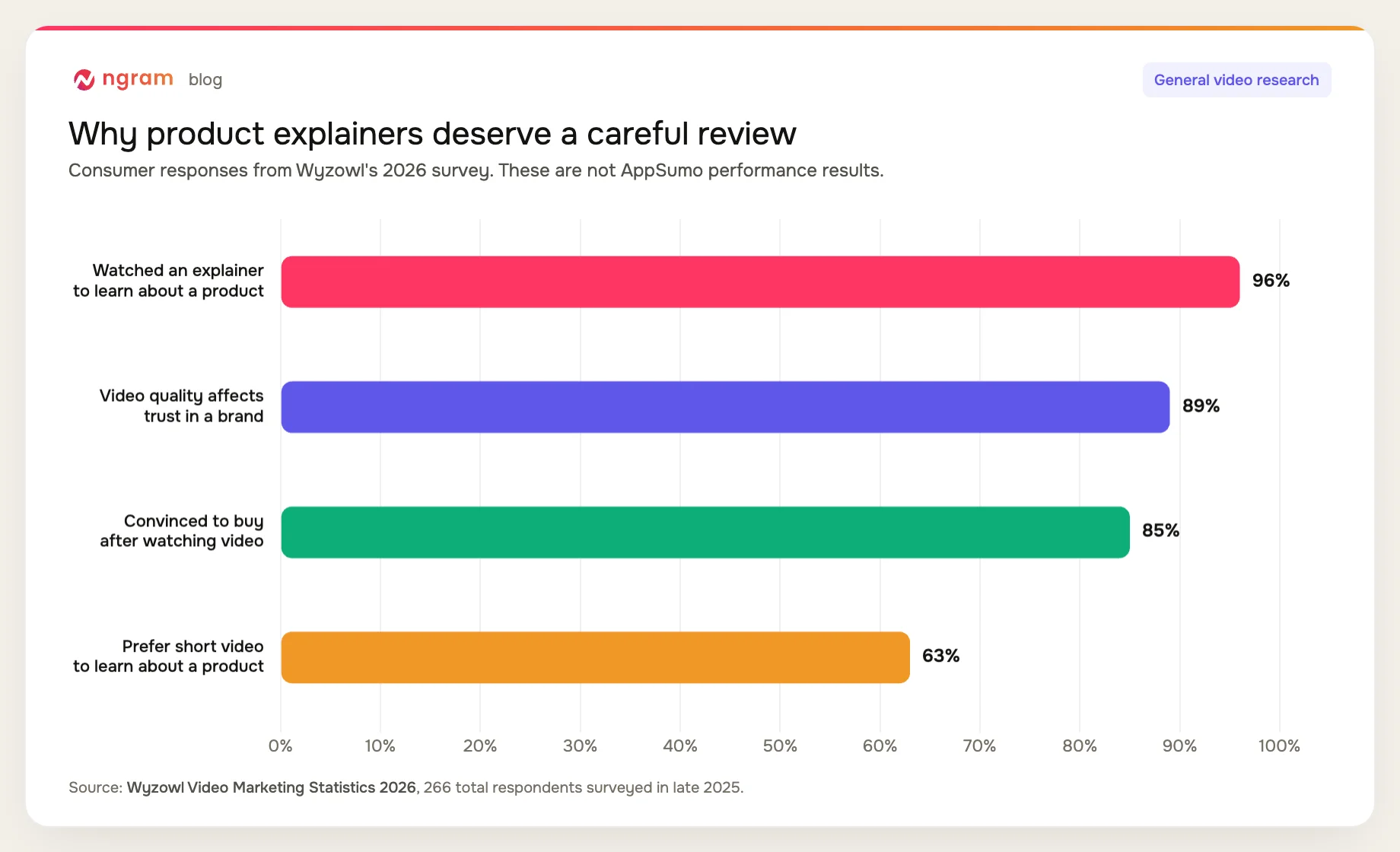
Those findings explain why an accurate AppSumo video is useful and why a careless one carries risk. They do not prove that an explainer changes AppSumo conversion. Marketplace-specific performance claims need AppSumo evidence, and this guide does not make one.
AppSumo's multiple-plan guidance shows why tier accuracy matters. Pricing tiers appear as separate cards with plan-specific features, and the partner records the deal term, redemption mode, base price, and included features. The current guidance allows up to ten linearly stacked plans and requires at least three plan-specific features for the base plan.
AppSumo's offer-update guidance also covers requests to change features, price, or both after launch, subject to AppSumo review. That is enough reason to treat every offer value as mutable and recheck it on the live deal page before approving the video.
What the finished AppSumo video should contain
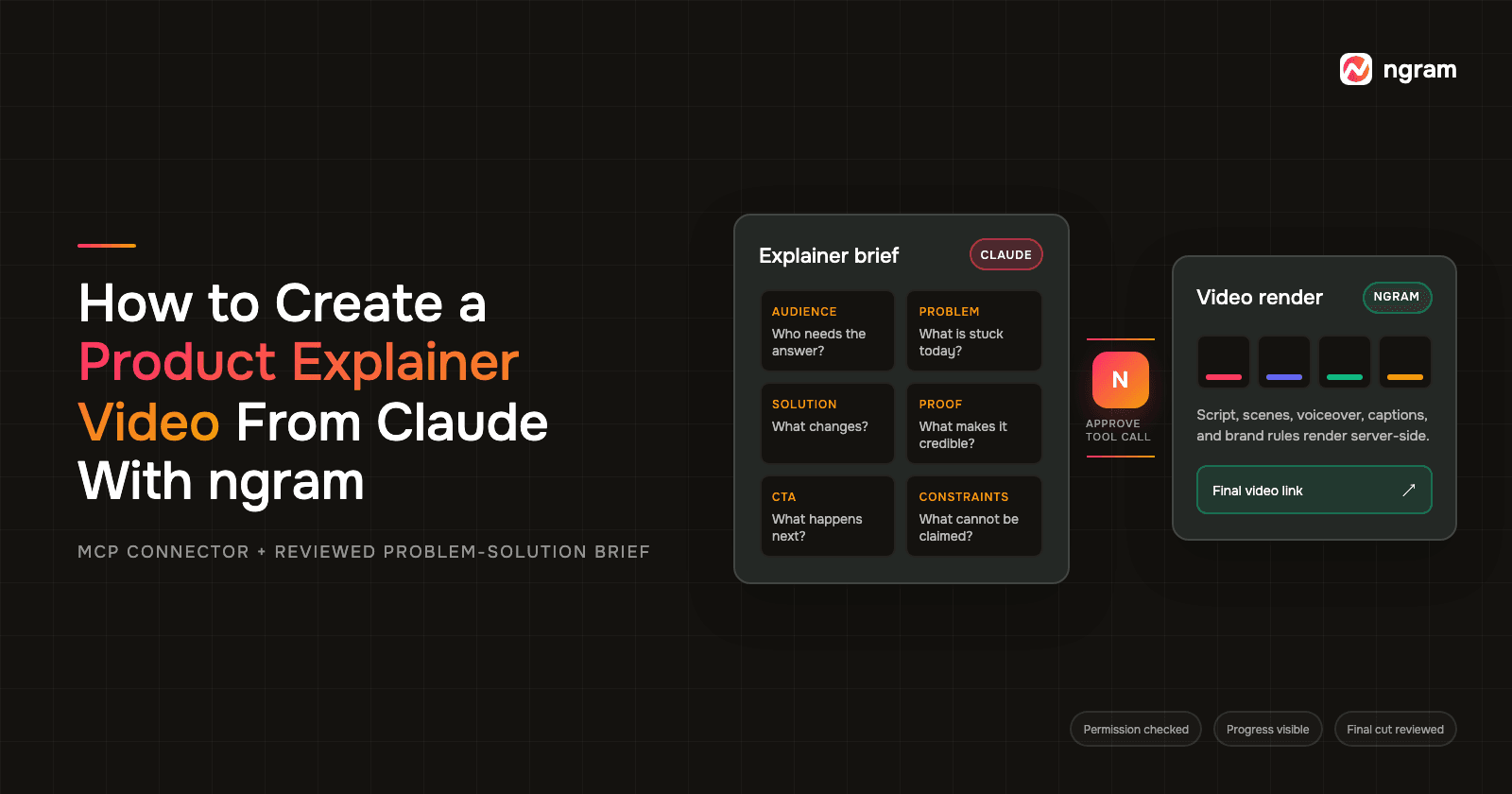
The finished draft should be a compact product explanation tied to the current offer. The AppSumo Product Explainer Video Maker workflow is built for this job.
- Problem: the specific job or friction the product addresses.
- Who it is for: the buyer profile and situation where the product fits.
- How the product works: one real workflow shown in the order a user performs it.
- What the offer includes: the selected tier and only the features currently included.
- Material limits: plan boundaries, exclusions, usage caps, or redemption conditions that affect the decision.
- CTA: the current next action from the deal page, stated without extra urgency.
Keep this scope separate from an AppSumo launch video. A launch video introduces a campaign. An offer explainer spends more time on product fit, the core workflow, and the boundaries of the current deal.
Prerequisites for an accurate AppSumo video
- The live AppSumo deal page you will use again during final review.
- A canonical product page or product documentation for stable product facts. If the marketplace offer is not the source, use the product-page-to-video workflow instead.
- An approved statement of product fit, the main user problem, the core workflow, and product proof you can show.
- A same-day capture of the selected tier, included features, limits, price, discount, redemption terms, availability, deadline, and CTA.
- Current product screens or approved visuals that match the workflow in the script.
- ngram access, the Chrome extension installed, and a named reviewer who owns deal accuracy.
If the assignment needs a broader deal-page video rather than a product explainer, start with the AppSumo Deal Video Maker and define the intended video type before drafting.
How to create an AppSumo video from a deal page
The workflow has six checkpoints. Each one produces something the next step can inspect, so an unverified offer claim does not disappear inside the render.
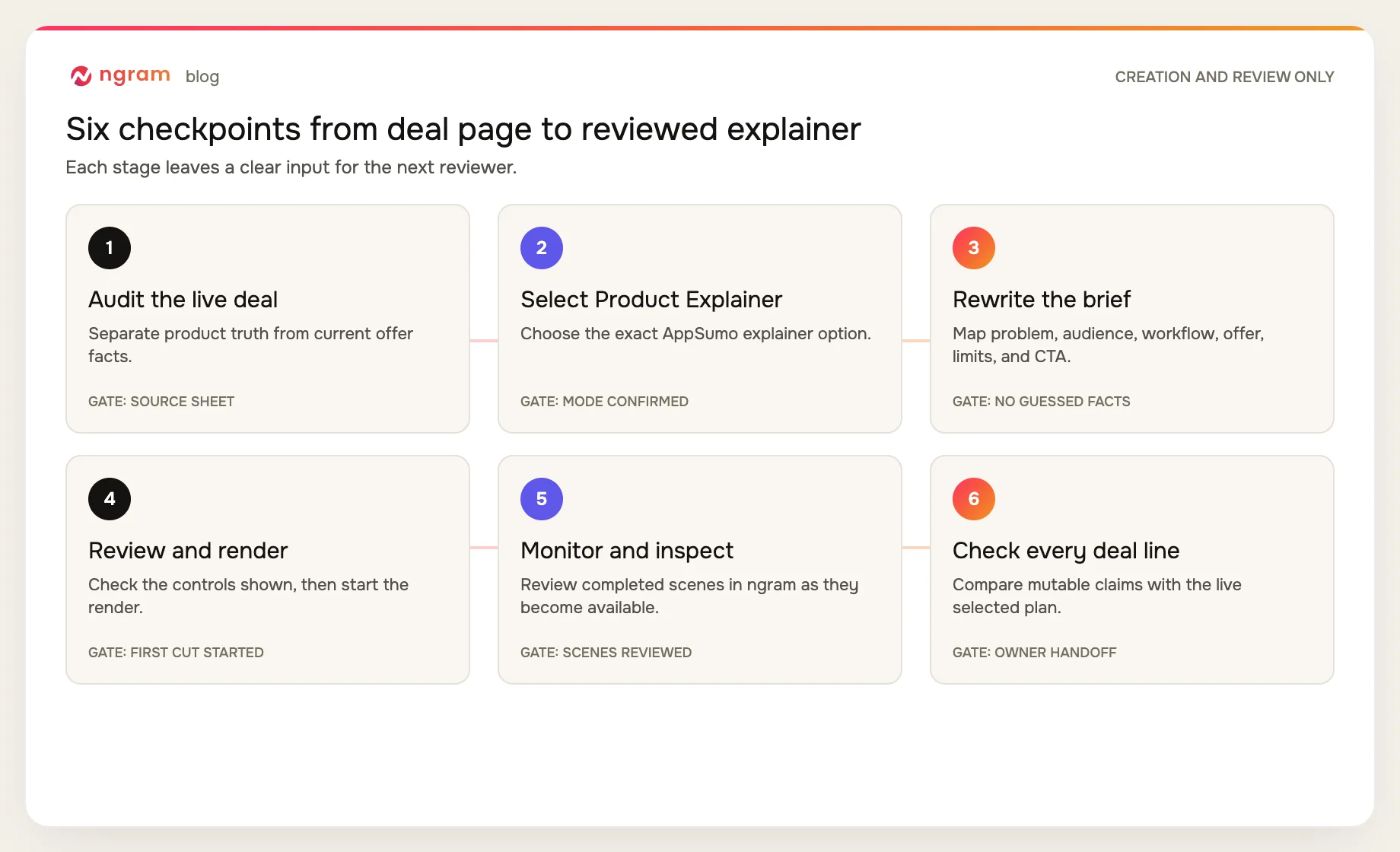
1. Audit the deal page for product and offer facts
Open the live deal page and read it from top to bottom before opening the extension. On screen, identify the product promise, intended users, primary workflow, proof, selected plan card, included features, tier differences, price, discount, redemption language, availability, deadline, and CTA.
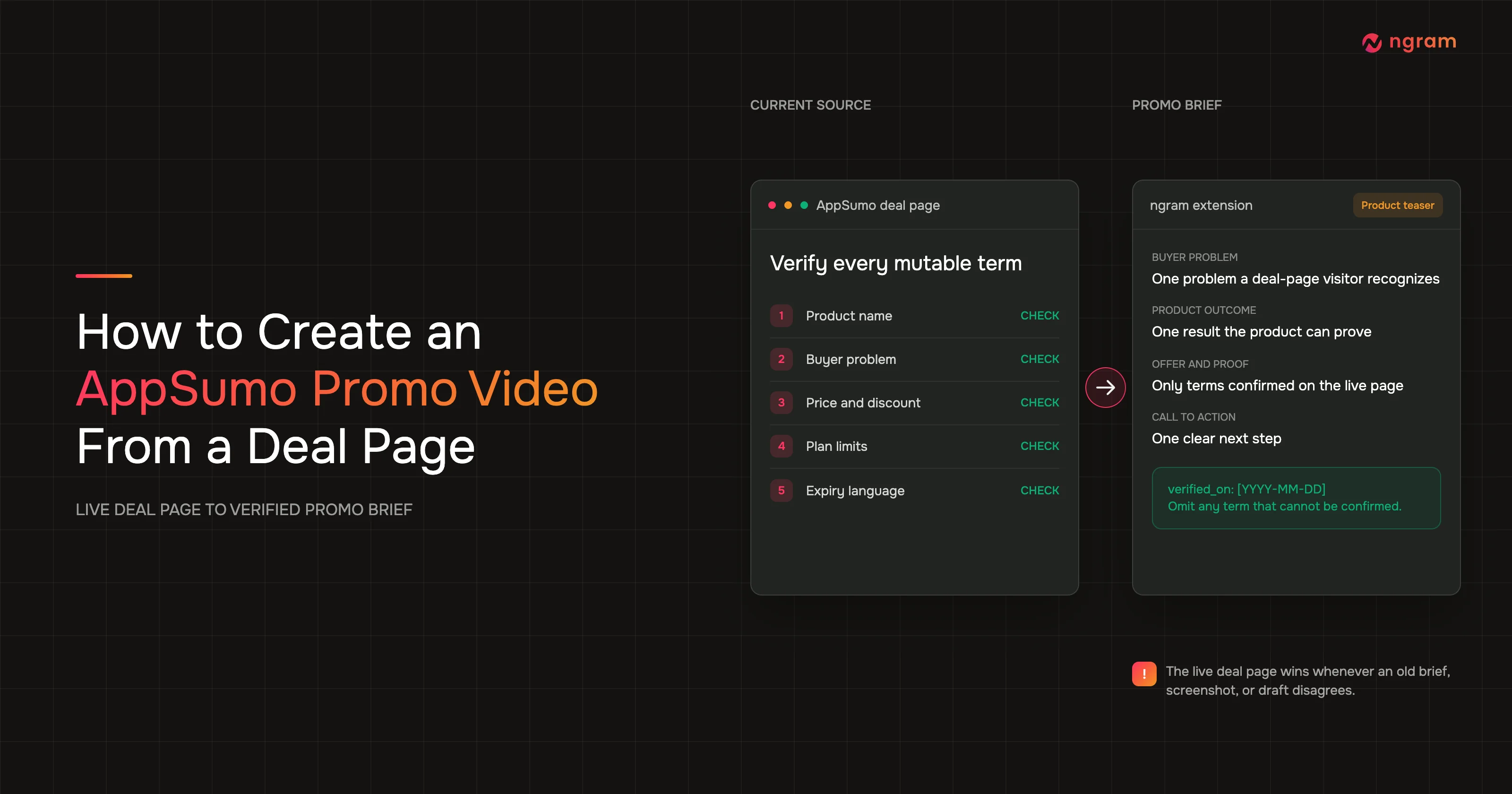
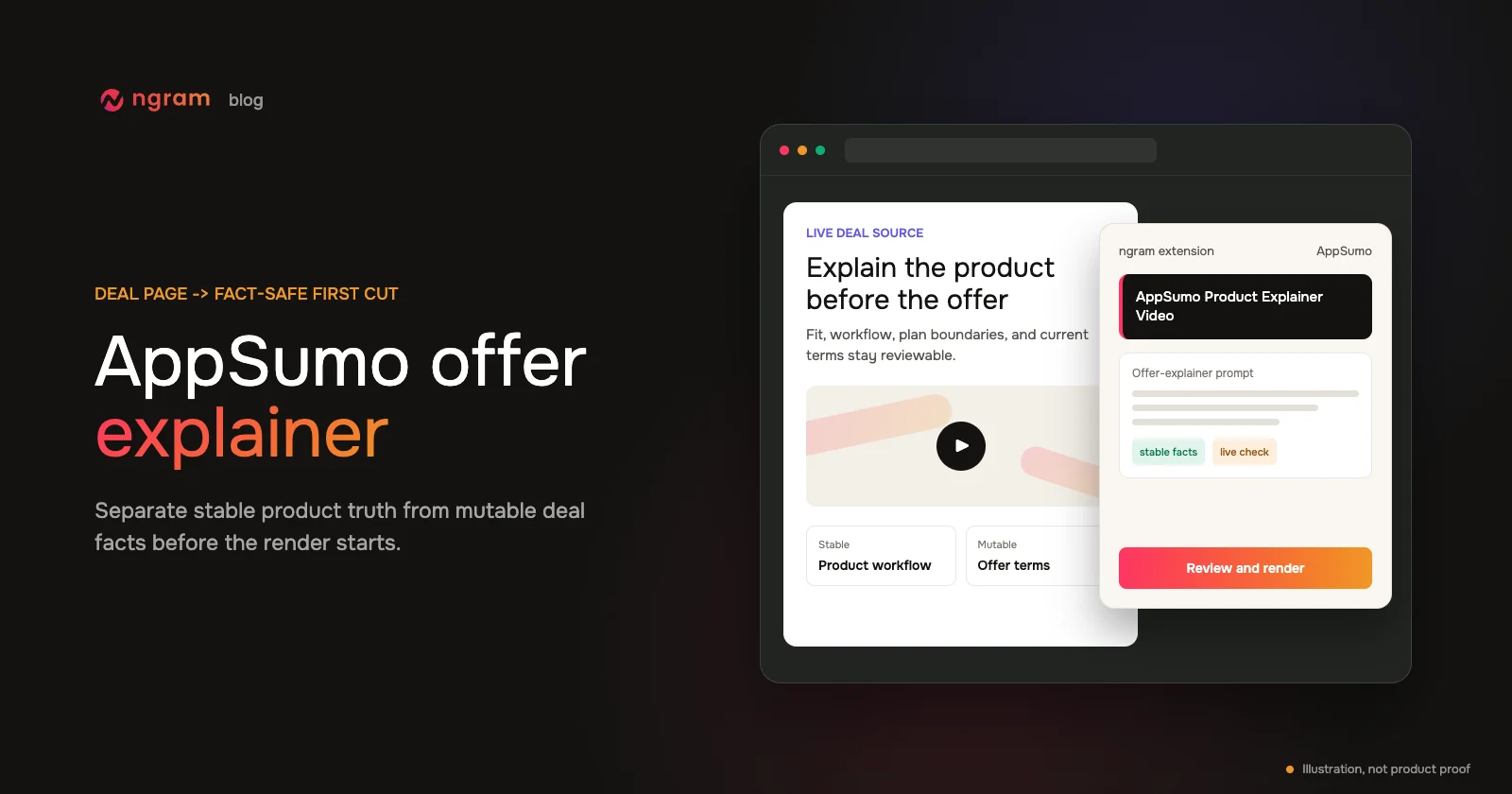
Copy those fields into two groups. Put product identity and the verified workflow under stable facts. Put anything tied to the current listing or selected tier under mutable facts. This split is the source sheet for the AppSumo video prompt and the final review.
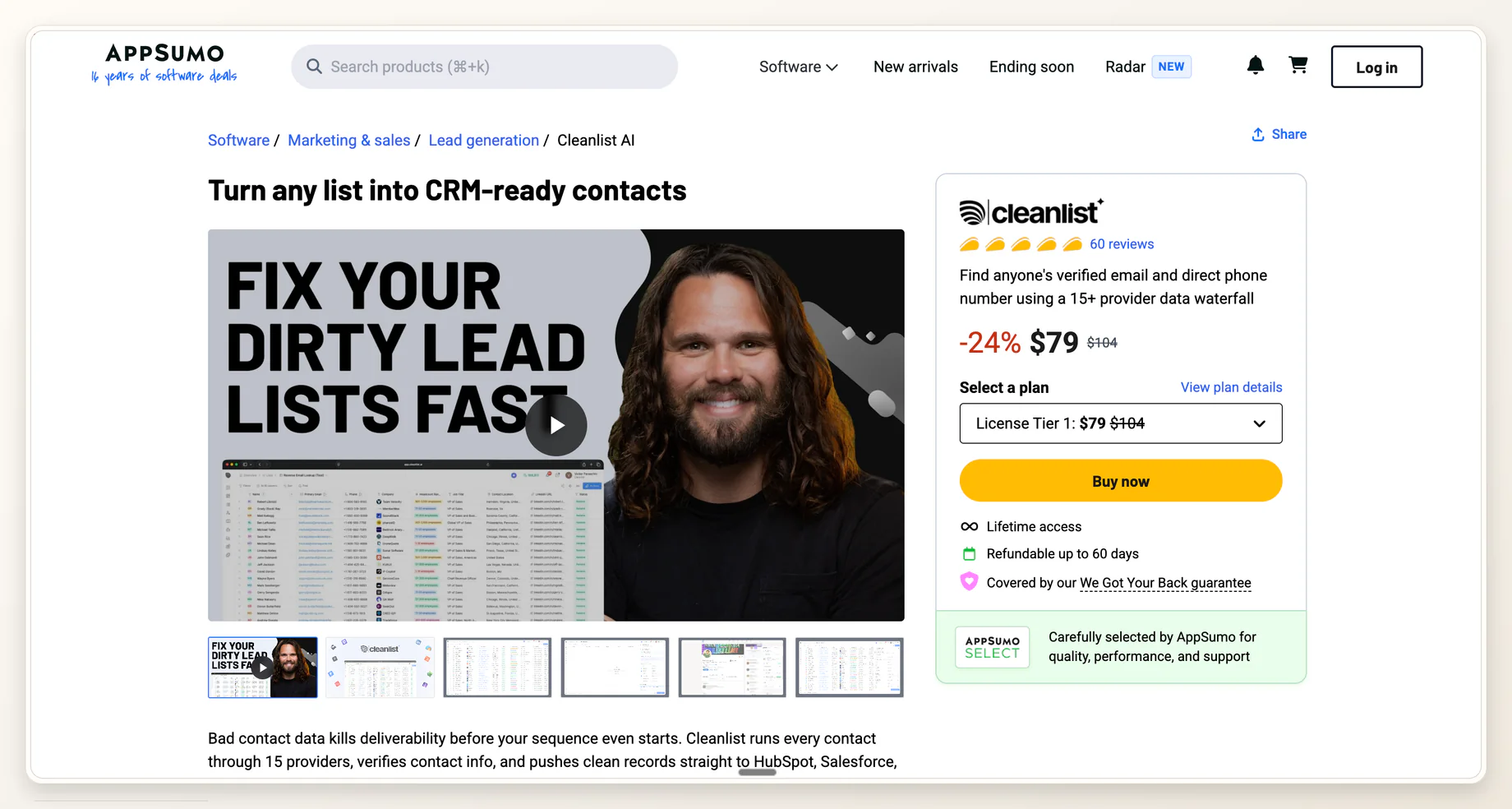
This screenshot is a deal-page source example. It shows where offer details can appear, but it is not proof that AppSumo Product Explainer Video was selected. Do not copy its visible numbers into a new script without checking the live listing.
2. Open the extension and select AppSumo Product Explainer Video
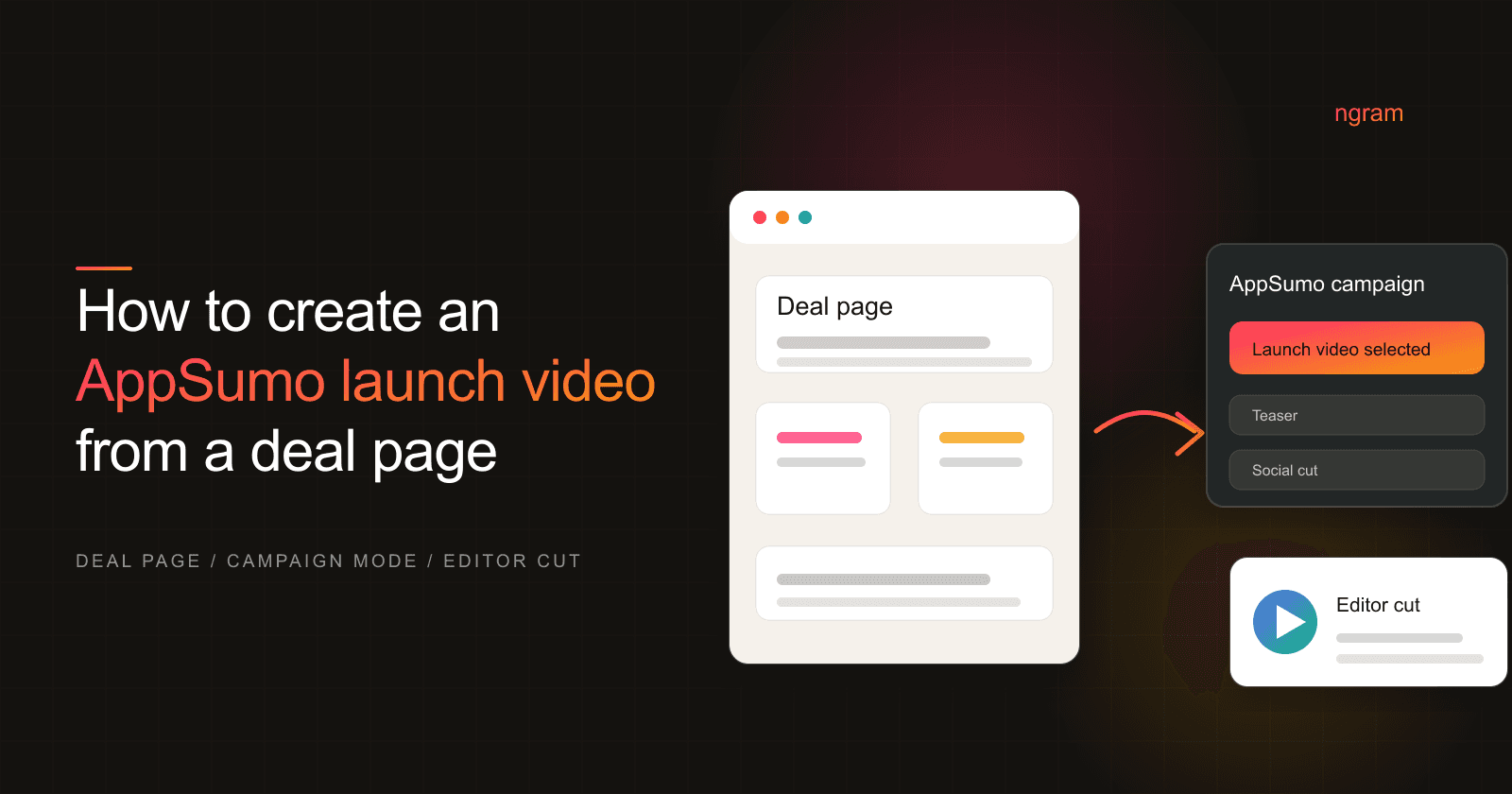
Keep the supported AppSumo page open, then launch the ngram Chrome extension. In the AppSumo campaign choices, select AppSumo Product Explainer Video. Confirm that exact label before entering the brief. Launch, teaser, and social/share-video choices serve different jobs.
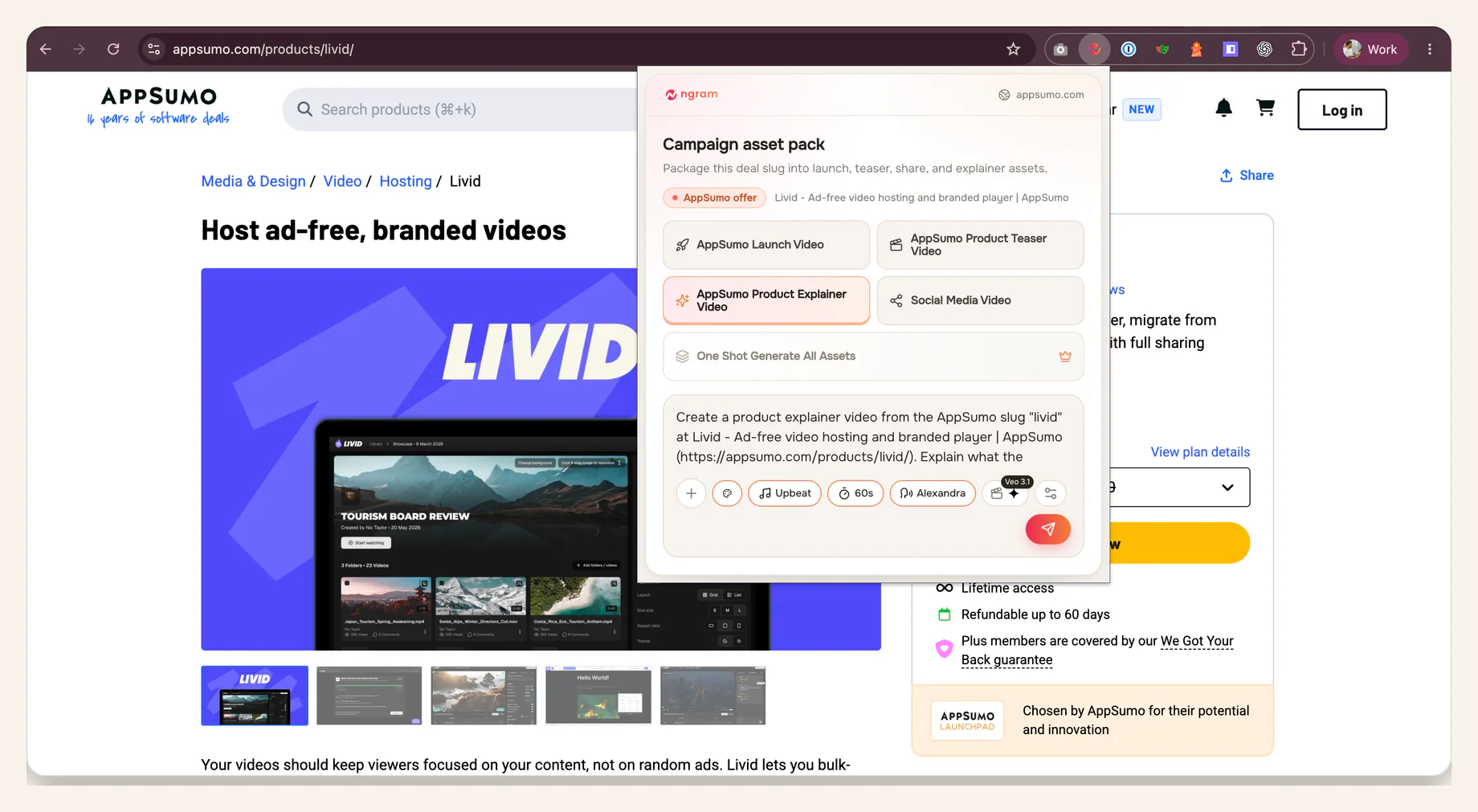
Verified proof: AppSumo Product Explainer Video is selected on a live deal page, with the offer-explainer brief and available creation controls visible.
3. Rewrite the brief with stable and mutable fact sections
Do not paste the deal page into a vague request such as 'make this exciting.' Write the story in a fixed order: problem, who it is for, how the product works, what the offer includes, material limits, and CTA. Then label every source fact by how it should be reviewed.
Use this copyable prompt as the input for the AppSumo product explainer:
goal: Create an AppSumo offer explainer video.
audience: [specific AppSumo buyer]
desired_outcome: The viewer understands product fit, the core workflow, the selected offer, and material limits.

stable_product_facts:
  product_name: [name]
  problem: [one verified problem]
  ideal_user: [specific user and situation]
  core_workflow:
    - [verified step 1]
    - [verified step 2]
    - [verified step 3]
  product_proof: [approved screen, result, or evidence]

mutable_offer_facts:
  live_deal_url: [URL]
  verified_at: [date and time]
  selected_tier: [tier name]
  included_features: [current inclusions]
  plan_limits: [current caps or exclusions]
  current_price: [verified value or OMIT]
  current_discount: [verified value or OMIT]
  redemption_terms: [current instructions or OMIT]
  availability_or_deadline: [verified value or OMIT]
  current_cta: [exact live-page action]

instructions:
  - Structure the script as problem, who it is for, how it works, offer, limits, and CTA.
  - Keep product capabilities separate from temporary deal terms.
  - State a tier, price, discount, deadline, availability claim, or redemption term only when it appears in mutable_offer_facts.
  - Omit any unverified deal claim. Do not infer missing values.
  - Do not promise features outside the selected tier.
  - Make every on-screen deal statement easy to compare with the live page.
The verified_at field turns recency into an explicit review question. If a mutable value cannot be confirmed, leave OMIT in the source sheet and remove the claim from the script.
In a URL to video workflow, the URL is source material. It is not permission to infer a missing offer value or carry an old deal term into a new draft.
4. Review the available controls and start the render
Review the controls shown in the current interface before rendering the AppSumo video. Check the selected video type, visual direction, voice, brand treatment, and format when those controls are available. The brief and the on-screen selection should both describe an offer explainer.
Start the render only after the prompt contains no unresolved placeholders except fields marked OMIT. Render time varies with scene count and complexity, so do not plan the review around a fixed completion promise.
5. Monitor progress in ngram and review completed scenes
Rendering continues server-side. Monitor progress in ngram, then inspect the completed scenes when they are available. Do not treat a completed render as an approved AppSumo video.
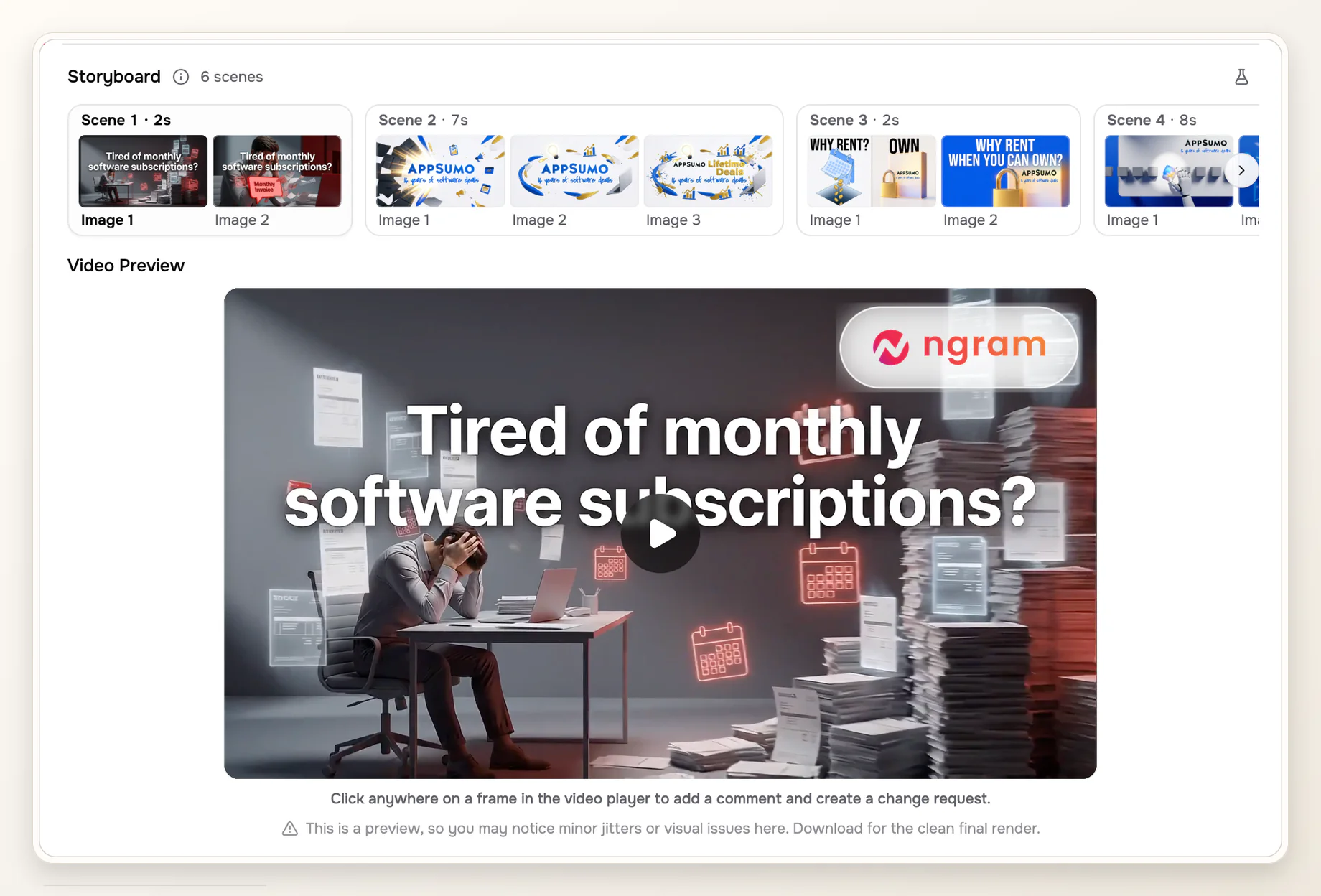
Shared review-surface example from an earlier AppSumo-oriented video. It shows where completed scenes and the preview are inspected; it is not the Livid explainer created in this guide.
- Opening scene: the intended buyer and problem are specific enough to exclude poor-fit viewers.
- Workflow scenes: the product screens and narration follow the real task order.
- Offer scenes: included features and tier boundaries match the selected plan.
- On-screen text and captions: names, numbers, and qualifiers match the source sheet.
- Closing scene: one current CTA appears without an invented deadline or urgency claim.
Use the editing surface or agentic chat to request corrections to the affected script or scenes. Recheck any revised deal language before the next render.
6. Run a line-by-line deal-fact check
Open the live deal page beside the completed draft. Pause on every spoken or on-screen offer claim and compare it with the selected plan card and current deal language. Check price, discount, included features, tier limits, redemption, availability, deadline, and CTA as separate lines.
AppSumo's redemption guidance distinguishes code-based redemption from licensing through OAuth and webhooks. Use only the mode that applies to the current deal. If the page and your source sheet disagree, stop the review and resolve the source before changing the video.
Hand the reviewed draft, source sheet, and unresolved questions to the deal owner. That handoff is the end of this creation workflow. The owner either approves the facts or returns specific lines for revision.
Our deal-fact QA matrix for AppSumo explainers
Methodology note: we reviewed AppSumo's official partner resource index, multiple-plan guidance, redemption guidance, offer-update guidance, and the reusable deal-page source screenshot. We classified each field by whether it can come from stable product truth or needs a fresh check against the live offer. This is an editorial QA framework, not an AppSumo performance study.
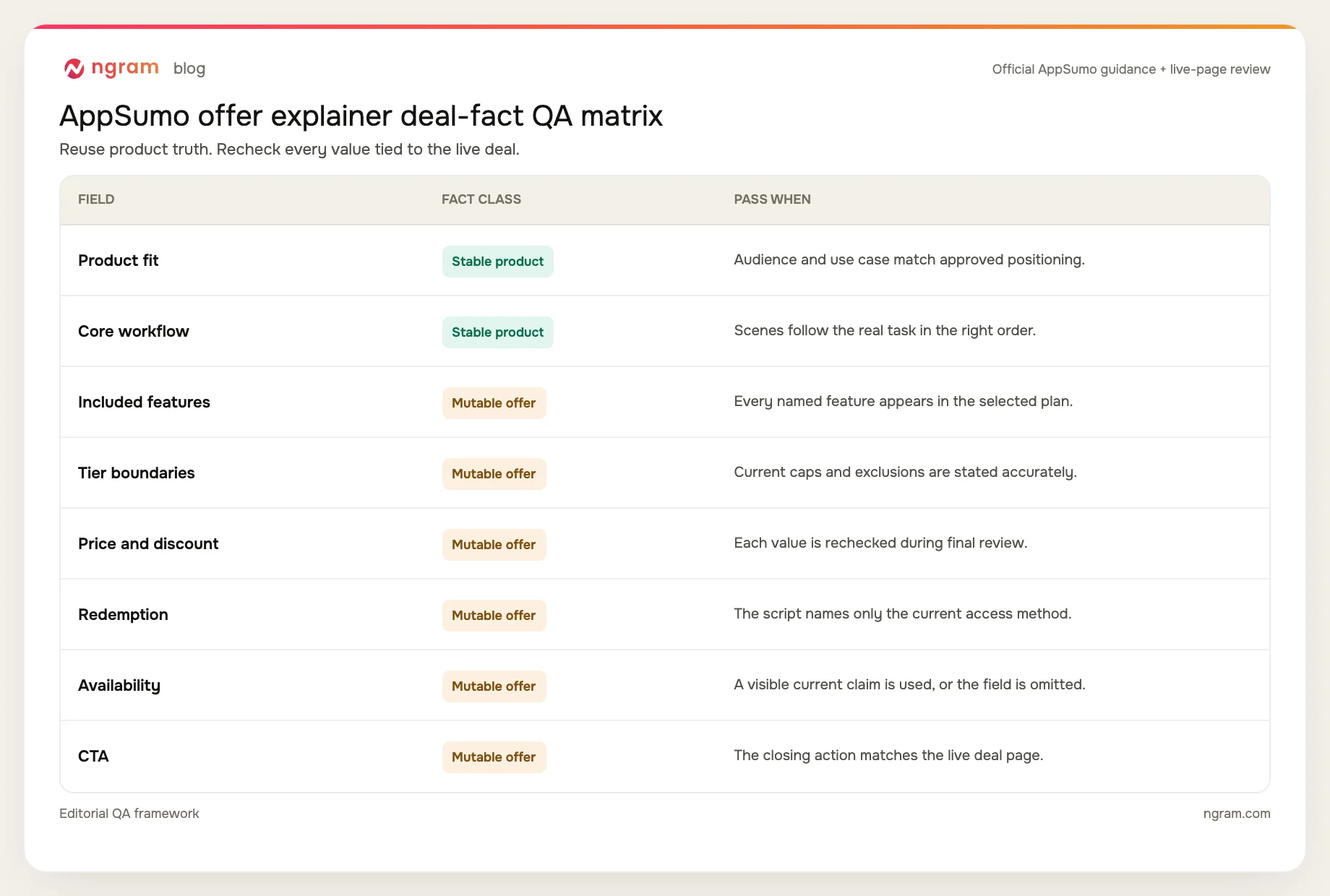
The matrix keeps product truth reusable while forcing the offer layer through a fresh review. It also gives the reviewer a precise reason for every requested change.
AppSumo video QA checklist
- The opening names one real buyer problem and one clear user.
- The product workflow appears before detailed offer mechanics.
- Product screens, narration, and captions describe the same workflow.
- The selected plan and included features match the live deal page.
- Tier limits and exclusions are stated where they affect product fit.
- Every price, discount, availability, and deadline claim was checked against the live page during this review.
- Redemption language matches the current deal and does not mix code and licensing flows.
- The closing scene uses one current CTA without an invented claim.
- The named deal owner completed the line-by-line review or returned exact revisions.
Common failure modes and fixes
The script copies every number from the page
Fix it by moving each number into mutable_offer_facts with a verification time. Keep only the values that still match the live selected tier when the reviewer checks the completed scenes.
The offer appears before product fit
Fix the scene order. Explain the buyer problem, intended user, and core workflow first. Introduce the current offer after the viewer understands what the product does.
Tier boundaries become a feature dump
Fix it by naming only the limits that change product fit or the promised workflow. Keep the full plan comparison in the source sheet for QA rather than reading every row into the script.
The prompt fills a missing deal field
Fix it by replacing the missing value with OMIT and keeping the instruction to omit unverified deal claims. A shorter accurate script is better than a complete-looking script with invented terms.
The completed render is treated as final
Fix it by keeping render completion and deal approval as separate states. The draft still needs scene review, caption review, and a line-by-line comparison with the live page.
A launch-mode screenshot is used as explainer proof
Fix it by checking the exact AppSumo Product Explainer Video selection and offer-explainer prompt against the verified workflow screenshot. Keep the separate deal-page screenshot scoped to source-page facts.
Frequently asked questions
What is an AppSumo product explainer video?
It is an offer explainer that connects product fit and the core workflow to the current AppSumo deal. It should tell a buyer who the product is for, how it works, what the selected offer includes, which limits matter, and what the current next action is.
How do I make an AppSumo video from a deal page?
Audit the live page, separate stable product facts from mutable offer facts, select AppSumo Product Explainer Video in the ngram extension, enter the structured prompt, review the visible controls, render, inspect completed scenes, and compare every deal claim with the live listing.
What information should I verify before rendering?
Verify product fit, the primary workflow, product proof, the selected tier, included features, limits, price, discount, redemption, availability, deadline, and CTA. Mark an unverified mutable field as OMIT rather than asking the AI explainer video workflow to fill it.
Can I mention the current price, discount, or deadline?
Yes, when the value appears on the live deal page and the reviewer checks it again against the completed scene. Treat each one as mutable. If the value is missing, ambiguous, or likely to change before review finishes, omit it.
How long does an AppSumo explainer video take to render?
There is no fixed render-time promise. Timing varies with scene count and complexity. Monitor progress in ngram, then begin factual and visual review when the completed scenes are available.
What should the review handoff include?
Give the deal owner the completed draft, the stable and mutable source sheet, the live deal-page URL, the verification time, and any unresolved questions. The owner should return exact line or scene changes rather than a general request to make the offer stronger.