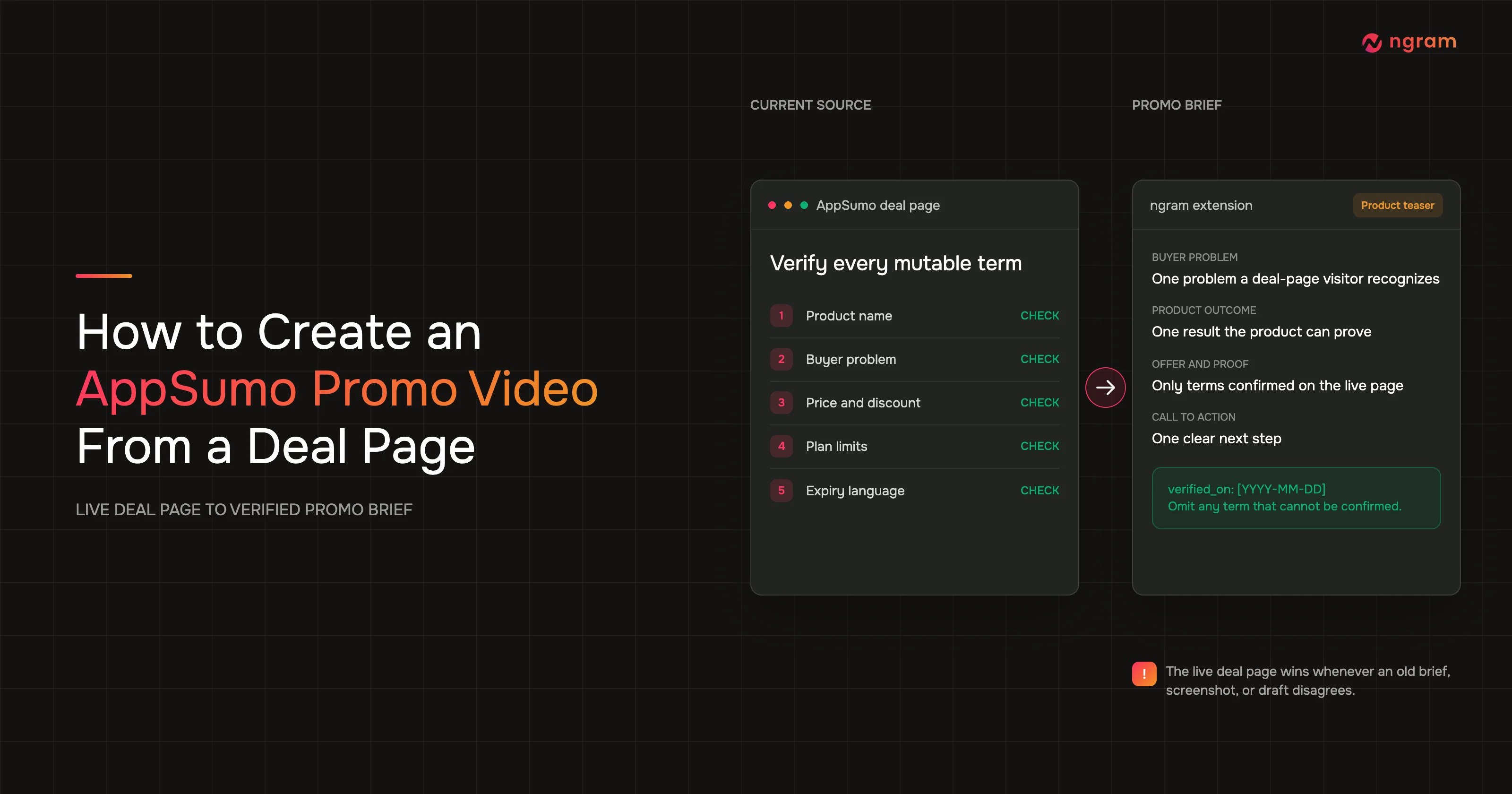

AppSumo deal terms can change after a video brief is written. A short AppSumo video still has to match the live price, discount, plan limits, and expiry language when the reviewer sees it.
An old brief can be polished and still be wrong. An AppSumo video that opens with an expired discount or the wrong tier makes the buyer question the rest of the product claim. This workflow keeps the live deal page in the loop from the first prompt through final review.
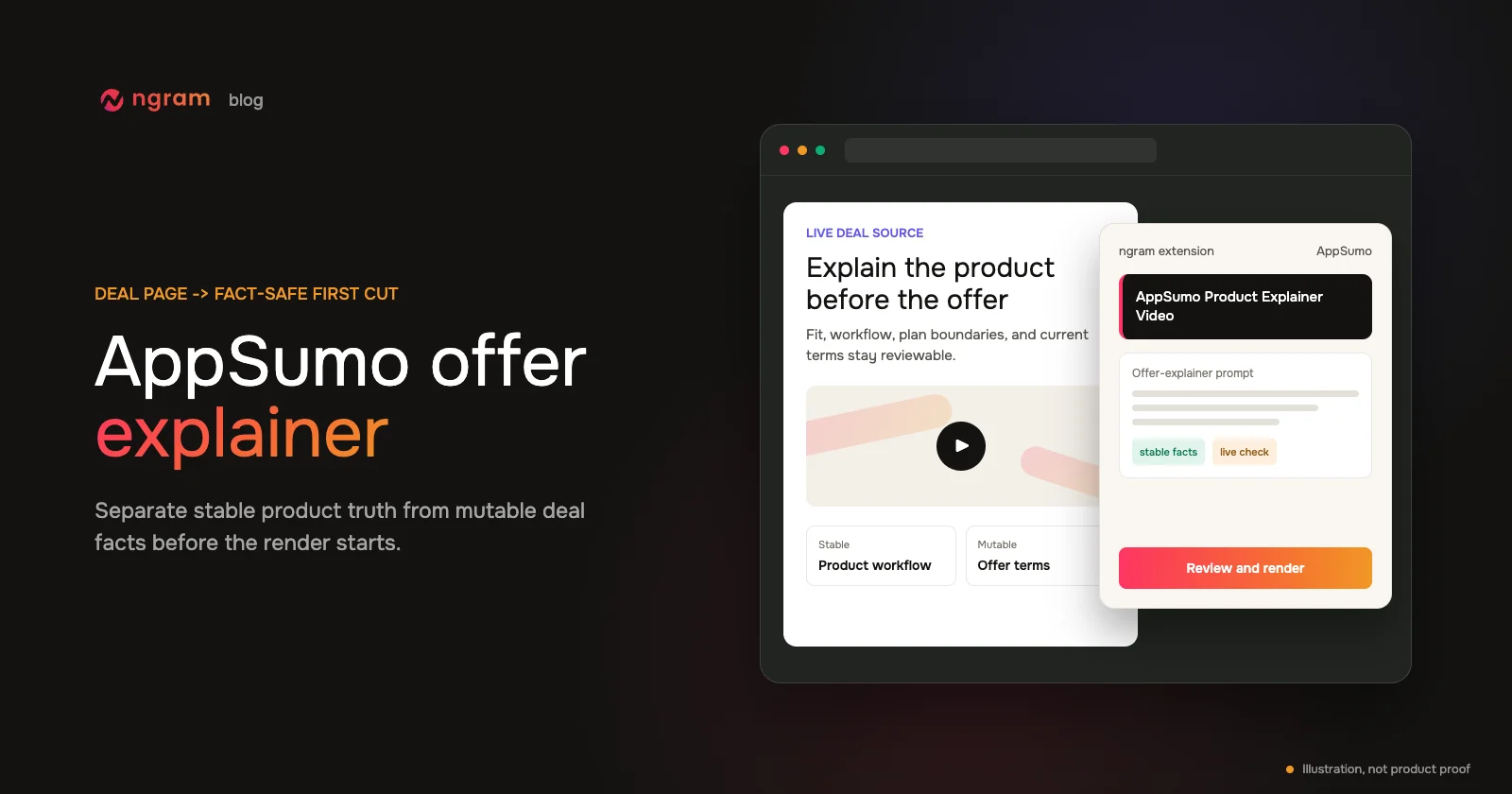
You will verify the offer, select AppSumo Product Teaser Video in ngram's extension, write a review-ready prompt, check the available controls, render in ngram, and compare every mutable term with the current page. The result is a concise product promo video ready for an internal approval handoff.
Why an AppSumo video starts with live offer data
AppSumo's partner instructions say sellers enter deal information, pricing, and deal features in the Partner Portal. That makes those fields part of the offer record, not background color for a generic brand reel. Source: AppSumo partner submission guidance.
The offer can also change after launch. AppSumo documents an approval process for requested feature and price updates, so a draft, spreadsheet, or earlier screenshot can fall behind the live listing. Source: AppSumo's updating-your-offer guide.
AppSumo also supports multiple pricing tiers on a Product Detail Page, with plan-specific features and redemption terms. An AppSumo video that says "the plan includes" without naming the verified tier may turn a true claim into a misleading one. Source: AppSumo's multiple-plan guidance.
Recent original video research supports a concise product explanation. Wyzowl's 2026 survey covered 266 unique respondents in late 2025. It found that 63% of consumers prefer a short video when learning about a product or service, 71% of respondents believe videos from 30 seconds to 2 minutes are most effective, 93% of video marketers say video increased product or service understanding, and 89% of consumers say video quality affects brand trust. Source: Wyzowl Video Marketing Statistics 2026.
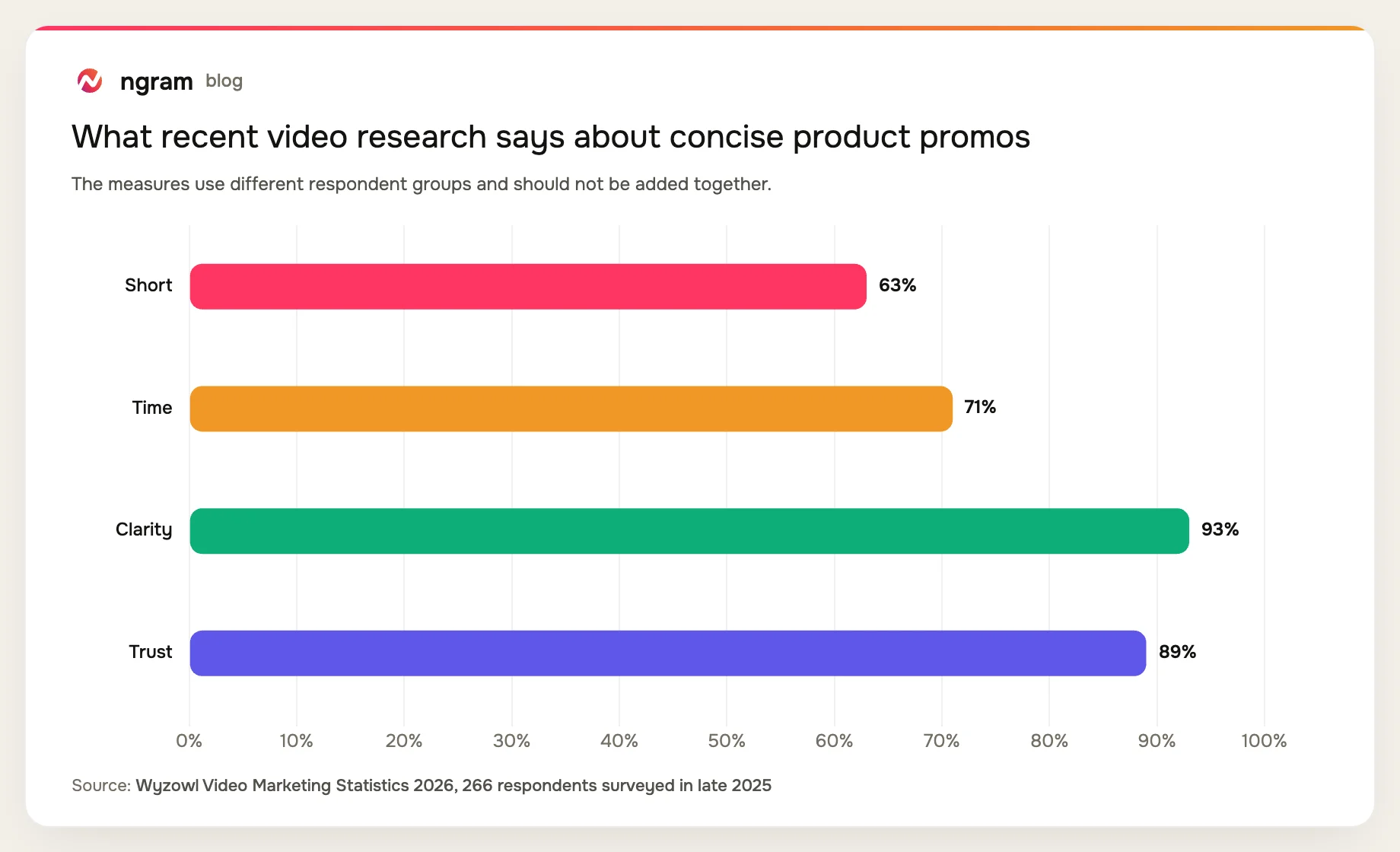
Those findings do not set an AppSumo duration rule. They support a narrower editorial decision: make the buyer problem and product outcome clear, then use only the offer detail needed to understand the deal.
Prerequisites before you create the AppSumo promo video
Collect the source material for this AppSumo video before opening the extension. You need enough verified detail to make a useful product story without filling gaps from memory.
- The current AppSumo deal page open in Chrome.
- The approved product name, buyer problem, one product outcome, and one proof point.
- Current offer, plan, price, discount, limit, and expiry language from the live page.
- One CTA that matches the current deal-page action.
- ngram access and the ngram Chrome extension installed.
If your source is a regular product page rather than a supported AppSumo page, use the broader product-page URL to video workflow. Keep the AppSumo campaign path for this guide because the search intent and review fields are marketplace-specific.
What the finished AppSumo video should contain
The finished AppSumo video is a reviewed teaser cut with one clear buyer problem, one visible product outcome, current offer wording, approved proof, and one CTA. It should make sense to someone who has the deal page open and should never depend on an unverified price or deadline.
For a focused AI product video maker workflow, use the AppSumo deal video maker as the related creation surface. The approval handoff happens after the render passes the QA checks below.
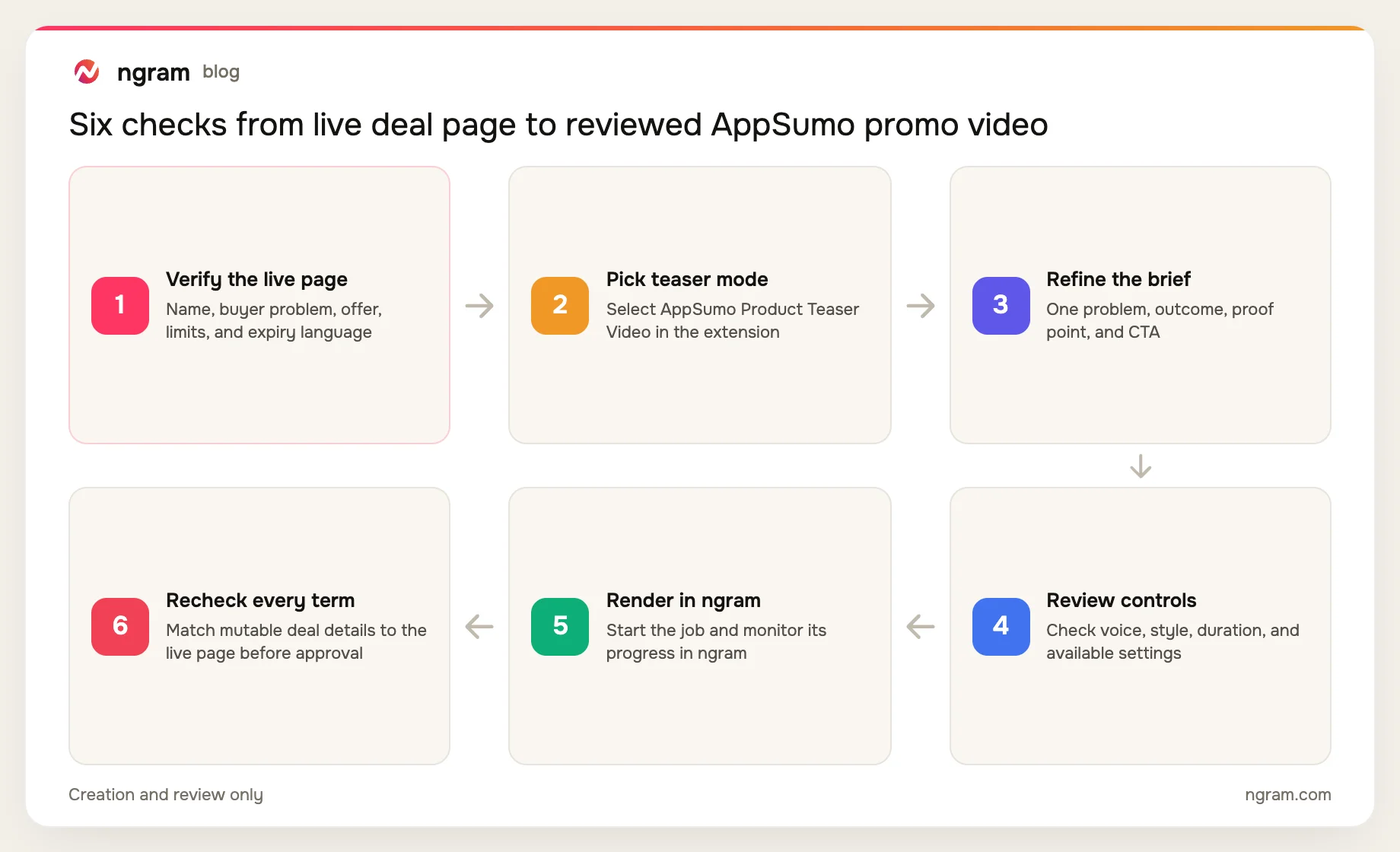
1. Open the current deal page and verify the source fields
Start on the live AppSumo deal page. Read the product name and buyer-facing problem first, then check the offer panel, plan selector, price or discount, feature limits, and any expiry language. Record the date of this check.
Do not copy the page into the prompt wholesale. Mark only the fields the viewer needs to understand the product and current offer. If two parts of the page disagree, stop and resolve the source before generating.
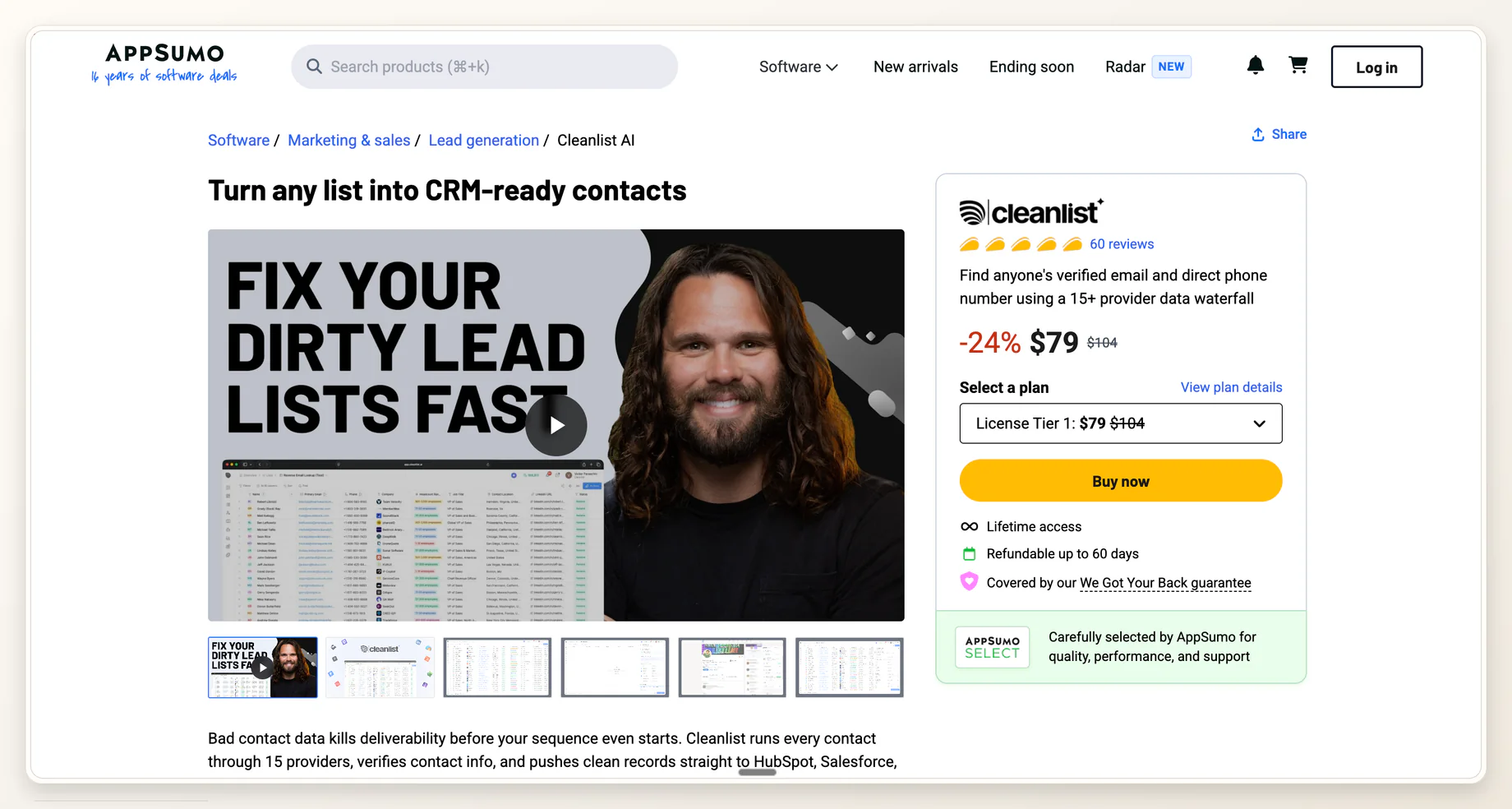
This reused screenshot proves the source-page shape only. Its visible deal terms are examples from that captured page, not values to reuse in a new promo, and it does not show AppSumo Product Teaser Video selected.
2. Select AppSumo Product Teaser Video
With the deal page still open, launch the ngram extension. The supported AppSumo campaign workflow presents marketplace-specific video choices. Select AppSumo Product Teaser Video.
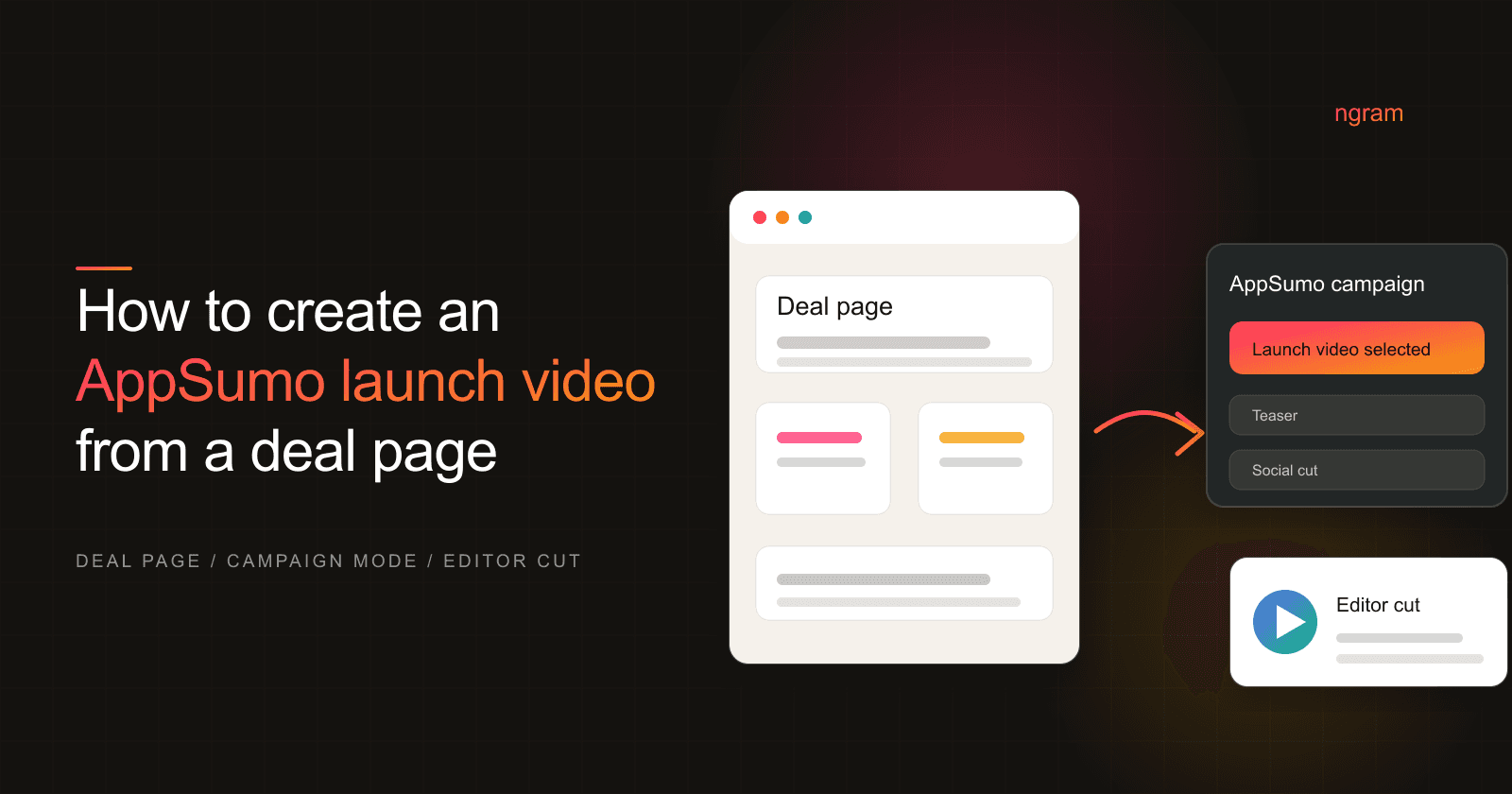
Check the selected label before editing the brief. The verified capture below shows AppSumo Product Teaser Video as a separate campaign choice; an older AppSumo Launch Video screenshot would not prove this step.
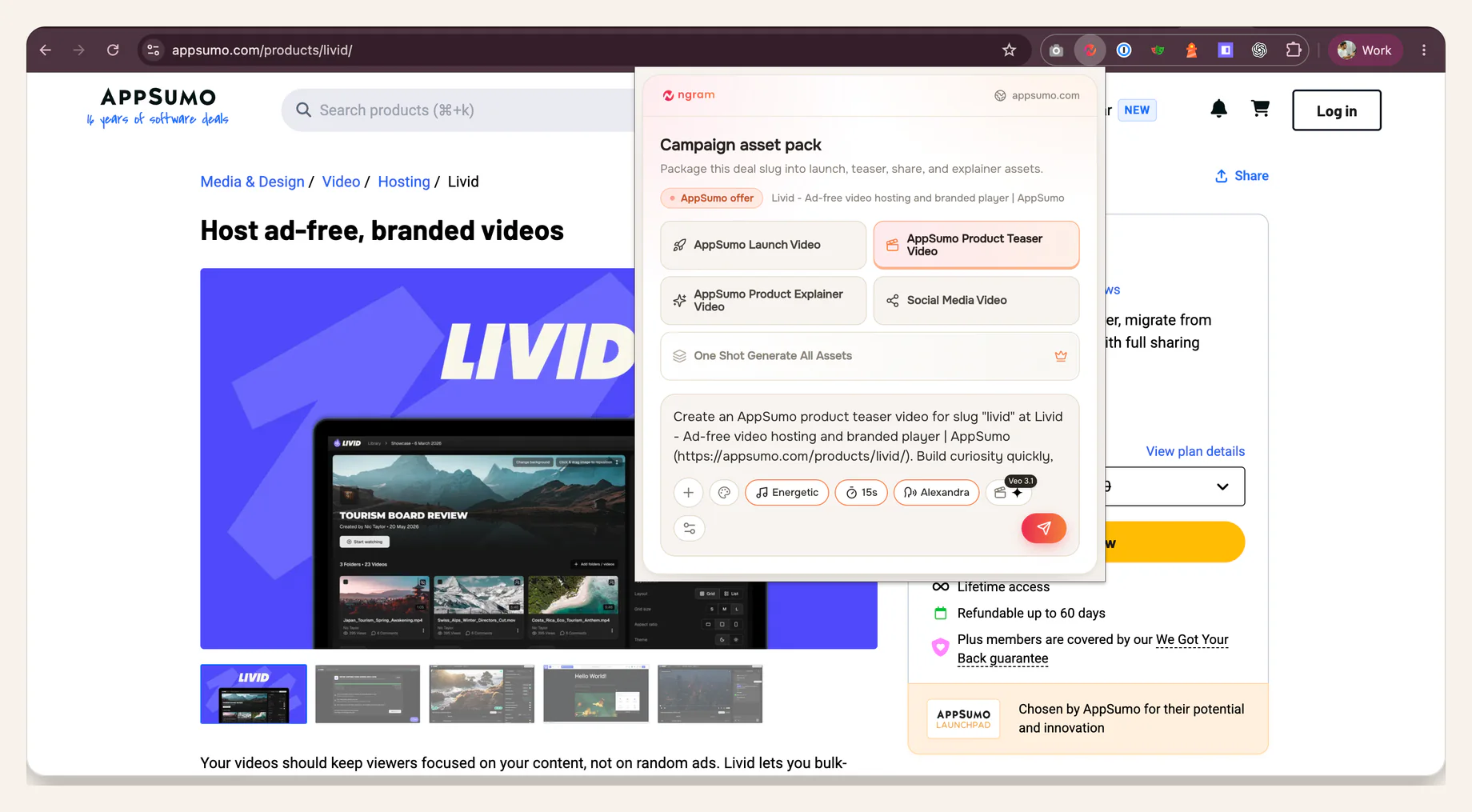
Verified proof: AppSumo Product Teaser Video is selected on a live deal page, with the offer-focused brief and available creation controls visible.
3. Edit the prompt around one buyer problem and one outcome
A deal page can contain enough material for several videos. The AppSumo video brief needs a smaller unit: one problem the buyer recognizes, one outcome the product can show, one approved proof point, current offer details, and one CTA.
Use this field-mapping prompt. Replace bracketed values only after checking the live page:
Create an AppSumo Product Teaser Video from the open deal page.

product_name: [verified product name]
buyer: [specific AppSumo buyer]
buyer_problem: [one problem in buyer language]
product_outcome: [one result the product can show]
current_offer: [verified price, discount, plan, and limits]
proof: [one approved visual or claim]
cta: [one current deal-page action]
verified_on: [YYYY-MM-DD]

Keep the story focused on one buyer problem and one product outcome. Use only offer details confirmed on the live AppSumo page on verified_on. Omit any price, discount, deadline, or plan limit that cannot be confirmed. Do not infer expiry language or combine terms from different plans.
The verified_on field records when the offer check happened. It does not freeze the offer. You will compare the rendered video with the live page again in step 6.
4. Review voice, style, duration, and available controls
Review the controls shown for the project before rendering. Listen to the selected voice where a preview is available, read the style direction, check the chosen duration, and inspect any other controls presented in the workflow.
Match the settings to the brief rather than chasing a fixed teaser formula. Product complexity and scene count change what fits. If the script needs a list of features to explain the outcome, narrow the outcome instead of compressing the narration until it becomes hard to follow.
5. Start the render and monitor progress in ngram
Start the render after the brief and settings pass review. Keep the project open in ngram and monitor the existing job there. Render time varies with scene count and complexity, so do not promise a fixed completion time in the handoff.
If the job reports a failure, keep the same reviewed brief and investigate that job. Do not create repeated renders as a substitute for understanding the failure, and do not describe rerenders as automatic.
6. Review every mutable deal term against the live page
Open the current deal page beside the rendered AppSumo promo video. Check every spoken line, caption, callout, and closing frame that mentions the offer.
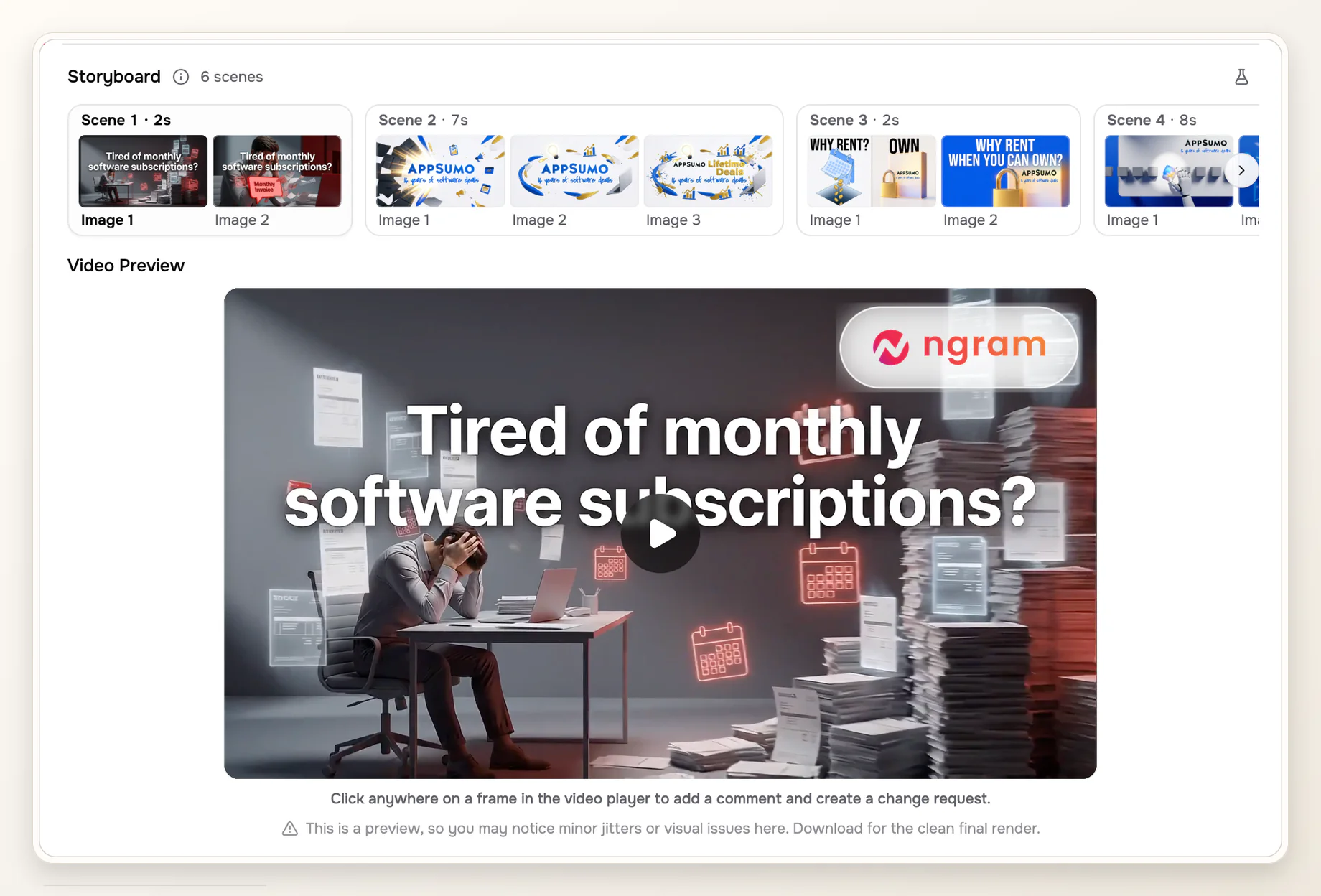
Shared review-surface example from an earlier AppSumo-oriented video. It shows where to inspect storyboard scenes and the preview; it is not the Livid teaser created in this guide.
- Match the product name and buyer problem.
- Match the price and discount exactly, or remove them.
- Match each plan name, feature limit, and eligibility condition.
- Match deadline or expiry language without adding urgency.
- Confirm the proof appears as approved and the closing CTA matches the live action.
Hand the reviewed cut and this source check to the approver. Return any factual correction to the same creation workflow.
Our prompt audit: seven fields separate a request from a review-ready brief
We scored three prompt shapes against seven explicit fields: product name, buyer problem, product outcome, current offer details, approved proof, one CTA, and a verified_on plus omission rule. Each explicit field earned one point, with no quality weighting. We completed the audit on July 20, 2026. It measures prompt completeness, not video performance.
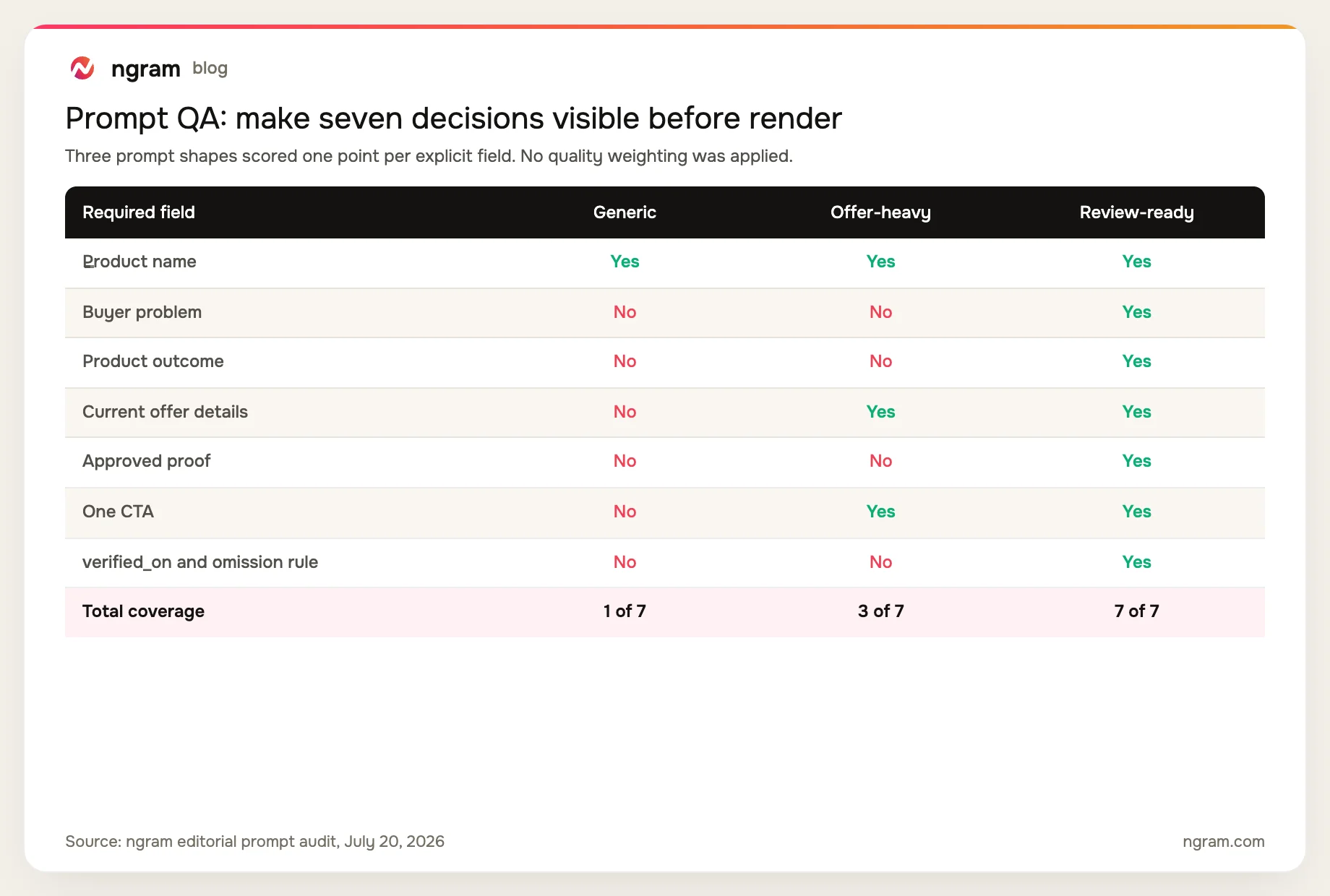
The offer-heavy prompt looks specific because it names a price and CTA, yet it still lacks the buyer problem, product outcome, proof source, and verification rule. Specific numbers do not make a prompt review-ready when their source and date are missing.
AppSumo promo video QA checklist
- The first scene names a buyer problem that appears on, or is supported by, the live page.
- The product appears early enough to connect the problem with one outcome.
- Every price, discount, plan, limit, and deadline matches the live page.
- The proof point is approved and visible, not implied by decorative footage.
- The voice pronounces the product and plan names correctly.
- Captions and on-screen callouts match the narration.
- One CTA closes the cut without adding an unverified urgency claim.
- A named reviewer has compared the final cut with the live deal page.
Common failure modes and fixes
The promo uses stale offer terms
Fix: remove the term until the live page confirms it. Update verified_on, revise the affected script and scene, then repeat the final source check.
The offer appears before the buyer problem
Fix: move the buyer problem and product outcome ahead of the deal mechanics. A discount has little meaning until the viewer understands what the product changes.
The teaser turns into a feature demo
Fix: keep one product outcome in the teaser. When the buyer needs a longer walkthrough, use the AppSumo product demo video maker as a separate creation path instead of forcing a demo into the promo.
The proof exceeds the source
Fix: replace the claim with a product screen, approved result, or narrower statement that the source supports. Do not turn review language or decorative footage into a performance claim.
The handoff promises a fixed render time
Fix: report the current job state and keep the reviewer responsible for the final check. Render time changes with scene count and complexity.
AppSumo video FAQ
What should an AppSumo promo video include?
Include one buyer problem, one product outcome, current offer details, one approved proof point, and one CTA. Omit any price, discount, deadline, or plan limit that the live deal page does not confirm.
How long should an AppSumo promo video be?
AppSumo does not publish a universal promo-video duration in the partner resources cited here. Choose the duration in the available controls after the script is focused, and keep the cut only as long as the reviewed story needs.
Should the AppSumo video mention price or discount?
Mention price or discount only when the live page confirms it on verified_on and again at final review. If the value is uncertain or likely to change before approval, omit it and keep the product outcome.
Can I create the teaser before the deal page is final?
You can draft the product story, but leave mutable offer terms out until the live page confirms them. Run the complete term-by-term review after the deal page is current.
What is the difference between an AppSumo teaser and launch video?
The teaser narrows the story to one buyer problem, one outcome, current offer context, and one CTA. A launch video can carry a broader product introduction. Use the separate AppSumo launch video workflow when launch is the actual campaign choice.
How do I review the rendered AppSumo video?
Open the live page beside the render. Check the problem, outcome, proof, voice, captions, CTA, and every price, discount, plan, limit, or deadline. Record who completed the review and return factual changes to the creation workflow.
Keep the live deal page in the review loop
A useful AppSumo video compresses the offer without detaching it from the source. Verify first, keep the prompt narrow, monitor the render in ngram, and review every mutable term before approval. That sequence protects the product story when the deal changes.