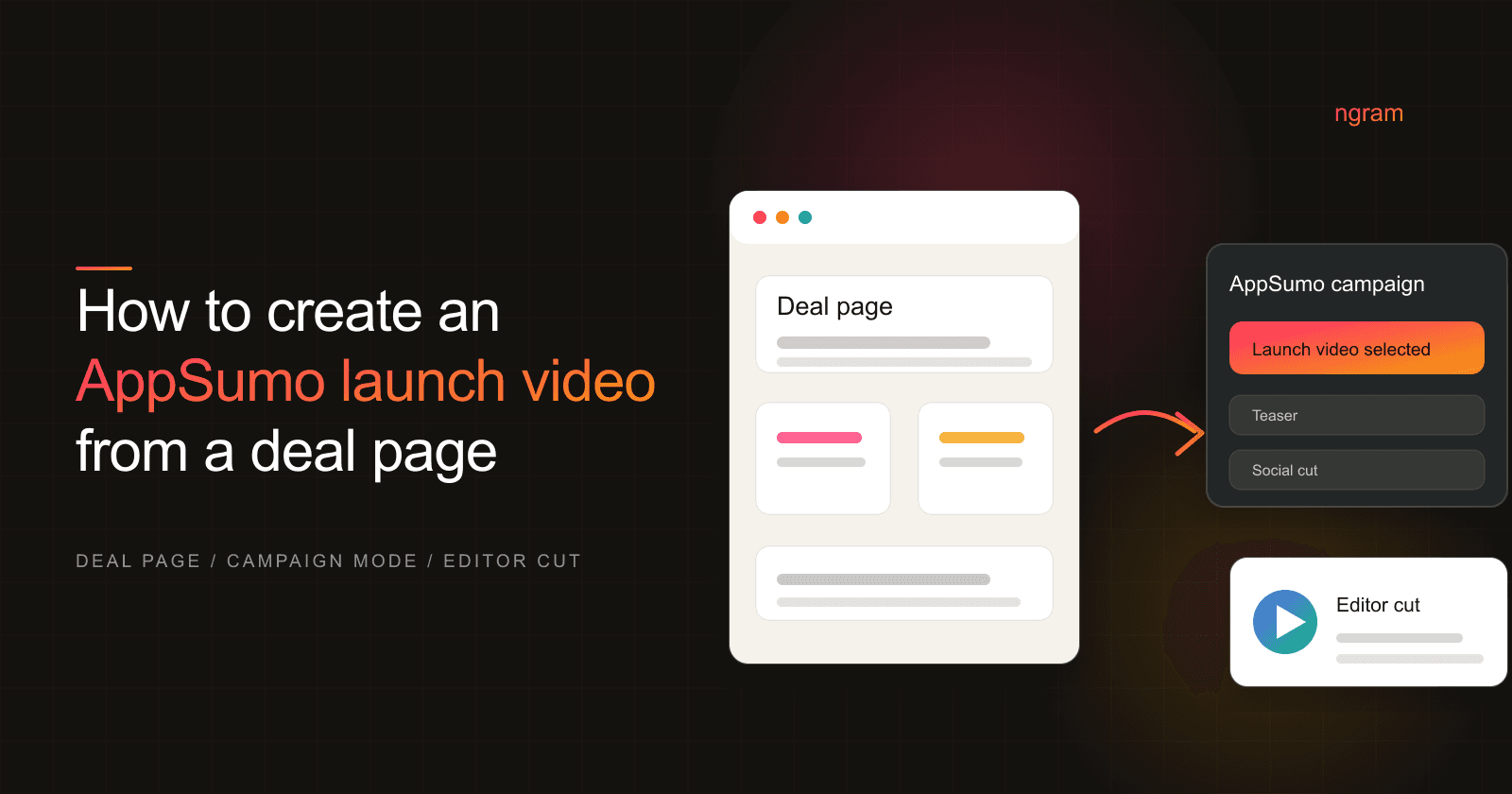

An AppSumo launch video has a hard job. A visitor lands on the deal page with limited context, a discount in front of them, and a quick question: is this product worth trusting?
The video has to answer that question without turning into a feature tour. It needs to explain the product promise, the offer, the proof, and the redemption path quickly enough that a deal-page visitor can keep evaluating instead of bouncing.
This workflow uses the AppSumo deal page as the source and ngram's live AppSumo campaign mode inside the Chrome extension. It is a specific AppSumo deal-page workflow for founders, launch owners, marketers, and SaaS operators preparing a launch asset.
Why AppSumo launch videos matter
AppSumo's seller page says a product launch can go live to 1.5M+ entrepreneurs, backed by a 25K Plus-member buyer group and a 20K affiliate and ambassador network. The same page says email drives 40% of partner revenue and lists an acceptance rate of about 10%, so the launch asset has to earn attention fast. AppSumo seller page
The attention window is short. Nielsen Norman Group's page-stay research says users often leave web pages in 10-20 seconds, and a page has to communicate its value proposition within about 10 seconds to win more time. Nielsen Norman Group
Video is a good fit for that first pass because buyers already use it to learn. Wyzowl's 2026 data says 63% of people prefer a short video when learning about a product or service, 80% have bought or downloaded an app after watching an app demo video, 85% have been convinced to buy a product or service after watching a video, and 89% say video quality affects brand trust. Wyzowl video marketing statistics
For an AppSumo launch video, those numbers translate into a simple editorial rule: open with the buyer's problem, show the product doing the promised job, prove the offer is real, then explain the deal mechanics.
Prerequisites before you open ngram
Do this prep before you generate the first cut. It prevents the video from repeating a half-finished page or making claims the offer cannot support.
- A draft or live AppSumo deal page with the offer, plan terms, CTA, and redemption language close to final.
- A clear product promise in buyer language, not only internal positioning.
- Proof the video can show: product screens, review language, a workflow outcome, a use case, or a credible customer result.
- The exact redemption path, especially whether buyers use code redemption, licensing, OAuth, webhooks, or a manual access flow.
- ngram access, the Chrome extension installed, and permission to review the generated script and storyboard before export.
1. Open the AppSumo deal page and mark the source fields
Start on the AppSumo deal page. Read it like a buyer who has never heard of the product. Before opening the extension, mark the fields the video has to preserve.
- Offer: what the buyer gets, which plan or tier applies, and what changes after purchase.
- Audience: the person most likely to care, such as a founder, agency operator, marketer, creator, or small business owner.
- Proof: the strongest reason a skeptical buyer should believe the claim.
- CTA: the exact action the deal page wants after the video.
- Objections: limits, onboarding effort, support questions, redemption confusion, or feature gaps the video should not dodge.
AppSumo's submission guidance asks partners to share roadmap, documentation, demo video, and other useful resources, and to show a clear differentiator. Use the same standard for the script. If a scene does not clarify value, proof, or differentiation, cut it. AppSumo submission guidance
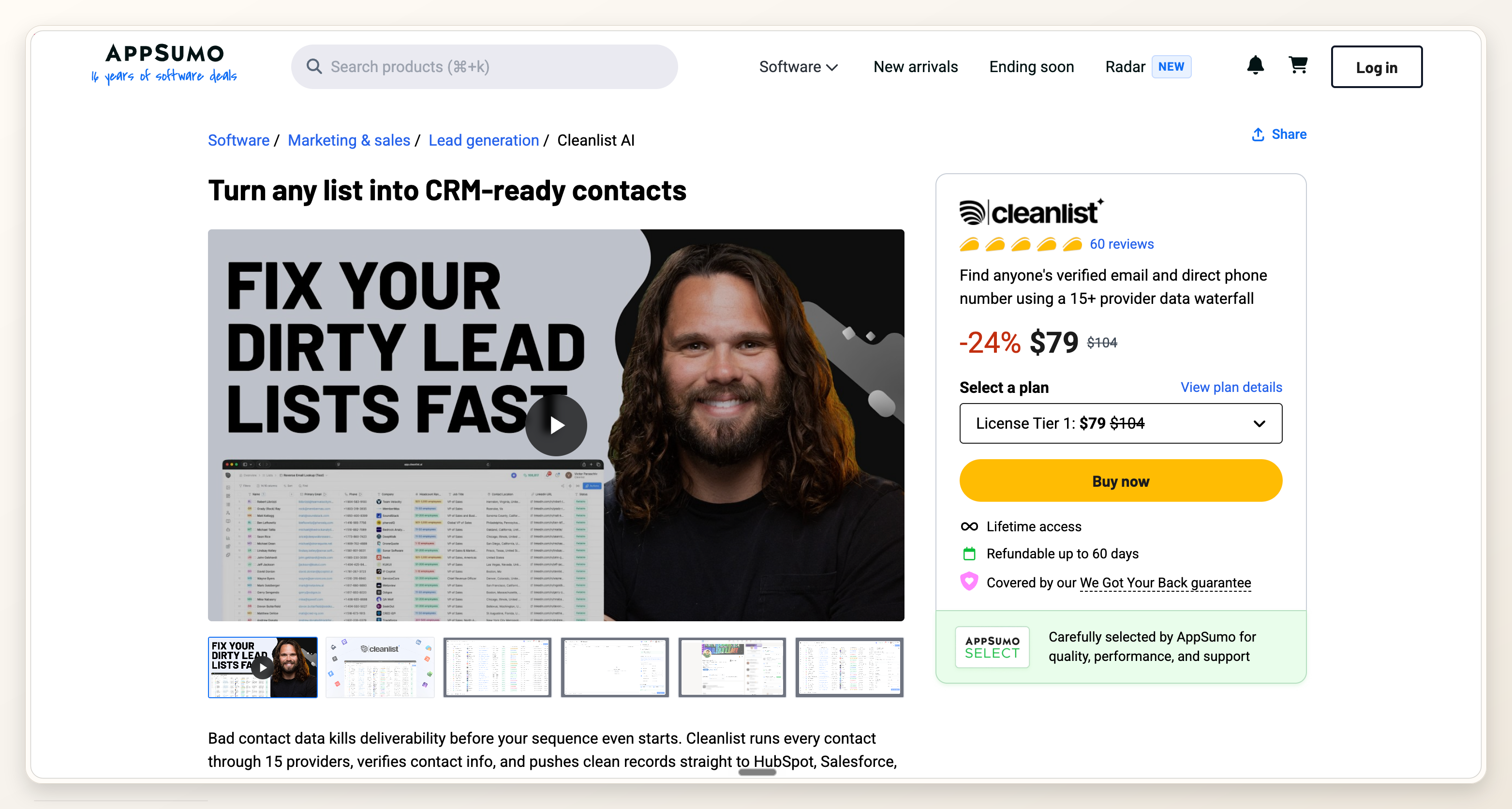
2. Open the ngram Chrome extension on the AppSumo page
With the deal page open, launch the ngram Chrome extension. On supported AppSumo pages, the extension has a live AppSumo campaign mode. That keeps the workflow tied to the marketplace launch instead of starting from a blank prompt.
This distinction matters. The AppSumo deal page is the source material, so ngram can extract the offer, product context, buyer angle, and CTA for an AppSumo launch video.
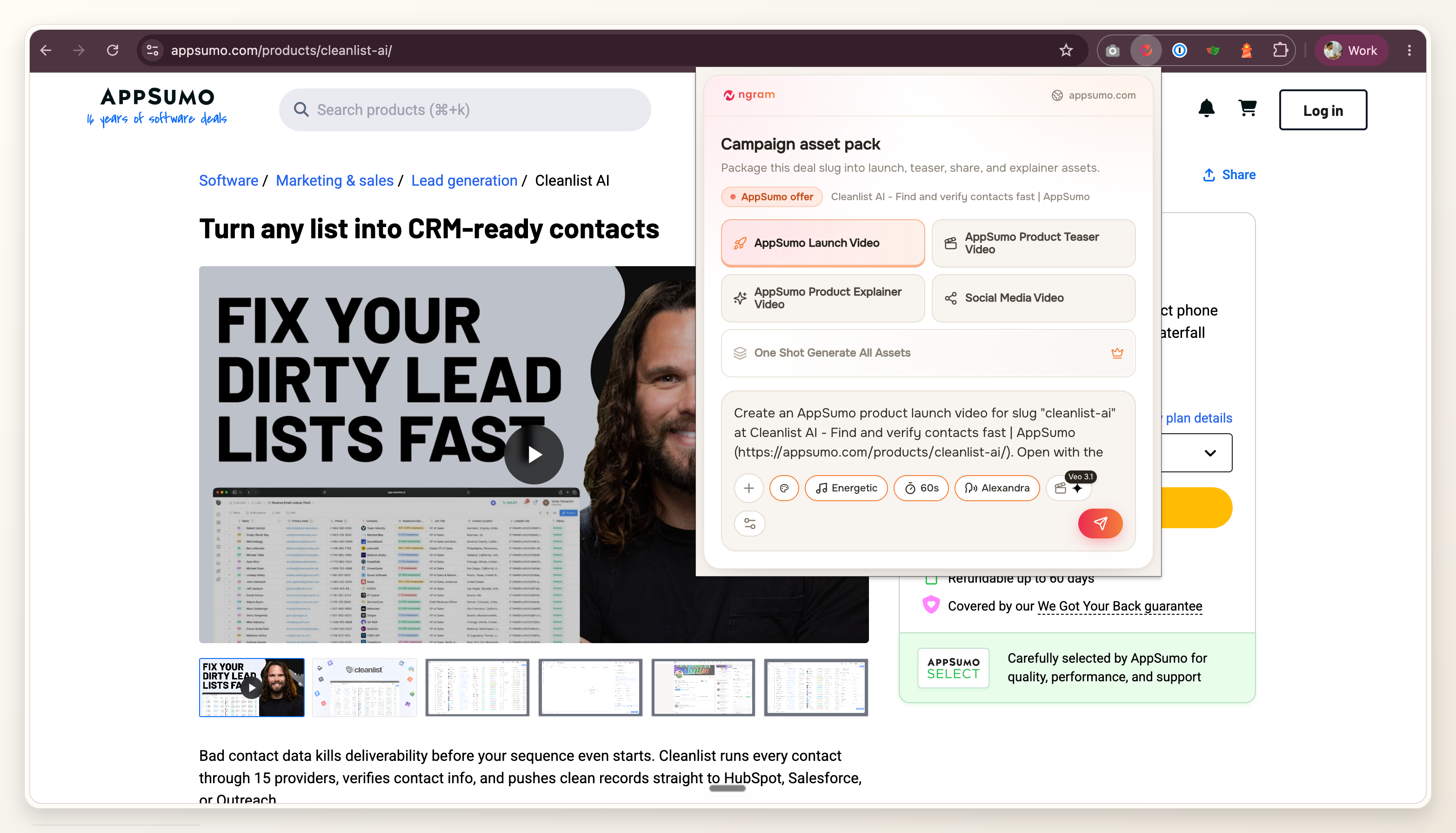
3. Choose launch or promo video and review extracted fields
Choose launch video when the asset needs to explain the product and support the main deal-page story. Choose a promo or teaser when the asset is meant for a shorter announcement, email, founder post, or social preview.
Before you send anything to the editor, review the extracted fields. The first draft will only be useful if the source fields are clean.
- Buyer angle: who the video speaks to and what job they need done.
- Product promise: the result the buyer should remember after the video.
- Offer terms: tier, limit, code, redemption, and timing details that affect the buying decision.
- Proof point: one reason to believe the promise, not a stack of unsupported claims.
- CTA: the wording the viewer should hear or see at the end.
Prompt to start with: Create a 45-second AppSumo launch video from this deal page. Lead with the buyer problem, show the product solving it, explain the plan terms after the value is clear, and end with the AppSumo CTA from the page.
4. Send the campaign draft to ngram/editor
Once the fields look right, send the workflow into ngram/editor. The AppSumo launch video maker is the closest dedicated workflow when you are building a product launch video from a deal page, product URL, screenshots, or launch notes.
Review the script and storyboard before you judge the visuals. For this kind of product launch video, the first scenes should answer what the product is, who it is for, why the offer is credible, and what action follows.
- Hook: name the buyer problem or desired result.
- Product moment: show the workflow, dashboard, output, or before-and-after state.
- Proof: add one source-backed claim, customer signal, product result, or use-case example.
- Offer: explain the deal mechanics after the viewer understands the product value.
- CTA: close with the action the AppSumo listing or launch campaign needs.
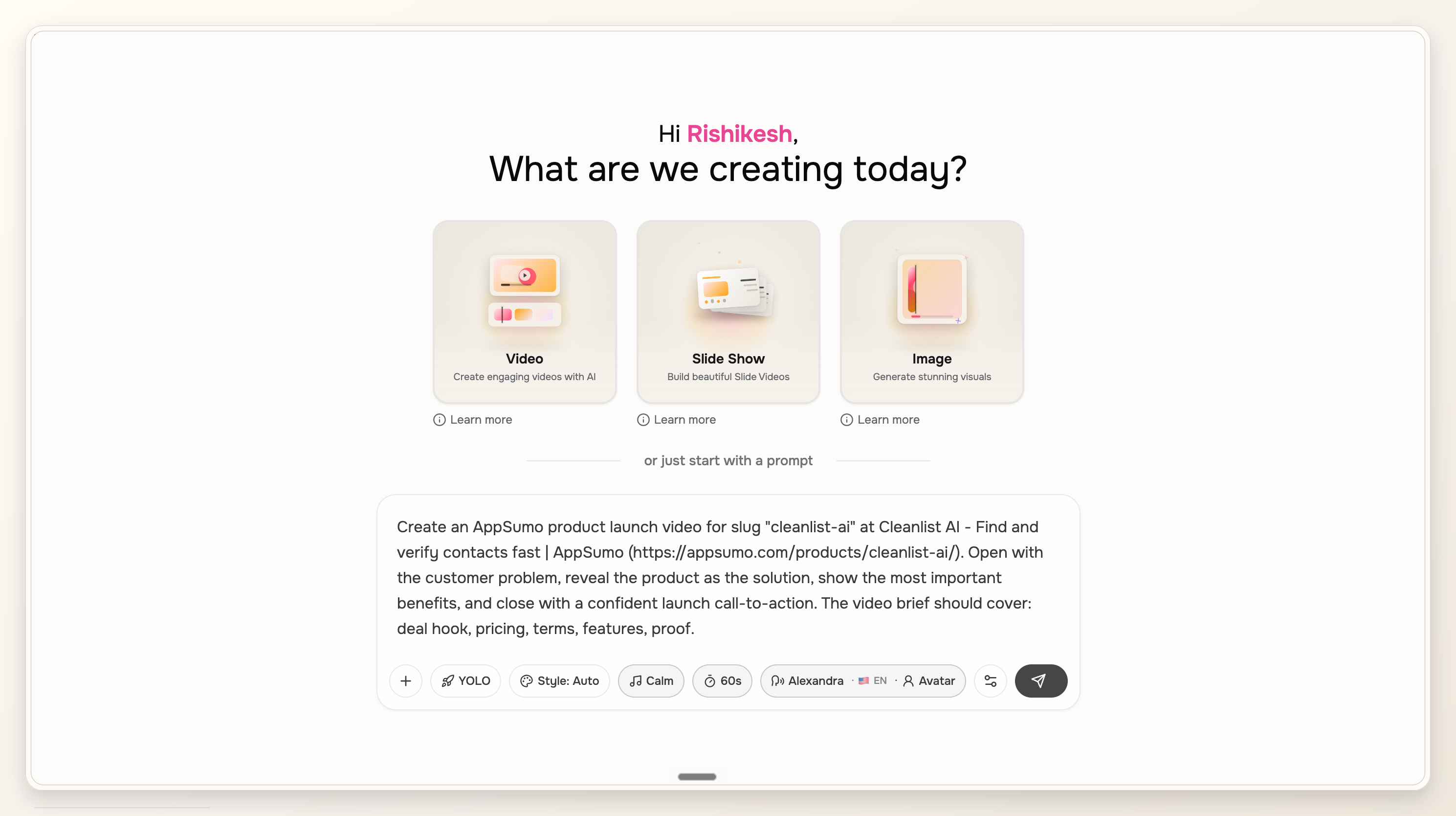
5. Tighten the cut before you use it in launch assets
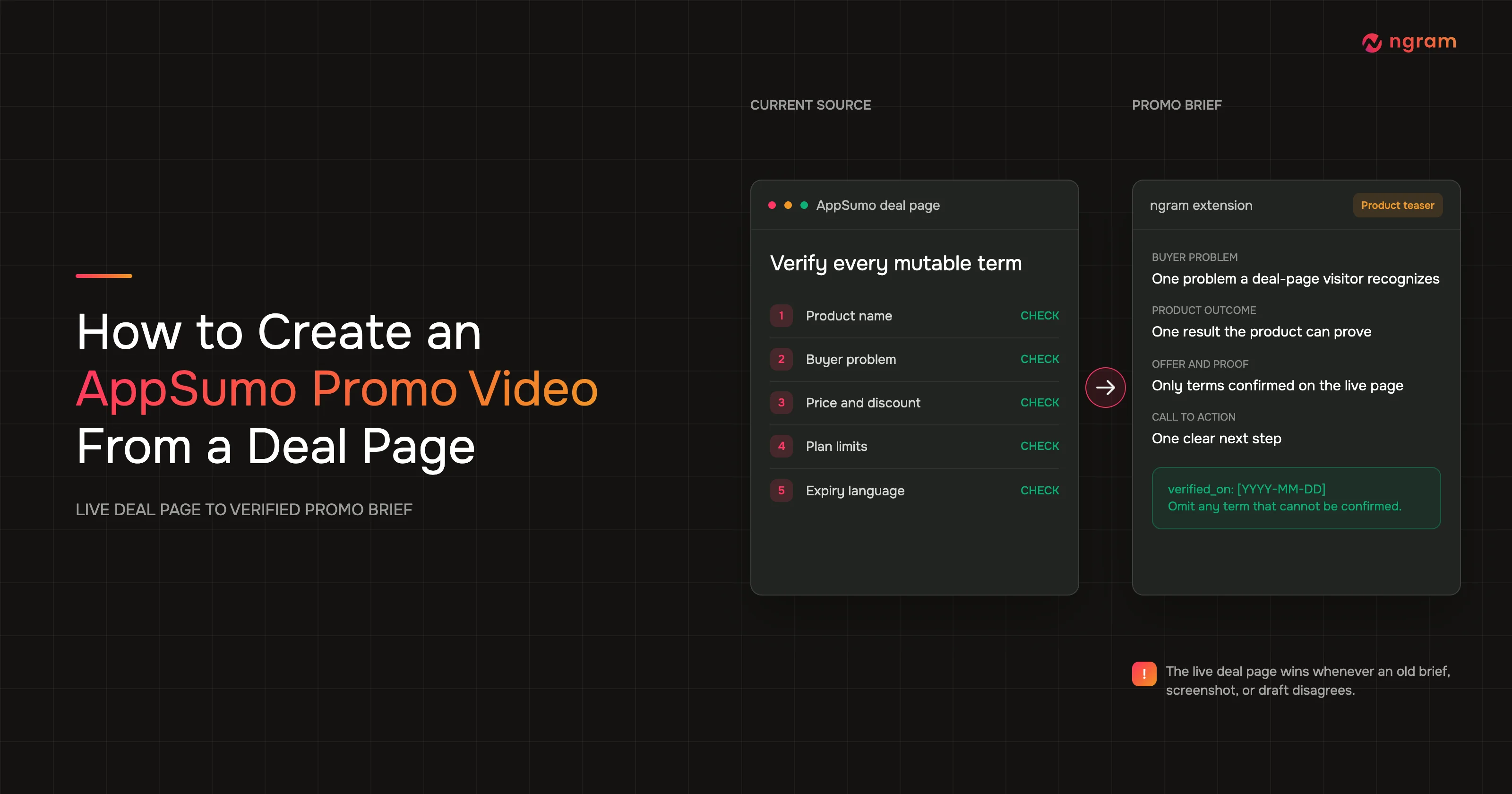
The first export should not go straight into launch assets. Watch it against the deal page and check whether the script changes the meaning of the offer. If the deal page says one thing and the video says another, the deal page wins.
If the video is mostly about plan terms, objections, and offer clarity, use the AppSumo deal video maker as the better fit. If the lifetime deal structure itself is the story, use the lifetime deal video maker and keep the product explanation shorter.
Redemption deserves its own pass. AppSumo's help docs say code-based redemption pages should include approved AppSumo branding, product branding, account fields, an AppSumo code field, and a signup CTA. The same docs say licensing-based redemption depends on OAuth and webhooks. AppSumo redemption flow docs
QA checklist for an AppSumo launch video
- The opening scene names the buyer problem or desired outcome.
- The product appears before discount language or plan mechanics.
- Every claim maps back to the deal page, source material, product screen, or verified proof point.
- Plan terms match the page exactly, including limits, tiers, eligibility, and redemption wording.
- The CTA matches the AppSumo listing or launch path, not a generic website signup.
- Captions are readable without sound and do not hide product UI.
- The thumbnail makes sense at small marketplace and social-preview sizes.
- The final export is approved for the exact launch/deal asset slots your team plans to use.
Frequently asked questions
What should an AppSumo launch video include?
It should include the buyer problem, the product workflow, one proof point, the offer terms that affect the decision, and the CTA from the AppSumo page. Put the deal mechanics after the product value is clear.
How is an AppSumo launch video different from an app demo video?
An app demo video can focus on product workflow alone. An AppSumo launch video has to connect the workflow to the deal page: who the offer is for, what the buyer gets, why it is credible, and how access works after purchase.
Should the video lead with lifetime deal pricing?
Usually no. Lead with the product problem and result first, then explain pricing or lifetime deal terms once the viewer understands why the product matters. A discount can create urgency, but it cannot explain the product for you.
Can I create the video before the AppSumo page is final?
Yes, but treat it as a draft. When the offer, plan terms, redemption instructions, or CTA changes, regenerate or edit the affected scenes so the video does not contradict the final deal page.
What should I check after ngram creates the storyboard?
Check scene order first. The storyboard should move from problem to product proof to offer mechanics to CTA. Then check captions, screenshots, pronunciation, aspect ratio, and whether the source page supports every claim.
Where should I use the final AppSumo launch video?
Use it where the launch story needs a quick explanation: deal-page assets, founder announcements, email, sales follow-up, partner notes, or social previews. Match the final cut to the placement and keep the CTA consistent with the AppSumo page.