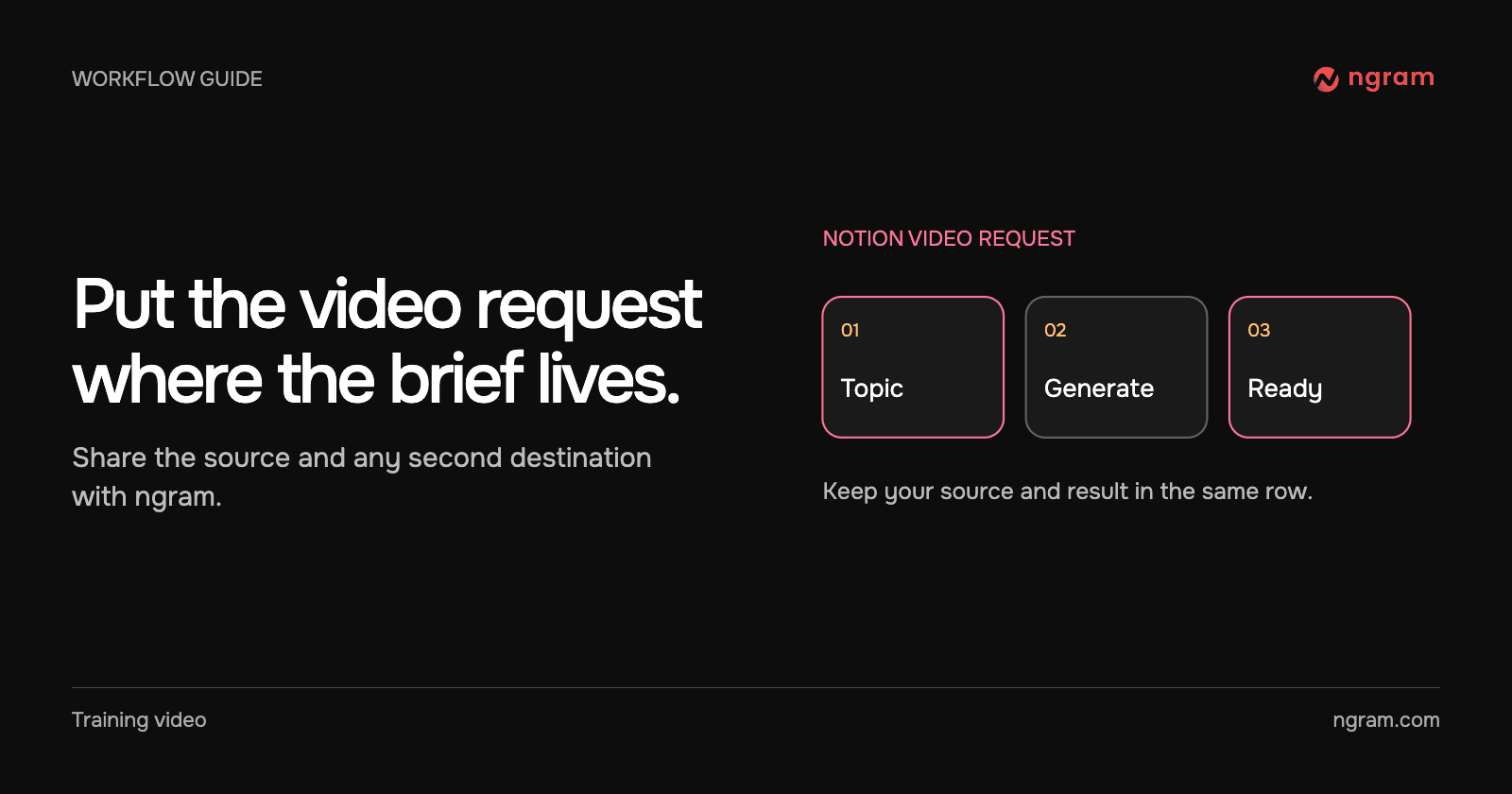

A release manager has an approved launch brief in Notion. The sales team needs the resulting video on its enablement page, and the team needs one place to find the source, job state and finished cut. Start with a row when those pieces need to stay together.
Connect the workspace and choose the pages
Open the Notion integration, choose Connect Notion and select the source pages ngram may read. Include the page where the finished video should be placed if it differs from the row. This works on every Notion plan. Generation uses the linked ngram account’s credits. Check the available balance and any monthly workspace credit limit before requesting a video.
Return to Notion and find ngram Videos in Private. It contains a Draft example. Move the database into a teamspace when others should be able to work in it. For a single public page with no recurring row, the Notion page converter is a shorter path.
Give the row an unambiguous brief
In Topic, name the viewer and what they should understand. For example, “Show sales teammates how to use the new intro and outro slides.” In Source page, type @ and select the Brand Kit release brief. If you leave Source page empty, ngram uses the row page itself. A typed page name in a current database is not a page mention.
Use Length for a target in seconds and Aspect ratio for 16:9, 9:16 or 1:1. Leave either blank to use workspace defaults. To place the video on the Sales enablement page as well as the row, @-mention that page in Add video to. Both the source and destination must be accessible to the connection.
This example follows the release brief to a second destination. Use a source the intended viewer can understand and review its approved claims before generating.
Generate once and follow the original row
Set Action to Generate. That is the request to start; there is no second approval. Action clears when ngram picks it up. The edit may take about a minute to appear. Status progresses through Preparing and Generating to Ready. Progress describes the current stage; Notes records the pages read, anything omitted and any length adjustment.
Open Video or the player at the top of the row page. Open ngram project when you need the underlying project. For a second destination, open that page and confirm that the video arrived. If the workspace cannot store the file, the row can use ngram playback instead.
Fix a sharing failure on the same row
Read Error before retrying. If ngram cannot see the source or destination, open that page in Notion, select ••• → Connections and add ngram. Replace plain text with an actual page mention. Then select Generate on the same row. If Status is Ready but the destination is empty, open the row’s video and inspect Error; access to the destination may have changed during generation.
If you change your mind while it runs, choose Action → Stop. Review the final row state before starting another version. The integrations and automation guide can help choose a different trigger when the request should originate outside Notion.
When your task is to revise an existing lesson, follow the SOP update walkthrough to review the replacement and check any separate copies.