Back to How to
How to

How to Customize an Embedded Video Player With Your Logo and Colors

Set a logo, website link and accent color on an ngram video player. Choose between account defaults and a single-video override, then test the embedded result.

How to Customize an Embedded Video Player With Your Logo and Colors
3 min read•Updated at November 2, 2026
Written and edited by
Rishikesh Ranjan
Rishikesh Ranjan
all thing growth @ ngram.com

A customer watching an embedded tutorial can recognize your logo and use it to return to the help center. Put the logo in the player when that destination matters. A logo burned into the footage may look similar, but it is part of the picture and has no link of its own.

Choose account defaults or a video-specific change

Open Video library. Choose Player defaults when the same identity should apply across your hosted videos. Open one published video and choose Player when a partner tutorial needs different colors or should point its logo at a different portal. Custom logo, accent and control settings start on Premium. Basic can remove the ngram badge without unlocking the full set of player customization controls.

If the change belongs inside the video itself, use the Brand Kit guide. For example, an opening frame that should appear in an exported MP4 belongs in the video, while a clickable player logo belongs in player settings.

Set the look and save the result

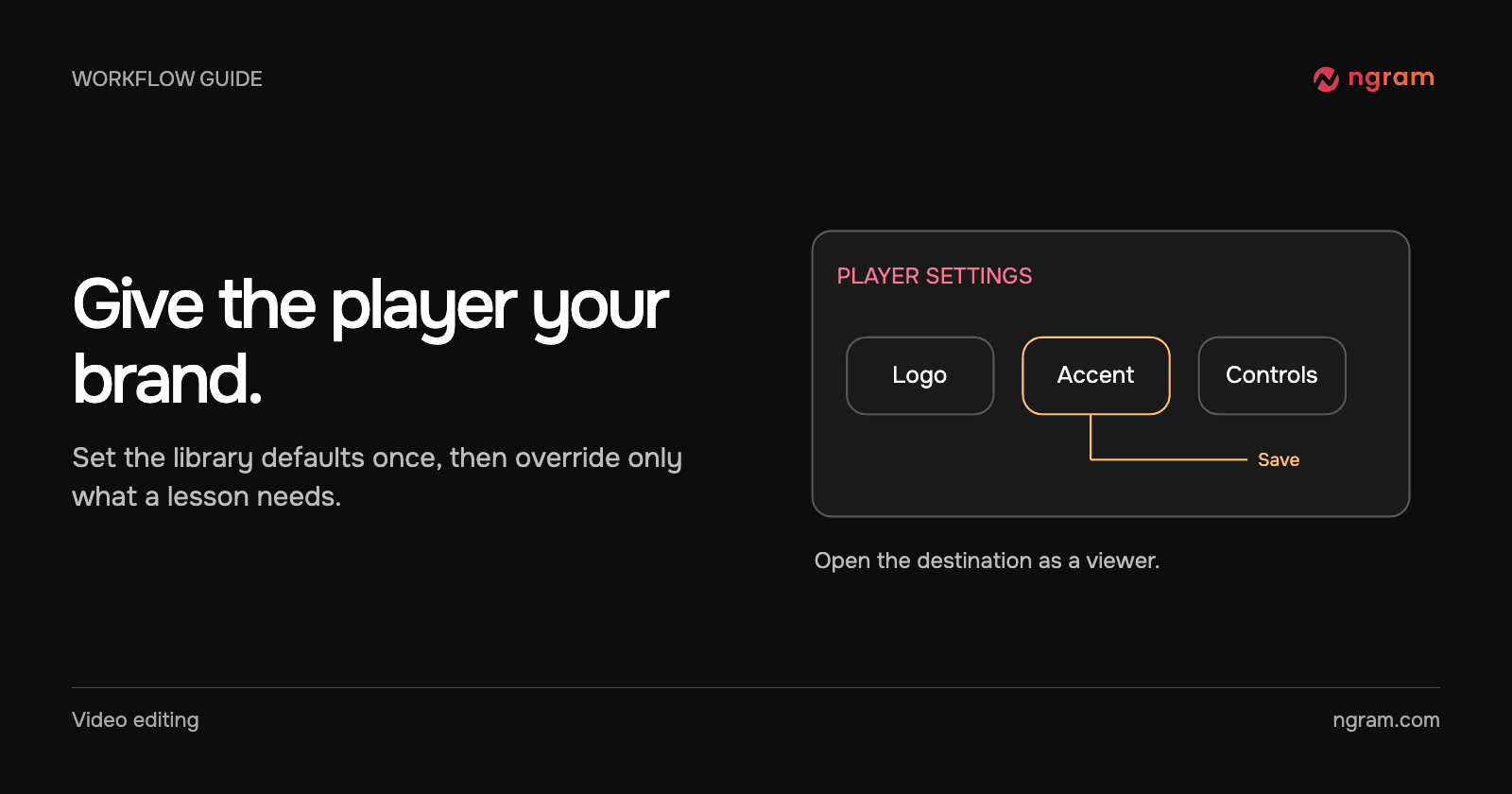
Under Look, enter the accent color and upload the logo. The player accepts PNG, JPEG or WebP up to 1 MB. Set Logo links to to the HTTPS destination appropriate to the viewer. Leave controls enabled when the audience needs them; for example, fullscreen can help someone inspect a small product control. Choose Save player.

The example shows settings saved for one customer handoff lesson. In the finished hosted player, the creator logo opens its configured website and the accent appears in the playback controls. The video hosting feature covers the publishing and embed side of the workflow.

Compare the viewer result with the setup

Open the published watch link or choose Embed and place its code where the audience watches. Check the logo against a frame with both light and dark details. Follow the logo link and verify the destination. Try the controls the audience is supposed to use.

If the old appearance remains, confirm that you saved the settings on the intended video, allow the update to propagate, and reload the original embed. Follow the sharing guide to check which library item the page actually plays. A copied MP4 viewed in another app inherits that app’s controls.
Related articles

How to give useful feedback on an AI-generated video
How to6 min read

How to give useful feedback on an AI-generated video

Turn vague video feedback into clear revision requests. Use a timestamp, describe the change, and say what should stay, with worked ngram examples.

ngramVideo Editing
Rishikesh Ranjan
Rishikesh Ranjan
Growth Lead
Oct 19, 2026
How to Add Your Own MP3 as Background Music in a Video
How to3 min read

How to Add Your Own MP3 as Background Music in a Video

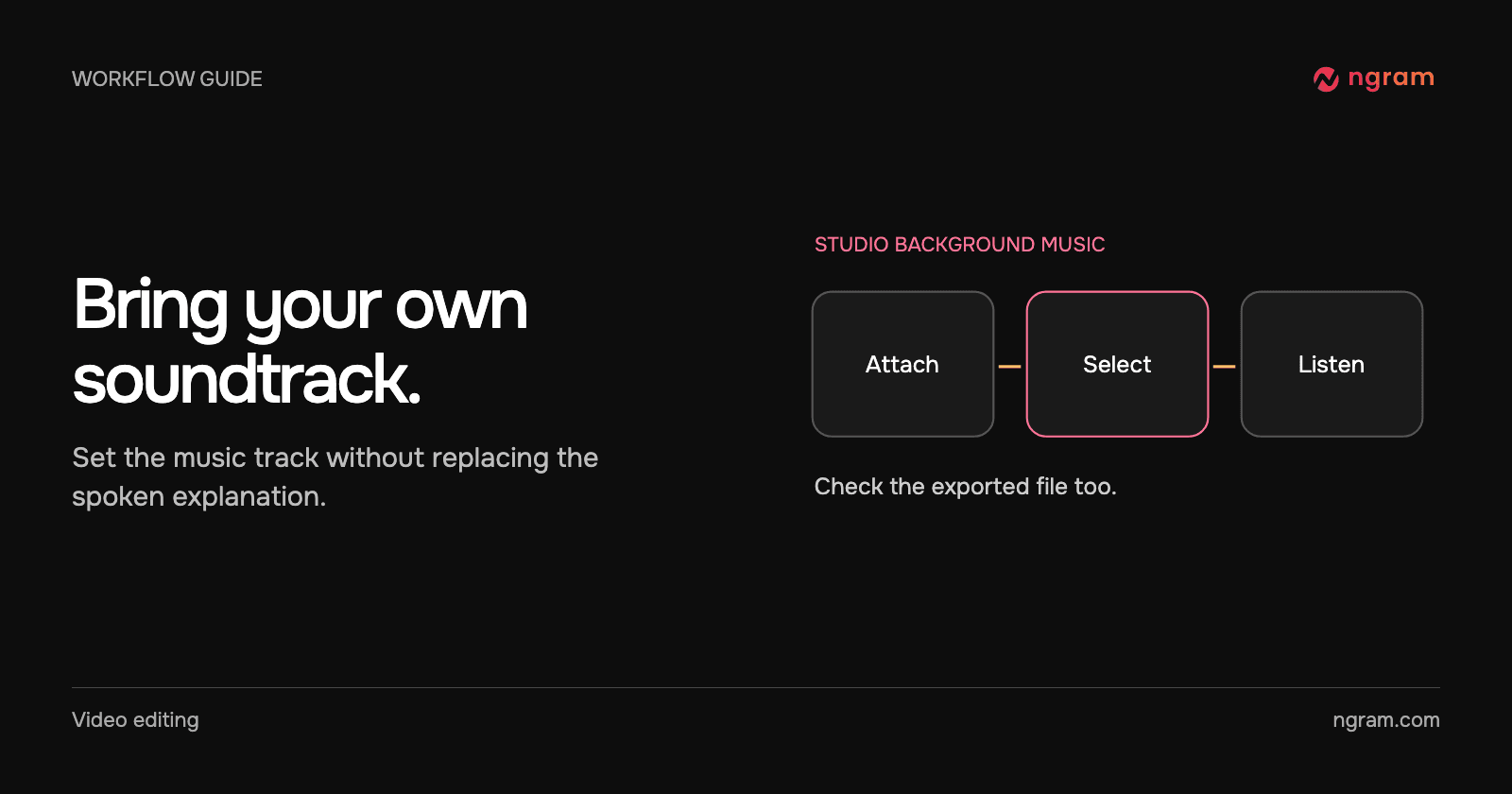
Add an MP3 in ngram Studio, select it as the background music and check it against the narration before exporting the finished video.

How Tongram
Rishikesh Ranjan
Rishikesh Ranjan
Growth Lead
Nov 2, 2026
How to Create Explainer Videos for Your Startup with ngram (2026)
How to15 min read

How to Create Explainer Videos for Your Startup with ngram (2026)

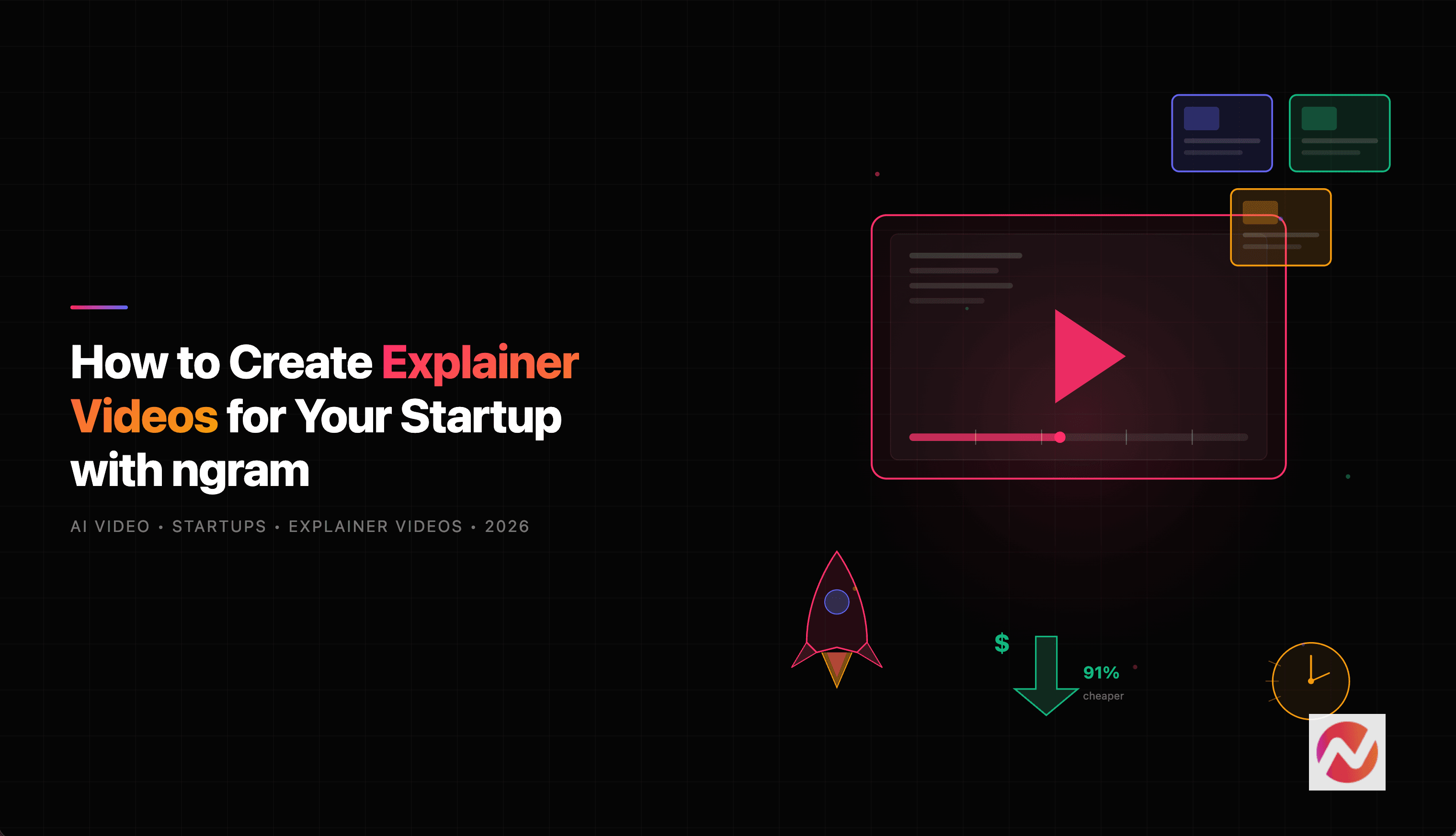
Learn how startups can create professional explainer videos in minutes using ngram's AI-powered video creation platform - no editing skills or big budgets required.

ngramExplainer Video
Kyra Rachitsky
Kyra Rachitsky
Content & Insights
Oct 15, 2026
How to Create an AppSumo Launch Video From a Deal Page
How to11 min read

How to Create an AppSumo Launch Video From a Deal Page

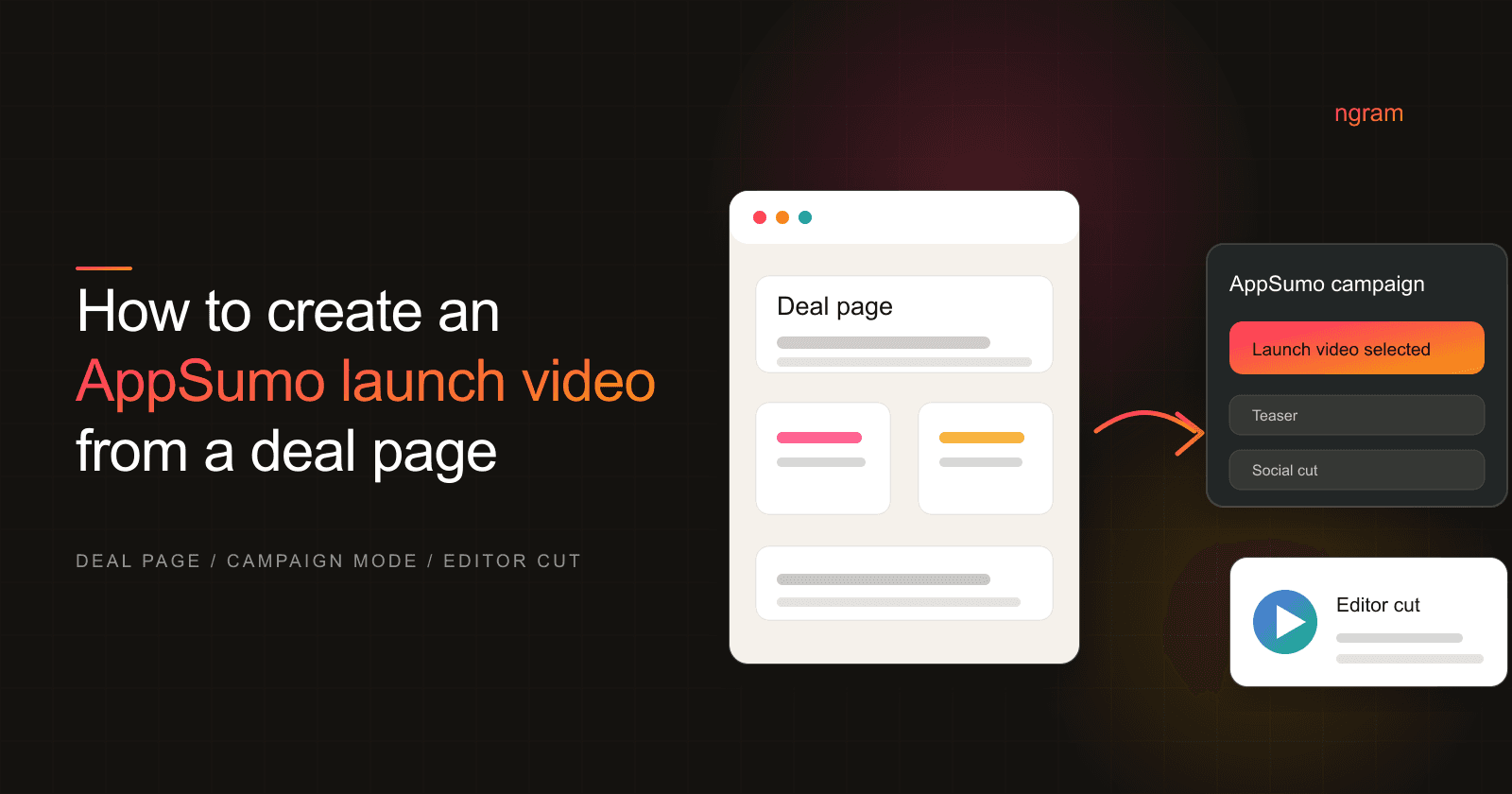
Turn an AppSumo deal page into a launch video with ngram's AppSumo campaign mode, from offer audit to editor review and deal-asset handoff.

ngramHow To
Rishikesh Ranjan
Rishikesh Ranjan
Growth Lead
Oct 15, 2026
How to Create an AppSumo Offer Explainer Video From a Deal Page
How to13 min read

How to Create an AppSumo Offer Explainer Video From a Deal Page

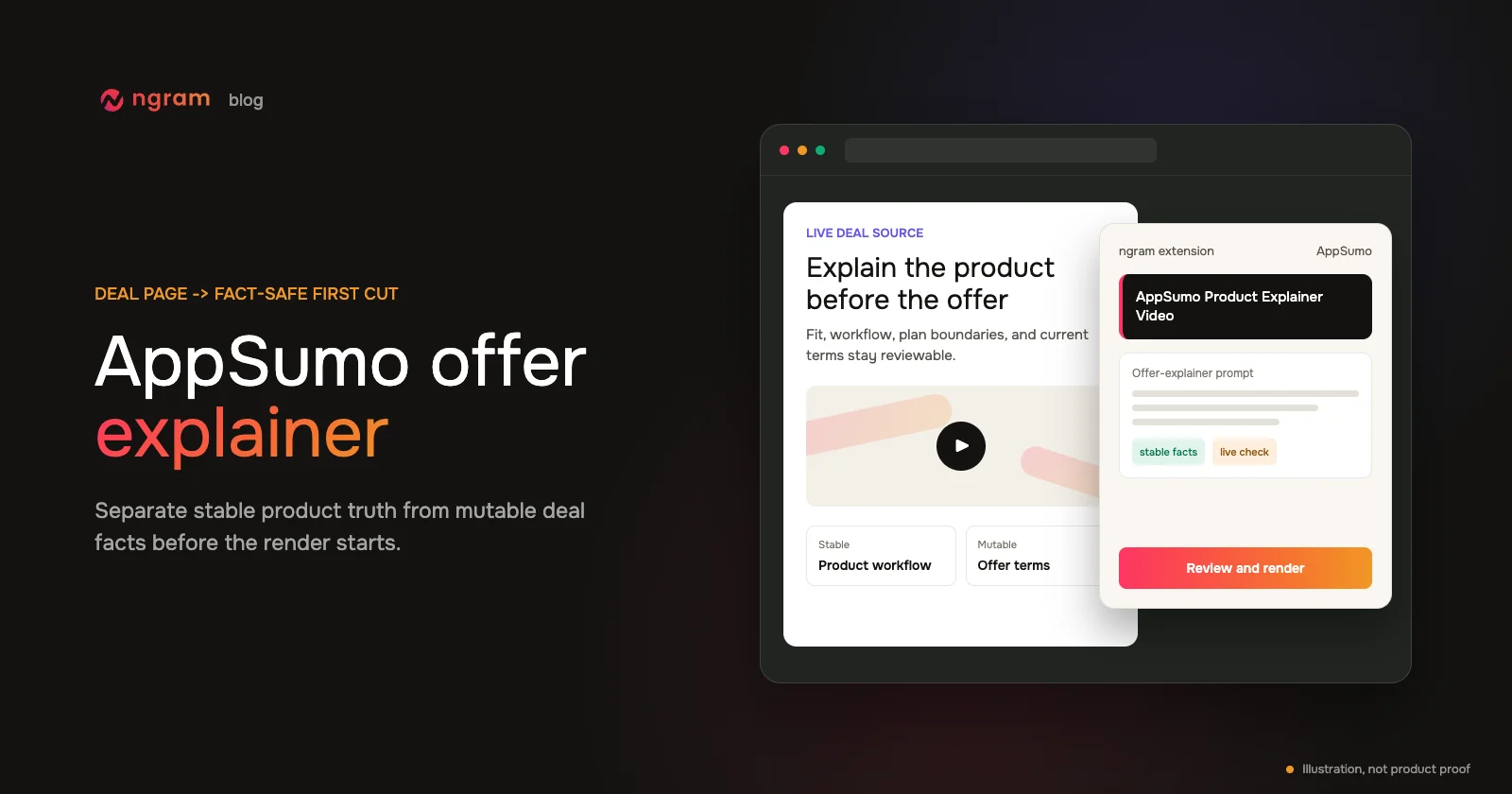
Create an accurate AppSumo video from a deal page by separating stable product facts from mutable offer facts, rendering in ngram, and running a line-by-line deal review.

ngramHow To
Rishikesh Ranjan
Rishikesh Ranjan
Growth Lead
Jul 20, 2026
How to Create an AppSumo Promo Video From a Deal Page
How to12 min read

How to Create an AppSumo Promo Video From a Deal Page

Create an AppSumo promo video from a live deal page with verified offer details, a focused teaser brief, render monitoring, and a final deal-term review.

ngramHow To
Rishikesh Ranjan
Rishikesh Ranjan
Growth Lead
Jul 20, 2026

Ready to create your first video?

Turn your source material into a video. Shape the brief, review the plan and make it yours.