
If you've tried to explain a product, a feature, or even an idea to someone in the last year, you already know: video wins. According to Wyzowl's 2026 report, 96% of people have watched an explainer video to learn about a product or service. And landing pages with explainer videos convert up to 86% higher than those without.
The problem? Making a good explainer video used to require a freelancer, a brief, a round of revisions, and a budget that could run into thousands of dollars. Not anymore.
AI explainer video makers have changed the equation. These tools let you turn a script, a document, or even a rough idea into a polished explainer video in minutes, not weeks. But with dozens of tools flooding the market, which ones are actually worth your time?
We compared nine AI explainer video makers using their current product and pricing pages, supported workflows, source inputs, editing controls, and visible output examples. This page owns generator and tool-comparison intent. For the step-by-step production process, read how to make an AI explainer video.
What Makes a Great AI Explainer Video Maker?
Before comparing the tools, it helps to define what separates a useful AI explainer video creator from a mediocre one. Our desk research focused on these criteria:
- Input flexibility - Can you start from text, a document, a URL, or a screen recording? The best tools meet you where your content already lives.
- Script intelligence - Does the AI understand narrative structure (problem, solution, proof, CTA), or does it just slap text onto slides?
- Visual quality - Are the generated visuals, avatars, or animations polished enough for professional use, or do they scream "made by a bot"?
- Customization depth - Can you edit individual scenes, swap visuals, change pacing, and match your brand?
- Export options - Does it support multiple aspect ratios (16:9, 9:16, 1:1) and formats for different channels?
- Speed - How fast can you go from raw input to finished video?
AI explainer video generators today fall into a few categories: avatar-based tools (Synthesia, HeyGen), animated/motion graphics tools (Animaker, Powtoon), text-to-video tools (InVideo, Fliki), presentation-to-video tools (Pictory), and all-in-one platforms like ngram that combine script generation, visuals, voiceover, and editing in a single workflow.
| Category | Tools in This Guide | Best For |
|---|---|---|
| All-in-One Platform | ngram | Teams needing script + visuals + voiceover + editing in one tool |
| Avatar-Based | Synthesia | Corporate training, onboarding, multilingual content |
| Text-to-Video | InVideo AI, Fliki | Turning scripts/prompts into videos with stock footage |
| Presentation-to-Video | Pictory | Repurposing existing decks into scene-based explainers |
| Animated / Motion Graphics | Canva, Animaker, Powtoon, Steve.AI | Template-based animated explainers and presentations |
The AI Video Market in 2026
The AI explainer video space isn't a niche anymore. It's a fast-growing market with serious momentum.
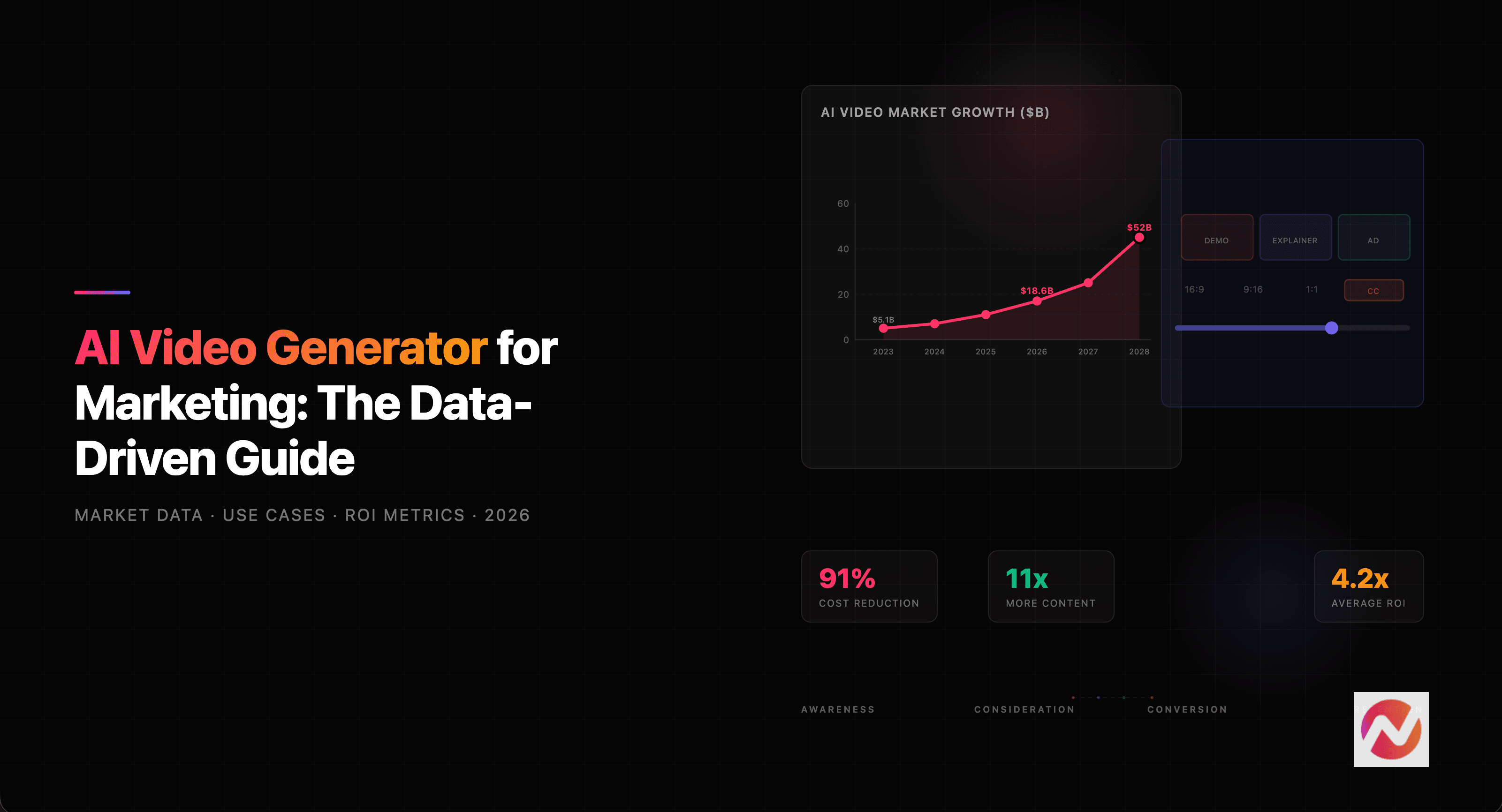
The global AI video generator market is projected to grow from $847 million in 2026 to $3.35 billion by 2034, a compound annual growth rate of 18.8%, according to Fortune Business Insights. Other estimates are even more aggressive, with Market.us projecting the broader AI video market to hit $71.5 billion by 2030.
North America currently leads with 41% market share, and content creation accounts for 55-60% of all AI video usage (Grand View Research). That means the majority of AI video activity is exactly what you'd use an explainer video maker for: turning ideas into visual content.
Here's how the AI video generator market is expected to grow over the next several years:
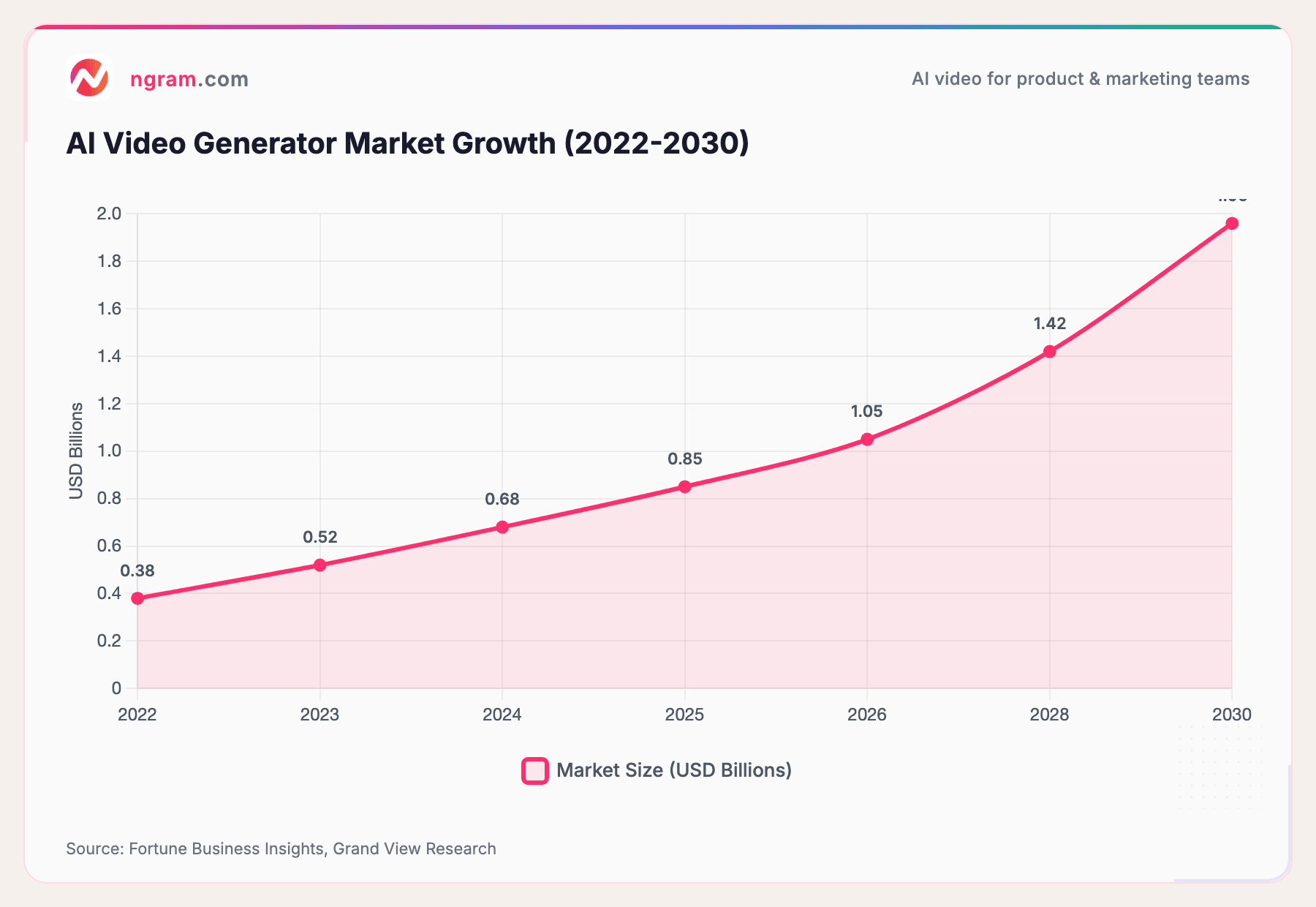
Source: Fortune Business Insights, Grand View Research
The trajectory is clear: AI video creation is moving from "nice to have" to standard operating procedure for marketing, product, and sales teams.
The 9 Best AI Explainer Video Makers in 2026
We reviewed each tool against the same 60- to 90-second product-explainer job, using current product documentation, pricing, workflow boundaries, and visible examples. Here is how they differ.
1. ngram
Best for: Teams that need polished, on-brand explainer videos from any starting material
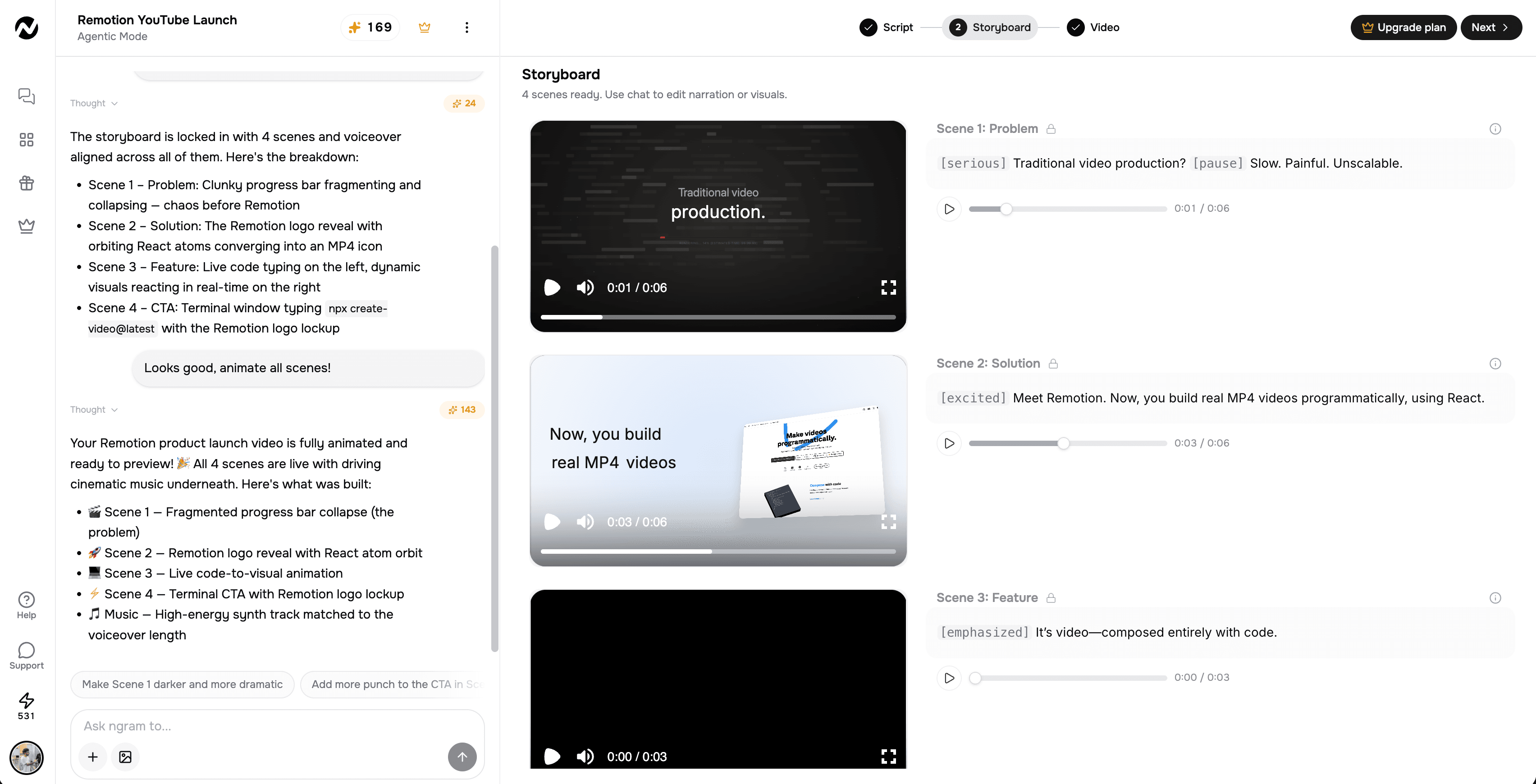
ngram takes a different approach from most AI video makers. Instead of starting with a template or an avatar, you start with what you already have - a document, a URL, screenshots, or a screen recording - and tell ngram who the video is for, what it should accomplish, and where it's going.
From there, ngram generates a script and storyboard first, so you can review the plan before any rendering happens. This is where most AI tools stumble: they jump straight to output without letting you steer the narrative.
Key strengths for explainer videos:
- Any-asset input - Start from docs, PDFs, URLs, screenshots, or screen recordings
- Script-first workflow - Review and edit the narrative structure before generating visuals
- AI voiceover built in, with natural-sounding narration
- AI-generated visuals fill gaps where your assets don't cover the story
- Brand kit support - Fonts, colors, logos, intro/outro applied automatically
- MP4 export - 16:9, 9:16, 1:1 with captions included
- Multilingual - AI voiceover and burned-in captions can be translated into many languages, with avatar/talking-head lip sync that matches the translated narration
ngram supports source-aware script generation from product documents and provides a full timeline editor for direct control after the draft.
Pricing: See pricing
2. Synthesia
Best for: Avatar-based corporate training and L&D explainer videos
Synthesia has built a strong reputation for AI avatar videos. You type a script, pick from 240+ digital presenters, and the platform generates a talking-head video with lip-synced narration in 160+ languages.
For corporate explainers - onboarding walkthroughs, compliance training, internal comms - Synthesia is hard to beat. The avatars look professional, and the multilingual support is genuinely useful for global teams.
The limitation? Synthesia is primarily an avatar platform. If your explainer needs motion graphics, screen recordings, or complex visual storytelling, you'll need to supplement it with other tools.
Pricing: Free tier available. Starter from $18/month (annual), Creator from $64/month (annual). Enterprise pricing is custom.
3. InVideo AI
Best for: Quick social media explainers with stock footage
InVideo AI has carved out a strong position with 25M+ users across 190 countries.
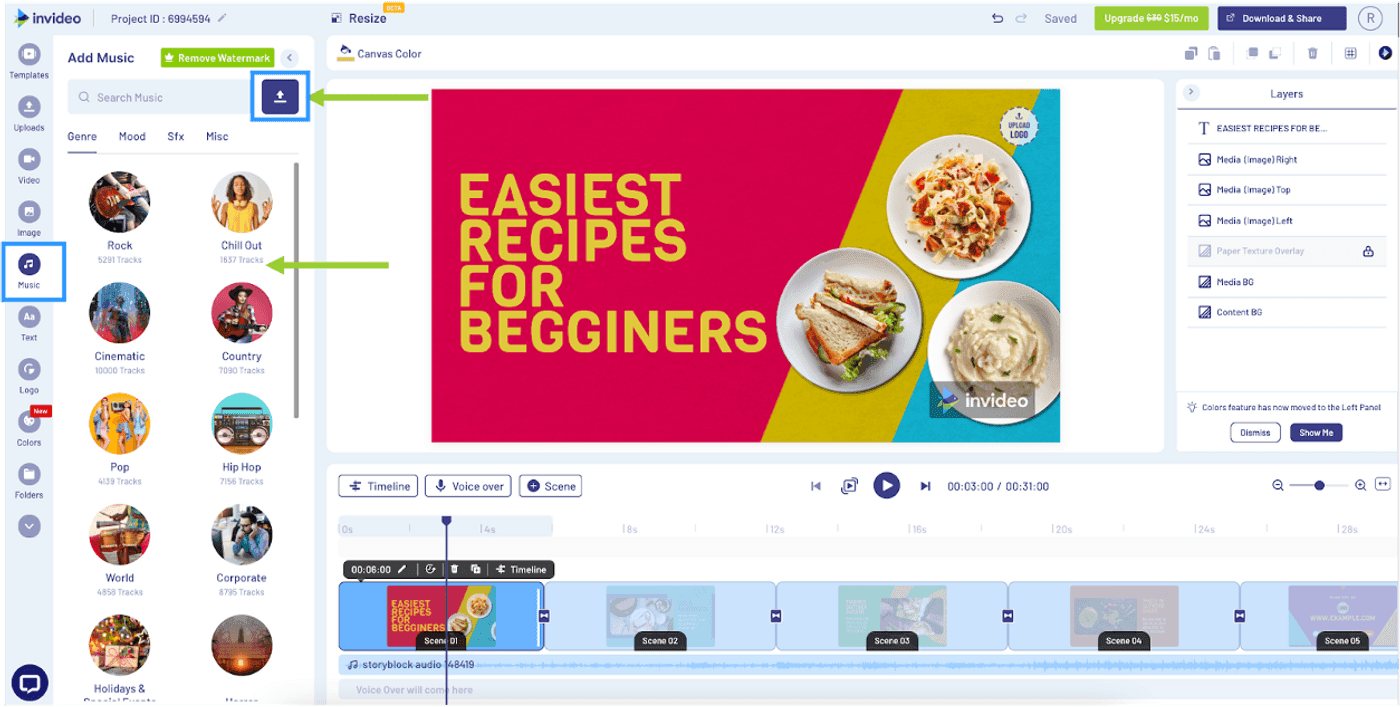
The workflow is simple: describe your explainer video idea in a prompt, add details about characters and visual style, and the AI generates a complete video with stock footage, voiceover, subtitles, and background music.
InVideo works well for short social media explainers where speed matters more than deep customization. The stock footage library (powered by partnerships with iStock, Storyblocks, and Shutterstock) is massive, and the AI does a reasonable job of matching visuals to your script.
Where InVideo falls short is precision editing. If you need to fine-tune individual scenes, adjust pacing at the frame level, or integrate your own assets heavily, the workflow can feel limiting.
Pricing: Free tier. Business from $25/month. Unlimited from $60/month.
4. Pictory
Best for: AI-powered presentation repurposing
Pictory turns PPT and PPTX presentations into editable video storyboards. It can use speaker notes for narration, then lets teams refine individual scenes with AI voiceovers, captions, visuals, avatars, music, and brand customization. Brand Kits keep logos, fonts, and colors consistent across a video program.
Limitation: Pictory is designed to transform presentations into video rather than preserve complex slide animations or provide pixel-level editing.
Pricing: A 14-day free trial is available. Starter is $25 per month when billed annually, Professional is $35, and the Team plan is $119. Pricing checked September 3, 2026.
Verdict: Pick Pictory when the goal is to repurpose an existing presentation into a polished, branded video quickly rather than simply record or export the original slides.
Evidence: Pictory's official PPT-to-Video workflow, Text-to-Video, AI Video Editor, Brand Kits, AI voiceovers, visuals, captions, and avatars.
5. Canva
Best for: Non-designers who need simple, template-based explainer videos
Key strengths: Enormous template library, zero learning curve, works with existing Canva assets Key limitations: AI features are basic, no script generation, limited voiceover options
Canva's video maker isn't AI-first
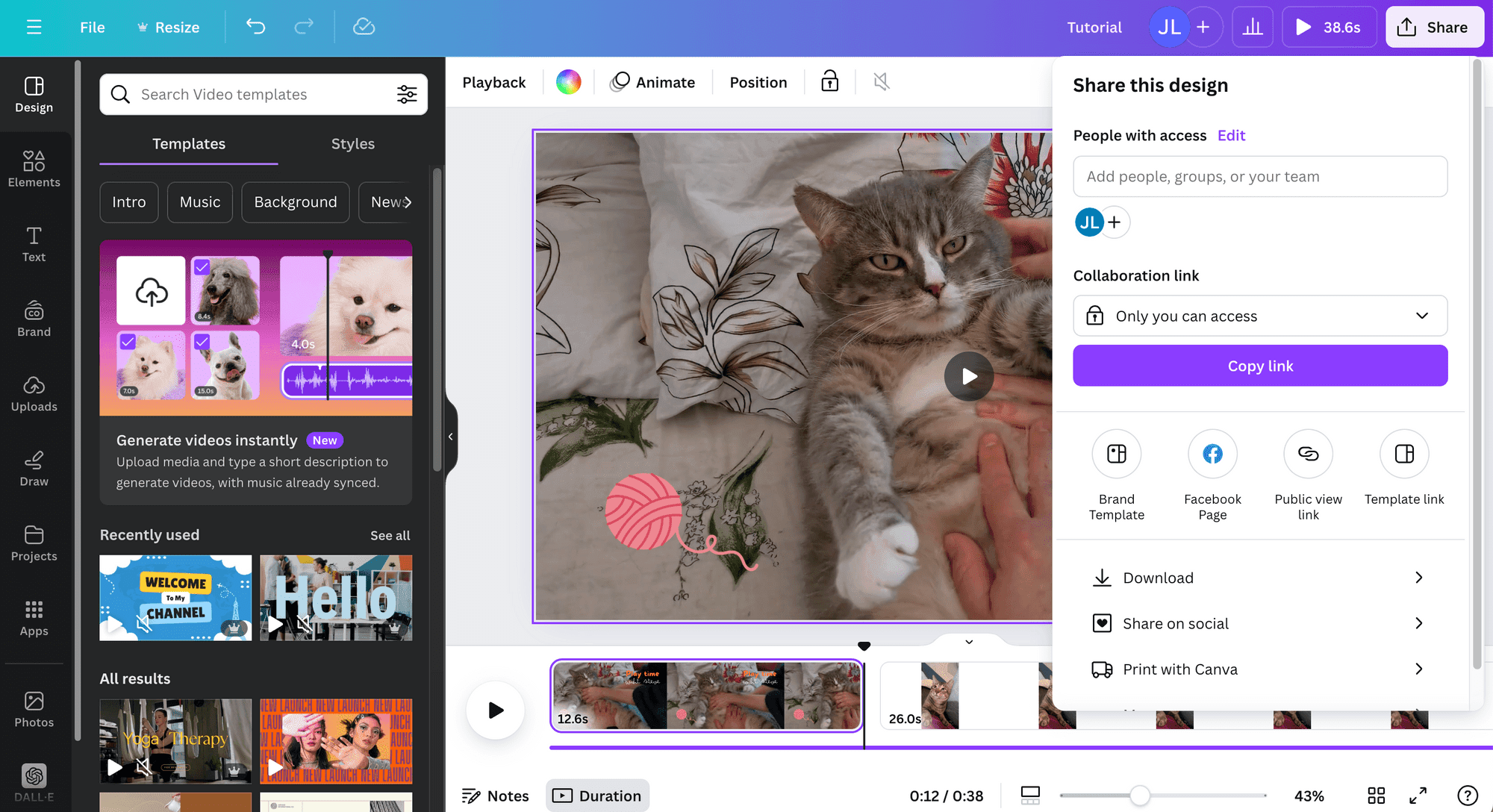
, but it's added enough AI features to be a viable option for basic explainer videos. The template library is enormous, the drag-and-drop editor is intuitive, and millions of free stock assets are available.
For teams already using Canva for design work, the video maker is a natural extension. The learning curve is almost zero. But don't expect the AI to do heavy lifting - Canva's AI assists with things like background removal and text suggestions, not full video generation from a prompt.
Pricing: Free tier. Pro from $13/month.
6. Animaker
Best for: Animated character-driven explainer videos
Animaker is a dedicated animation platform used by Fortune 500 teams and solo marketers alike. It offers a character builder, 100M+ stock media assets, and a drag-and-drop animation editor.
If you want a classic animated explainer video with custom characters, Animaker is one of the more accessible options. The character customization is deeper than most competitors, and the animation presets make it easy to add professional motion without being an animator.
The trade-off: Animaker is template-driven. Creating something that doesn't fit their templates requires significantly more effort.
Pricing: Free tier. Basic from $8/month. Professional from $15/month.
7. Powtoon
Best for: Business presentations that need to feel more like videos
Key strengths: Strong animation templates, presentation-to-video conversion, character library Key limitations: Dated interface compared to newer tools, limited AI capabilities, higher price point
Powtoon sits at the intersection of presentations and animated videos. Their AI suite includes hundreds of professionally designed templates, and the editor makes it easy to add characters, icons, and transitions.
Powtoon shines when you need to turn a business presentation into a shareable explainer. The output looks more polished than a slide deck but requires less effort than a full animation tool.
Pricing: Free tier. Lite from $15/month. Professional from $40/month.
8. Fliki
Best for: Text-to-video explainers with high-quality AI voiceover
Fliki focuses on turning text into video with lifelike voiceovers. With 2,000+ AI voices in 80+ languages, the voiceover quality is a genuine differentiator. You can paste a blog post, script, or article and get a narrated video back.
Fliki's text-to-video approach works well for content repurposing - turning blog posts into video explainers, for example. The voice options are impressive, and the AI does a decent job of selecting relevant stock footage.
Pricing: Free tier (5 minutes/month). Standard from $21/month. Premium from $66/month.
9. Steve.AI
Best for: Fast, story-driven short explainers
Key strengths: Fastest time-to-first-video, enforces short-form best practices, large template library Key limitations: Less customization depth, limited to template styles, basic branding controls
Steve.AI focuses on speed and simplicity. Paste your script, and the AI generates a video using over 1,000 templates and a library of animated assets. The platform is built to keep videos in the high-retention 60-90 second range.
Steve.AI works best for teams that need to produce explainer content at volume - quick social clips, internal updates, customer education snippets. For longer or more complex explainers, the limited customization options can be a constraint.
Pricing: Free tier. Basic from $20/month. Starter from $60/month.
Looking for a tool that handles everything? ngram turns your raw content - docs, recordings, screenshots - into polished, on-brand explainer videos in minutes. Try ngram
AI Explainer Video Makers: Feature Comparison
Here's how the nine tools stack up across the features that matter most for explainer video creation:
| Tool | AI Script Generation | Avatar Support | Animation | Voiceover | Brand Kit | MP4 Export | Free Tier |
|---|---|---|---|---|---|---|---|
| ngram | Yes | Yes | Yes | Yes | Yes | Yes | View pricing |
| Synthesia | No | Yes (240+) | Limited | Yes | Yes | Yes | Limited |
| InVideo AI | Yes | Yes | Limited | Yes | Limited | Yes | Yes |
| Pictory | Yes | Yes | Limited | Yes | Yes | Yes* | Free trial* |
| Canva | Limited | No | Limited | No | Yes | Yes | Yes |
| Animaker | No | No | Yes | Yes | Limited | Yes | Yes |
| Powtoon | Limited | No | Yes | Limited | Limited | Yes | Yes |
| Fliki | Limited | No | Limited | Yes (2000+) | No | Yes | Yes |
| Steve.AI | Yes | No | Yes | Yes | No | Yes | Yes |
*Pictory offers a 14-day trial rather than a permanent free tier; export allowances vary by plan.
| Tool | Input Flexibility | Script Quality | Visual Quality | Customization | Export Options | Speed |
|---|---|---|---|---|---|---|
| ngram | Good | Good | Good | Good | Good | Good |
| Synthesia | Fair | Good | Good | Good | Fair | Good |
| InVideo AI | Fair | Good | Fair | Fair | Good | Good |
| Pictory | Good | Good | Good | Good | Fair | Good |
| Canva | Fair | Limited | Fair | Good | Fair | Good |
| Animaker | Fair | Fair | Good | Good | Fair | Fair |
| Powtoon | Limited | Fair | Fair | Good | Fair | Fair |
| Fliki | Fair | Good | Fair | Limited | Fair | Good |
| Steve.AI | Limited | Fair | Fair | Limited | Limited | Good |
How Much Do AI Explainer Videos Cost?
One of the biggest reasons teams switch to AI explainer video makers is cost. The difference between traditional production and AI-powered creation is staggering.
A typical freelance explainer video costs between $1,500 and $7,000, depending on complexity, animation style, and revision rounds. Agencies charge $15,000 to $50,000+ per minute for polished explainer content, according to industry research.
AI tools? Most offer monthly subscriptions between $15 and $90, and many have free tiers that let you produce your first videos at zero cost. That's a 97-99% cost reduction for teams producing explainer videos regularly.
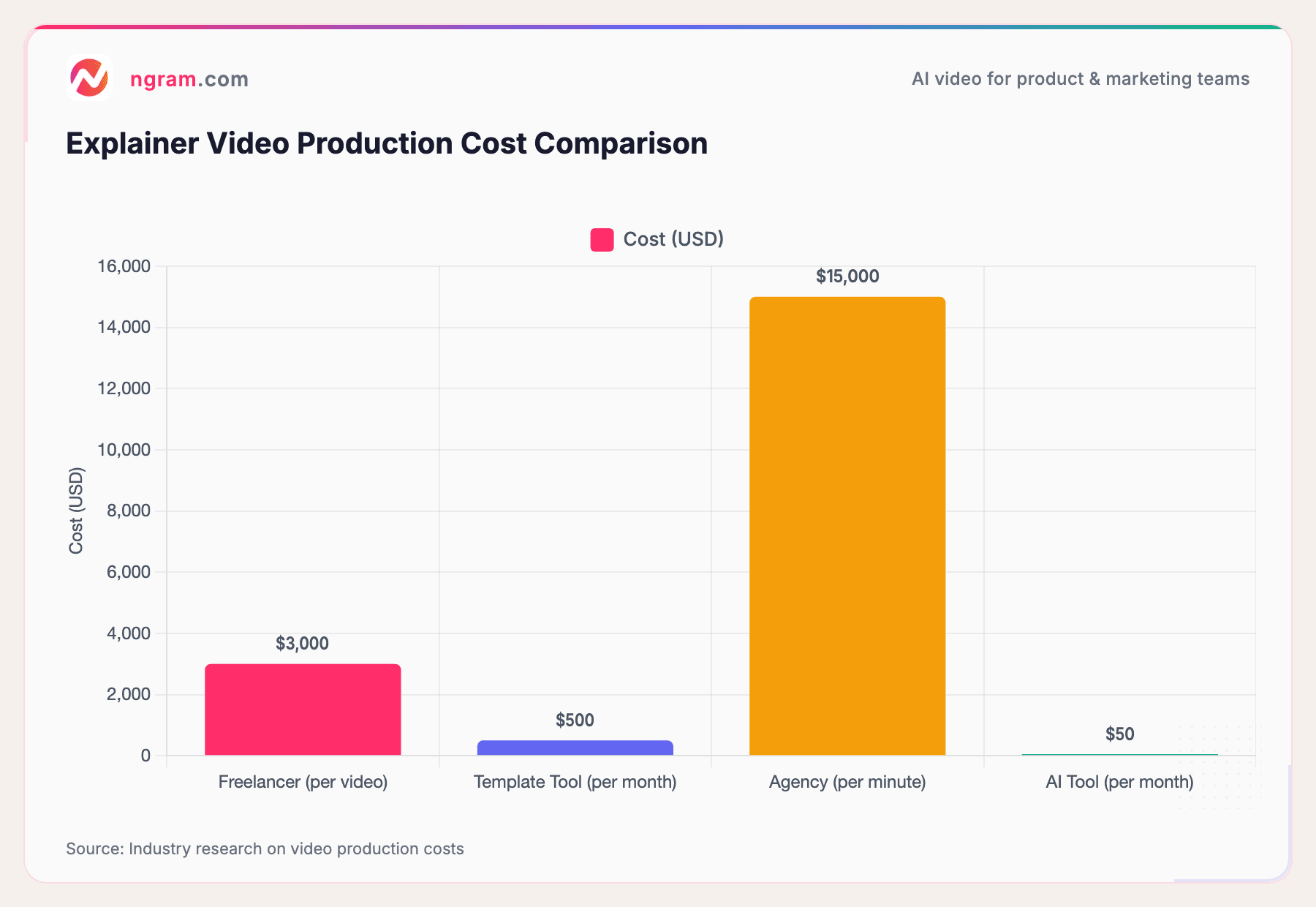
Source: Industry research on video production costs
The math is simple. If your team produces even two explainer videos a month, AI tools pay for themselves on day one compared to any traditional production method.
| Tool | Free Tier | Starter Plan | Best For (Price Range) |
|---|---|---|---|
| ngram | Current plans | View pricing | Source-aware business video workflow |
| Canva | Yes | Pro from $15/mo | Budget template-based |
| InVideo AI | Yes | Plus from $25/mo | Mid-range text-to-video |
| Pictory | 14-day trial | Starter from $25/mo annual | Presentation-to-video |
| Animaker | Yes | Basic from $20/mo | Animation-first teams |
| Fliki | Yes | Standard from $28/mo | Quick text-to-video |
| Synthesia | Yes | Starter from $29/mo | Avatar-based corporate |
| Powtoon | Yes | Pro from $50/mo | Presentation-style video |
| Steve.AI | Yes | Basic from $20/mo | Fast short explainers |
| Dimension | Traditional Production | AI Tools |
|---|---|---|
| Cost | $1,500-$50,000+ | $15-$90/mo subscription |
| Turnaround | 2-6 weeks | Minutes to hours |
| Revisions | 2-3 rounds, days per round | Unlimited, instant |
| Team Required | Scriptwriter, animator, voiceover, editor | 1 person with AI tool |
How to Create an AI Explainer Video (Step by Step)
Regardless of which tool you choose, high-converting explainer videos follow a consistent process. Here's how to get it right.
Step 1: Define your audience and goal
Before touching any tool, answer three questions: Who is watching this? What should they understand when it's done? Where will it be published? A LinkedIn explainer for product managers looks very different from a TikTok clip for end users.
Step 2: Write (or generate) the script
This is the most important step. A polished video with a weak script is still a weak video.
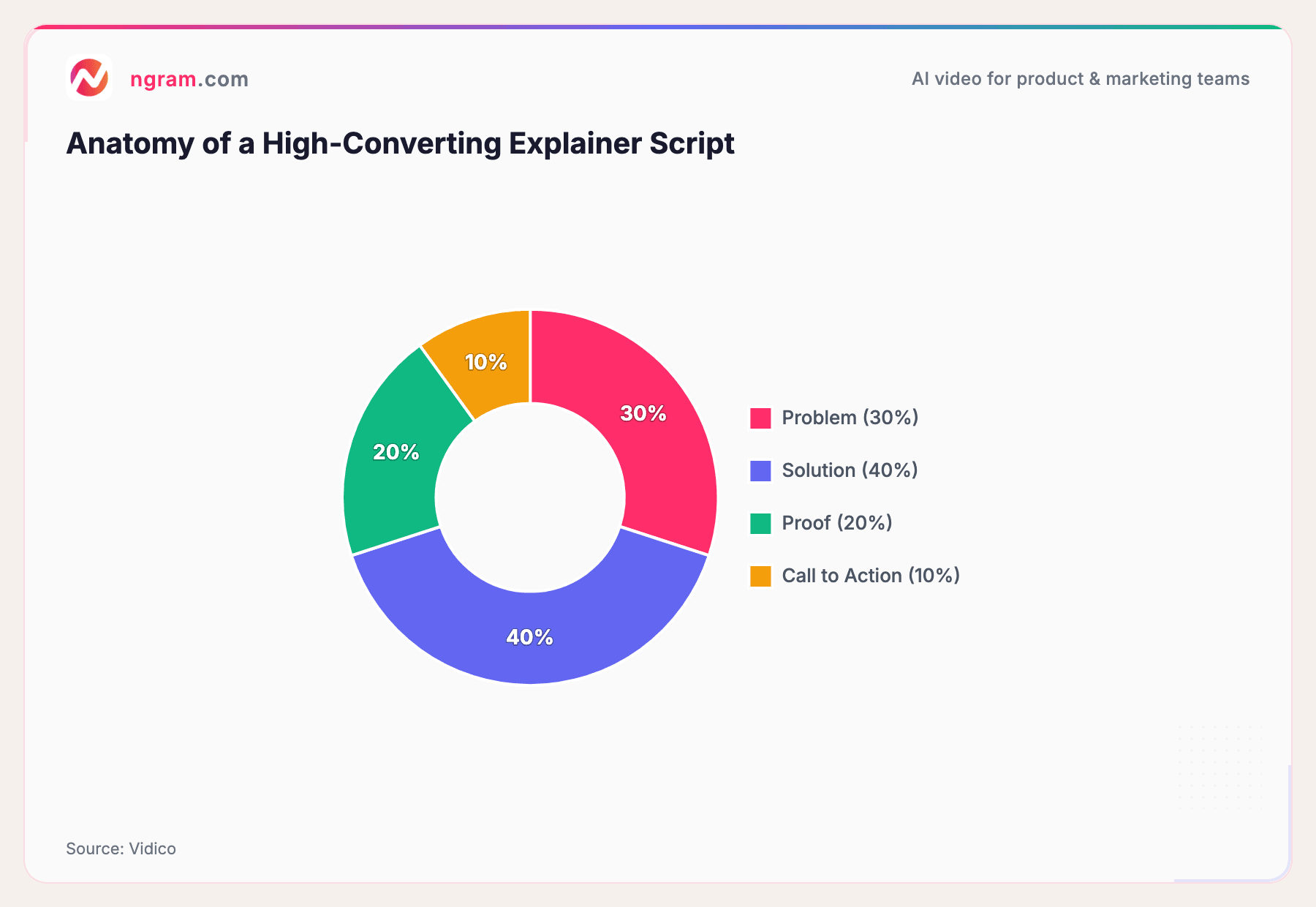
The most effective explainer video scripts follow a proven structure, according to Vidico:
Source: Vidico
Spend 30% on the problem (make the viewer nod along), 40% on the solution (show how it works), 20% on proof (social proof, results, data), and 10% on a clear call to action.
Plan for roughly 150 words per minute of final video. A 60-second explainer needs about 140-160 words. A 90-second video needs 210-230 words.
Step 3: Add your assets
Feed the AI tool whatever you have: screenshots, product docs, a URL, or a screen recording. Tools like ngram with motion graphics capabilities will fill visual gaps automatically, generating supporting visuals where your assets don't cover the story.
Step 4: Review and refine
Never publish the first draft. Watch the video through your audience's eyes. Does the hook land in the first 10 seconds? Is the pacing right? Does every scene advance the story? Most AI tools let you swap scenes, regenerate sections, or adjust timing.
Step 5: Export for the right channel
Different platforms need different formats. LinkedIn and YouTube prefer 16:9 horizontal. Instagram Reels and TikTok need 9:16 vertical. Email embeds often work best at 1:1 square. Export with captions on - they're not optional anymore.
Why Explainer Videos Convert: The Data
If you're still wondering whether investing in explainer videos is worth it, the data is pretty clear.
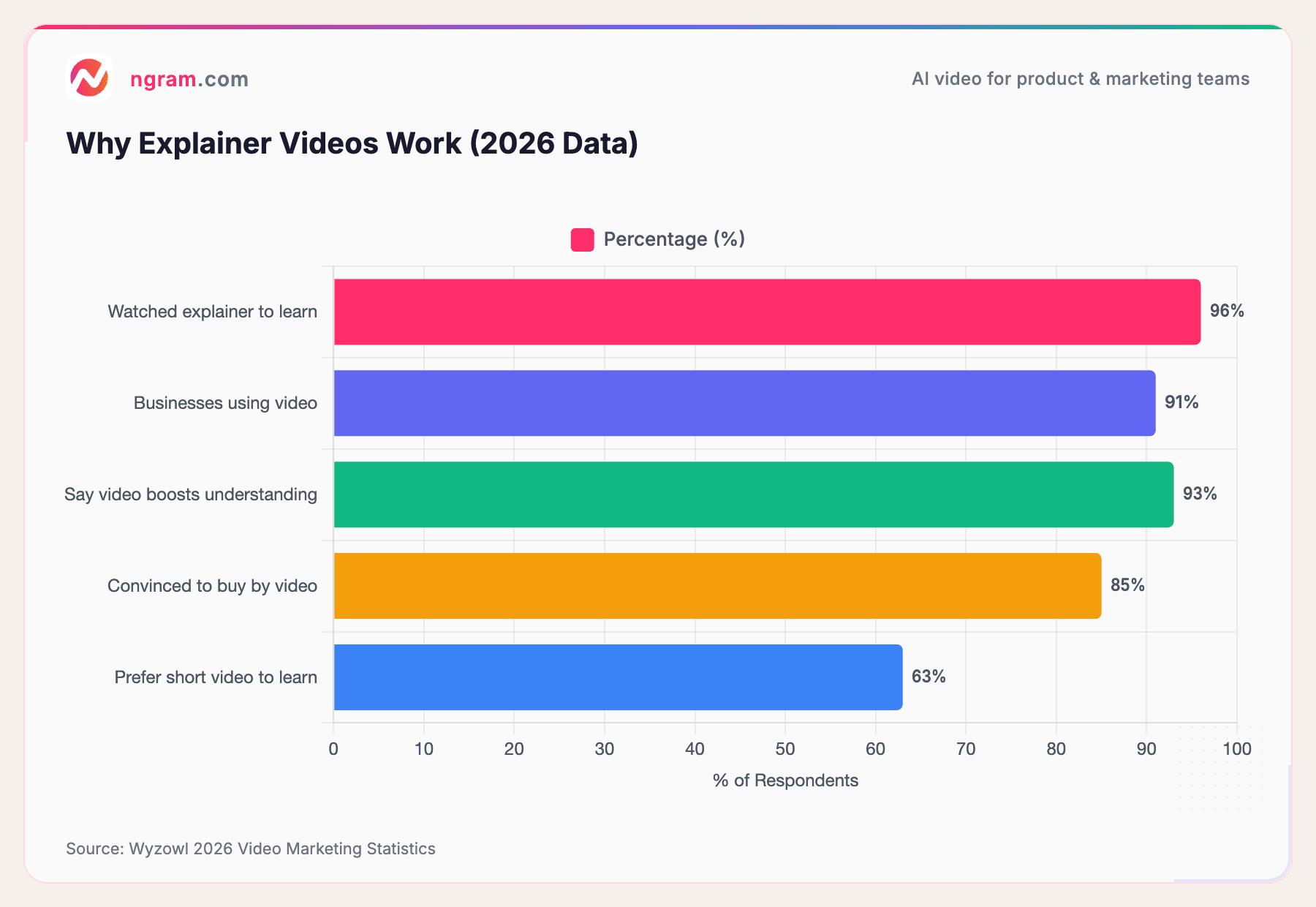
According to Wyzowl's 2026 Video Marketing Survey, 91% of businesses now use video as a marketing tool, and 93% of video marketers say video has increased user understanding of their product. Explainer videos specifically are created by 68% of video marketers, making them the second most popular video type after social media clips.
But the real story is in consumer behavior. When asked how they'd like to learn about a product, 63% of people say they'd prefer watching a short video over reading text, viewing an infographic, or attending a webinar.
Here's a snapshot of the key statistics:
Source: Wyzowl 2026 Video Marketing Statistics
The bottom line: explainer videos aren't just "nice to have." They're one of the highest-converting content formats available, and AI tools have removed the cost and time barriers that used to keep most teams from producing them.
Frequently Asked Questions
How long should an AI explainer video be?
The sweet spot is 60-90 seconds. Research consistently shows that viewer retention drops significantly after 90 seconds. Plan for about 150 words per minute of script. If your message takes longer than 90 seconds, consider breaking it into a series of shorter videos instead.
What is the best free AI explainer video maker?
Several competitors publish limited free tiers or demos, including avatar and template-led products such as Synthesia and Canva. Compare watermark, credit, export, and commercial-use limits on the live vendor pages, and use ngram's current pricing page for its plans.
Do explainer videos actually increase conversions?
Yes, and the data is consistent across multiple studies. Landing pages with explainer videos convert up to 86% higher than those without, according to marketing research. And 85% of consumers say they've been convinced to buy a product or service after watching a brand's video.
Can AI explainer video makers replace professional video production?
For many use cases, yes. AI tools excel at producing product demos, feature announcements, onboarding walkthroughs, and social media explainers at a fraction of the cost. Where traditional production still wins is in high-end brand campaigns, emotional storytelling, and content that requires live-action footage with real people on set.
How much does it cost to make an explainer video with AI?
AI explainer video tools range from free to about $90/month for premium plans. Compare that to $1,500-$7,000 for a single freelance explainer or $15,000+ per minute from an agency. For teams producing multiple videos per month, AI tools offer 97-99% cost savings over traditional methods.
What types of explainer videos can AI tools create?
| Type | Examples | Best For |
|---|---|---|
| Animated | Animaker, Powtoon | Concept explanations, product overviews |
| Avatar-Based | Synthesia | Training, corporate comms |
| Screencast | ngram | Product walkthroughs, tutorials |
| Text-to-Video | InVideo, Fliki | Quick social content, repurposing blogs |
| Presentation-to-Video | Pictory | Training decks, presentation repurposing |
Most AI explainer video makers support animated explainers (2D animation, motion graphics), avatar-based presenter videos, screencast tutorials with smart editing, text-to-video conversions, or presentation repurposing. Some tools specialize in one format, while platforms like ngram handle video creation from one workspace.
Wrapping Up
The AI explainer video maker landscape in 2026 is crowded, but the tools are genuinely good. Whether you need avatar-based corporate training videos, animated product explainers, or quick social clips, there's a tool that fits.
Our recommendation: start with your use case, not the tool. If you need on-brand videos from existing content with a script-first workflow, give ngram a try. If you need talking-head avatars for training, Synthesia is solid. If you want speed and simplicity for social content, InVideo AI delivers. If the source is an existing presentation, Pictory provides a more focused deck-to-video workflow.
The best explainer video is the one that gets made - and with these AI tools, the barrier to making great ones has never been lower.