

A SaaS explainer video should help a buyer understand one workflow and decide whether it fits their job. Build it from current product facts and real screens, review what the script promises, then check a small update before publishing. The workflow below includes a production brief you can adapt and a specific example of a closing revision.
The recurring job is a product launch or a changed feature: update the explanation when the product changes, while checking that the rest of the story is still accurate. A useful first version makes one workflow understandable; it does not need to cover your whole product.
If you are comparing software for making the video, use our AI explainer video maker comparison. This article focuses on your product story and its evidence.
Why SaaS teams use explainer videos
Here's why this matters right now. According to DemandSage's 2026 video marketing report, 89% of businesses now use video as a marketing tool, and 93% of those report a positive ROI. For SaaS companies specifically, the stakes are even higher: 96% of consumers have watched an explainer video to learn about a product or service, and 82% say a video has convinced them to buy.
How teams are adopting AI video
Before we dive into the how-to, it's worth understanding just how fast this space is growing. The AI video generator market alone hit $789 million in 2025 and is projected to reach $3.4 billion by 2033, according to Grand View Research. That's a 20.3% compound annual growth rate.
The numbers behind this growth tell a clear story.

Source: Grand View Research, Fortune Business Insights
The trajectory is steep for a reason. AI video generation volume grew 840% between January 2024 and January 2026, according to recent industry data. Monthly active users across AI video platforms surpassed 124 million in early 2026. And 78% of marketing teams now use AI-generated video in at least one campaign per quarter.
1. Define the buyer decision and one workflow
Write the decision in the viewer’s words: “Can I review the product story before generating the video?” gives you a clear sequence to show. Start with the problem the buyer recognizes, show how the product handles it, and finish with one appropriate next step. Avoid a tour of every menu.
Choose the right evidence for the promise. A real recording can show a sequence of clicks. Screenshots can establish exact labels and states, but do not prove how the transition happened. Animation can explain the concept or introduce a launch. Label an illustrative interface so a buyer does not mistake it for shipped software.
For the broader team use case, see video creation for SaaS teams.
2. Assemble a source pack that can survive review
- A short approved product description: the audience, problem, supported workflow and next action.
- Current screenshots or a recording: the starting state, key steps and outcome, with private customer data removed.
- Brand direction and pronunciation notes: the product name, exact feature labels and approved visual assets.
- A list of exclusions: planned features, unsupported integrations, unapproved customer claims and numbers that must not appear.
Choose a source owner and date the material. If an old screenshot disagrees with the current help article, resolve the difference before generation. Keep the original files so a reviewer can check each scene against the evidence.
3. Build a brief around current product screens
Use the brief below as a starting point: introduce the source, review the story, then explain a specific revision. The example follows a ngram workflow. Adapt the steps to your own product and attach current captures of the states you describe.
Starter prompt · adapt to current product captures
Create a polished 40-second, 16:9 product explainer for ngram, aimed at SaaS product marketers turning a product update into a video. Use current approved ngram captures of the brief composer, plan review and a revision request. This is a real-product demonstration, not an imaginary app. Title: "Your next product update, in motion."
SOURCE OF TRUTH Attach current captures of the brief composer, Script / Production details with Request changes / Approve plan, and a project preview with the revision workflow. Check them against the current product instructions. Preserve the real interface pixels and labels. Use them prominently, with intentional crops and camera moves. Do not redraw or hallucinate the UI, simulate unrecorded clicks, or treat a video visible inside a screenshot as this video’s output.
Verified workflow: enter a brief and attach sources; review Script and Production details; approve the plan; watch the preview; request revisions in chat or Make changes; review the new version; prepare and download an MP4. Do not promise fixed generation speed, perfect preservation, or enterprise controls.
CREATIVE DIRECTION Premium, considered SaaS product film. Strong opening and pacing, cohesive art direction, beautiful readable screen close-ups. White and near-black canvas, black/white typography, ngram pink-to-amber accent used sparingly. Onest-style clean type, normal/medium weight, generous negative space. A few purposeful typographic transitions and controlled spatial movement, not a slideshow of generic text cards.
No stock people, avatar, generic footage, fake dashboard, floating decorative shapes, cluttered icon grids, or wall of small text. Actual screenshot details should be readable: crop to the relevant area rather than keeping every screen as a tiny full-window thumbnail. Hold important states long enough to understand. Use discreet soft shadows and clear hierarchy. Keep headings inside generous safe margins; no stacked overlays obscuring the product control being explained.
STORY / EDIT 0–5s: confident typographic hook, "Product updates move fast." followed by "Make the next one a video." with a brief glimpse of the real home composer as the transition.
5–12s: use the current brief-composer capture, reframed to the actual prompt field and source area. One concise label: "Start with the source."
12–20s: use the current plan-review capture, moving from the readable Script heading to the actual approval controls. One label: "Review before you render."
20–29s: use the current revision capture, cropped to the actual revision controls and chat. One label: "Ask for a specific change." Do not invent a before/after result or add fake UI text.
29–34s: clean authored transition connecting Brief → Review → Revise, retaining a real screen crop as the visual anchor. This is an explanatory graphic, not interactive UI.
34–40s: elegant closing on near-black with "ngram" wordmark text, headline "Create your next product video." and URL "ngram.com". Hold readable for at least 3 seconds.
VOICEOVER (warm, assured professional English narrator; natural delivery, clear diction; do not rush): "Product updates keep moving. Your video should keep up. In ngram, start with your brief and the source material behind it. Review the script and production details before you approve the plan. Watch the preview, then ask for a specific change in chat or with Make changes. Review the next version, check the details, and download the finished MP4. Create your next product video with ngram."
Use subtle instrumental music below the voice, no vocals, no distracting sound effects. Align meaningful visual beats with narration. No burnt-in paragraph captions over screenshots. Keep every factual claim within the source of truth. Show me the script and production plan for review before generating the final video.
Example revision request · check the actual scene and timing
Revise only the closing card at approximately 34–40 seconds, after checking its actual scene number and timing. Change the on-screen headline from 'Create your next product video.' to 'Bring your next product update.' Change only the final voiceover line from 'Create your next product video with ngram.' to 'Bring your next product update to life.' Use the same narrator and natural delivery.
Keep the existing ngram wordmark, ngram.com URL, near-black closing design, music, 40-second total duration, and all content, screenshots, narration and timing before the closing scene unchanged. The new final narration must fit the current closing scene and finish before the video ends.
This closing should emphasize the recurring product-update job. Generate a new version of this existing video; do not replace the source screenshots or rebuild earlier scenes.
The written workflow is documented in Create your first video. Check the current product instructions as well as the capture before writing a scene.
4. Approve the story before generating
In ngram Home, paste the brief and add the sources. Choose Create video, then inspect Script and Production details. Request changes if the plan invents a feature or misrepresents a screen. Approve plan once the facts and proposed presentation are acceptable.
Before generating, inspect the plan for the same thing: each scene should show the part of the product your viewer needs to understand. If the plan focuses on an irrelevant control or preview, request a tighter crop and clearer explanation.
5. Request one update and inspect what stayed the same
A focused closing revision might change “Create your next product video.” to “Bring your next product update.” and end the narration with “Bring your next product update to life.” The example revision request above specifies the change and the parts to preserve.
- The ending: check that “Bring your next product update.” is visible and the final narration says “Bring your next product update to life.”
- The earlier scenes: compare the opening, real screenshots, control labels, narration and timing against the original.
- The closing design: check the ngram wordmark, URL, near-black treatment and music.
- The delivery: listen to the new line, check that it finishes before the video ends, and watch the whole revised result for unintended changes.
Watch the revised output alongside the first draft. Check the ending and the earlier scenes, then ask for another correction if needed. Use Versions to view or download previous outputs.
Choose the length and captions for your audience
In Wyzowl's 2024 survey, as reported by CIFFT, 39% of marketers rated 30-60 seconds as the most effective video length, while 28% chose 1-2 minutes. These are marketers' opinions about video generally, rather than measured results for SaaS explainers.
For a focused SaaS introduction, start with 60-90 seconds. Use that as a drafting target, then adjust to fit the explanation and test what helps your audience take the next step.
- Captions: Add accurate captions so viewers can follow the narration with the sound off. Check product names and technical terms before publishing.
6. Export and keep the release evidence together
Check captions deliberately. New ngram outputs start with captions off, and caption controls need a caption track. Review the product name and feature labels in captions against the approved script. Listen for pronunciation and check that any music does not obscure the explanation.
Download the final MP4 after rendering completes. A preview may play while the download still says Preparing download. Open the exported file, watch the revised ending, and check sound and text at the size your audience will see. Export a separate checked version for a different channel or aspect ratio.
Keep the source version, script, approved export and revision request together. When the product changes, identify the affected scenes and repeat the source comparison. Do not keep an old feature claim merely because the surrounding video still looks good.
Compare production costs and timelines
This is the question every SaaS team faces. The answer depends on your budget, timeline, and how much control you want. Let's look at the real numbers.
The chart below shows average cost per finished 60-90 second saas explainer video by production method.

Source: YumYum Videos, Gisteo, Advids
Cost is only half the picture. The other critical factor is time. Here's how turnaround compares across methods.

Source: Gisteo, SimplyExplainer, Zelios Agency
Here's how each approach stacks up in practice:
DIY Template Tools ($25-100/mo): Platforms like Canva or Biteable give you templates and a drag-and-drop editor. Turnaround is fast (hours to days), but the output often looks generic. You still have to do the creative thinking - structure, pacing, story. Works for teams with design skills and simple products.
Freelancer ($1,000-3,500/video): A skilled freelancer handles script, animation, and production. Quality varies widely, and the coordination overhead is real. Each revision cycle adds days. According to Blue Carrot's pricing guide, overseas freelancers can be 40-70% cheaper, but communication becomes harder.
Agency ($5,000-25,000/video): Professional saas explainer video production with a full team. The output is polished, but timelines run 4-8 weeks and costs scale quickly. A 12-video annual package with an agency typically runs $50,000-75,000 according to Motionvillee.
AI-Powered Tools ($20-500/mo):
Choose a plan around the actual task
Check current pricing and generation allowances before starting. Free includes 1,000 credits per month, public video sharing and website embeds. Downloading video files requires a paid plan. Generation and revisions may consume credits; paid-plan downloads do not consume credits.
Leave room in your budget for revisions. The source material, generated scenes and number of versions affect how many credits you use.
What to measure after publishing

Source: DemandSage / Wyzowl State of Video Marketing 2026
Those numbers are impressive across the board. But not every video drives these results. Here's what separates high-performing saas explainer videos from forgettable ones.
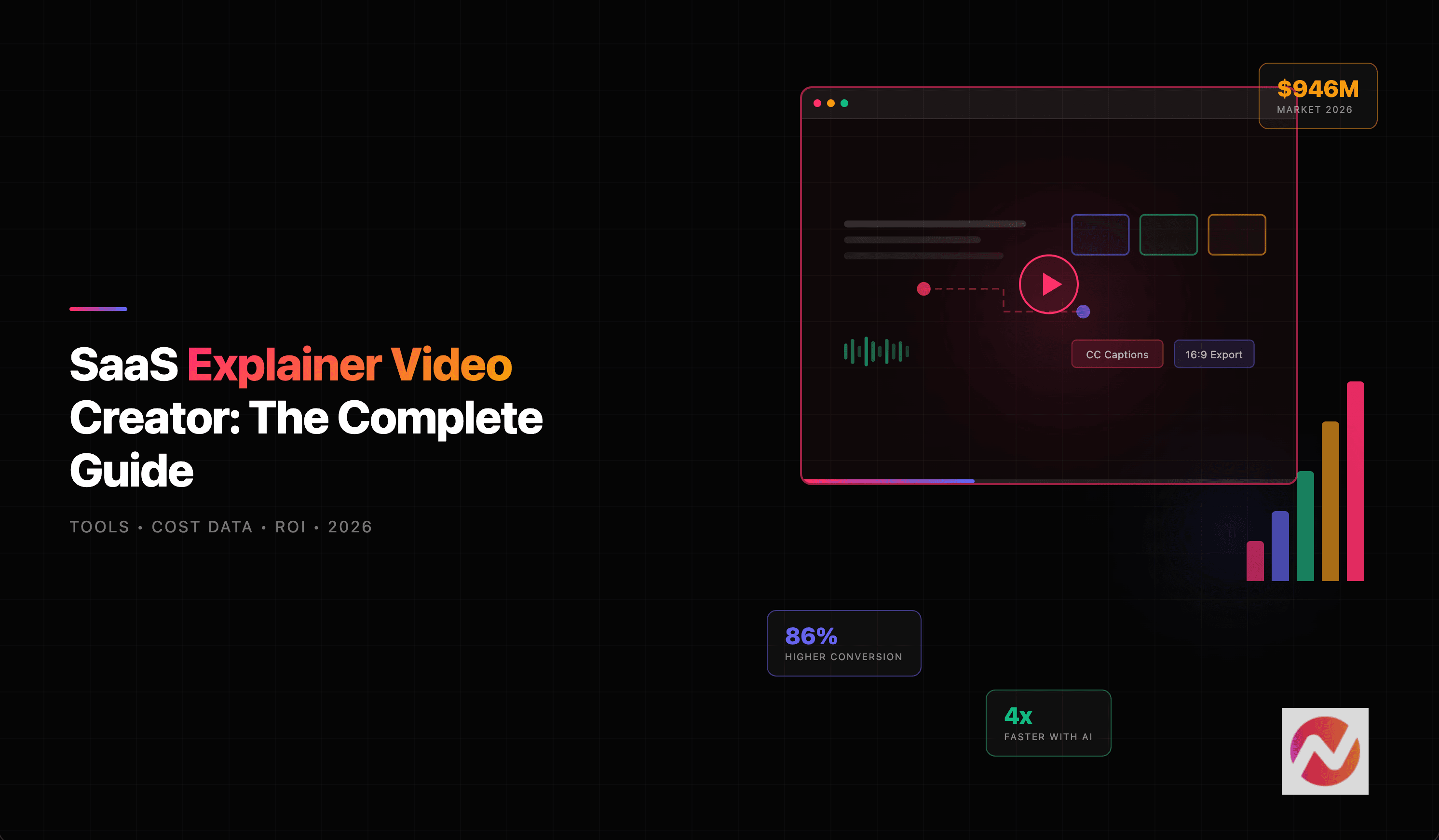
The conversion data is compelling. According to Loopex Digital's 2026 video marketing statistics, landing pages with video see 86% higher conversion rates compared to pages without video. Sites using video also see 41% more qualified leads and 157% more organic search traffic.
But headline stats only matter if you're tracking the right metrics for your specific goals. Here's what to measure:
Top-of-Funnel Metrics
- View count and play rate: Are people actually clicking play? A low play rate means your thumbnail or placement needs work.
- Watch-through rate: What percentage watch to the end? Drop-off at the 10-second mark means your hook is weak. Drop-off at 30 seconds means the middle section drags.
Mid-Funnel Metrics
- Click-through rate: After watching, do viewers take the next step? This is the direct measure of your CTA's effectiveness.
- Time on page: Pages with video should see meaningfully higher dwell time. According to DemandSage, 82% of marketers say video increased their website dwell time.
Bottom-Funnel Metrics
- Conversion rate lift: Compare landing pages with video against those without. Run A/B tests to isolate the video's impact.
- Support ticket reduction: Explainer videos in help centers and onboarding flows reduce support volume. Track ticket counts before and after adding video.
The data strongly says yes. Landing pages with video see 86% higher conversion rates compared to pages without video, according to multiple studies. Additionally, 91% of marketers report that video has directly increased sales, and 88% say video has effectively generated leads (DemandSage, 2026). The key is placing videos strategically - homepage hero sections, feature landing pages, and pricing pages tend to see the biggest conversion lifts.
Measure the decision the video supports
Measure whether the video helps visitors take the next step: starting a trial, booking a demo or becoming a customer. Compare the same audience and traffic sources before and after publishing.
Ask whether viewers can name the problem, recognize the supported workflow and understand the next step. If they cannot, revise the story or the proof before making more variants. Keep concurrent page and campaign changes in your notes so you do not assign all later results to the video.
Questions before you publish
Should I use animation or a screen recording? Use animation to explain a concept or introduce a launch. Use actual product captures when the claim depends on a real interface or action. A mixed video should make the distinction clear.
How long should a SaaS explainer be? Pick a duration that fits one buyer question and the destination. The starter brief uses 40 seconds; that is a creative choice, not a universal retention benchmark. Shorten repetition before removing a necessary step.
Can I reuse the full prompt? Yes. Replace the product facts, screenshots and closing invitation with your approved material. Keep the factual exclusions and review the generated plan. A request to preserve the rest of a video still needs a comparison of the actual outputs.
Create your SaaS explainer
Copy the starter prompt and gather current screenshots of your product, then open ngram. After signing in, paste the brief into Home, attach your permitted product material, and review the settings.